Once you've booked a coaching session, everything lives in your Graphy dashboard — your upcoming sessions, your programs, your progress, and (after each call) your recordings and notes. This article shows you how to get to your coaching dashboard and find your way around it.
Getting to Your Dashboard
Right after you complete a purchase, you'll be taken to log in to the creator's Graphy dashboard. Once you're in, open the Library > Coaching section from the icons in the left navigation bar — this is where all your coaching activity lives.
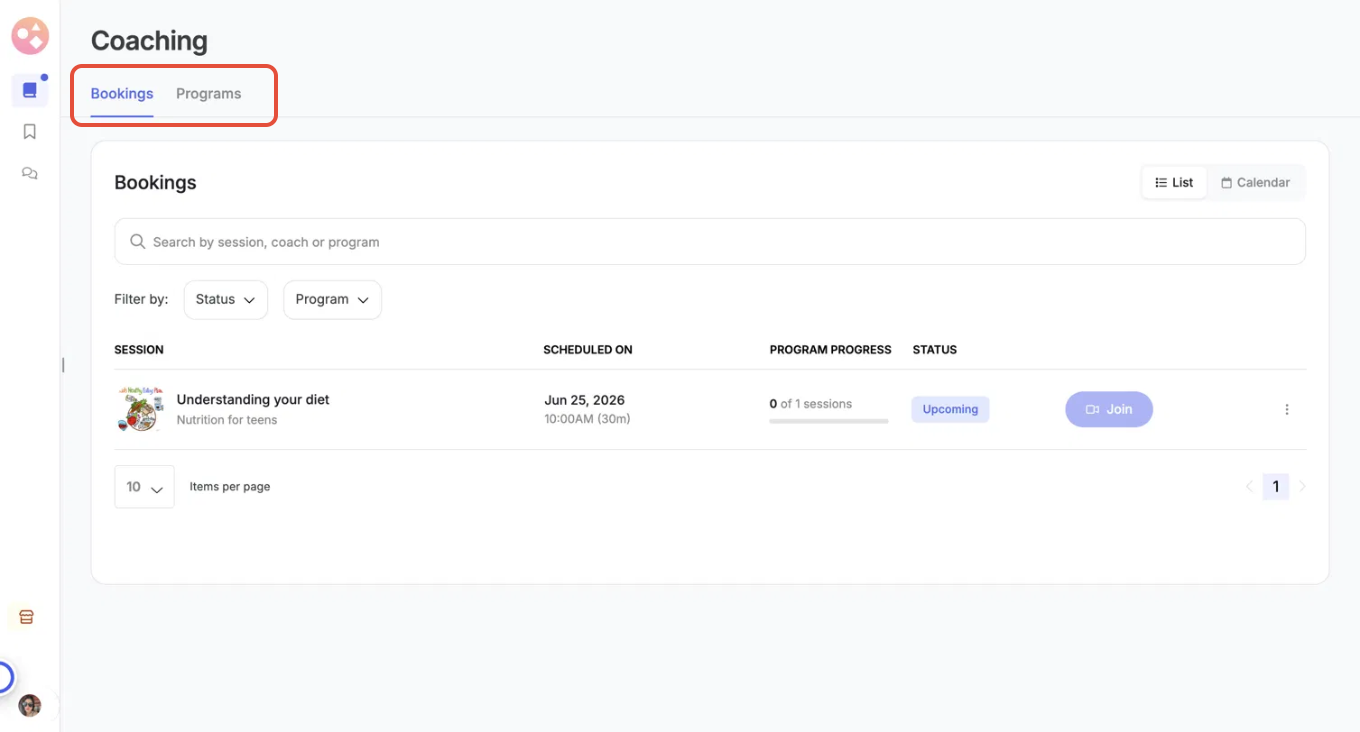
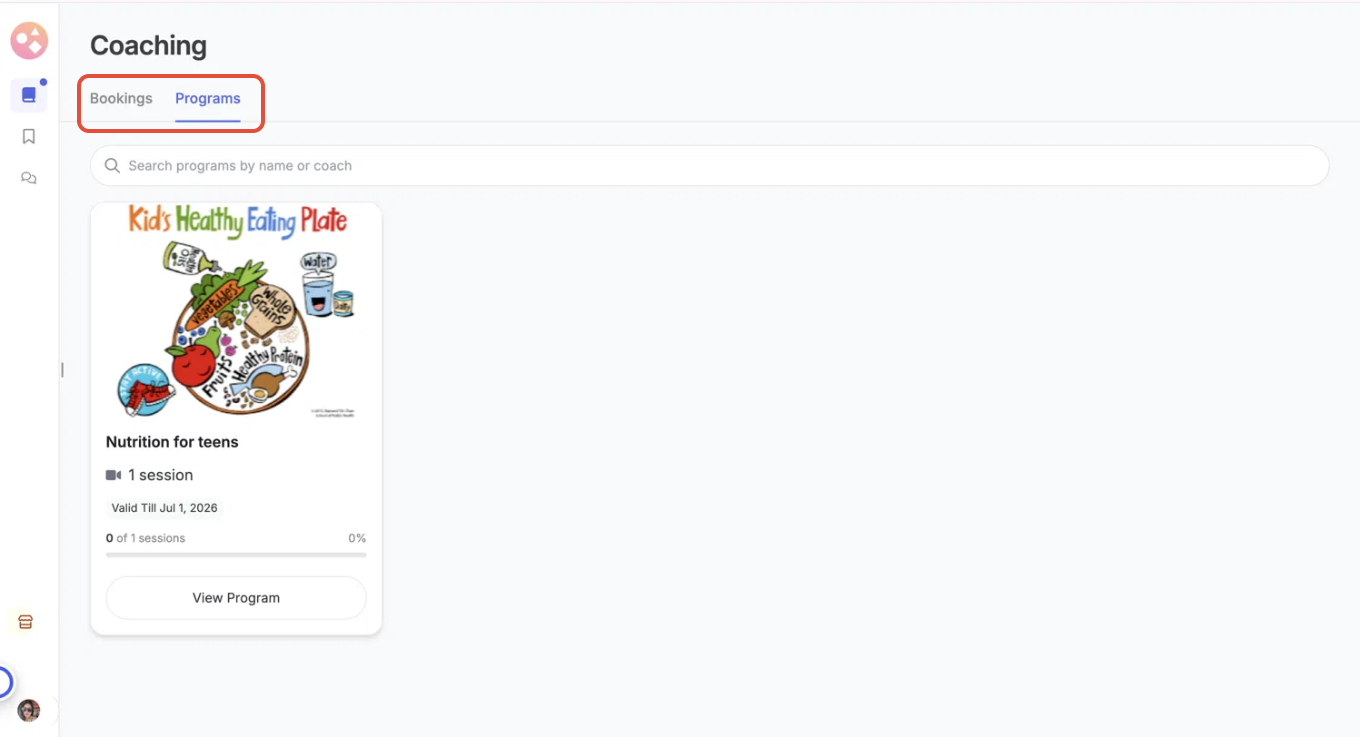
Inside Coaching, you'll see two tabs:
- Bookings — every individual session you've scheduled.
- Programs — the full coaching programs you've enrolled in, with your overall progress.
The Bookings Tab
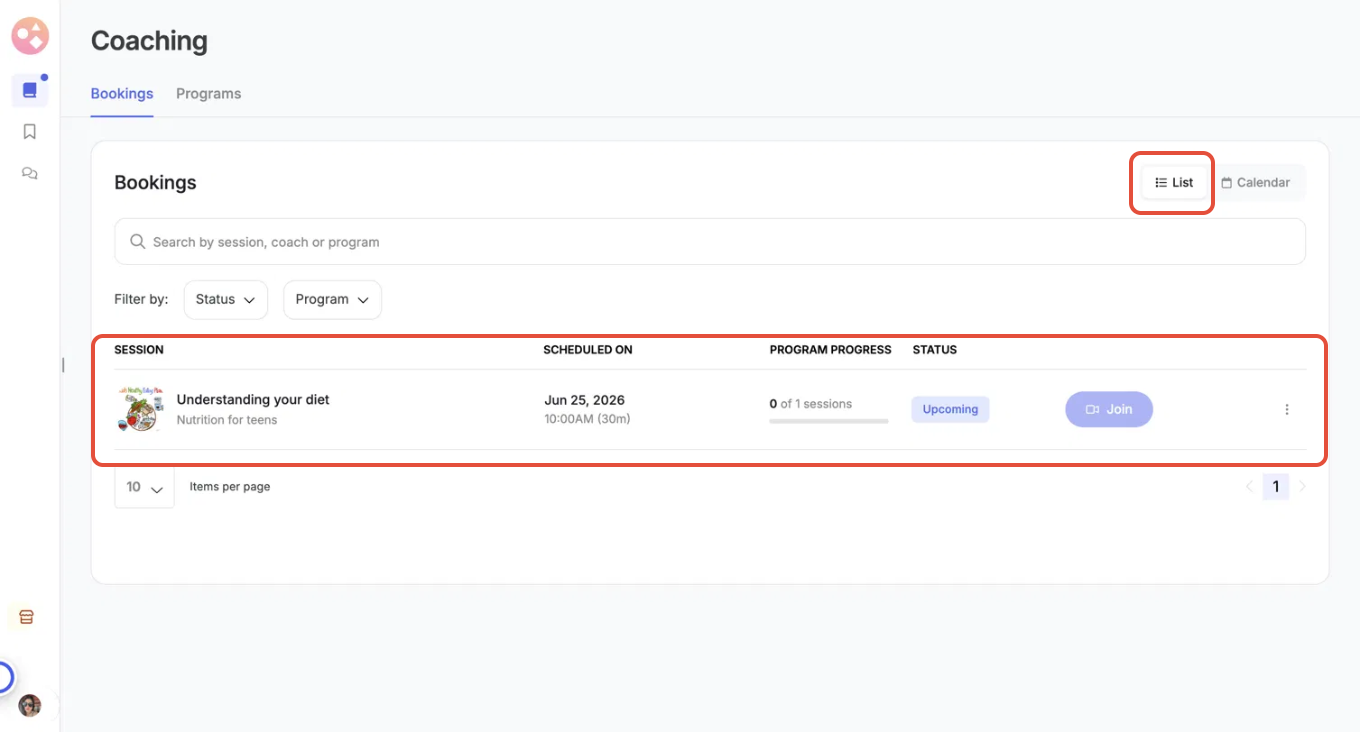
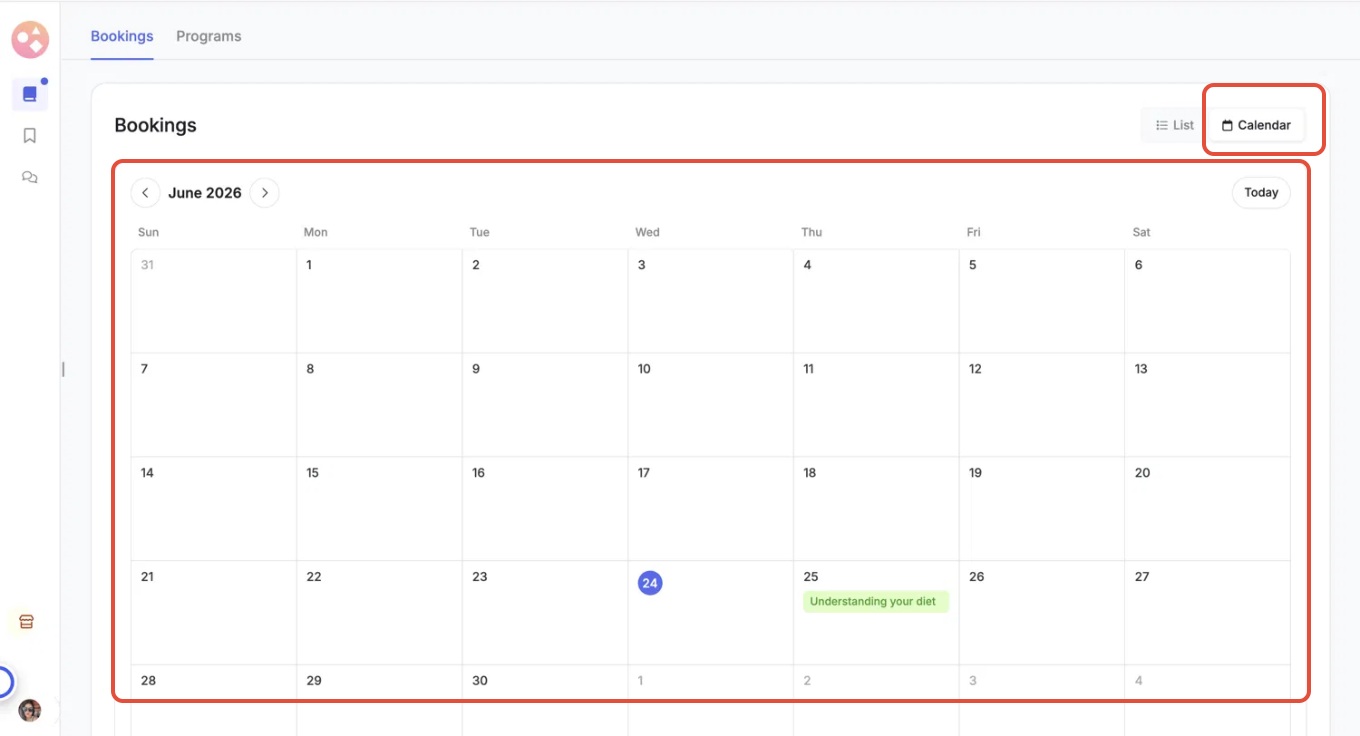
The Bookings tab lists each session you've booked. You can view it two ways using the List and Calendar toggle in the top-right corner.
List view
In List view, each booking shows the session name and its program, when it's scheduled on (date, time, and duration), your program progress (e.g. 0 of 1 sessions), and its status. When it's time, use the Join button to enter the session. You can also change how many bookings show per page.
Searching and filtering
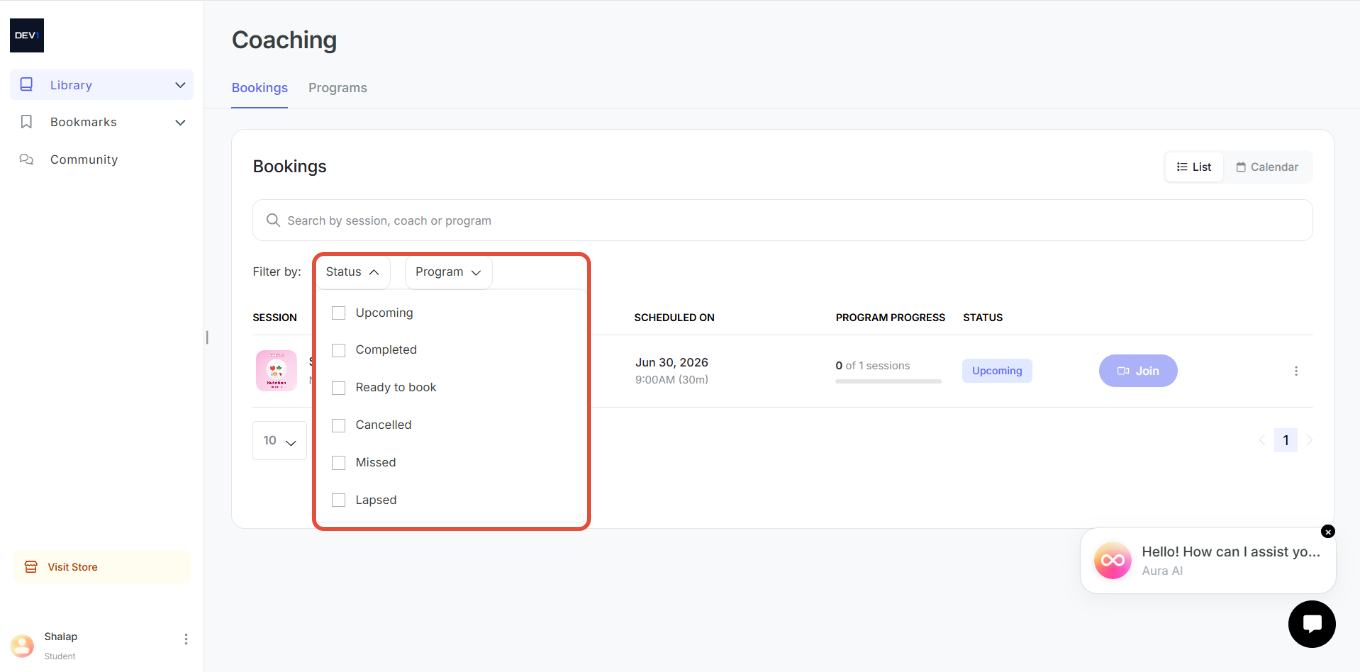
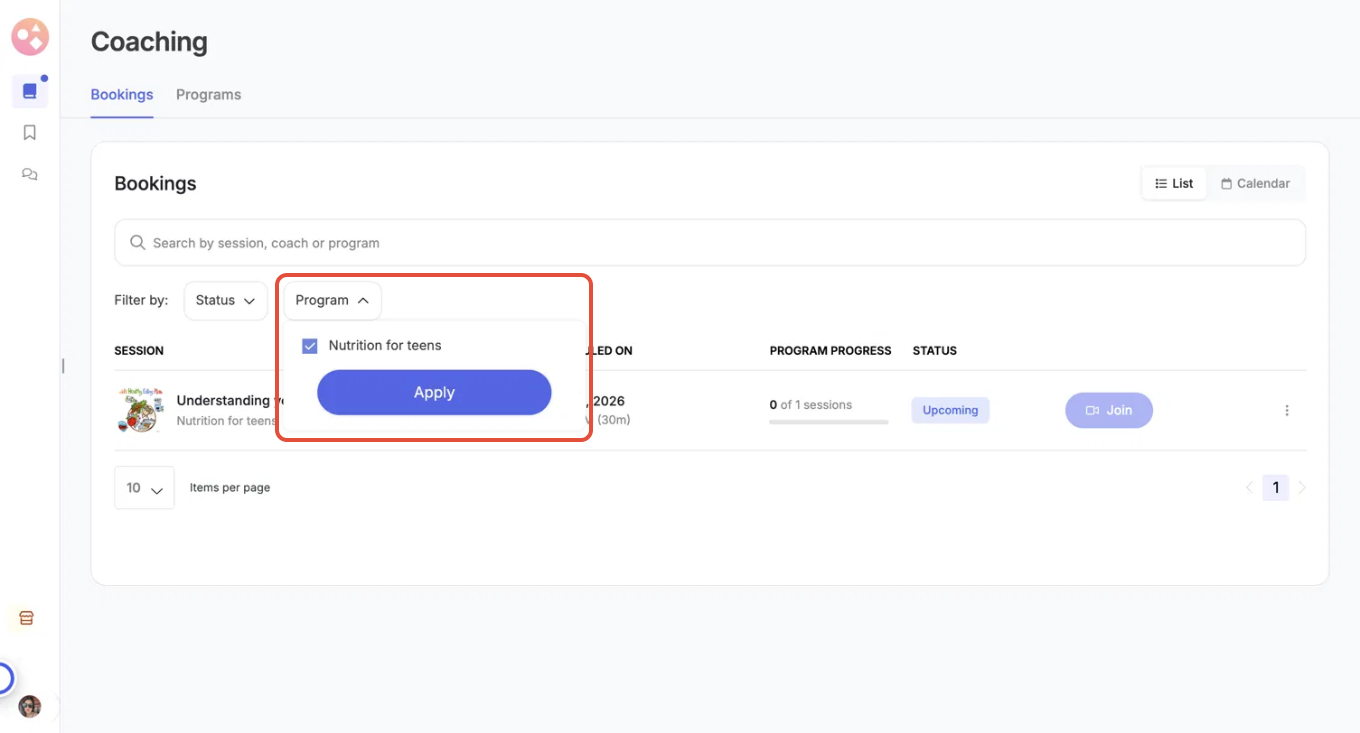
Use the Search by session, coach or program bar to find a specific booking. You can also narrow the list with two filters:
- Status — tick any combination of Upcoming, Completed, Ready to book, Cancelled, Missed, or Lapsed.
- Program — tick the program you want to see, then click Apply.
Calendar view
Switch to Calendar view to see your sessions laid out on a month grid. Use the arrows to move between months or click Today to jump back to the current date — your booked sessions appear as labelled events on their scheduled days.
Click any session in the calendar to open a quick summary showing its status, date and time, program, coach, and plan progress. From there you can Join the session or Close the summary.
The Programs Tab
The Programs tab shows the coaching programs you've enrolled in. Search for a program by name or coach, and each program card displays the number of sessions, how long your access is valid, and your overall progress through the program. Click View Program to open it.
Inside a Program
Opening a program gives you the full picture at the top in three cards:
- Program — the program name and where you are in it (e.g. In progress).
- Sessions — how many sessions you've completed out of the total, with a progress bar and a count of upcoming sessions.
- Coach — the coach delivering your sessions.
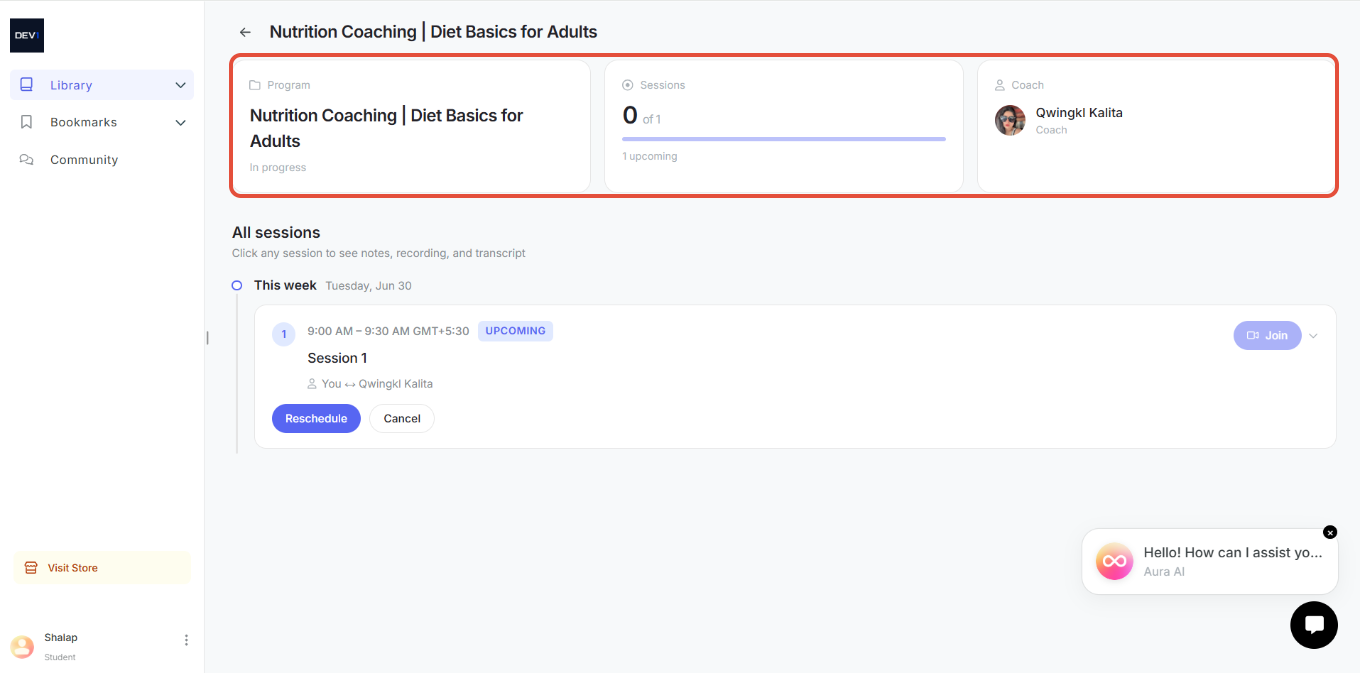
Below that, All sessions lays out your sessions on a timeline, grouped by day. Each session shows its time, status, name, and the people on the call. Use Join when it's time for the session, or the Reschedule and Cancel options to change your plans.
To reschedule or cancel a session, see [Rescheduling or Cancelling a Coaching Session | For Learners
Was this article helpful?
That’s Great!
Thank you for your feedback
Sorry! We couldn't be helpful
Thank you for your feedback
Feedback sent
We appreciate your effort and will try to fix the article