The library has been upgraded to help learners find, track, and resume learning across courses and packages, for a more intuitive experience. Here’s a complete walkthrough of what’s new and how to use it.
1. What is the Library?
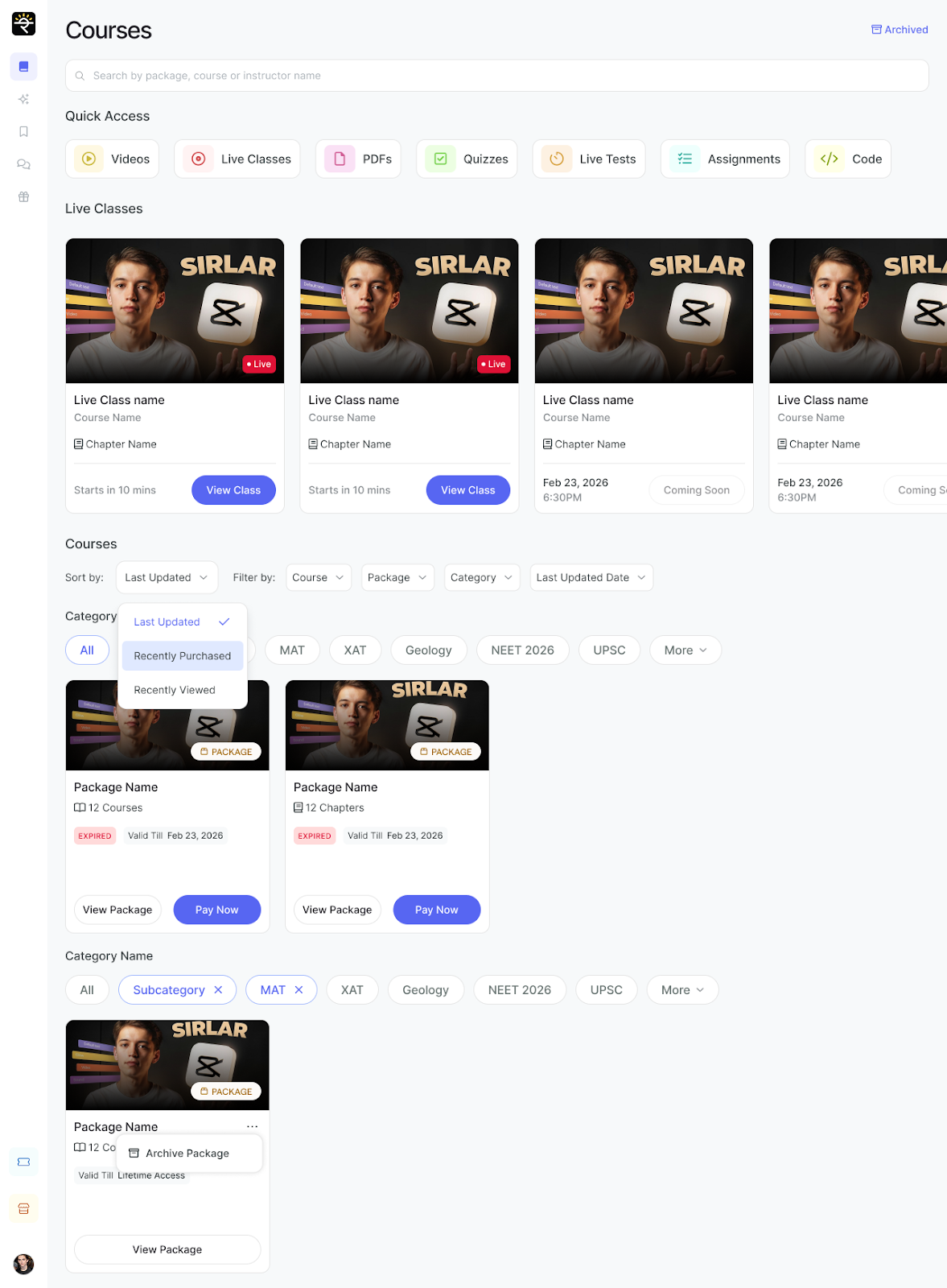
The Library is a learner's personal learning hub- a single place that shows every course and package learners are enrolled in. Instead of searching through multiple places, everything is organised and surfaced for learners automatically.
All enrolled courses and packages in one place in an organised way.
Progress across every course without opening it.
Filter with various options to shortlist and zero down on courses and packages.
Know which live classes are active, upcoming, or delayed at a glance.
Join live classes easily owing to better accessibility and notifications on main library page
Select courses and packages from various categories.
2. Quick Access Section
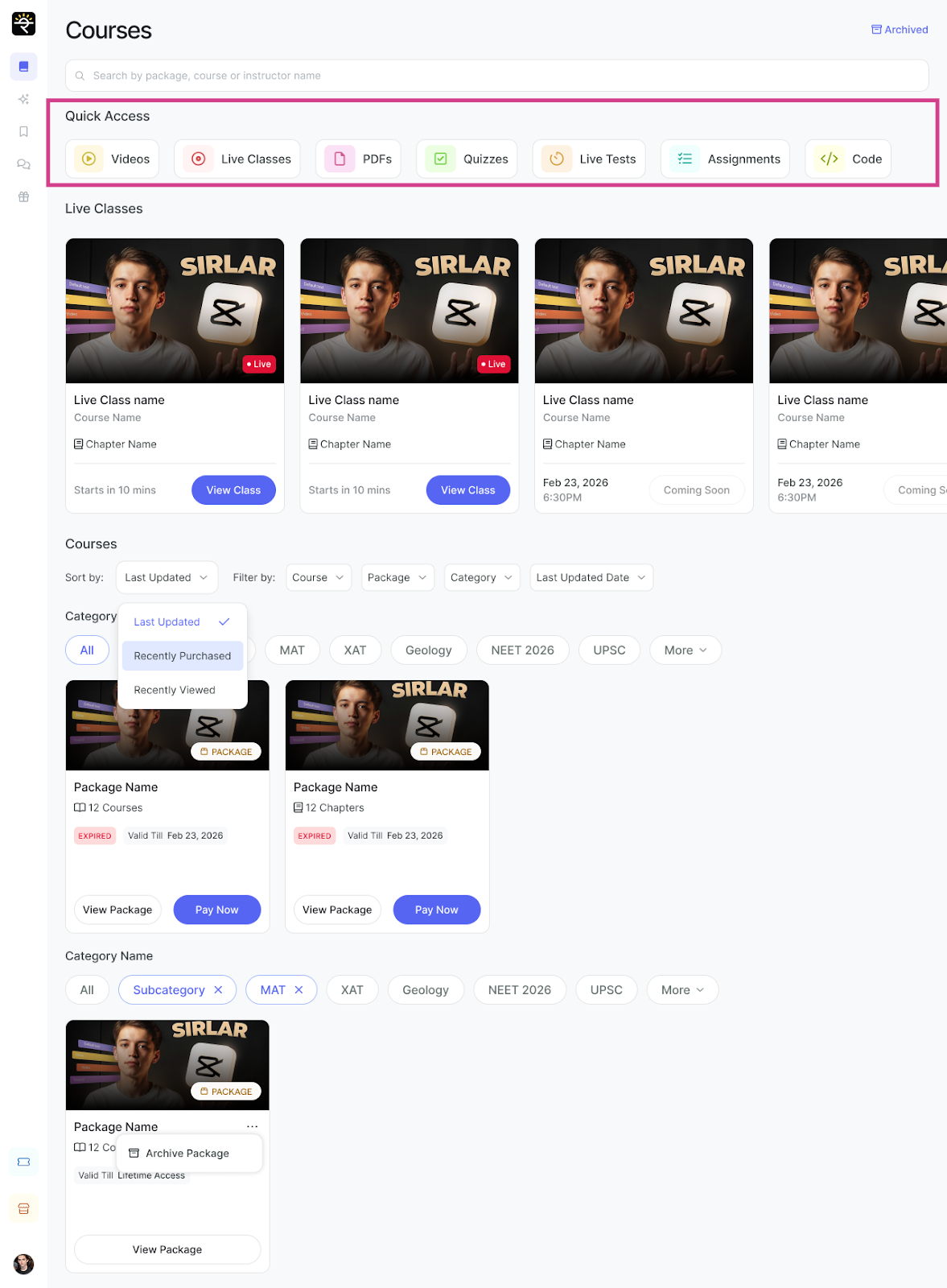
At the top of the Library, learners will find a Quick Access row. These are shortcuts to jump directly into a specific type of content across all enrolled courses, without having to open each course one by one.
Available Quick Access shortcuts include:
Videos
Live Classes
PDFs
Quizzes
Live Tests
Assignments
Code
Tap any shortcut to instantly see all content of that type across all learner courses.
3. Live Classes Section
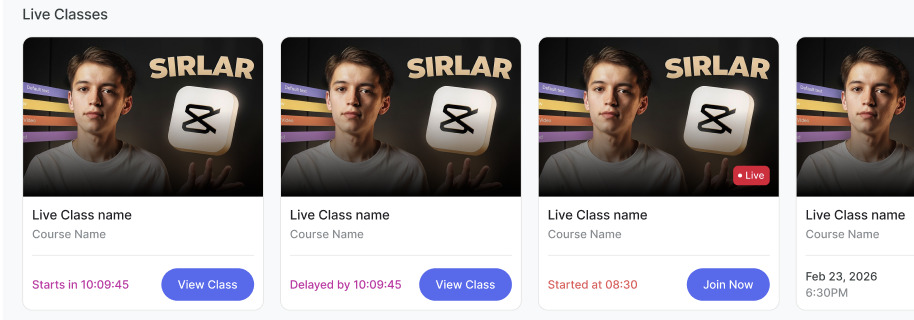
Just below Quick Access is the Live Classes section- a section of cards showing upcoming and ongoing sessions from enrolled courses. Each card will show the class name, which course it belongs to, and its current status.
4. Browse Courses & Packages
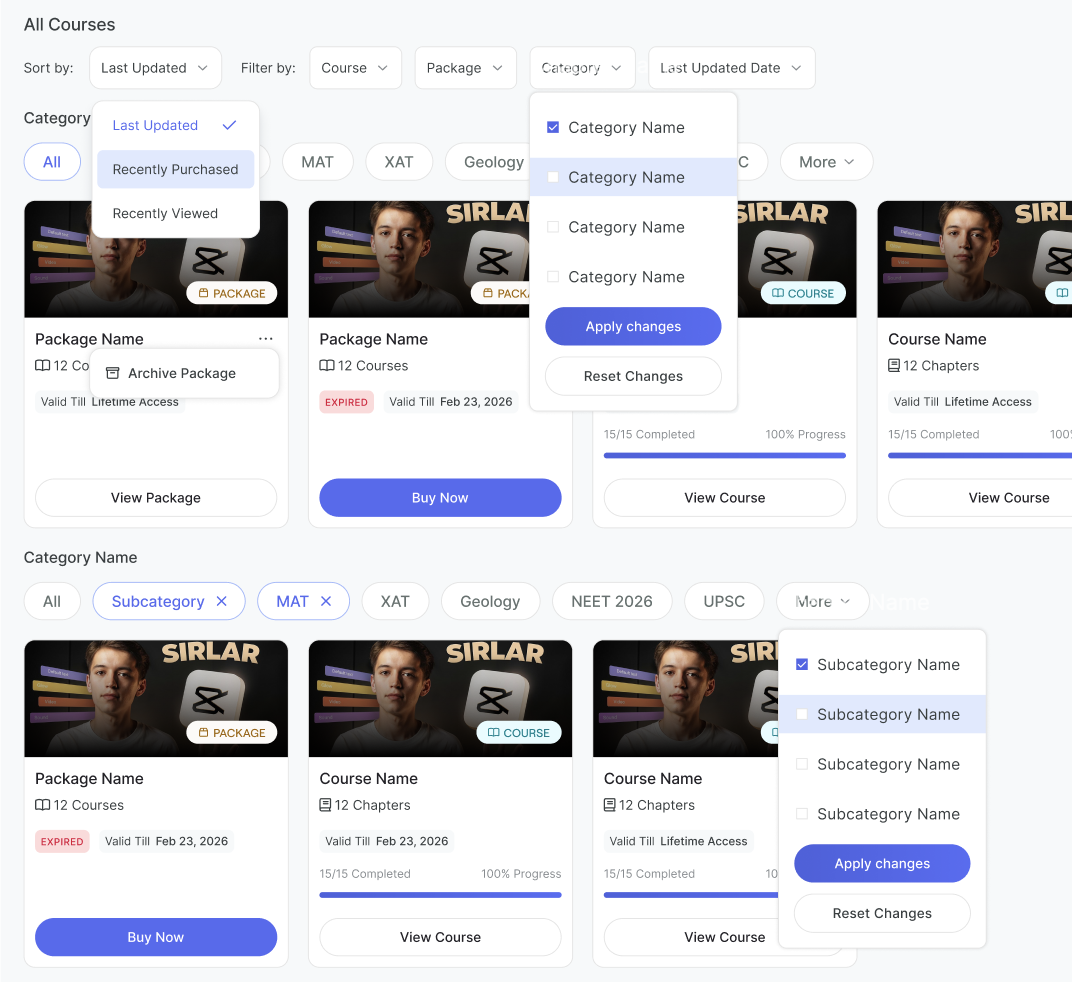
Below the live classes section, learners will find All Courses- a full list of everything learners are enrolled in. They may see two types of items:
? Package
A bundle of multiple courses sold together. It shows the number of courses inside (e.g. ‘12 Courses’), access validity, and a View Package button to explore everything inside.
? Course
A standalone course with its own chapters and content. It shows the number of chapters, access validity, and a View Course button to continue learning.
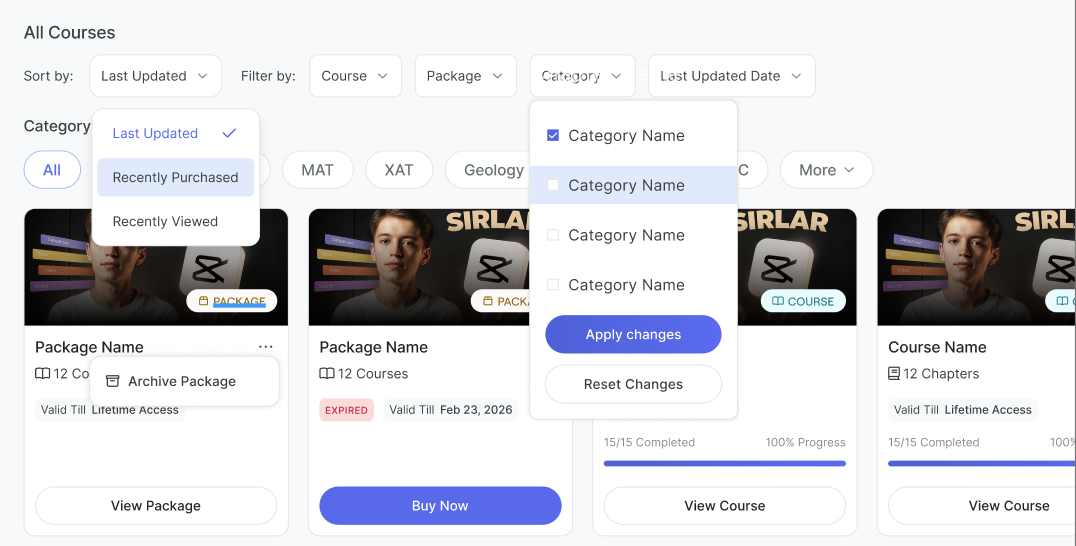
5. Using Filters & Sorting
When learners have many courses, the filter and sort bar helps learners zero in on exactly what they need.
Sort by
Controls the order in which their enrolled courses appear. Options include:
Last Updated- courses with the most recent new content appear first.
Recently Purchased- courses that were bought most recently appear first.
Recently Viewed- courses that were last opened appear at the top.
Filter by
Narrows down what’s shown. Learners can filter by:
Course / Package- show only individual courses or only packages.
Category- filter by subject or exam category (e.g. MAT, XAT, Geology, NEET 2026).
Last Updated Date- show only courses updated within a specific time range.
Category tabs
Below the filter bar, learners see horizontal tabs for each subject category their courses belong to. Tap any tab to quickly see only courses in that subject. They can select multiple tabs - they appear as chips with an × to remove them individually.
6. Tracking Progress
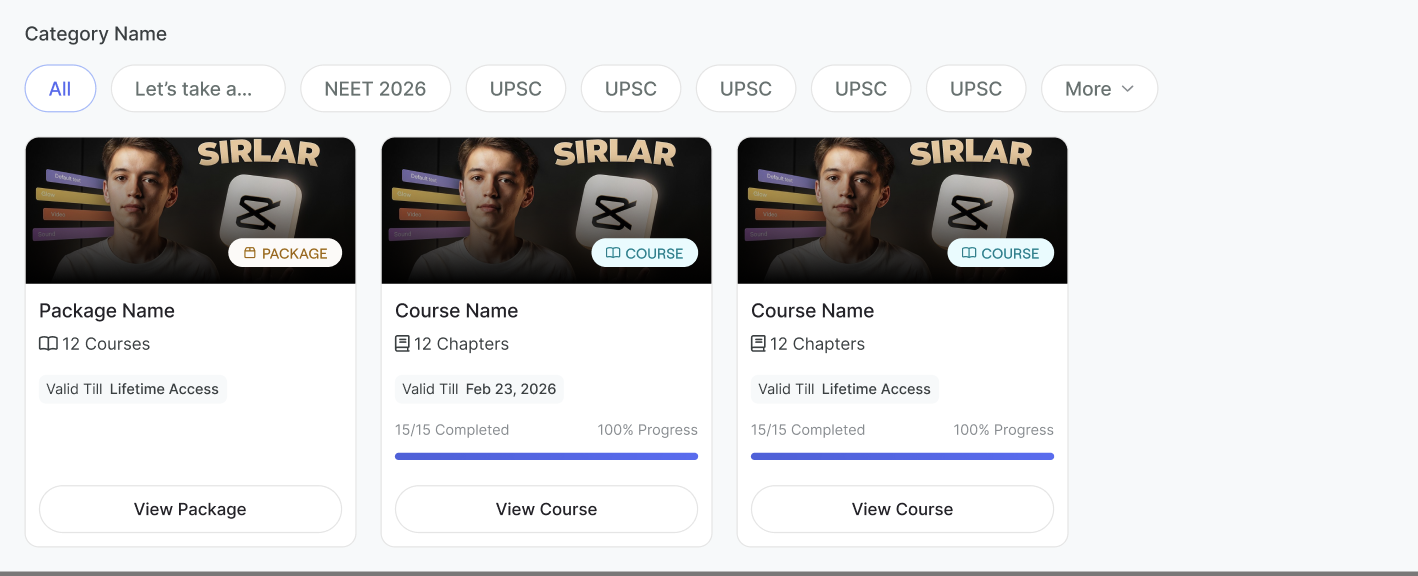
Each course card shows a progress bar and a completion count- for example, ‘15/15 Completed · 100% Progress’. This tells learners exactly how much of the course learners have finished without opening it.
To resume a course:
Sort by “Recently Viewed” to surface courses learners are actively working through.
Tap View Course to open the chapter list and resume from where they stopped.
Use Quick Access shortcuts (e.g. Quizzes) to focus on a specific content type across all courses.
7. Expired Courses & Access Renewal
Courses and packages with a past expiry date will be marked with an expired badge, along with the date learners' access ended. They can still see them inside the Library- they just won’t be able to open the content until they renew.
To renew, learners need to tap the Buy Now button on the course or package card. Learners will be taken directly to the payment page.
8. Archived Courses
Courses that are no longer active in the main view can be found in the Archived section. Learn in details about how learners can archive and unarchive courses and packages.
Was this article helpful?
That’s Great!
Thank you for your feedback
Sorry! We couldn't be helpful
Thank you for your feedback
Feedback sent
We appreciate your effort and will try to fix the article