Graphy's Coaching product lets you offer one-on-one sessions that learners can book directly from your Graphy website. You create a program, add one or more sessions to it, assign a coach, connect a calendar, set your pricing, and publish — and from there, every learner who books shows up as a booking you can track. This article walks you through the whole setup, from creating your first program to managing one that's already live.
Where to Find Coaching
Coaching lives in your admin dashboard under Products.
From the left navigation, expand Products.
Click Coaching.
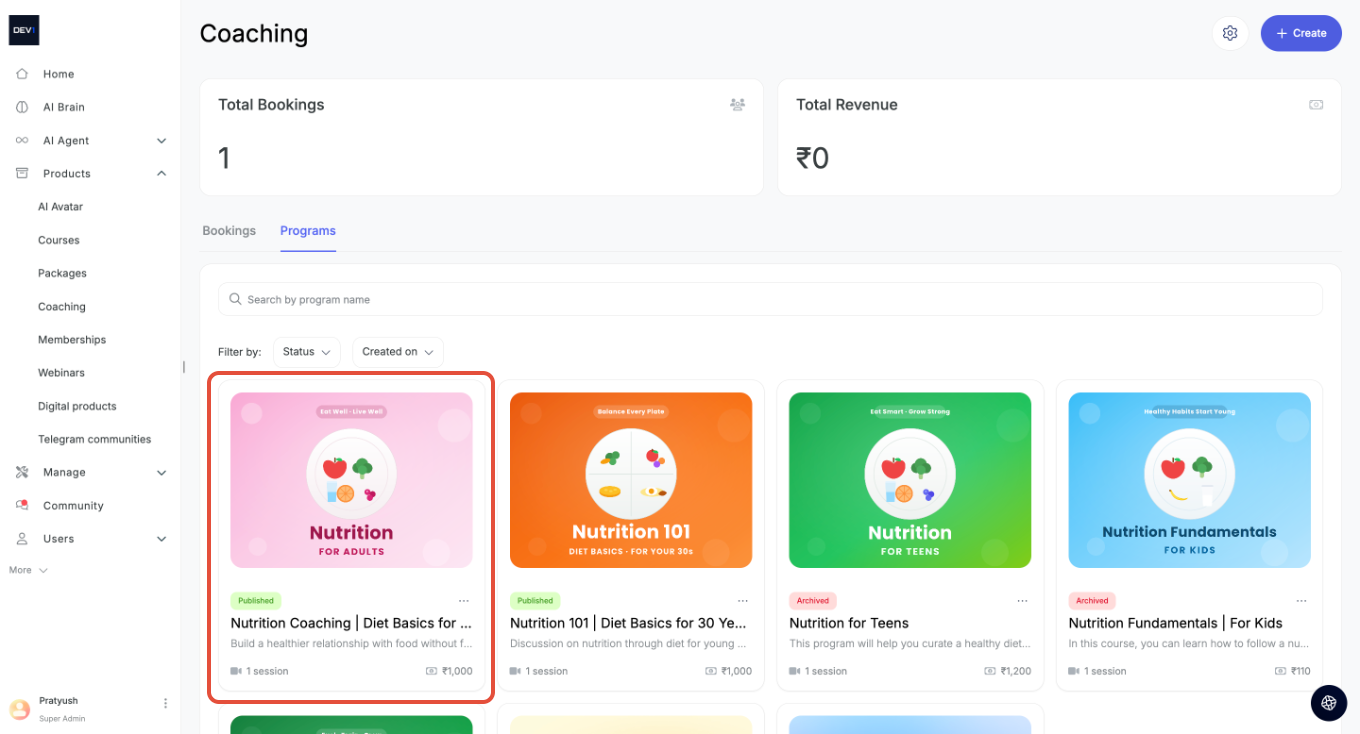
You'll land on the Coaching home screen. At the top you'll see two summary cards — Total Bookings and Total Revenue — and below them, two tabs: Bookings and Programs. The Programs tab is where all your coaching programs live; the Bookings tab is where individual learner bookings appear once people start booking.
Each program shows up as a card with its cover image, a status label (Published, Draft, or Archived), the program name, the number of sessions, and the price. You can search by program name or narrow the list using the Status and Created on filters.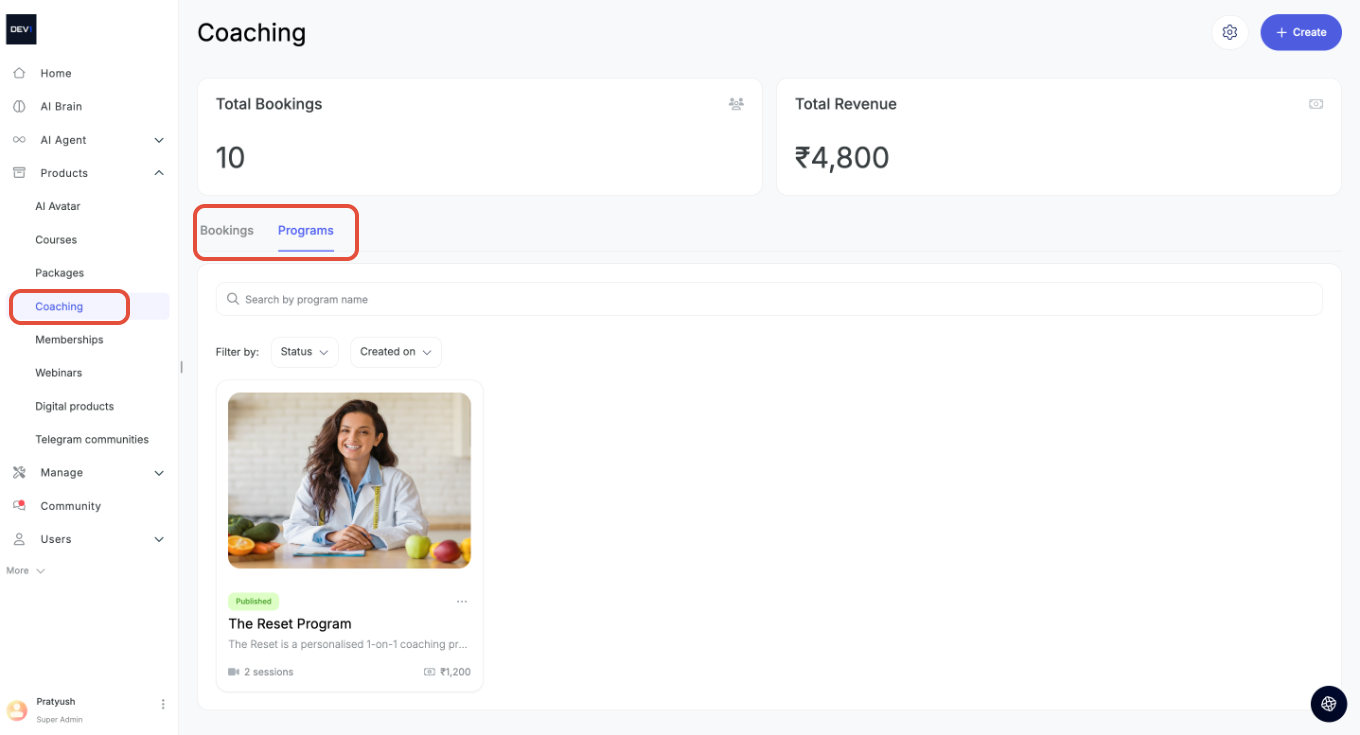
Creating a New Coaching Program
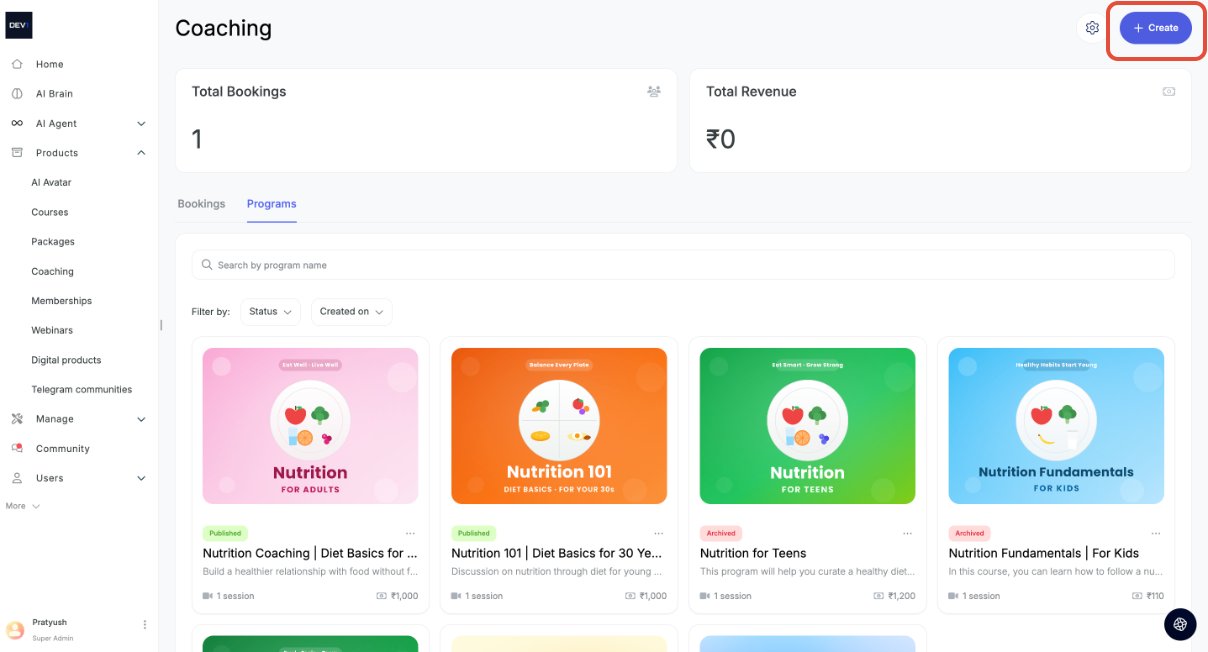
To build a new program, click + Create in the top-right corner of the Coaching home screen. This opens a three-step setup: Landing page → Program details → Pricing plan. The progress bar at the top tracks where you are, and you.
Step 1: Landing page
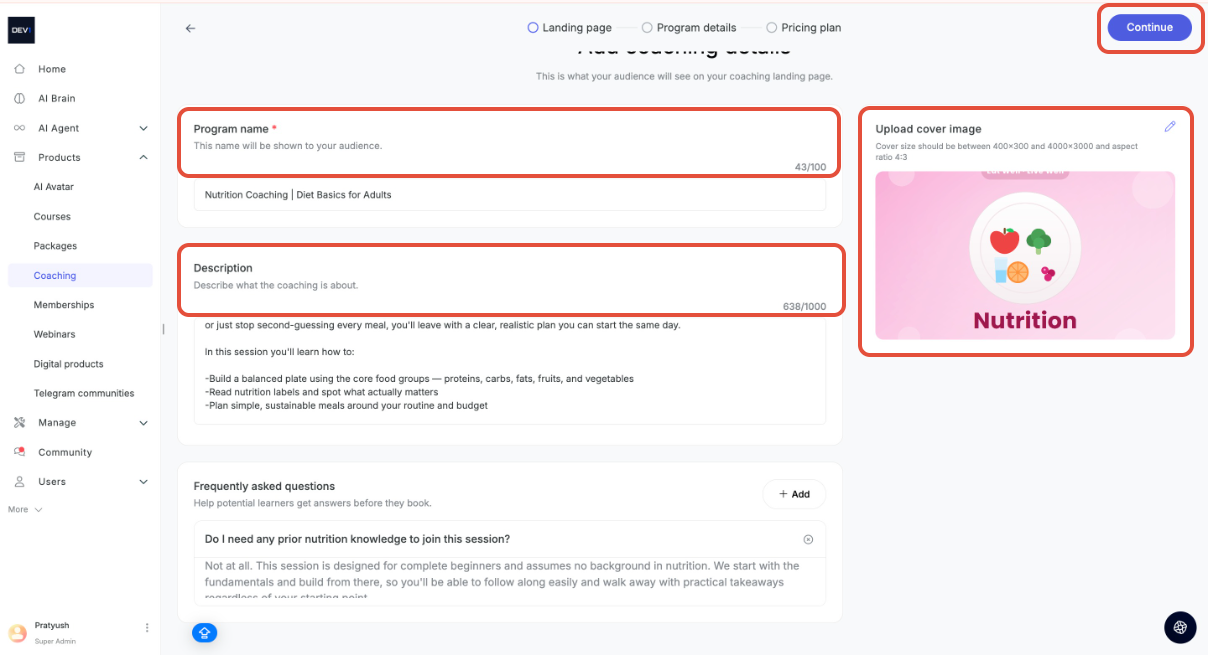
This is what learners see on your coaching landing page.
Enter a Program name — this name is shown to your audience (up to 100 characters).
Add a Description explaining what the coaching is about (up to 1,000 characters).
Under Upload cover image, add a cover. The image should be between 400×300 and 4000×3000 with a 4:3 aspect ratio.
(Optional) Use Frequently asked questions to answer common questions before learners book — click + Add to create an FAQ.
Click Continue.
Step 2: Program details
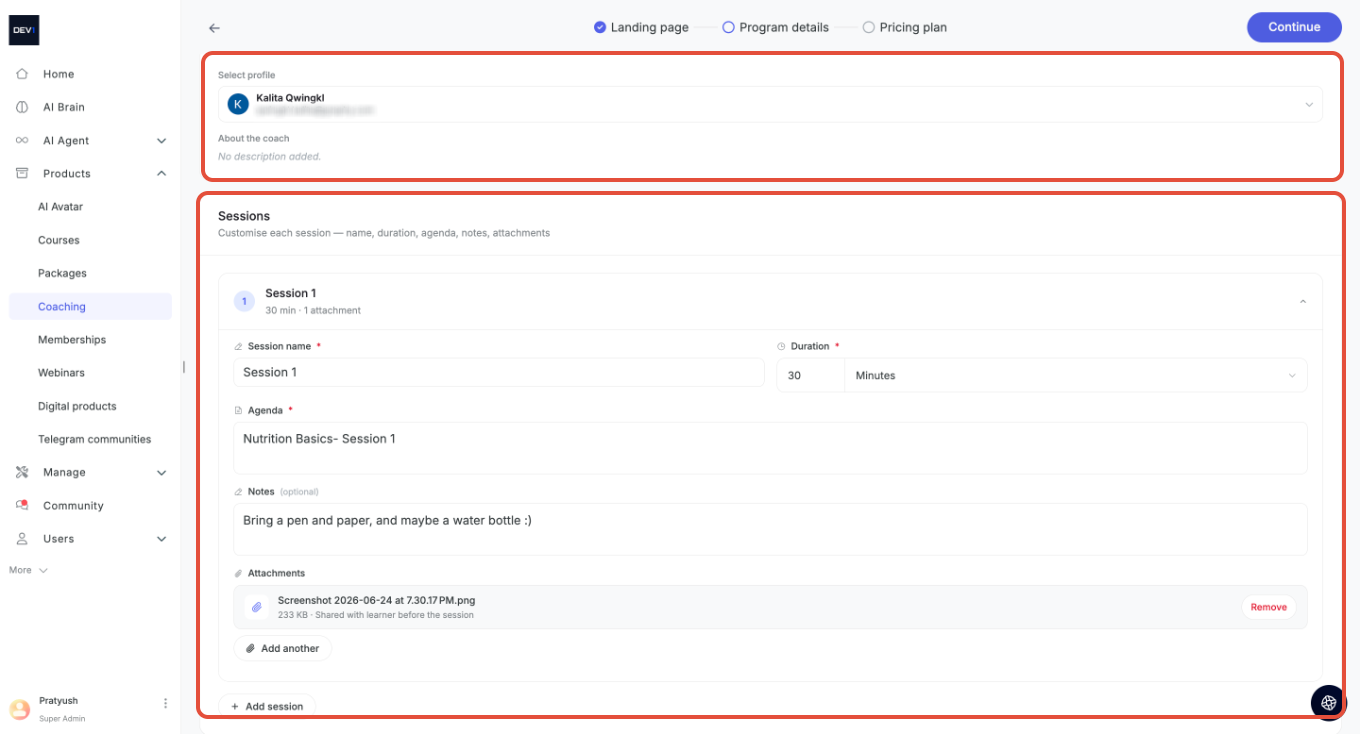
This is where you set up who delivers the coaching and what the sessions look like.
2.1 Coach profile — Choose the coach who will deliver sessions in this program from the Select profile dropdown. If the coach you want isn't listed yet, use + Add new calendar to add them (see Connecting a Coach's Calendar below).
Note: Changing the coach applies to new and rescheduled sessions only. Existing bookings stay with the coach they were booked with — learners can reschedule to move a session to the new coach.
2.2 Sessions — A program can hold one or more sessions. For each session you can customise the Session name, duration, Agenda, Notes, and attachments. Add as many sessions as your program needs.
Step 3: Pricing plan
Set how learners pay. You can add one plan to start with and add more later.
Enter a Plan name — this is shown to your audience.
Under Choose a type of pricing plan, pick how you want learners to pay:
Free — no charge to book.
One-time payment — a single fee with time-bound or lifetime access.
Subscription — recurring billing.
For a paid plan, enter the Price, and optionally a Sale price to show a discount.
Use the Charge transaction fee toggle to decide who pays the transaction fee — when on, your audience pays it; when off, you cover it.
Review the Effective price (what the learner pays) and You will receive (your payout after fees).
Use Advanced settings for additional options.
A live Preview of the pricing card appears on the right as you make changes.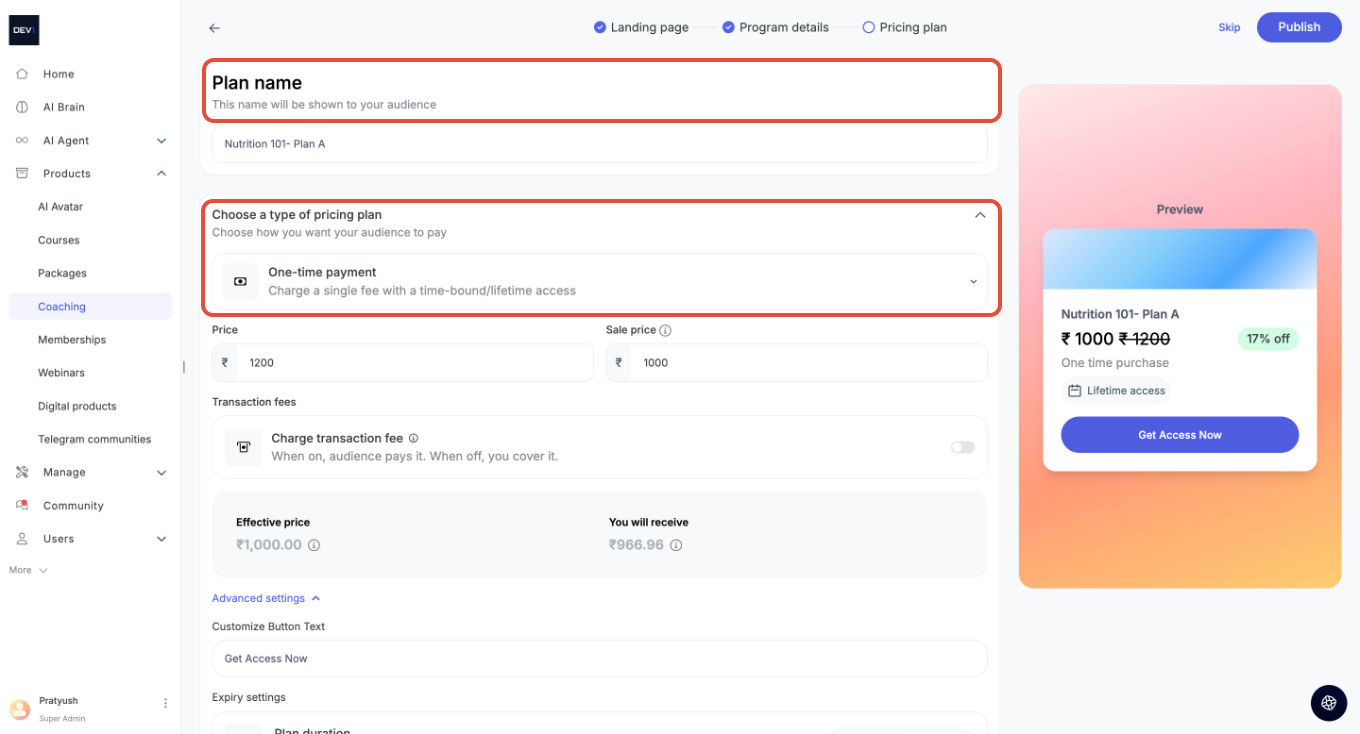
Publishing and sharing
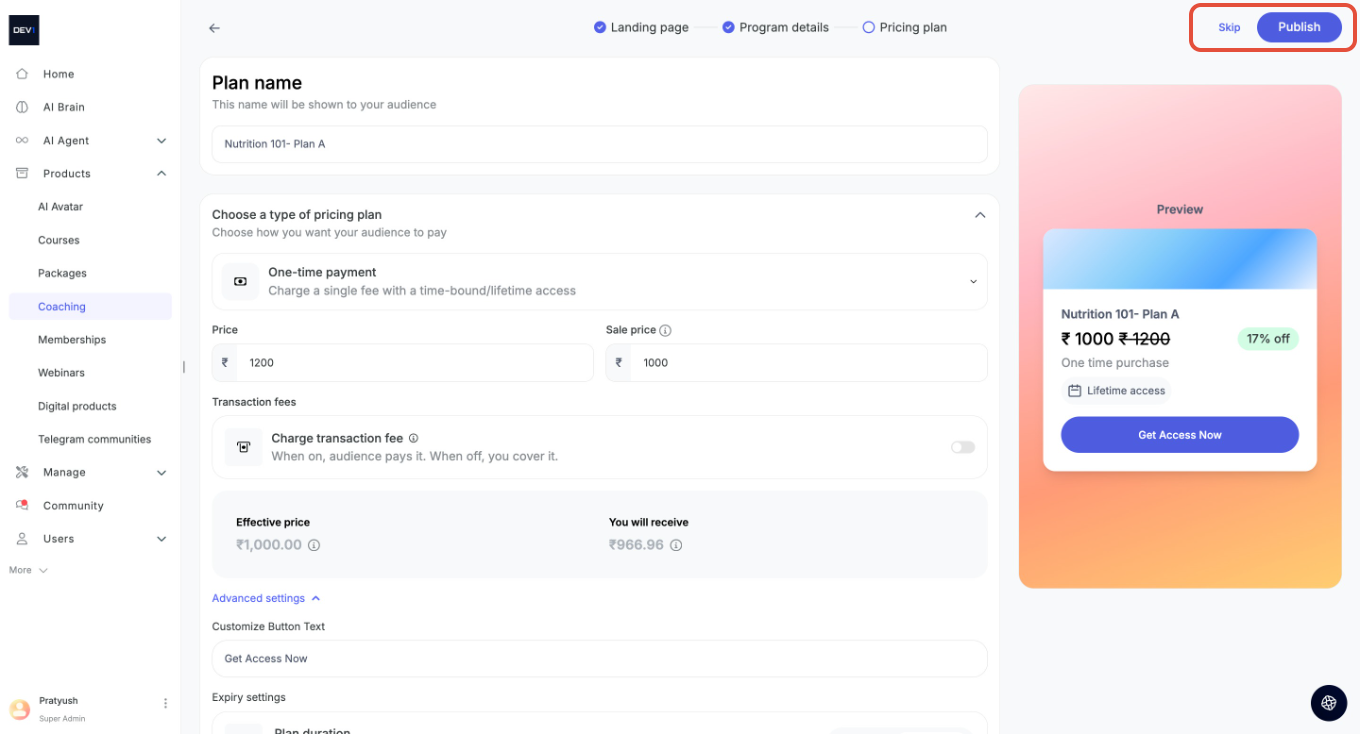
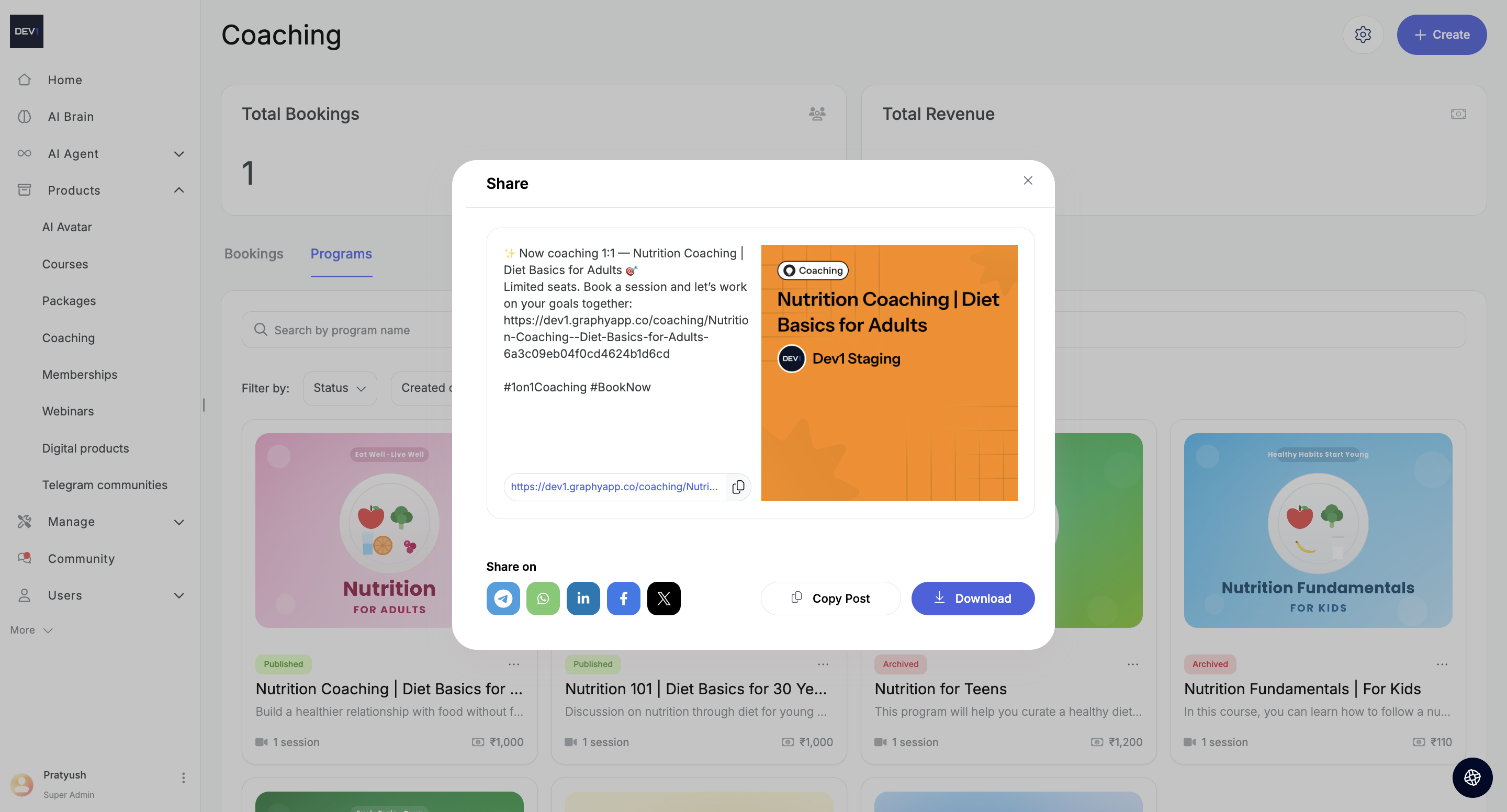
When you're ready, click Publish (or Skip to publish without a pricing plan for now). Once published, a Share window appears with a ready-made promotional post, your program link, and quick buttons to share on Telegram, WhatsApp, LinkedIn, Facebook, and X. You can also Copy Post, copy the link, or Download the share image.
Your new program now appears under the Programs tab.
Was this article helpful?
That’s Great!
Thank you for your feedback
Sorry! We couldn't be helpful
Thank you for your feedback
Feedback sent
We appreciate your effort and will try to fix the article