You have created a program and sessions have started happening with your session bookers. Now, after a 1:1 session ends, Graphy automatically saves its recording, summary, and transcript to the session. You'll find everything on the session's detail view — no setup needed.
Where to find it
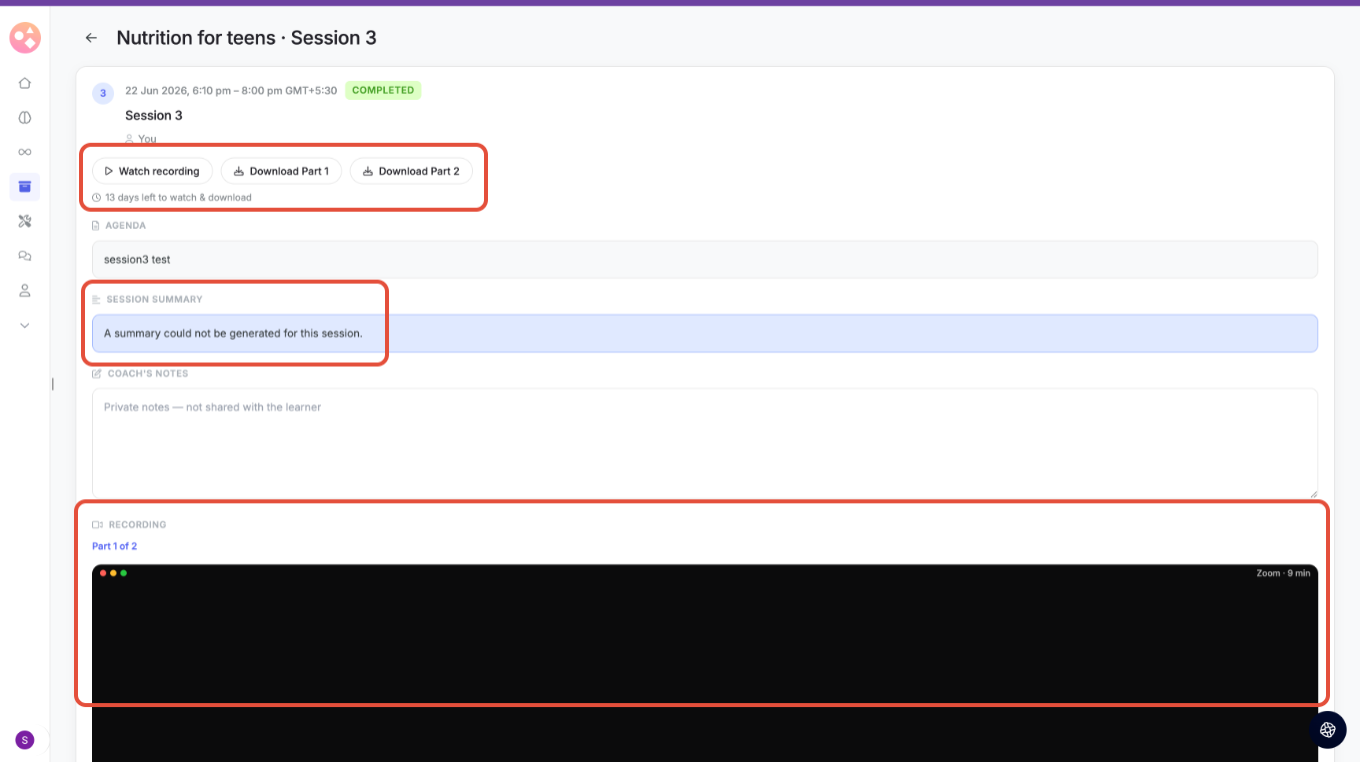
Go to the Coaching details tab and open any session marked Completed. Once a session is done, the session card expands to show its recording, AI summary, your private notes, and the full transcript.
What's on a completed session
- Recording actions — At the top you'll see Watch recording, plus a Download button for each part (e.g. Download Part 1, Download Part 2). Long sessions are split into multiple parts.
- Availability window — Recordings are available to watch and download for a limited time. The countdown (e.g. 13 days left to watch & download) shows how long you have before they expire, so save anything you want to keep.
- Agenda — The agenda you set for the session, for quick reference.
- Session Summary — An AI-generated recap of what was covered. If it can't be produced — for example, very short sessions or poor audio — you'll see "A summary could not be generated for this session."
- Coach's Notes — A private space for your own notes. These are never shared with the learner.
- Recording playback- Under Recording, the player loads one part at a time (e.g. Part 1 of 2). Each clip shows its source and length (e.g. Zoom · 9 min). Use the part links to switch between segments, and the Download buttons up top to save them before the window closes.
Transcript
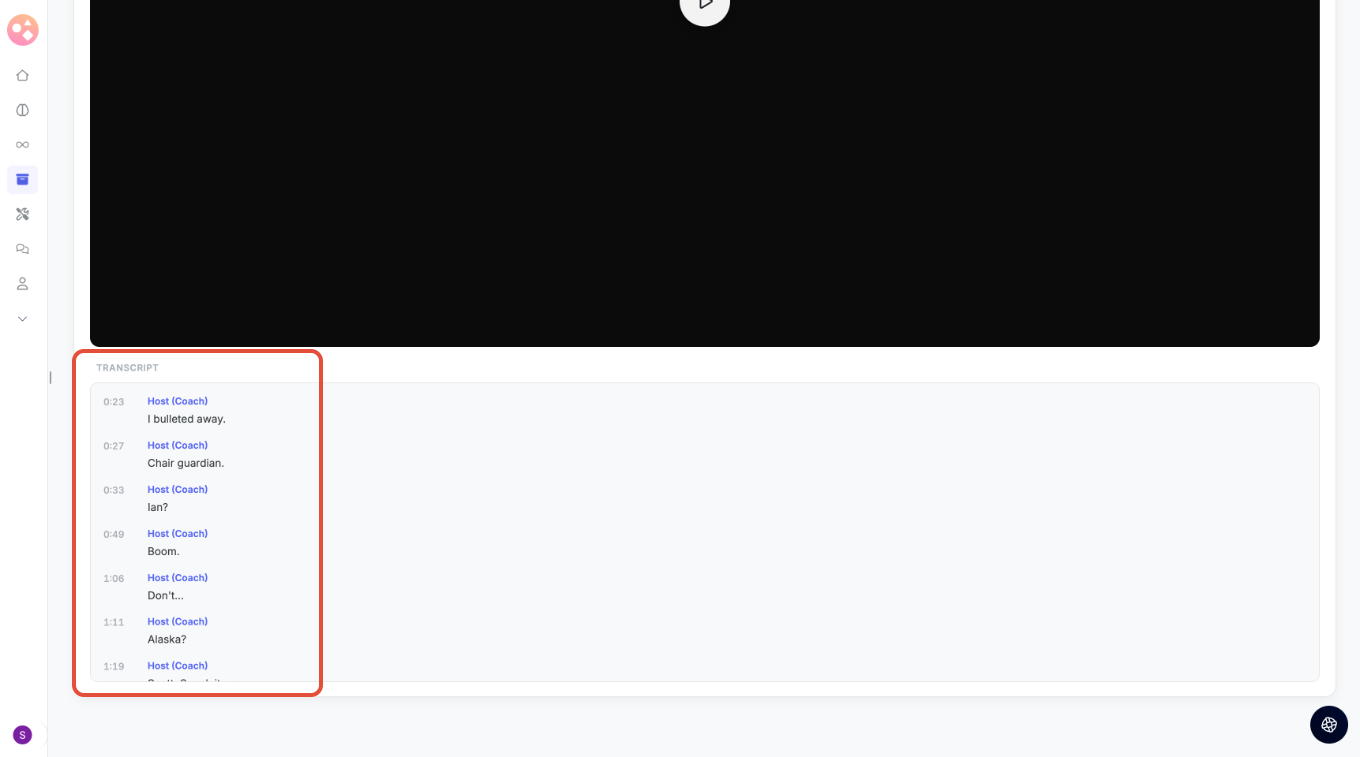
Below the player, the Transcript lists everything said, with timestamps and speaker labels (e.g. Host (Coach)). Use it to skim the session, find a specific moment, or copy key points into your notes.
Good to know-
- Recording and transcript appear only after a session is marked Completed.
- Both expire at the end of the availability window — download anything you need to keep.
- Coach's Notes stay private to you; learners never see them.
- A missing summary doesn't affect the recording or transcript — those are still available.
Was this article helpful?
That’s Great!
Thank you for your feedback
Sorry! We couldn't be helpful
Thank you for your feedback
Feedback sent
We appreciate your effort and will try to fix the article