Plans change, and you can move or cancel a booked coaching session right from your dashboard. This article shows you how to do both, and what to keep in mind before you cancel.
Finding the Session
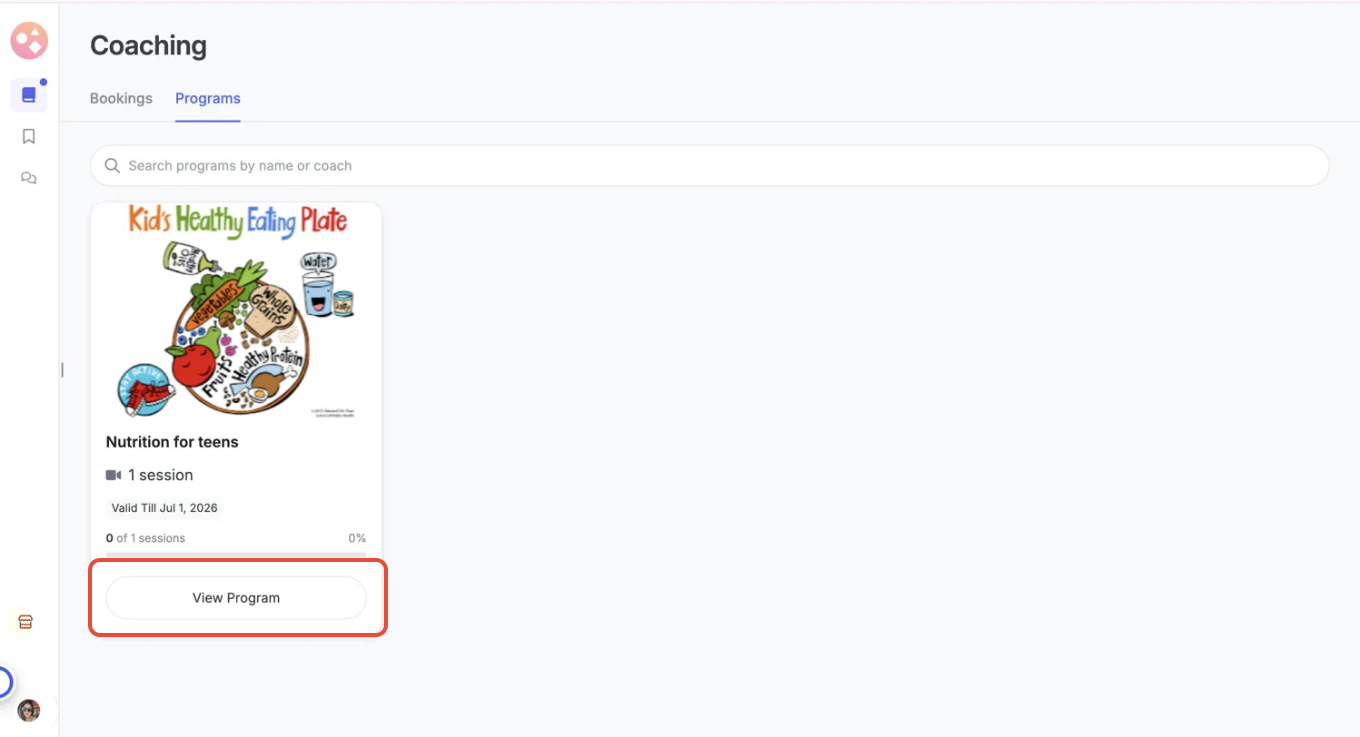
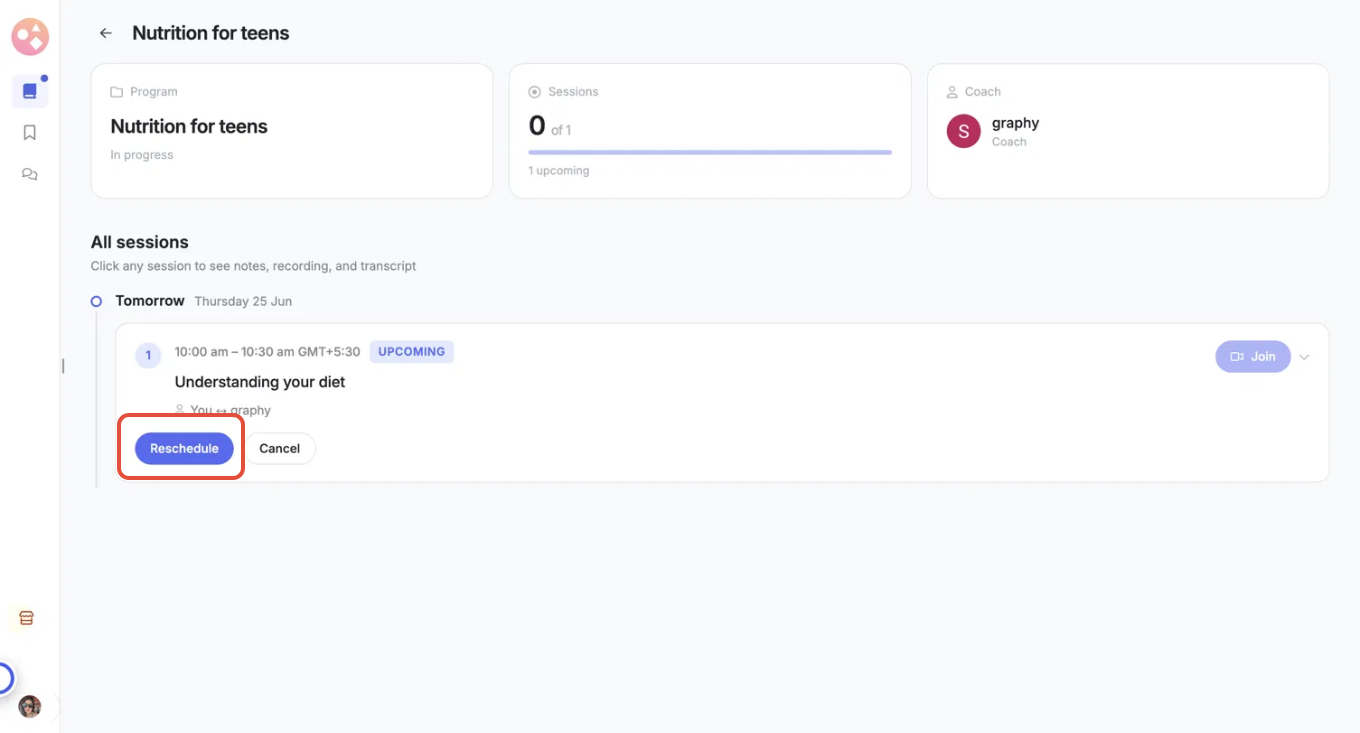
Open the Coaching section of your dashboard, go to the Programs tab, and click View Program on the relevant program. Under All sessions, find the session you want to change — each upcoming session has Reschedule and Cancel options.
Rescheduling a Session
- Click Reschedule on the session.
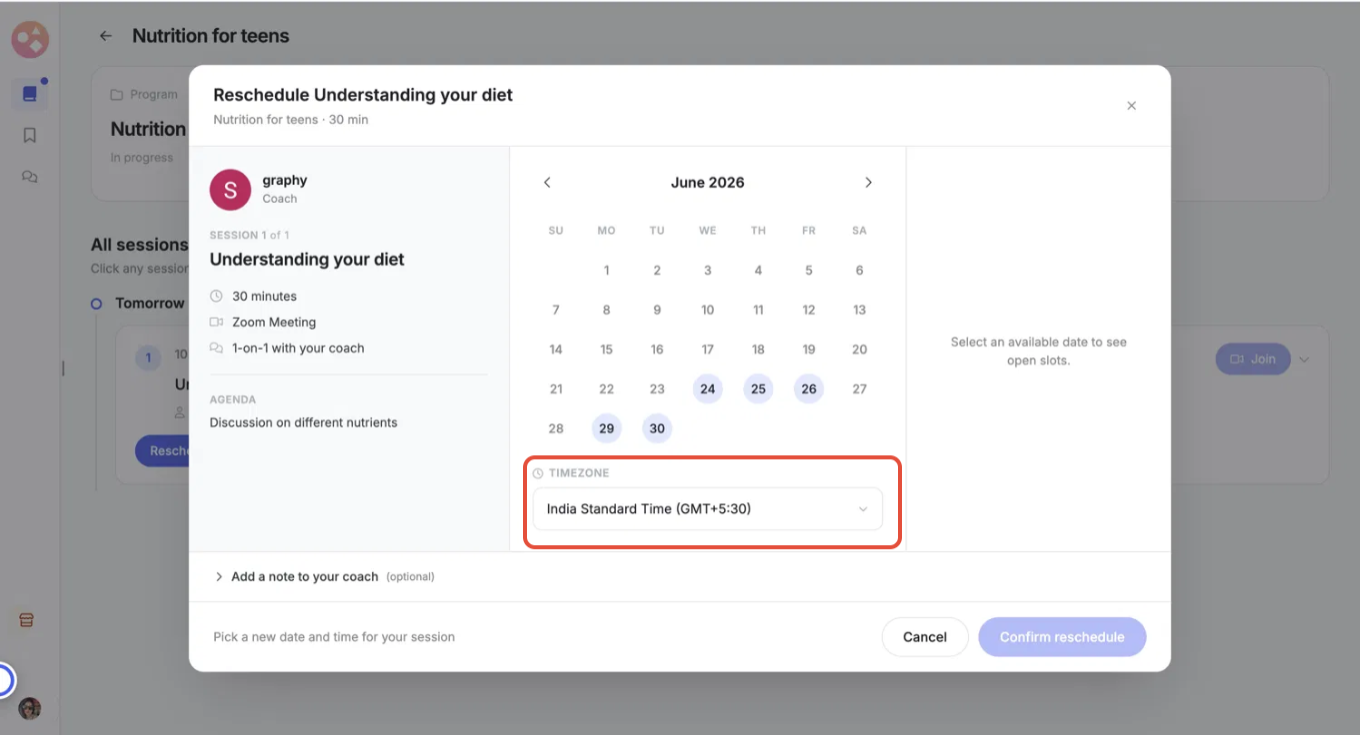
- In the window that opens, review the session details on the left — coach, duration, meeting type, and agenda.
- Check your timezone so the times show correctly for you.
- Pick a new date from the calendar — dates with open slots are highlighted — then choose an available time slot.
- (Optional) Expand Add a note to your coach to send a message along with your new time.
- Click Confirm reschedule to lock in the new slot, or Cancel to keep things as they are.
 Cancelling a Session
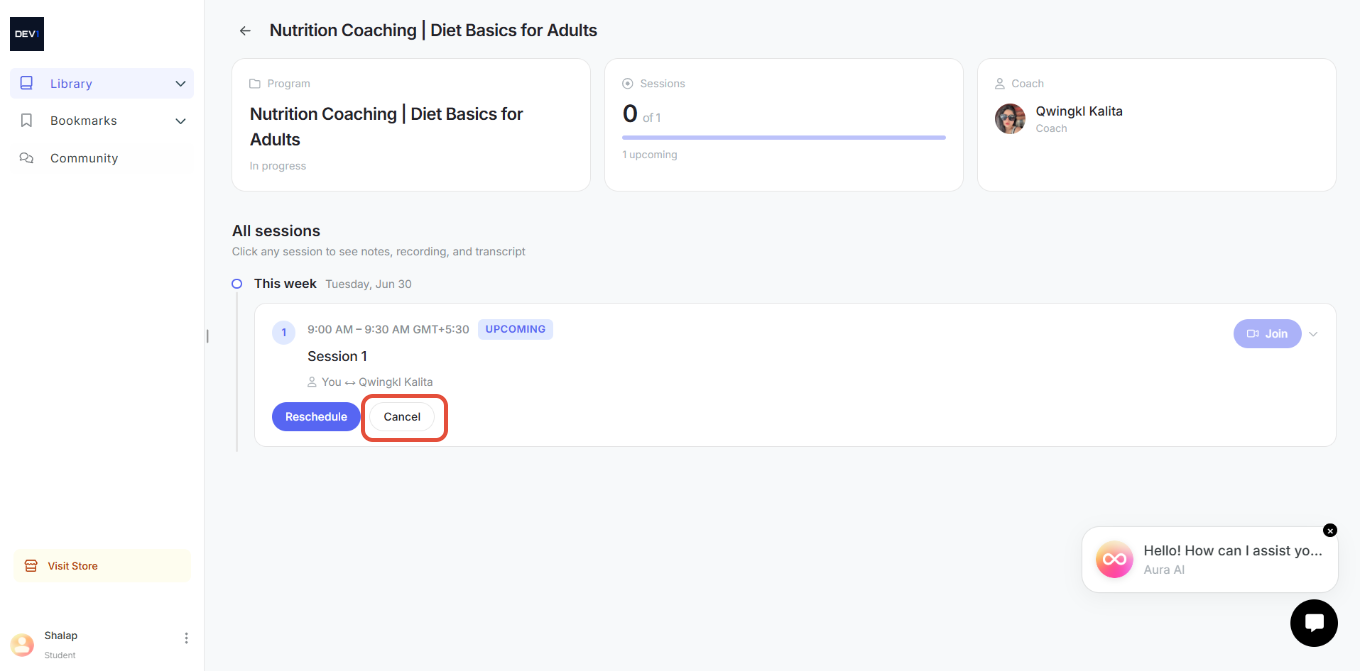
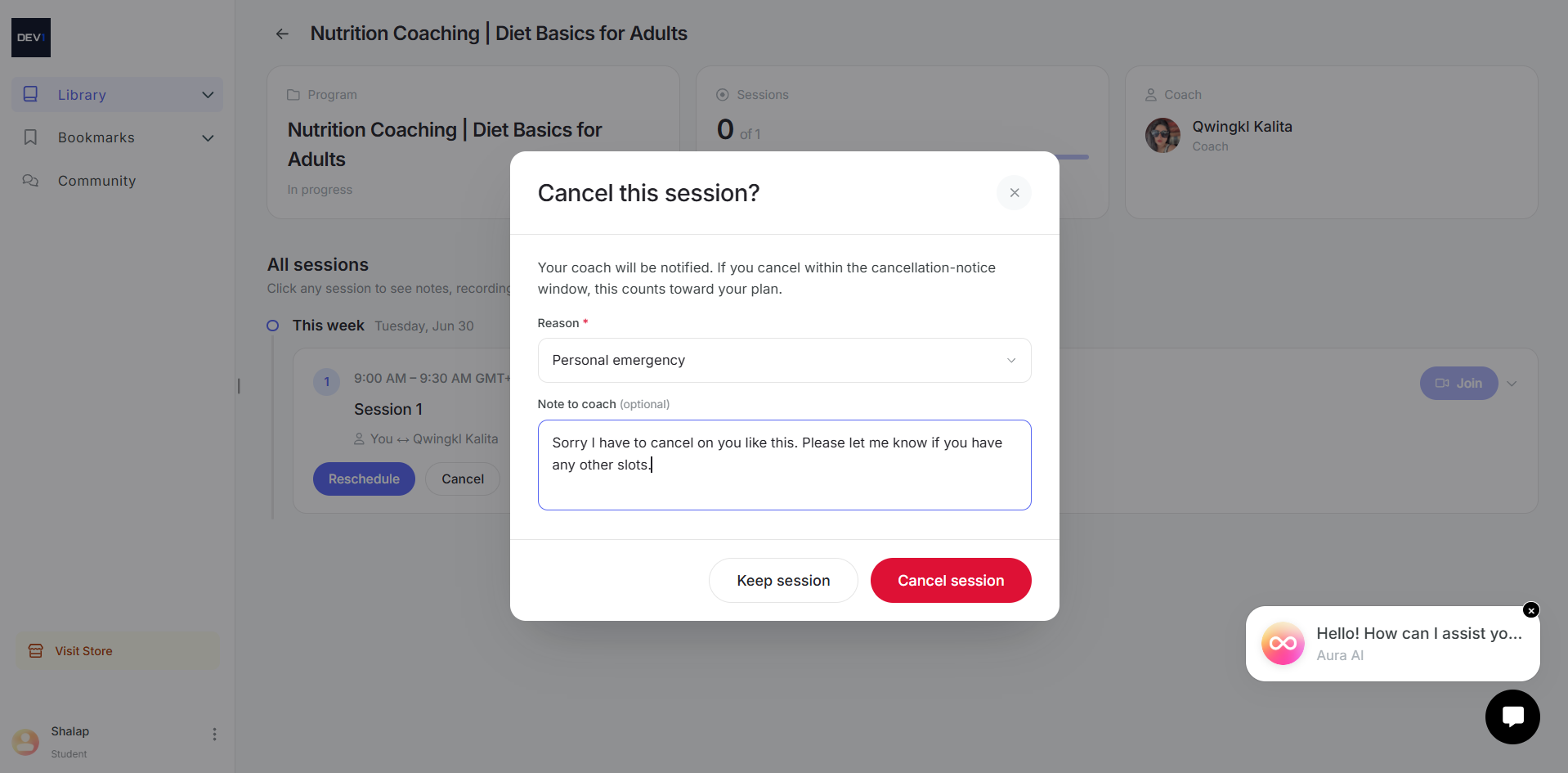
- Click Cancel on the session.
- In the Cancel this session? window, choose a Reason from the dropdown (required).
- (Optional) Add a Note to coach with any details you'd like to share.
- Click Cancel session to confirm, or Keep session to back out.
Was this article helpful?
That’s Great!
Thank you for your feedback
Sorry! We couldn't be helpful
Thank you for your feedback
Feedback sent
We appreciate your effort and will try to fix the article