First, login to your Graphy Portal and select Coaching in the nav bar on left. Click any program card on the Programs tab to open it. A published program has four tabs — Landing page details, Coaching details, Customers, and Pricing — plus a preview (eye) icon and a status dropdown in the top-right corner, where you can switch the program between Published, Draft, and Archived.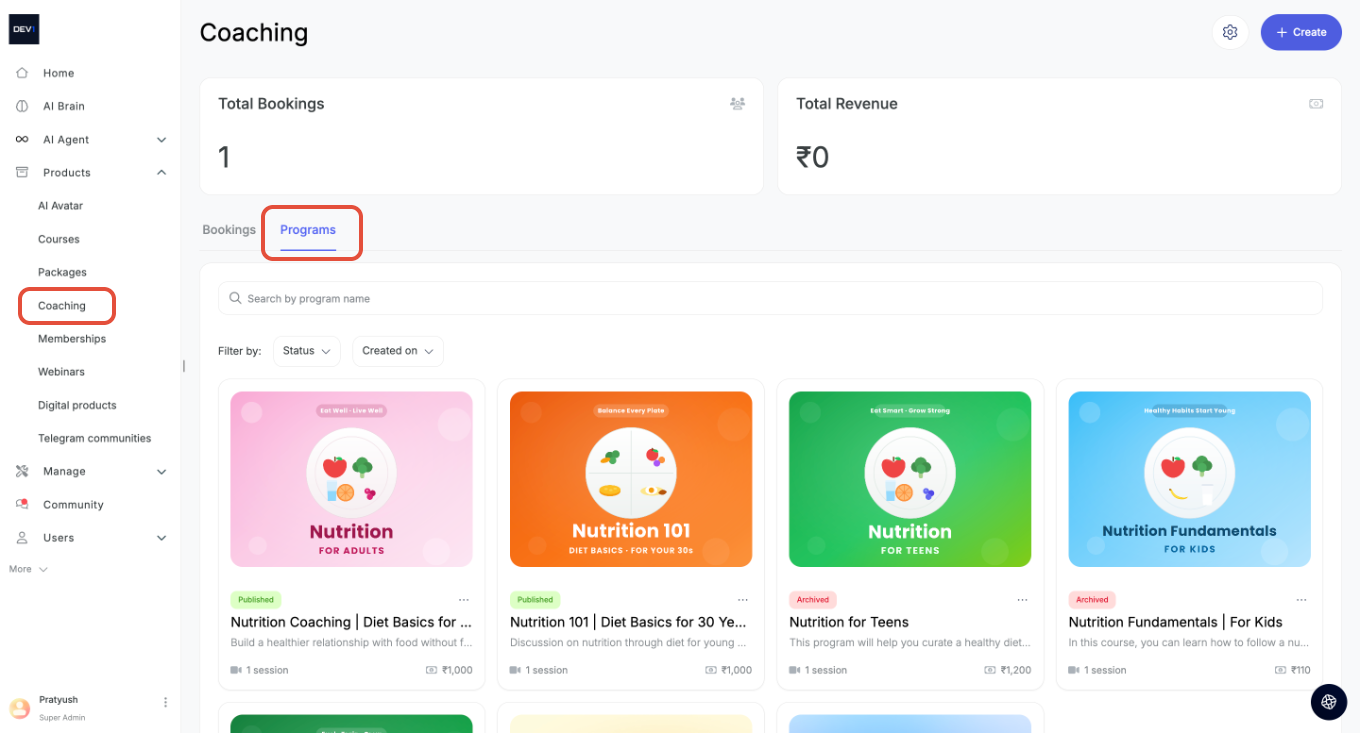
Landing Page Tab
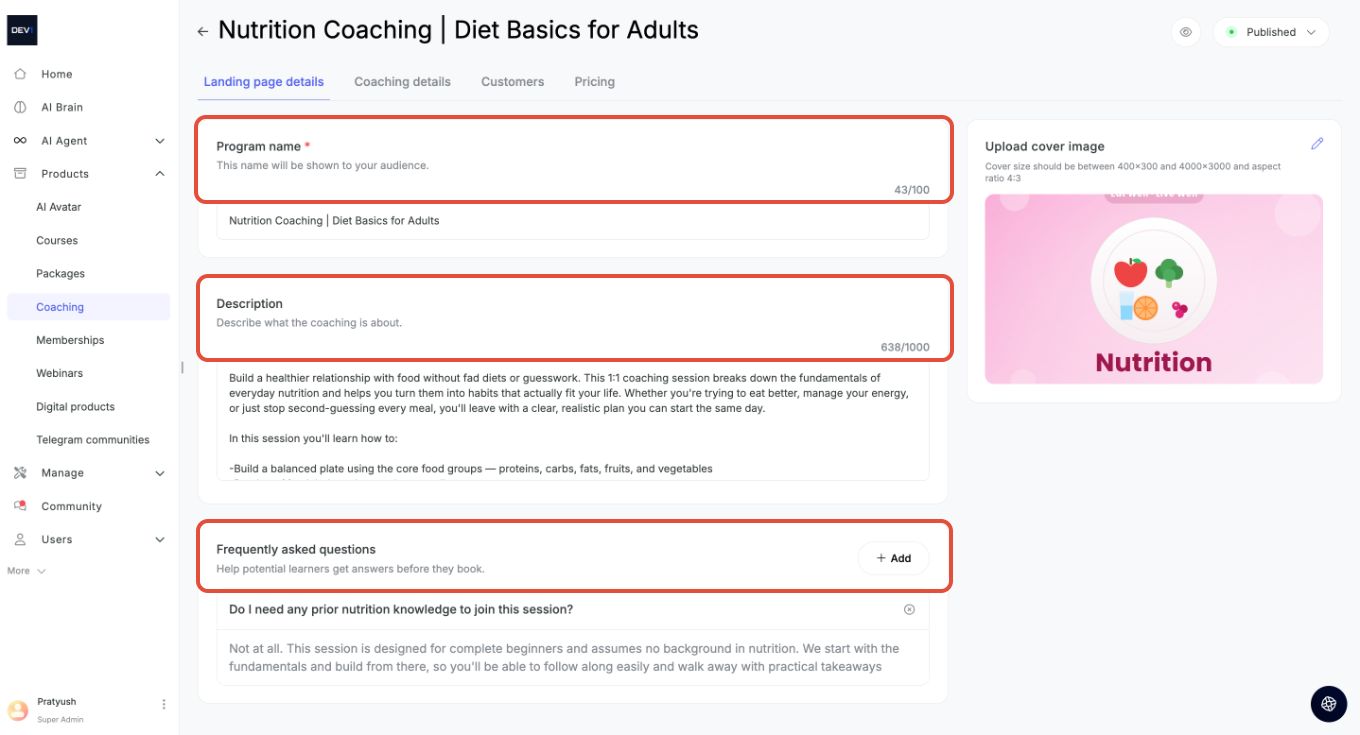
Edit the same fields from setup at any time — Program name, Description, cover image, and FAQs.
Coaching details tab
The Coaching details tab is where you set up how your 1:1 coaching actually runs — the sessions a learner gets, when they can book you, and the emails that go out around each booking. Everything here works together with your connected Google Calendar, so bookings, reschedules, and cancellations stay in sync automatically.
The tab is split into four sections:
- Sessions — what's covered in each session
- Availability — when learners can book you
- Scheduling Rules- select from time and date
- Reminders & Notifications — the automated emails around each booking
1. Sessions
Use this section to define each session a learner receives when they buy the program — its name, length, agenda, prep notes, and any files you want to share ahead of time.
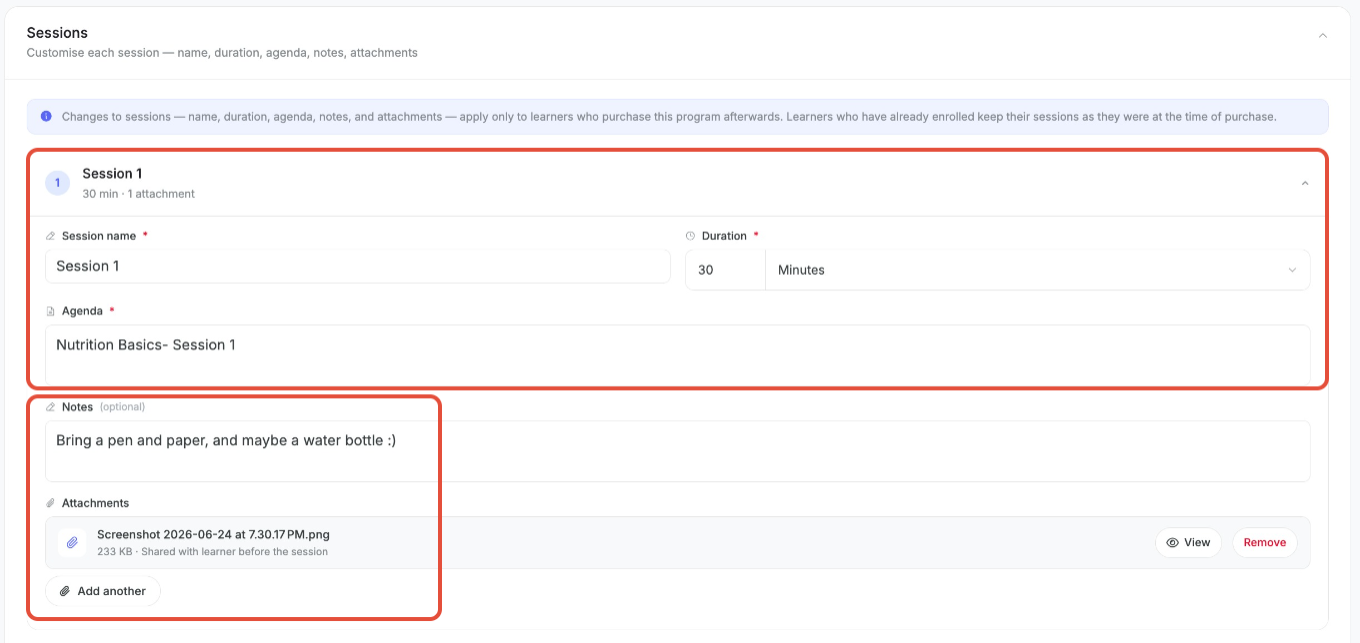
To set up a session, fill in:
- Session name (required) — the title the learner sees for this session (e.g. Session 1).
- Duration (required) — how long the session runs. Set a number and pick the unit (minutes / hours). This is also the length blocked on your calendar when a learner books.
- Agenda (required) — a short summary of what the session covers (e.g. Nutrition Basics – Session 1).
- Notes (optional) — anything the learner should do or bring beforehand (e.g. Bring a pen and paper, and maybe a water bottle).
- Attachments (optional) — files shared with the learner before the session. Use Add another to attach more than one.
To add more sessions to the program, select + Add session at the bottom and repeat the steps above.
Heads-up: edits only affect future learners. Changes you make to a session — name, duration, agenda, notes, or attachments — apply only to learners who purchase the program after you save. Anyone already enrolled keeps the session exactly as it was when they bought it.
2. Availability
This section controls the working hours when learners are allowed to book sessions with you. It's tied to your connected Google Calendar, so any conflicting events on that calendar are automatically treated as unavailable.
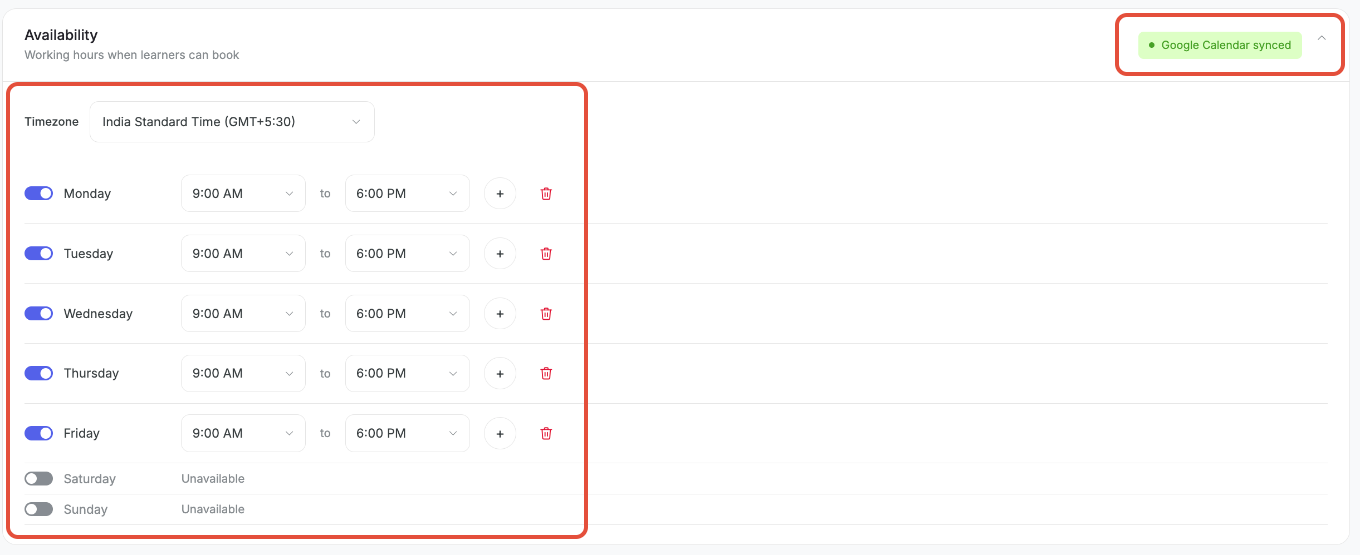
Set it up like this:
- Timezone — set the timezone your hours are defined in (e.g. India Standard Time (GMT+5:30)). Learners booking from other timezones see slots converted to their local time automatically.
- Per-day toggles — turn a day on to make it bookable, or off to mark it Unavailable.
- Time range — for each active day, set the from and to times (e.g. 9:00 AM to 6:00 PM).
- Add a second block (+) — use the + on a day to add another window, for cases like a morning and an evening slot with a break in between.
- Remove a block (?) — delete a time window you no longer need.
The Google Calendar synced badge confirms your calendar is connected. If it isn't showing, connect Google Calendar so availability and booking sync work correctly.
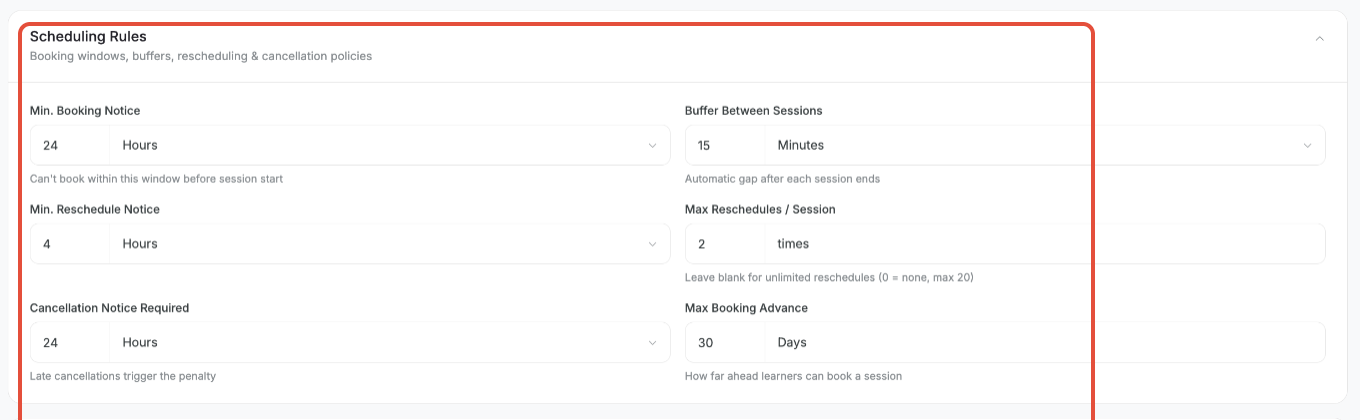
3. Scheduling Rules
This section sets the guardrails around booking — how much notice you need, gaps between sessions, and the limits on rescheduling and cancelling. These rules apply automatically to every booking, so learners only ever see valid slots.
4. Reminders & Notifications
This section manages the automated emails that go out before sessions and at key points in the booking lifecycle. It has two parts: a Reminder Schedule and Event Notifications.
Reminders
These are reminders sent to the learner ahead of the session. You'll be CC'd at the email connected to your Google Calendar, so you get the same heads-up.
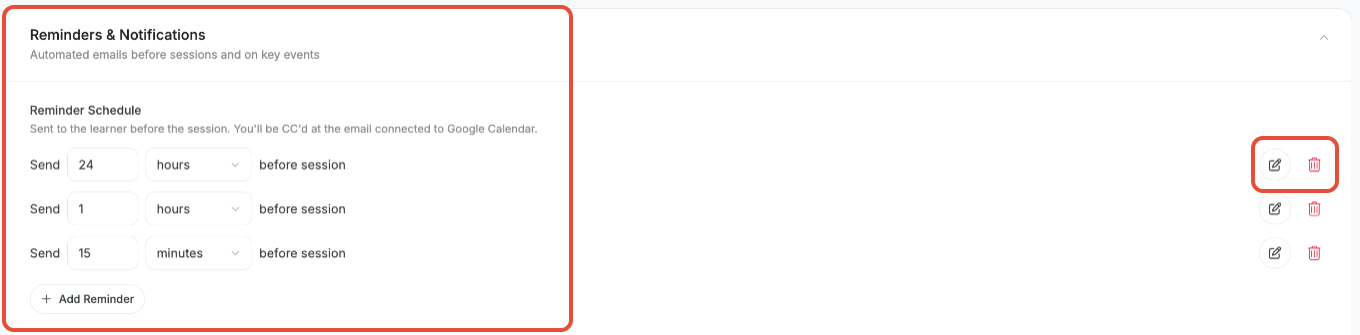
- Each rule reads as Send [number] [hours/minutes] before session (e.g. 24 hours before, 1 hour before, 15 minutes before).
- Use the edit icon to change a reminder's timing or content, and the delete icon to remove it.
- Select + Add Reminder to create additional reminders.
Notifications
These are automated emails triggered by booking events. Toggle each one on or off, and use the edit icon to customize its content.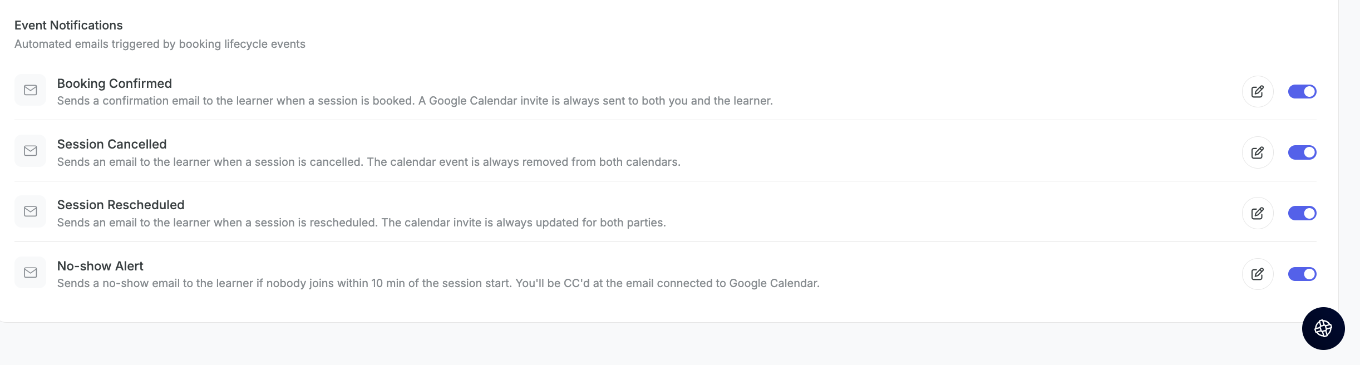
Customers Tab
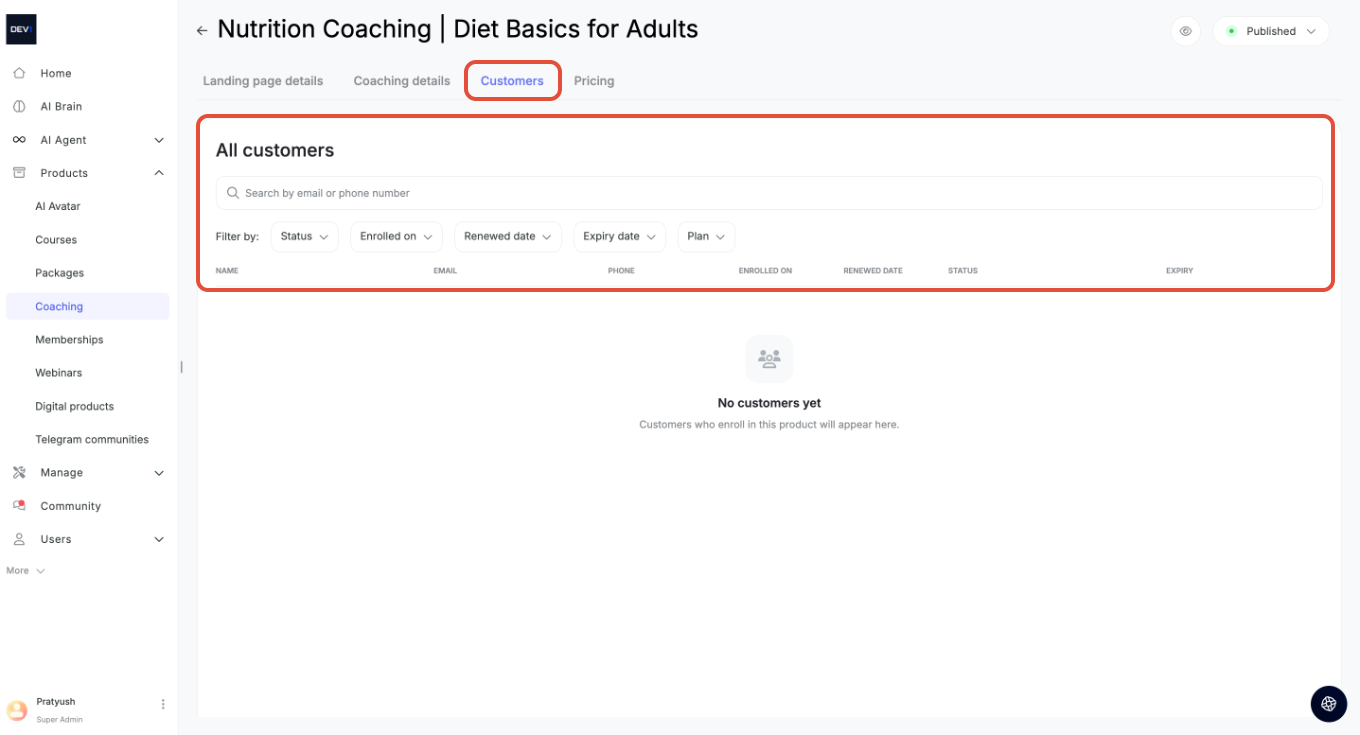
See everyone who has enrolled in this program. The table lists each customer's Name, Email, Phone, Enrolled on date, Renewed date, Status, and Expiry. Search by email or phone number, and filter by Status, Enrolled on, Renewed date, Expiry date, or Plan. Customers appear here as soon as they book.
Pricing Tab
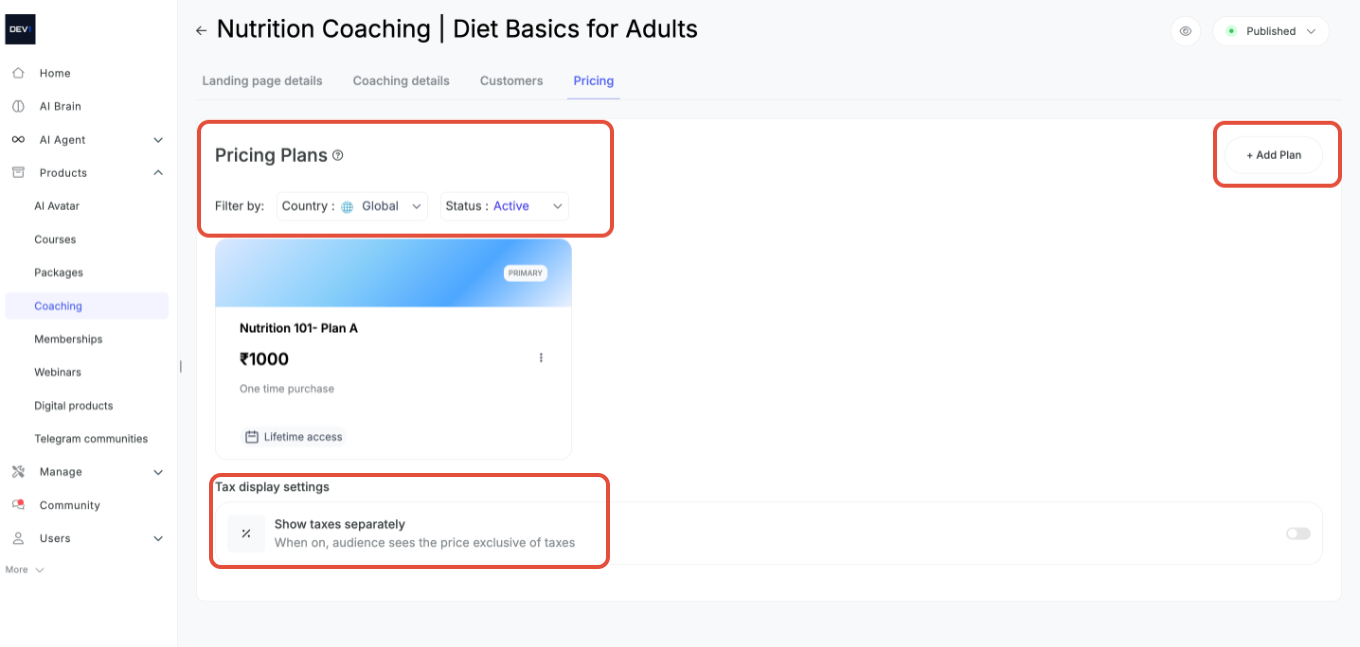
View and manage all pricing plans for the program. Click + Add Plan to create another plan, and filter plans by Country and Status. Your main plan is marked PRIMARY. Under Tax display settings, the Show taxes separately toggle controls whether learners see the price exclusive of taxes.
Was this article helpful?
That’s Great!
Thank you for your feedback
Sorry! We couldn't be helpful
Thank you for your feedback
Feedback sent
We appreciate your effort and will try to fix the article