This article guides you on everything you can do in the Website section, including editing your pages, managing navigation, optimizing SEO, configuring overall settings, and creating and managing pages.
Editor Interface
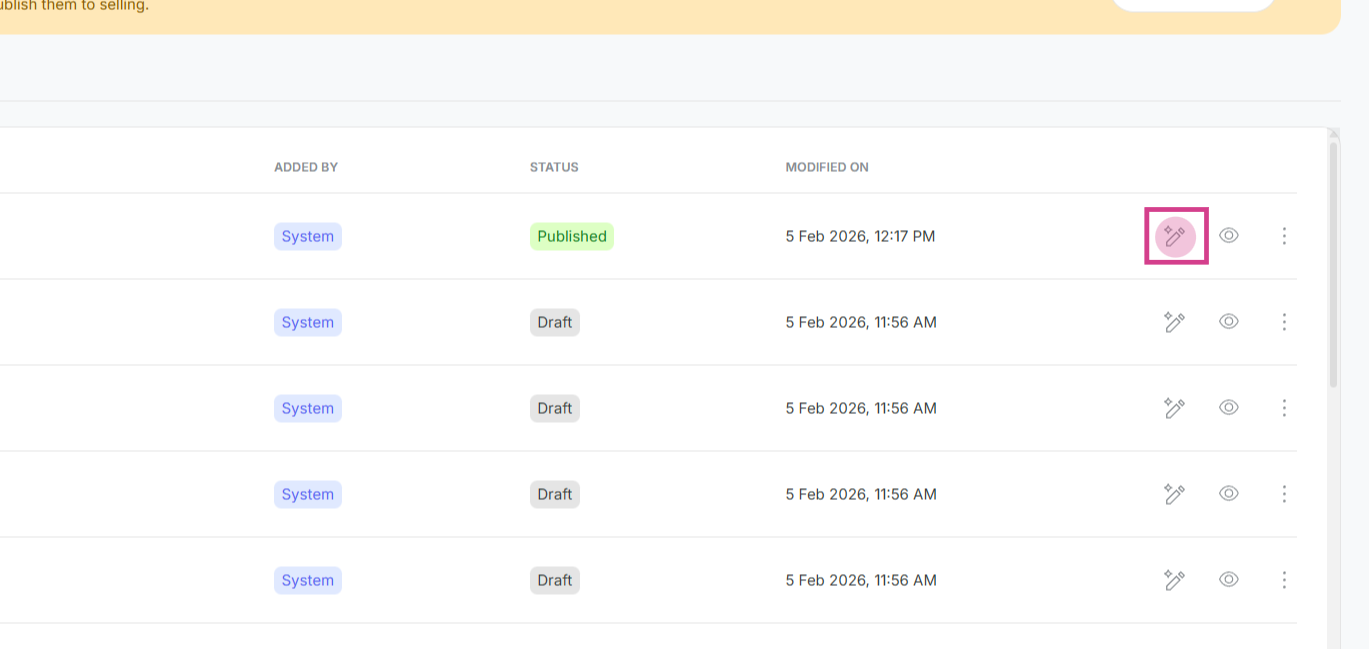
When you click on any page or the Edit option, you'll be taken to the editor.
Here you can -
- Edit your website using AI Editor
- Edit manually for precise control.
- Customize overall style of your website using Style Guide.
- Revert to changes made using Version History.
Page Management Menu
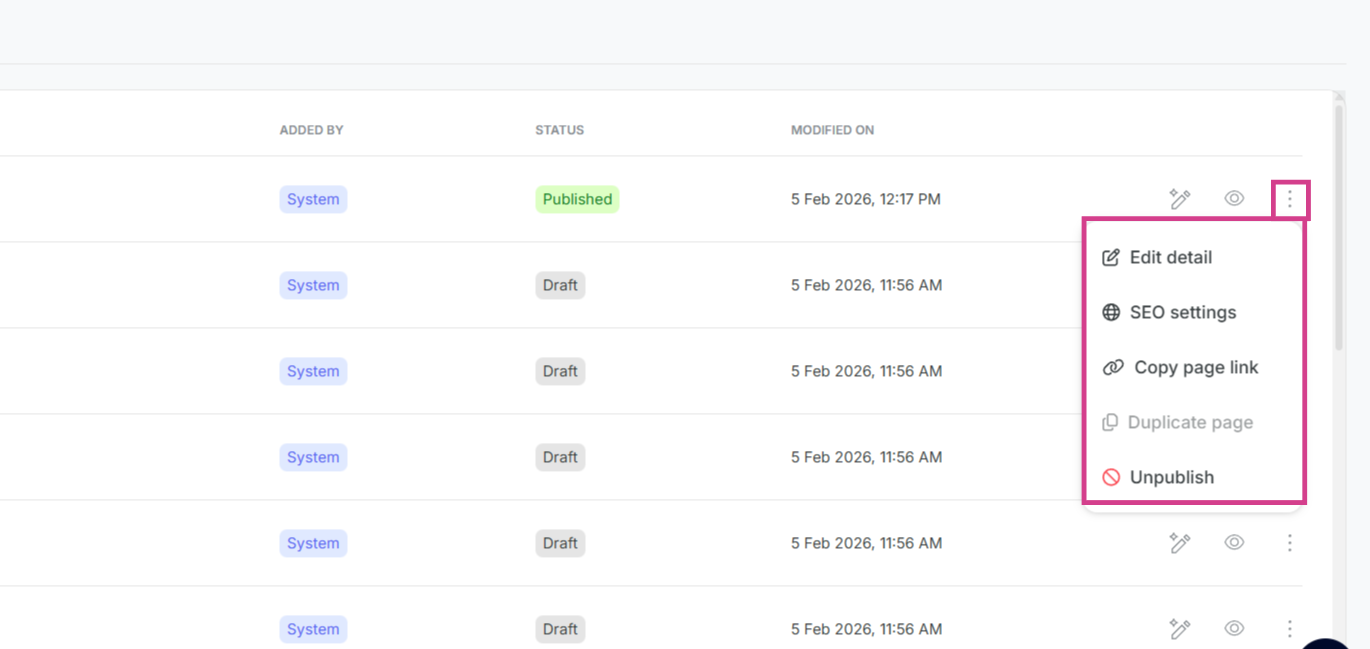
Click the three-dot menu (⋮) on any page in your Pages list to access page options. You can-
- Edit page details.
- Optimize your page with SEO settings
- Copy page link to easily share your page's web address.
- Unpublish the page to take it offline.
Detailed Help Article -
Preview Your Page
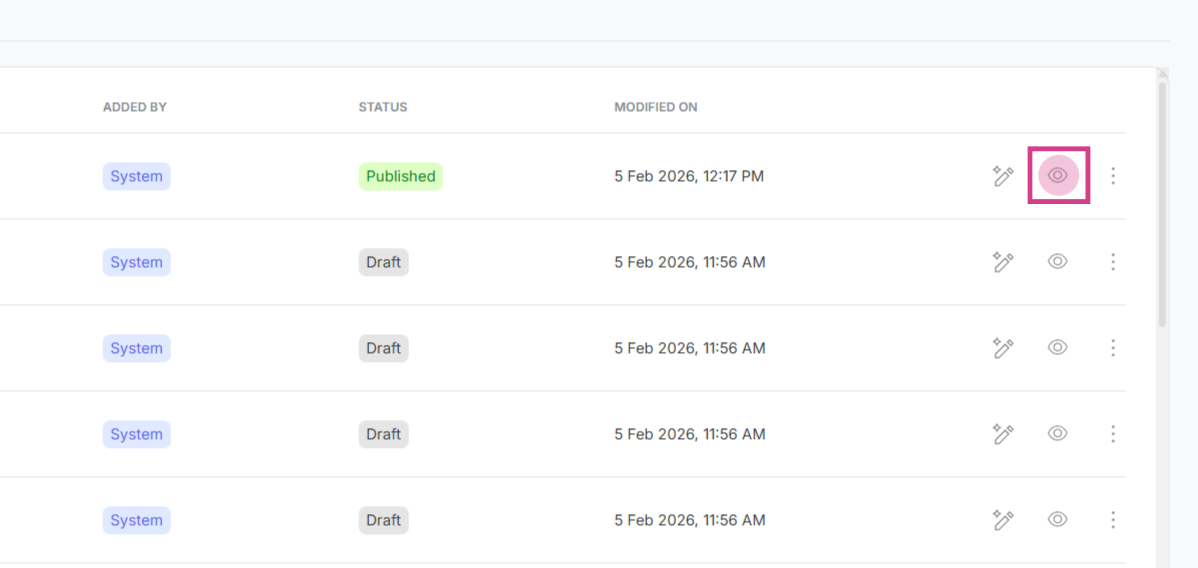
Click the preview icon (eye symbol) to see how your page looks before publishing. You can view your page design and layout visually, check how your content appears to visitors and publish when satisfied with the preview.
Note:- As this is the preview mode, interactions are disabled here.
Create New Page
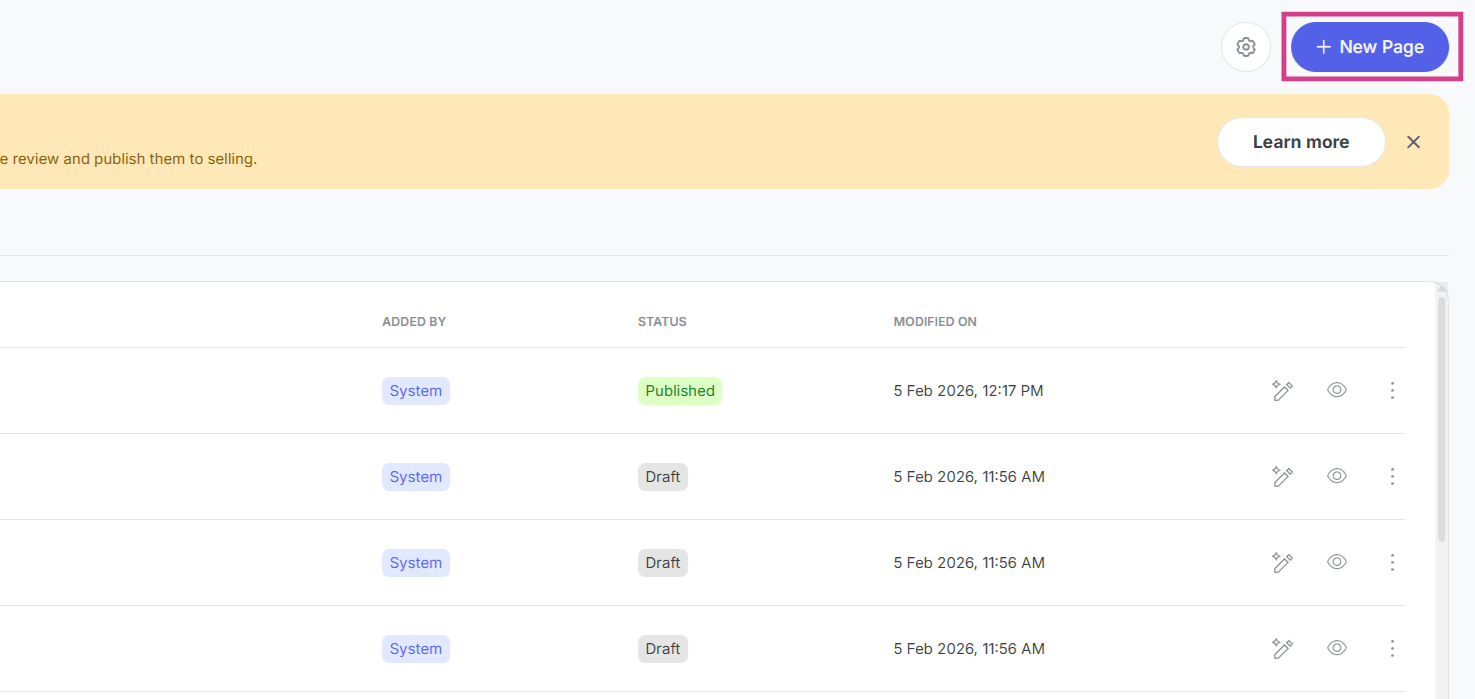
Click the "New Page" button to create a new page for your website.
Website Settings
Click the Settings icon (gear symbol) to configure your entire website settings. You can add logo and favicon for your website branding and add custom head and body scripts for advanced functionality.
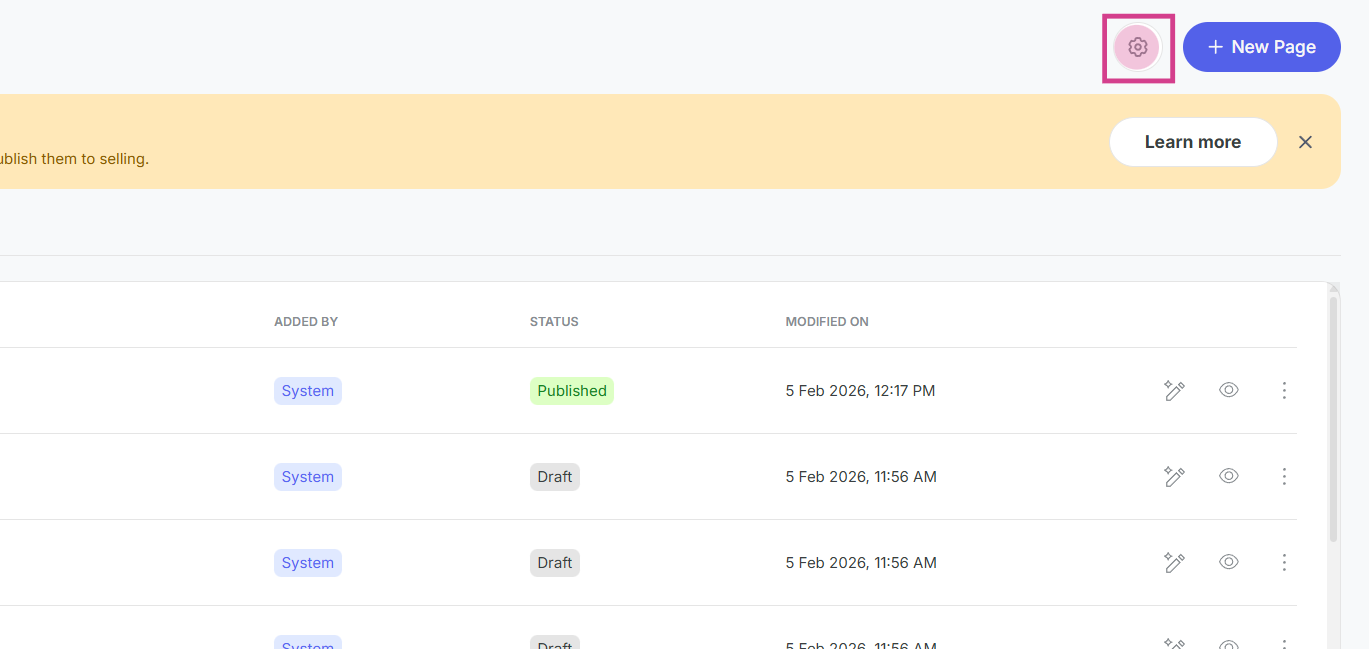
Navigation Management
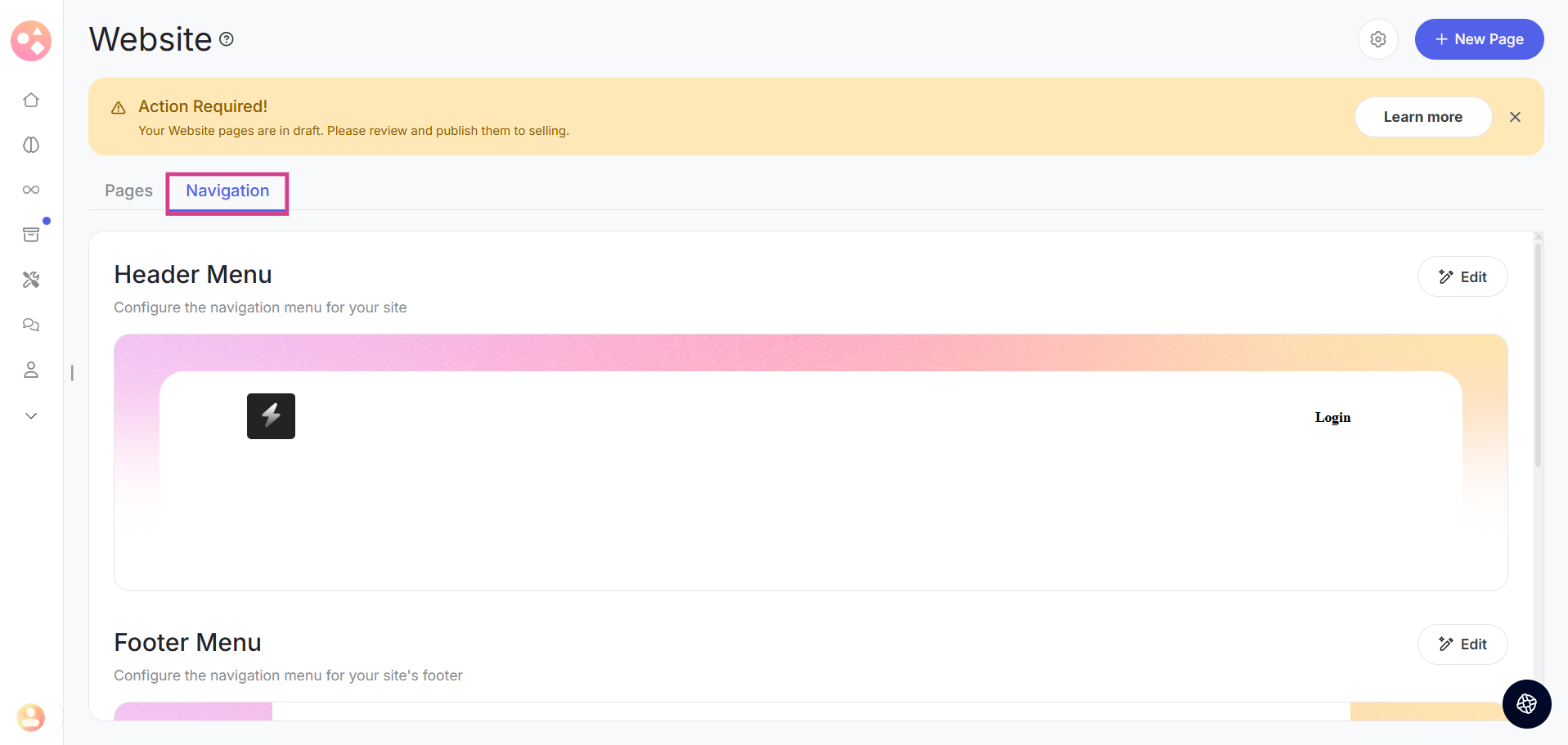
Switch to the Navigation tab to customize the header menu which is the navigation menu that appears at the top of your pages, customize footer menu with links and information in your website's footer, organize menu items for easy navigation, and ensure visitors can navigate through your website seamlessly.
Detailed Help Articles :-
- Learn to edit web pages using the AI Editor on Graphy.
- Learn to manually edit your website Pages on Graphy.
- Learn to revert your changes in the website builder on Graphy.
- Learn to customize your website design with Style Guide.
- Learn to edit header and footer Navigation on your Graphy Website.
- Learn to configure overall website settings of your website.
- Learn to create New Pages for your Website on Graphy.
- Learn to optimize your website for search engines with SEO Settings.
Was this article helpful?
That’s Great!
Thank you for your feedback
Sorry! We couldn't be helpful
Thank you for your feedback
Feedback sent
We appreciate your effort and will try to fix the article