This article is a step-by-step guide on using the Edit Manually tab for precise control over every element of your website pages on Graphy.
The Edit Manually tab empowers you with granular control to adjust layout, alignment, spacing, dimensions, colors, and text content directly without any coding required. Make pixel-perfect adjustments to individual elements, update text sections by typing directly, and fine-tune your design exactly how you want it. This tab is perfect for making specific, detailed changes to your page after AI generation or as an alternative to code editing.
Step 1: From your Graphy dashboard, go to the left panel and click on Website.
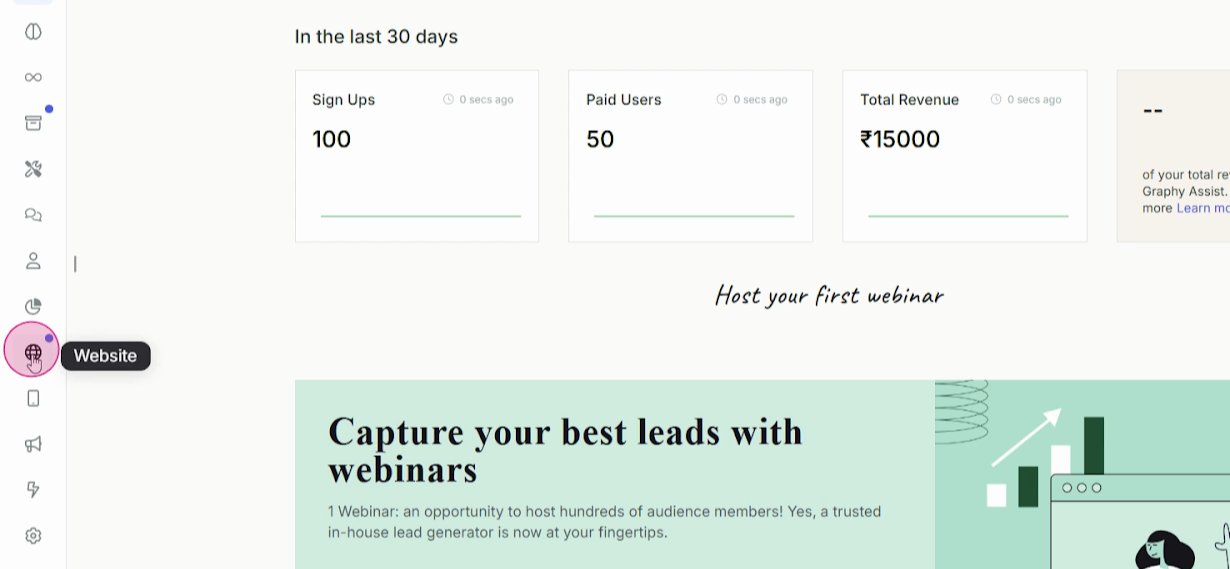
You'll be redirected to the Website section where you can see all the pages of your website. These pages are created as drafts so that you can view, make changes, and publish them whenever you want.
Navigating to Edit
Step 2: You can click on any page, or simply click on Edit to start making changes.
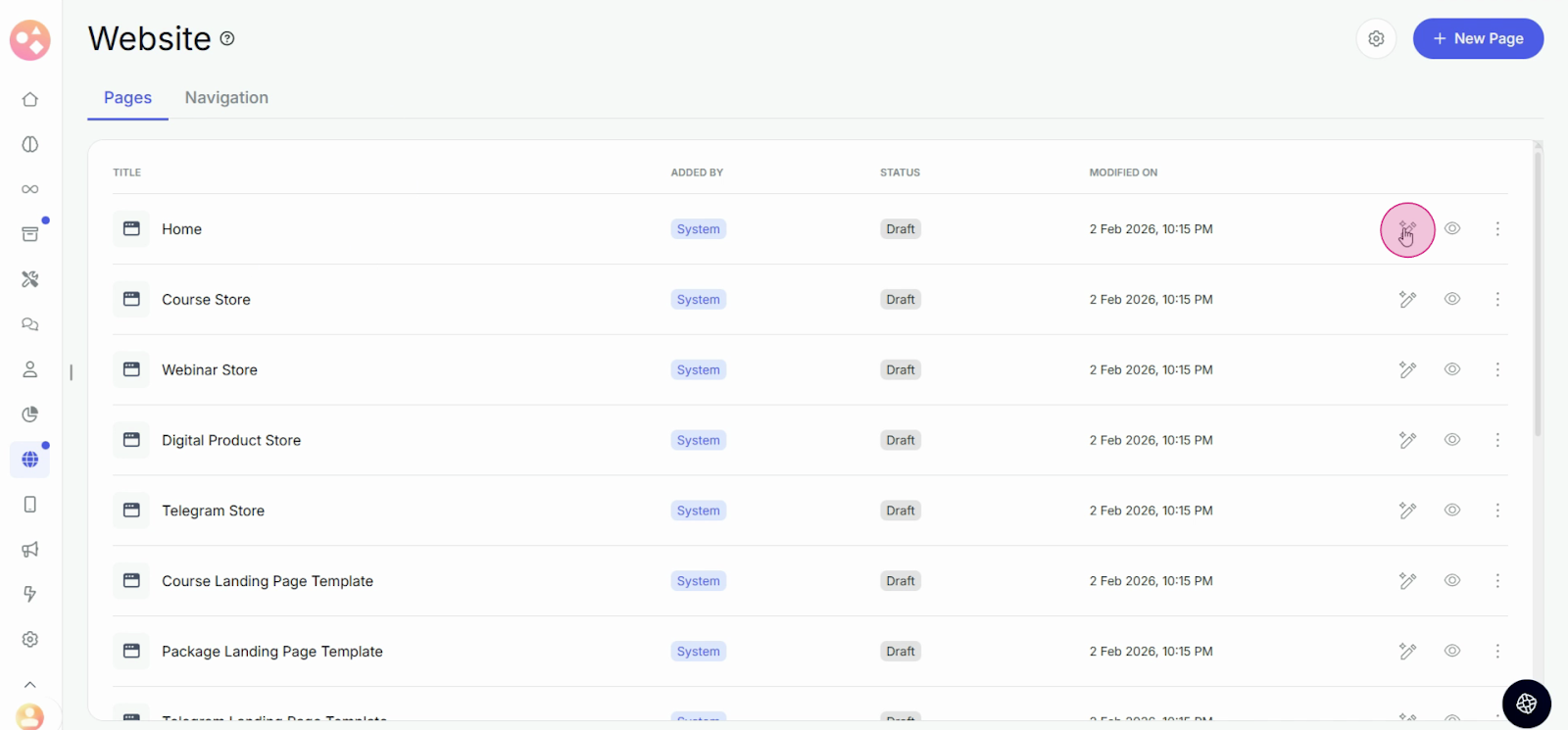
Manual Editing for Precise Control
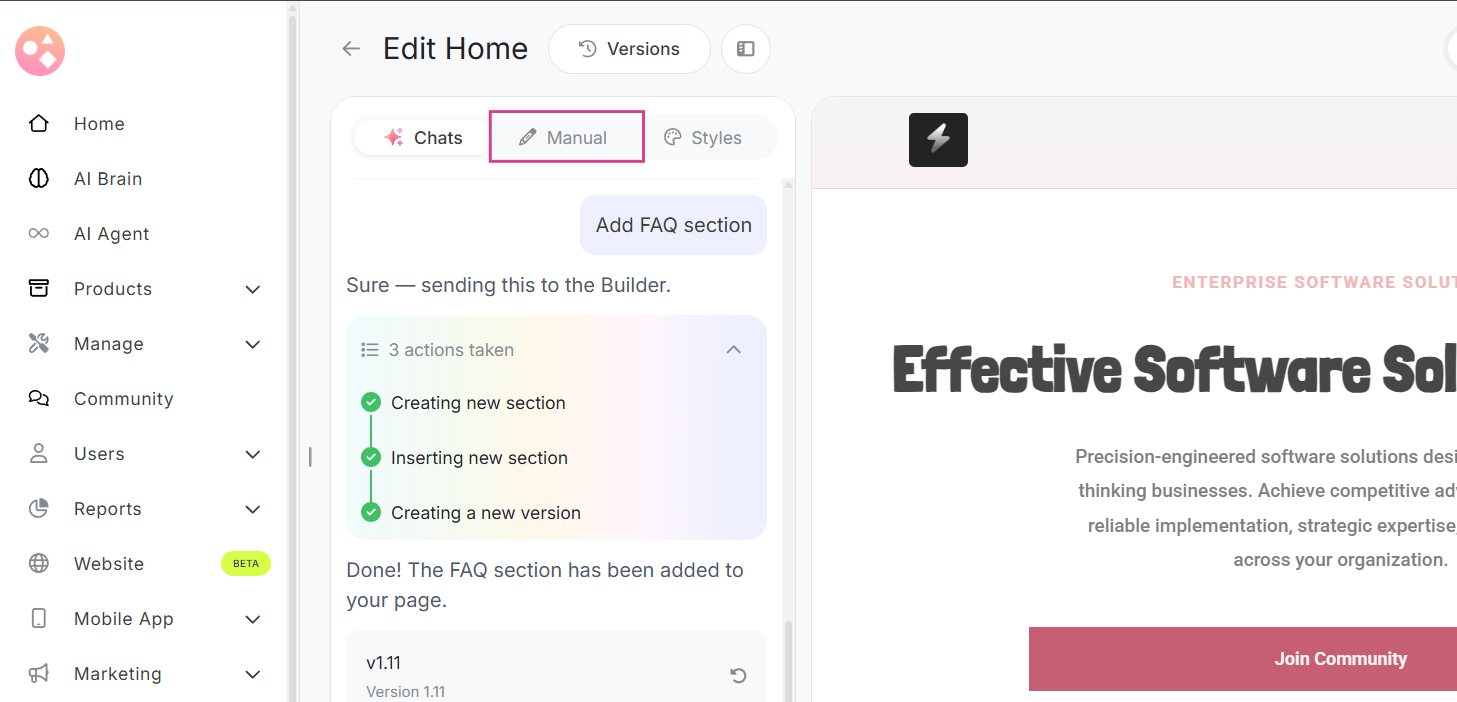
Step 3: Switch to the Edit Manually tab to edit the web page by yourself with complete precision.
For more precise control over your page design, the Edit Manually tab allows you to make detailed adjustments without needing any code.
Step 4: Select the element you want to edit.
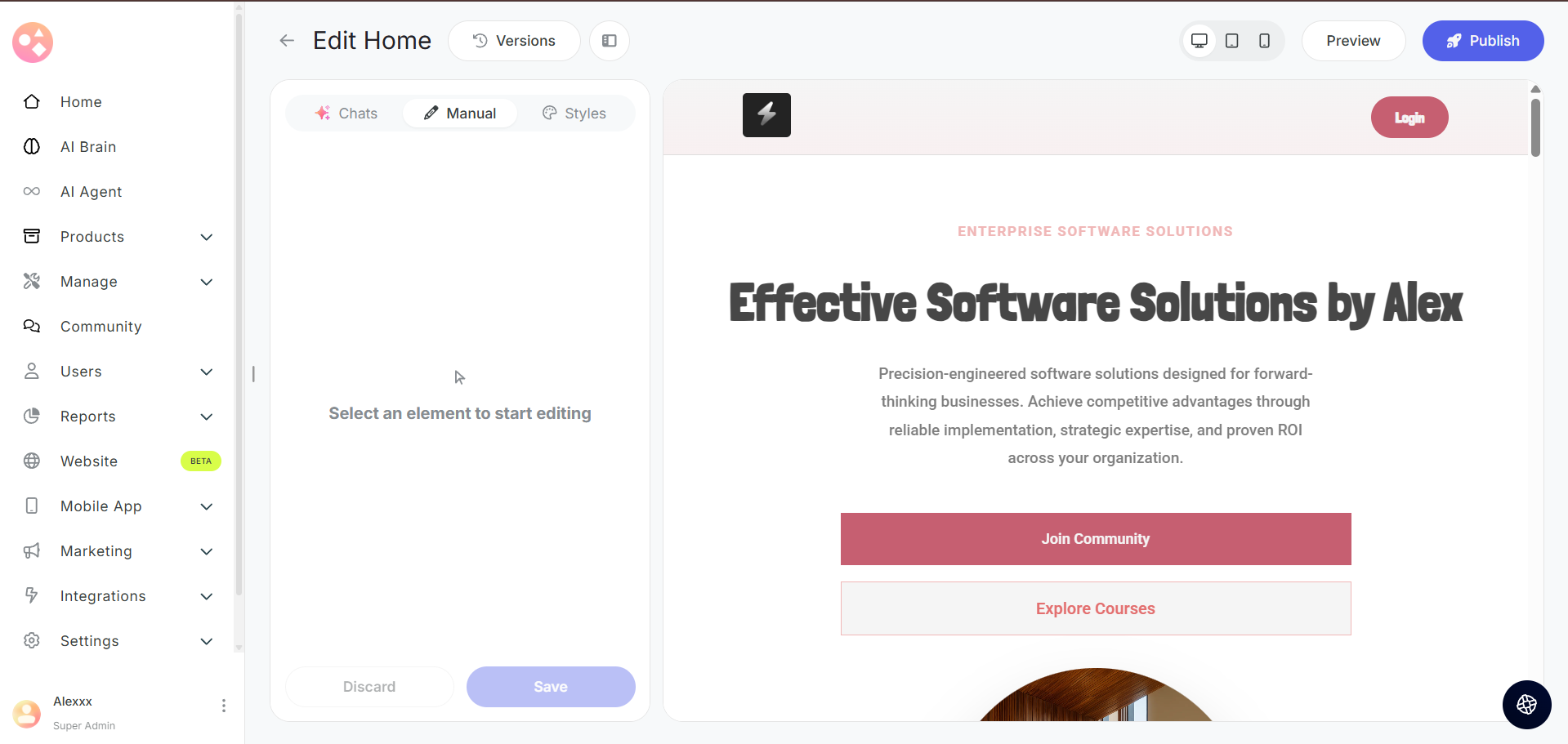
Adjusting Page Elements
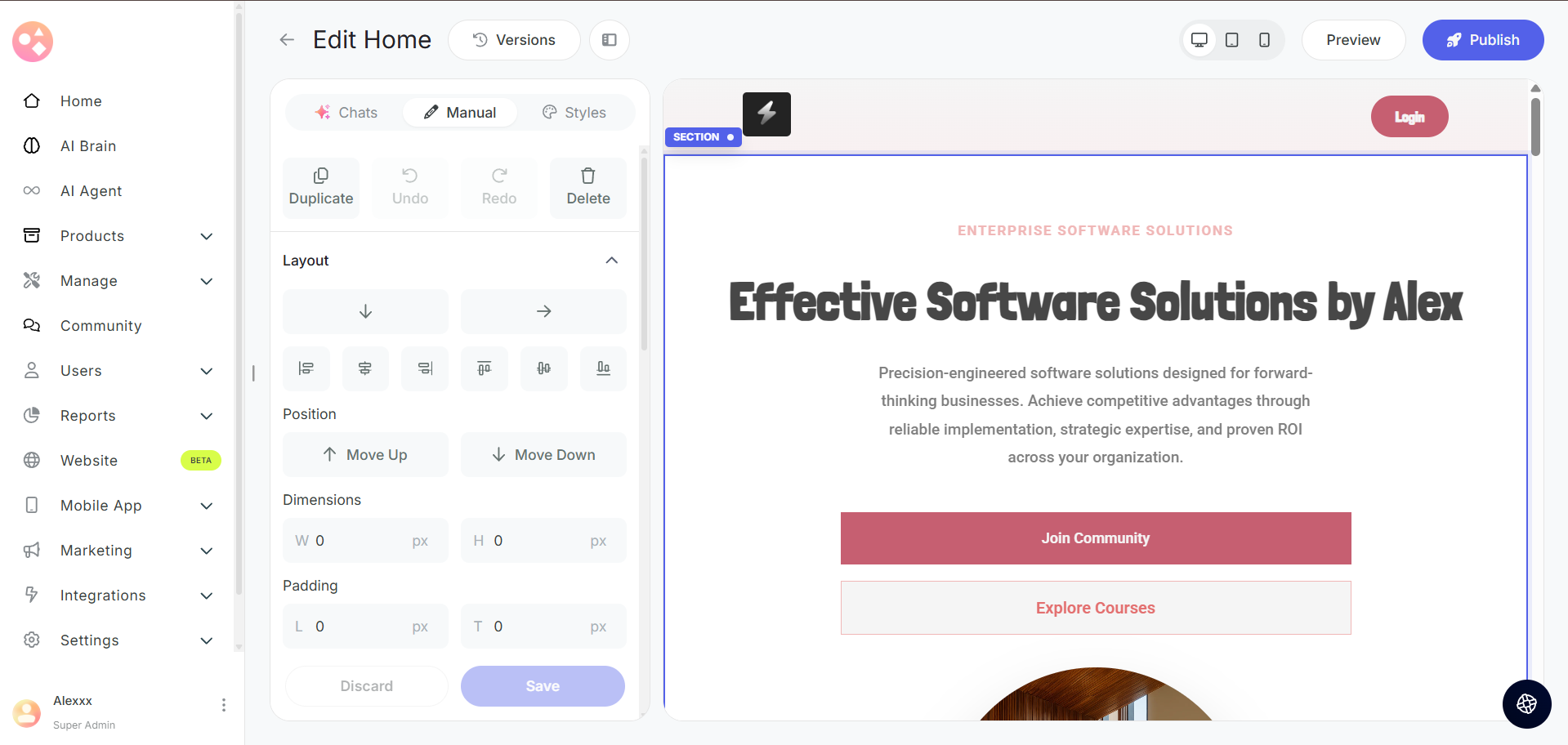
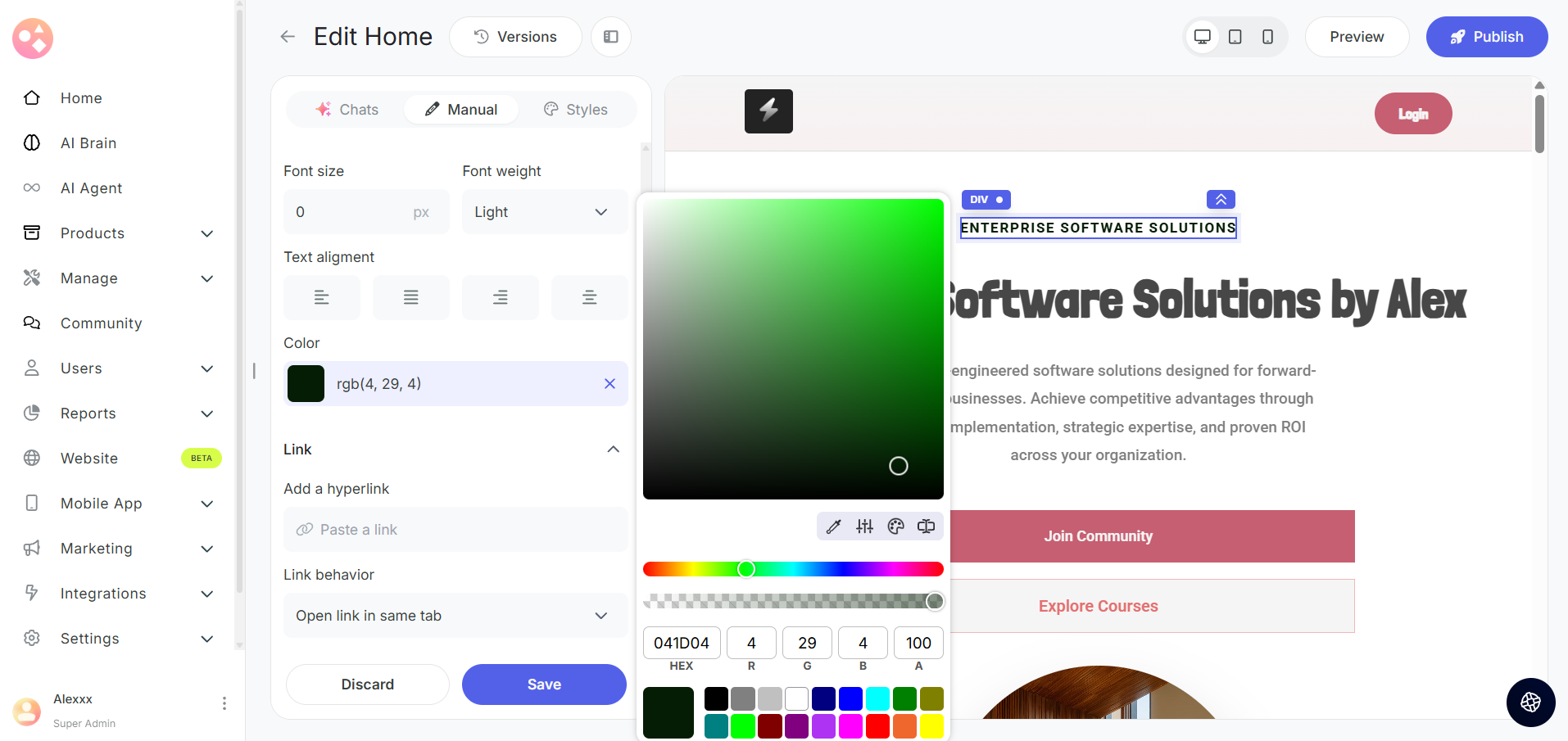
Step 5: In the Edit Manually tab, you can adjust the following elements:
Layout - Change how sections are arranged on your page
Alignment - Position elements left, center, or right
Spacing - Adjust the distance between elements and sections
Dimensions - Modify the width and height of elements
Colors - Change the color of text, backgrounds, and other visual elements
Manually Updating Text Sections
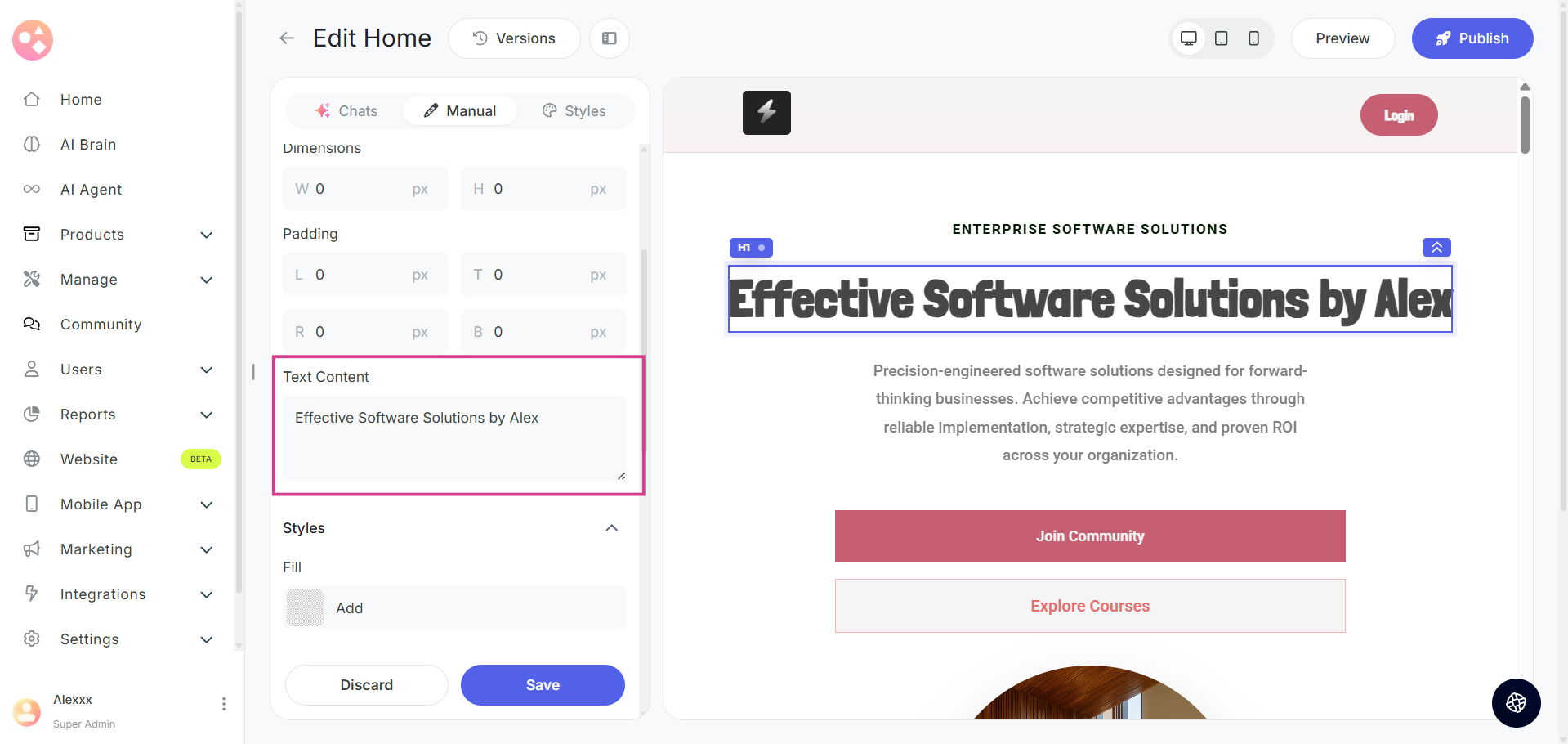
Step 6: You can also click on any text section and manually update them by typing what you want.
Simply select the text element you wish to change, delete the existing text, and type your new content directly in the text content tab.
Copying Elements or Sections
Step 7: You can select an element or a section and copy the element to duplicate it on your page.
This is useful when you want to create similar sections or elements .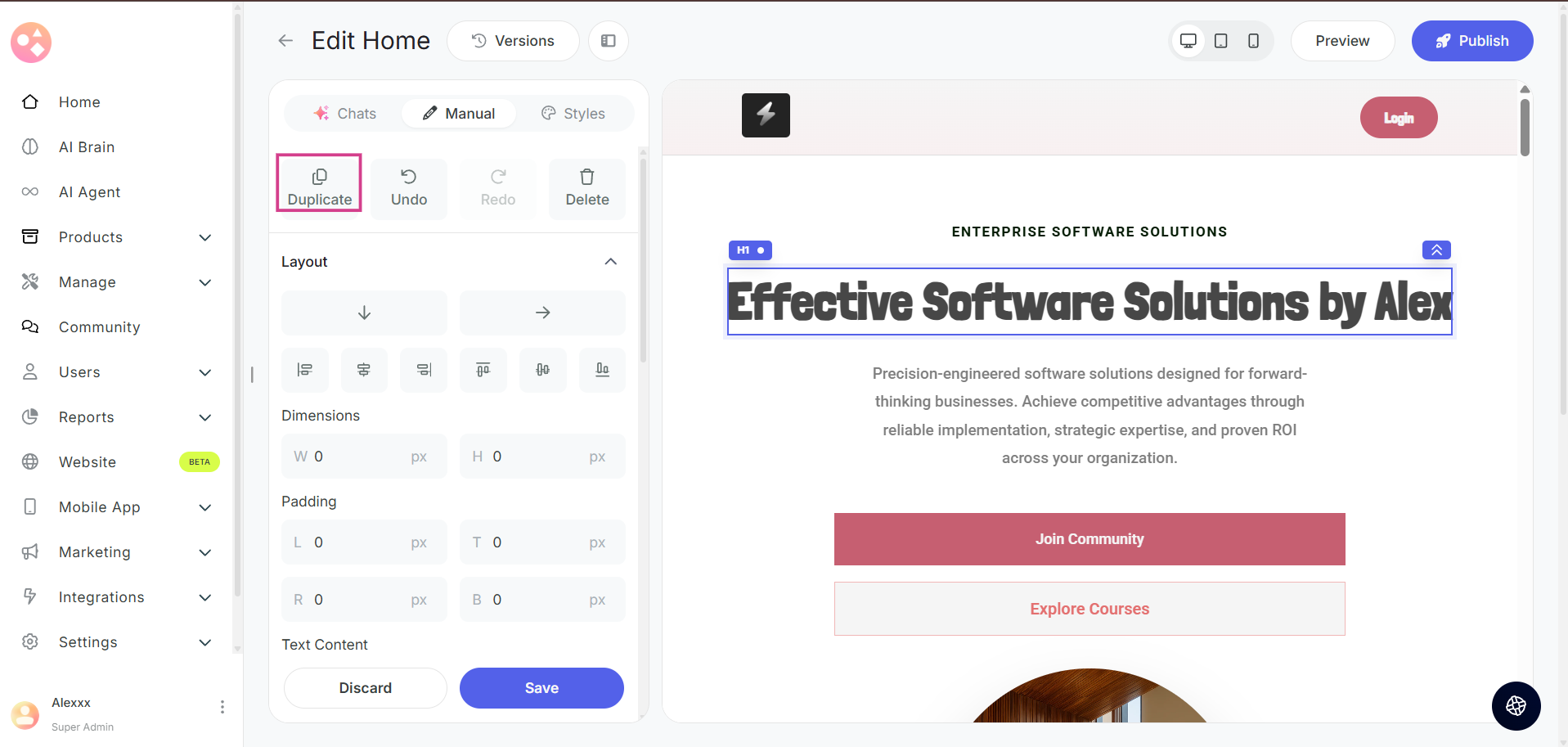
Deleting Elements or Sections
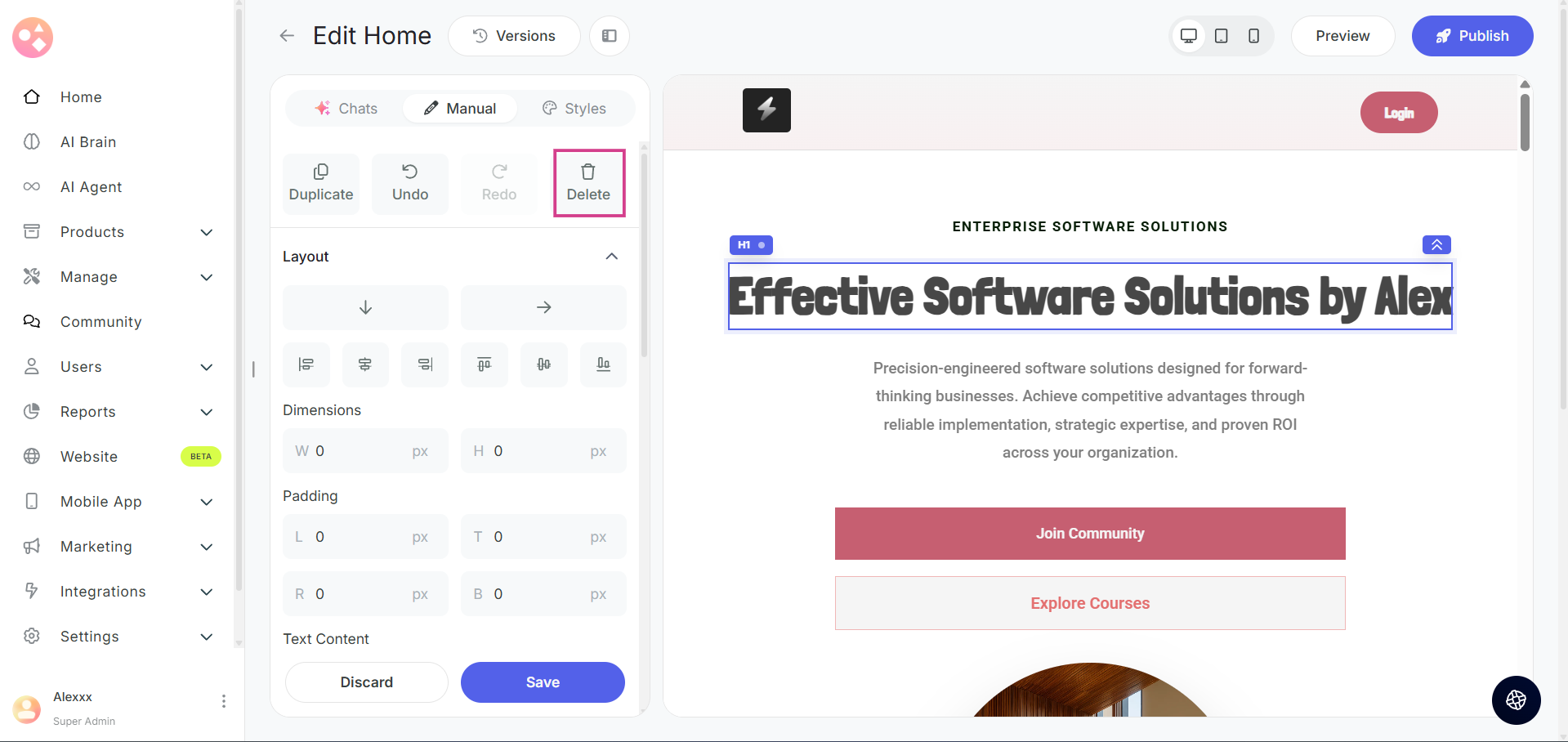
Step 8: You can also delete a specific element or section. Select the unwanted element or section and click the delete button to remove it from your page.
Adding Background Images to Sections
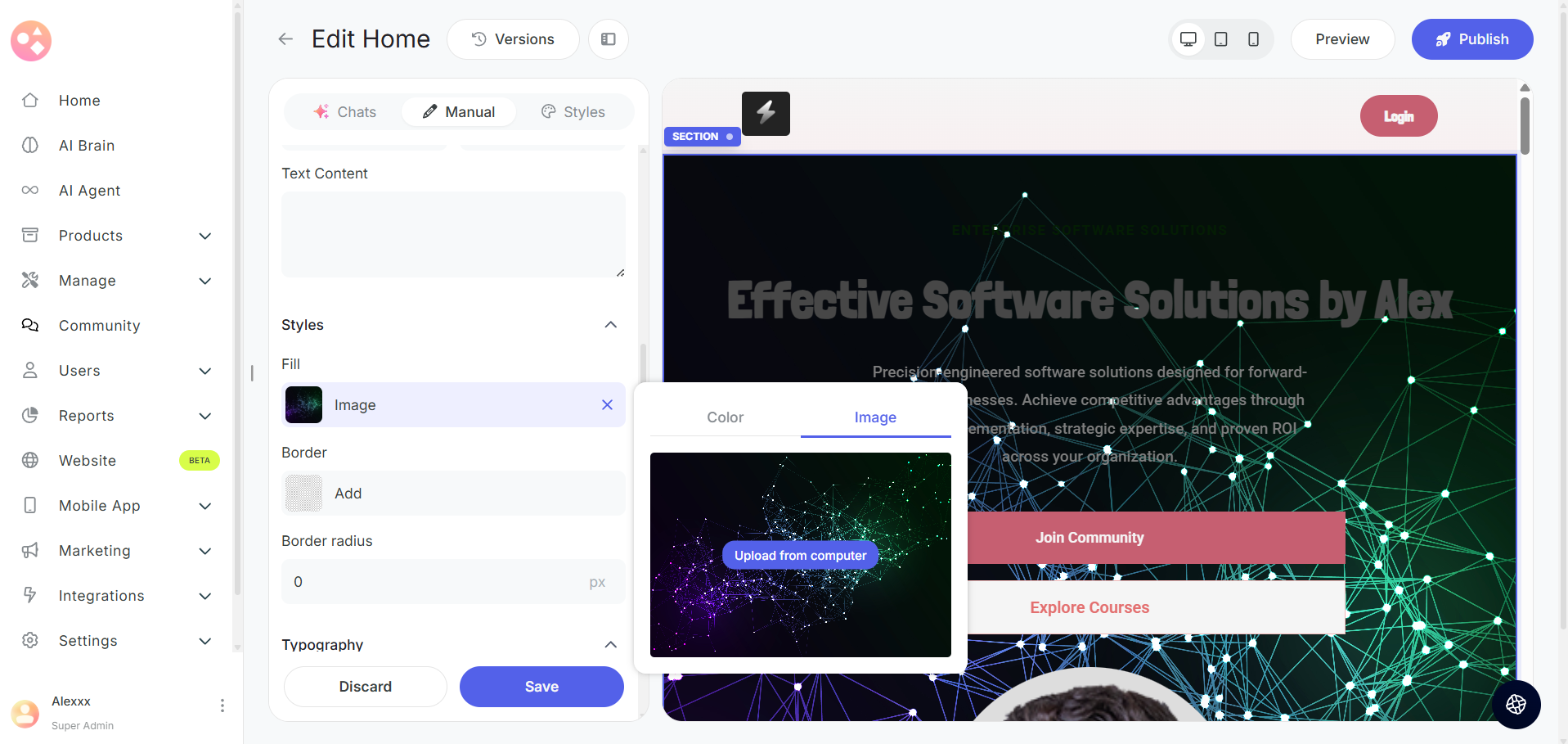
Step 9: You can also add background images to any section in the Fill section.
To add a background image:
Select the section where you want to add the background.
Go to the Fill section.
Move to the Image option.
Upload the image you want in the background.
Changing Images in Sections
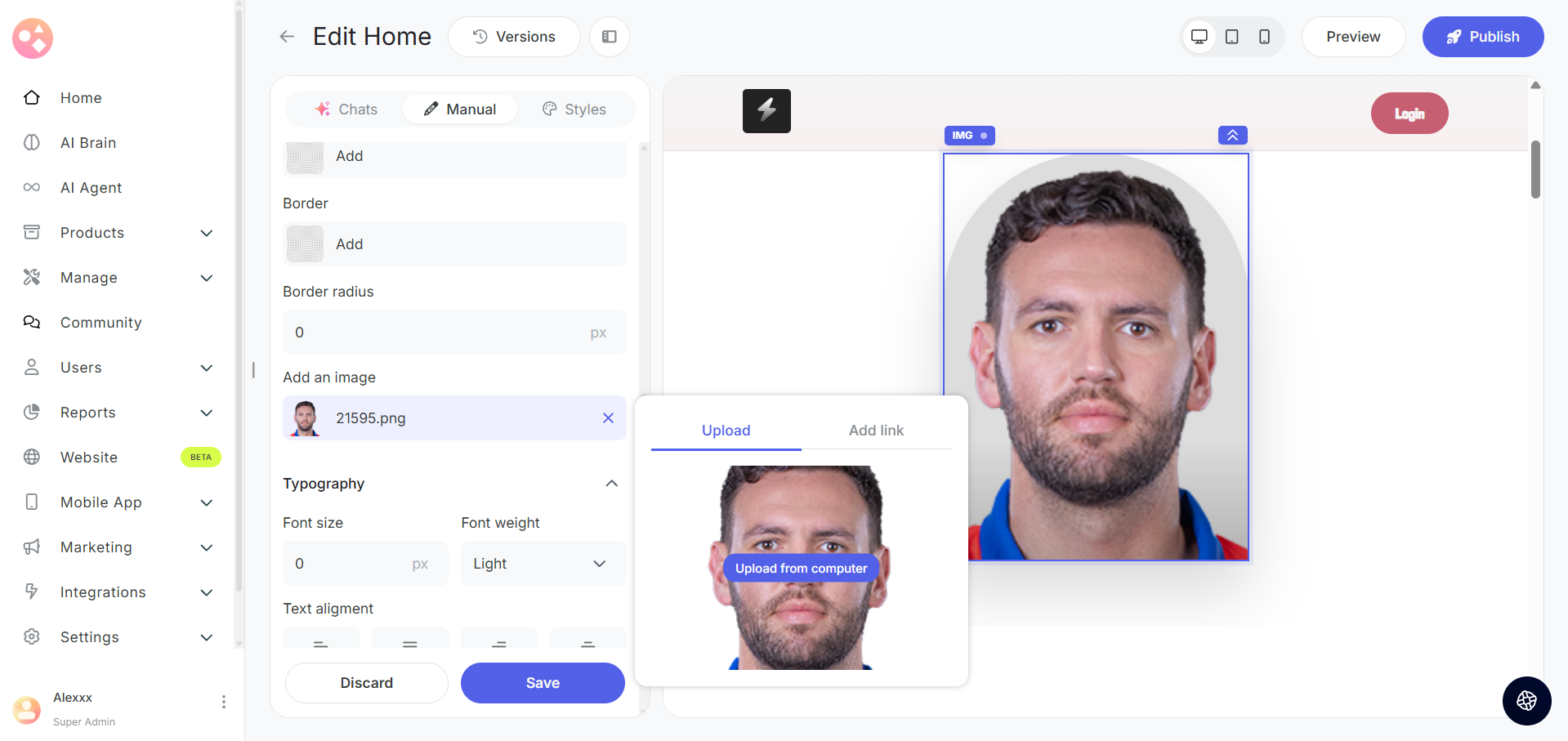
Step 10: You can also change images in sections by selecting the image and choosing your preferred option.
Simply select the image you want to replace and choose your method to update it.
You have two ways to update images:
Upload - Upload a new image file from your device.
Add a Link - Provide a URL link to an image you want to use.
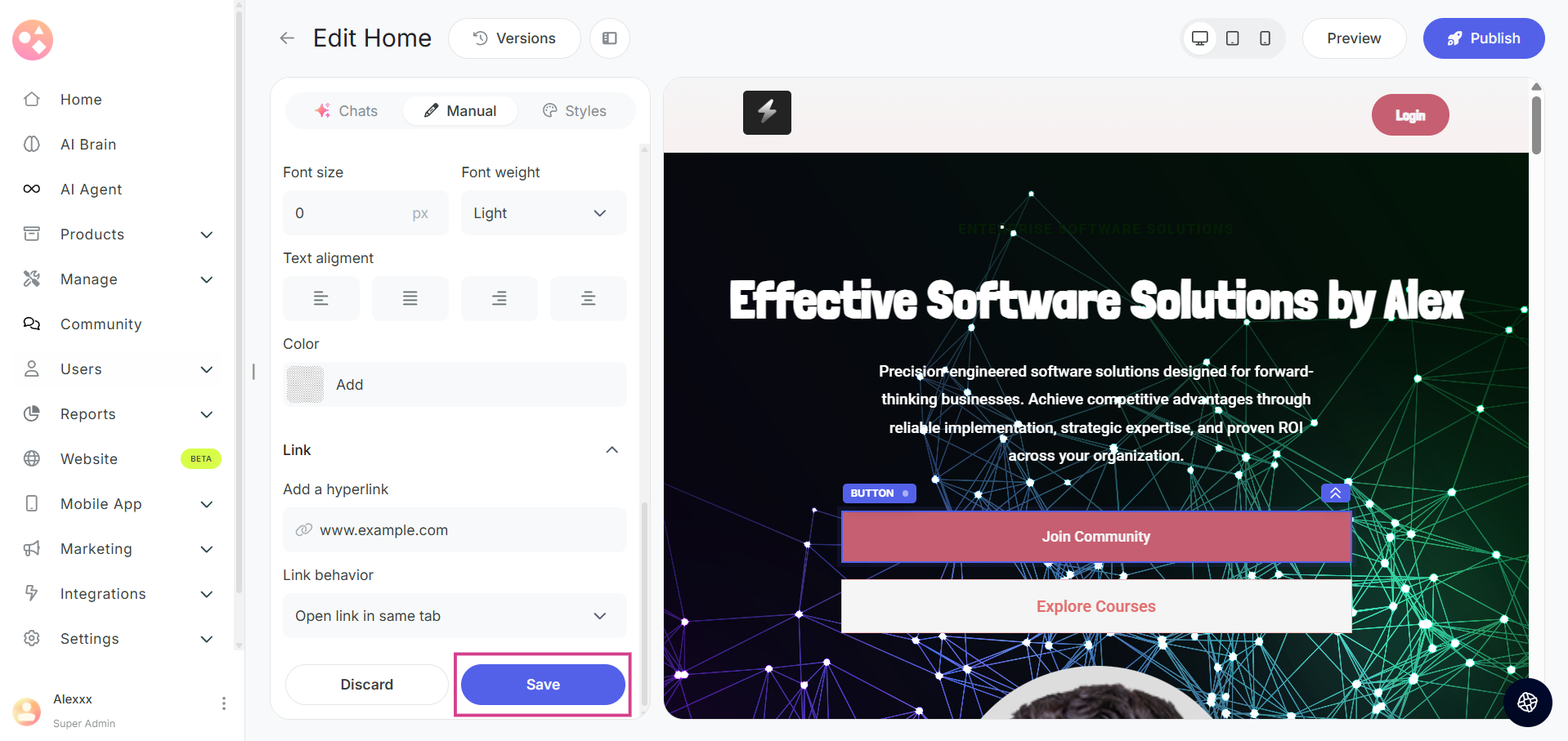
Add a hyperlink to a button for redirection
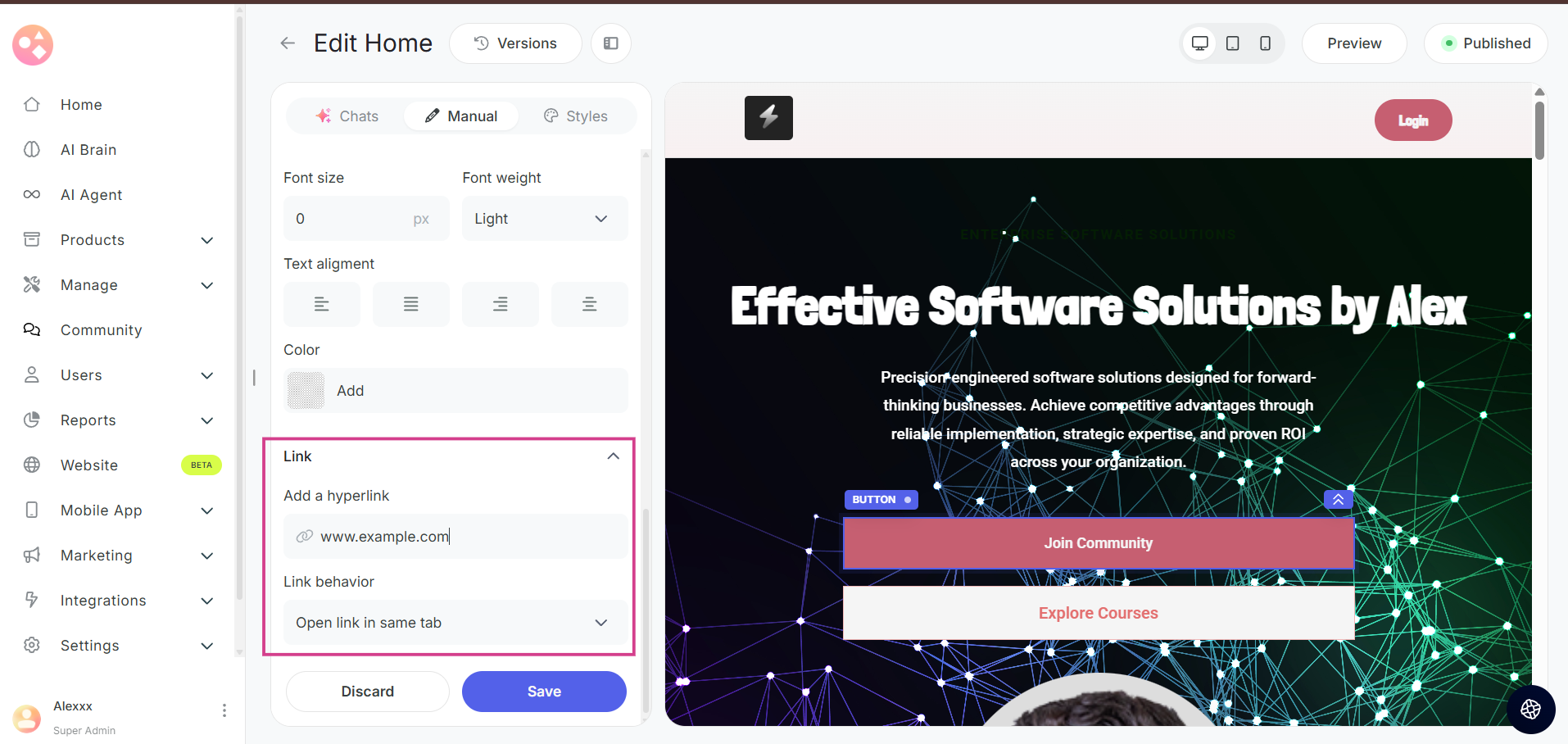
You can add a hyperlink to a button to redirect users to another page or URL.
Select the Button element.
In the Manual panel, locate the Link option.
Add the desired link and choose the appropriate Link Behavior (e.g., open in the same tab or a new tab).
Saving Your Manual Changes
Step 11: Once you've made all the adjustments you want, click on Save to apply the changes to your page. You then need to publish it to make it live.
Related Articles:-
- How to Edit Web Pages using the AI Editor On Graphy?
- How to Manage Version History and Roll Back Changes on Graphy?
- How to Customize Your Website Design with Style Guide?
Was this article helpful?
That’s Great!
Thank you for your feedback
Sorry! We couldn't be helpful
Thank you for your feedback
Feedback sent
We appreciate your effort and will try to fix the article