This article is a step-by-step guide on creating new pages on Graphy.
Step 1: From your Graphy dashboard, go to the left panel and click on Website.

Step 2: Here, you'll see all the pages that have been created for you. These pages are created as draft so that you can view, make changes, and publish them.
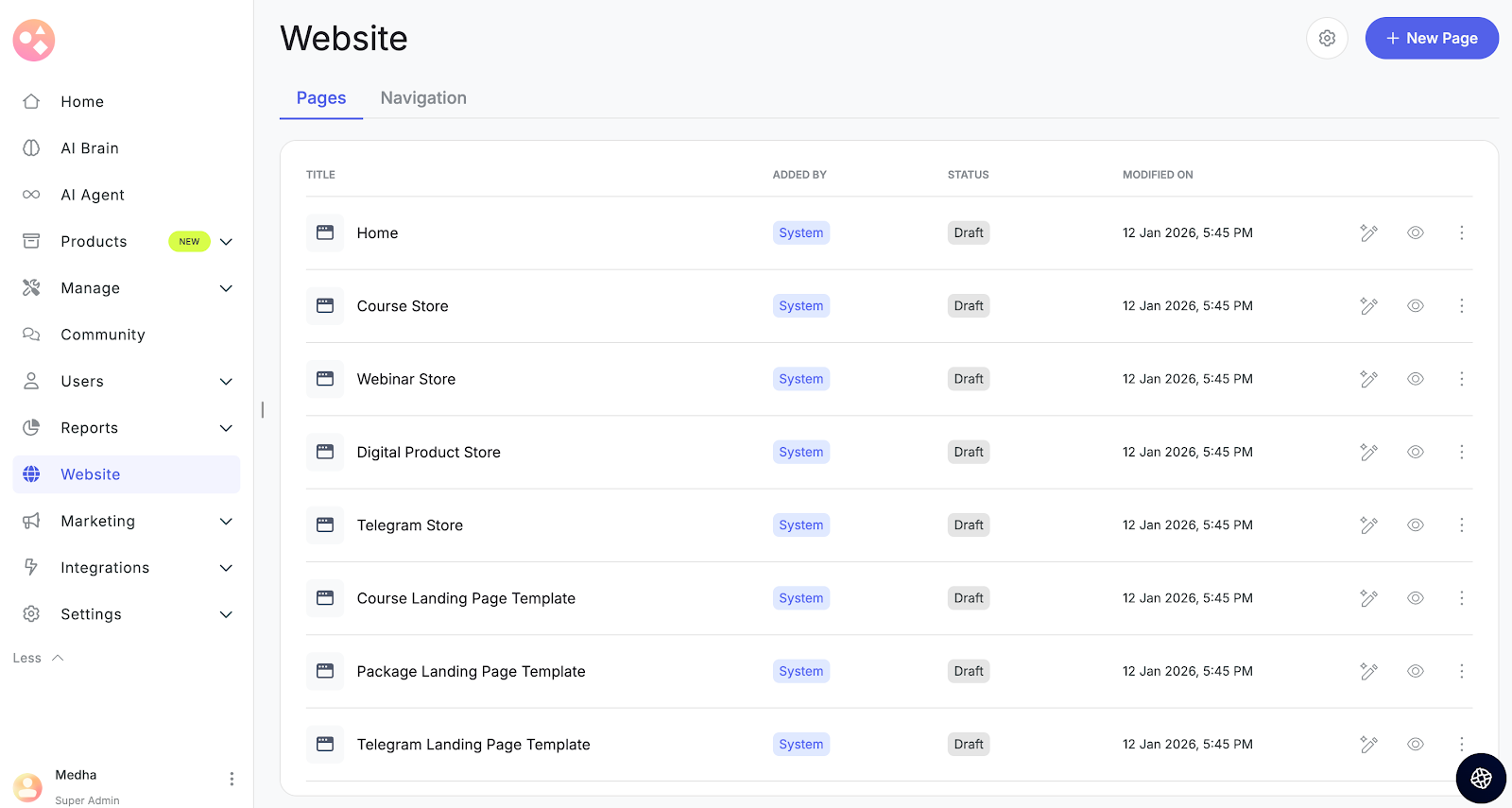
You can check the status of each page whether they are live or still in draft. You can also see when each page was last updated.
Creating a New Page
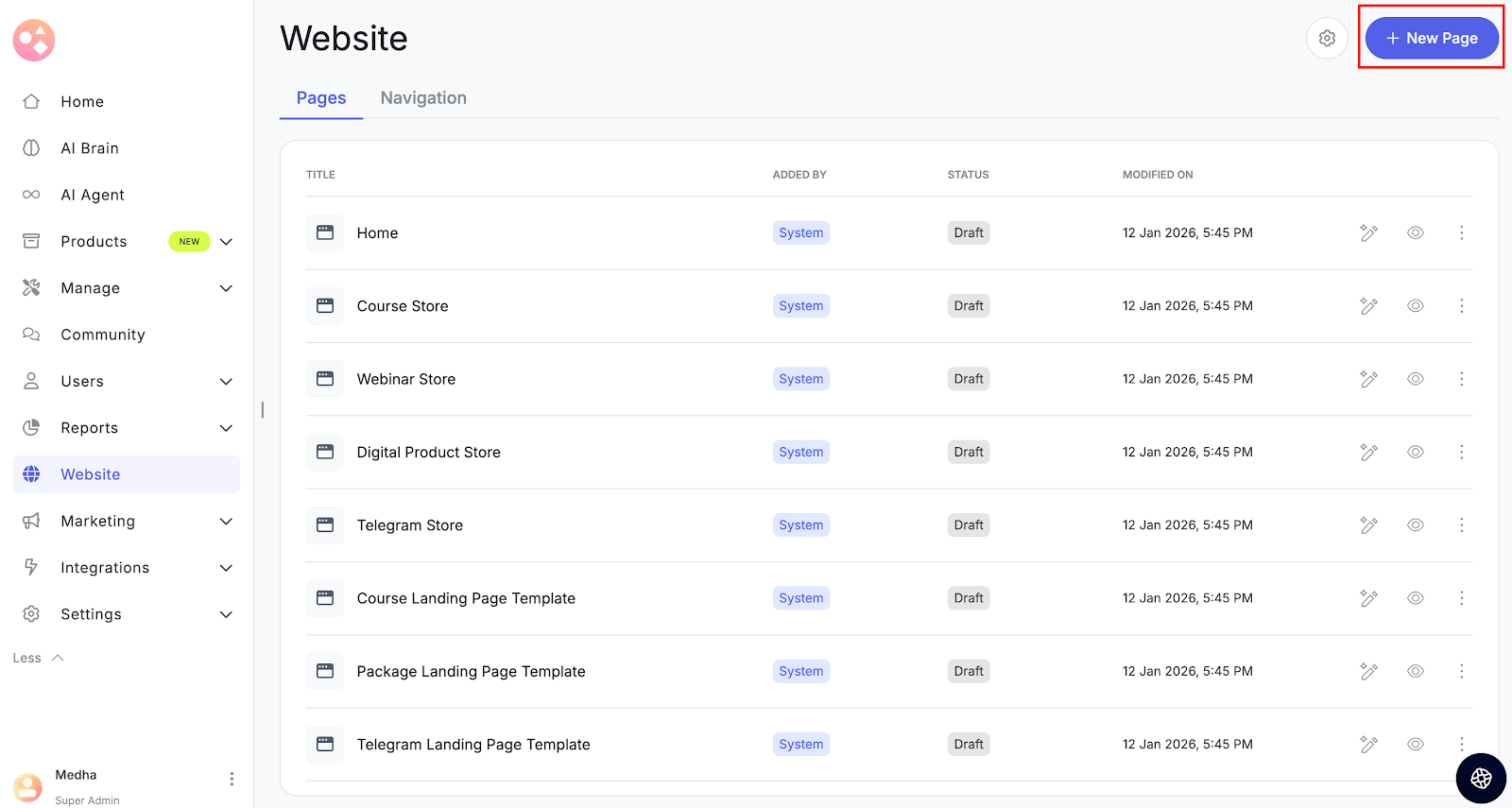
Step 3: Click on New page on the top right.
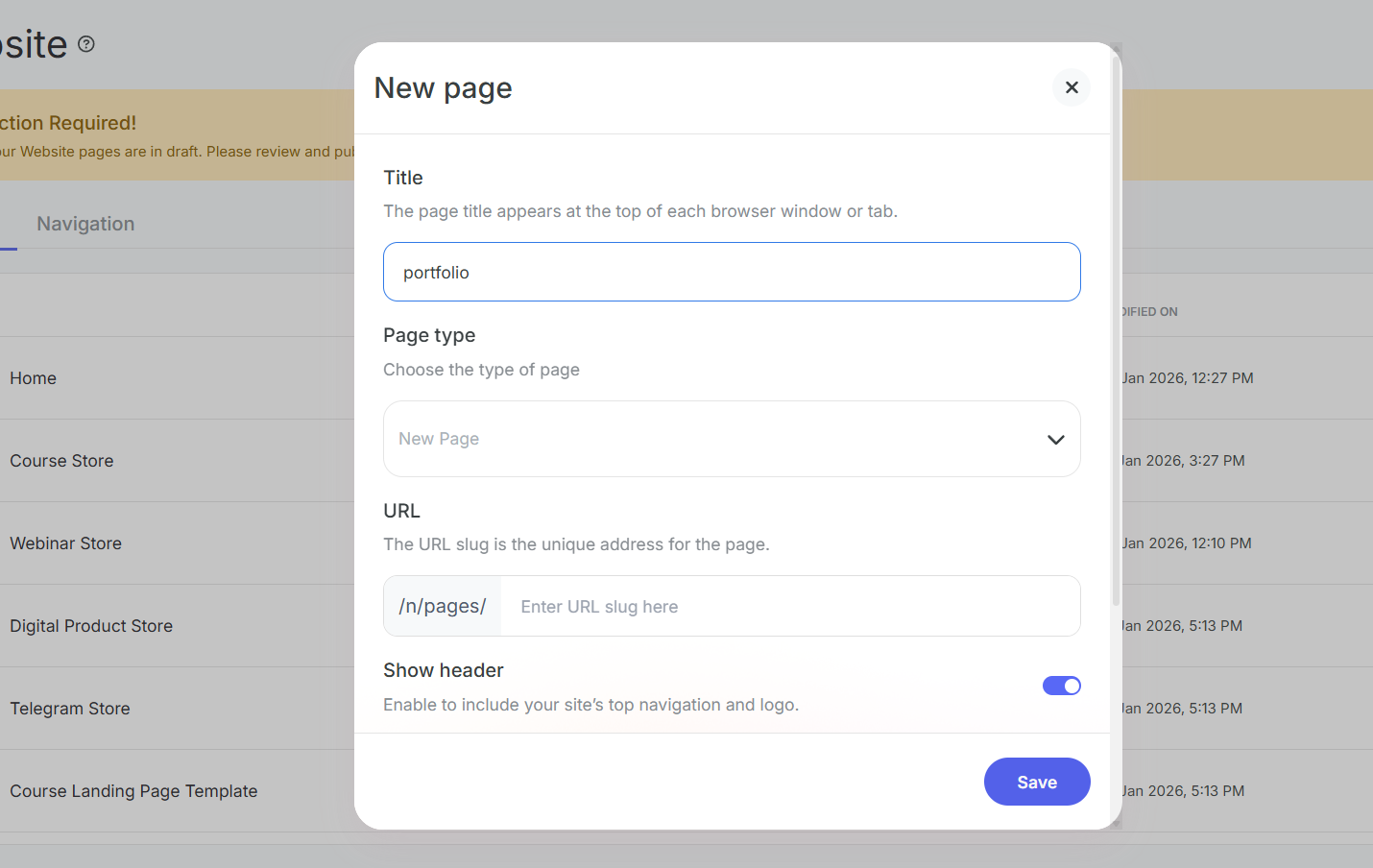
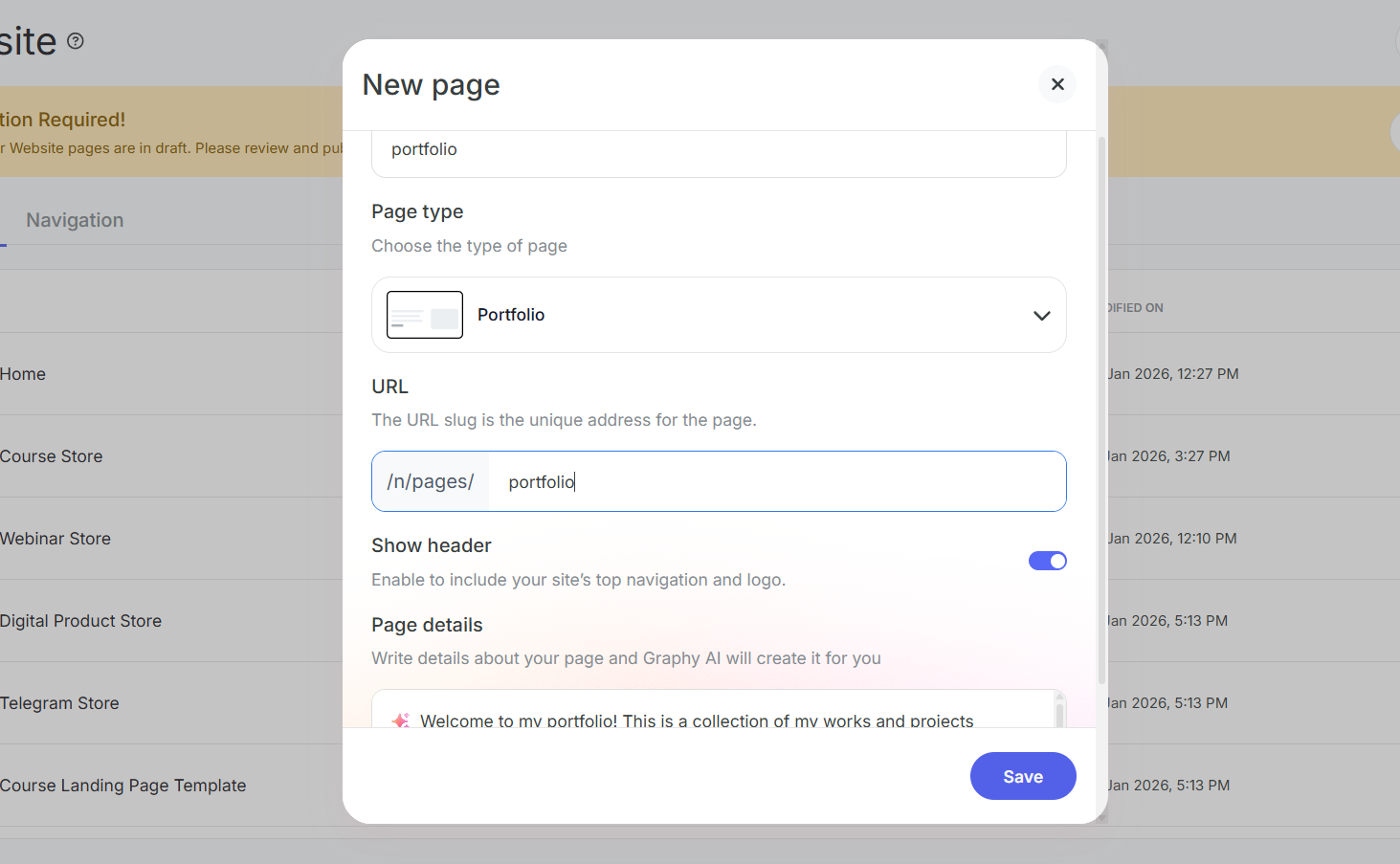
Step 4: Enter the page title. This is the title that appears on the top of the browser window. .
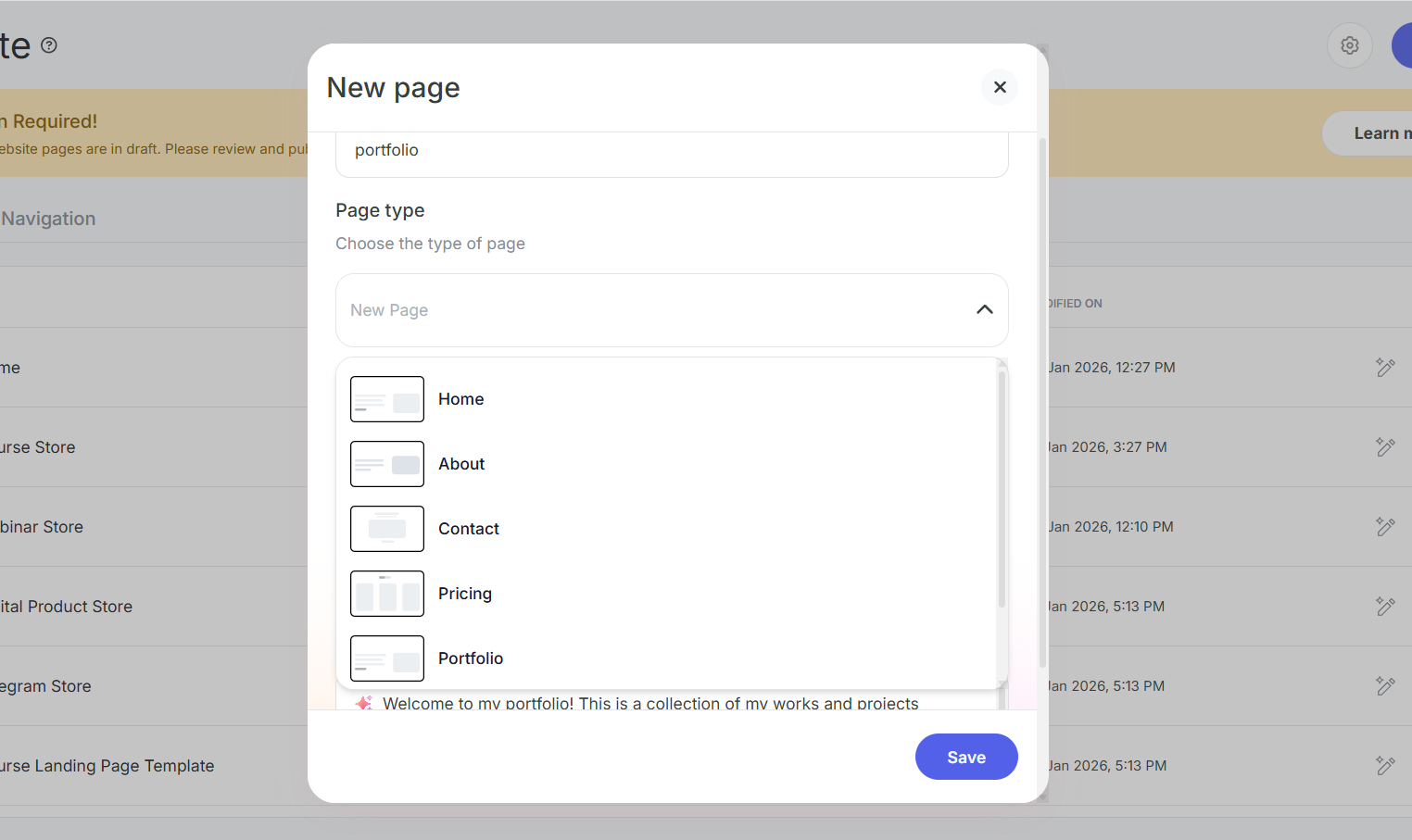
Step 5: Choose a page type from the available options.
Step 6: Enter the page URL — this will be the unique address of your page.
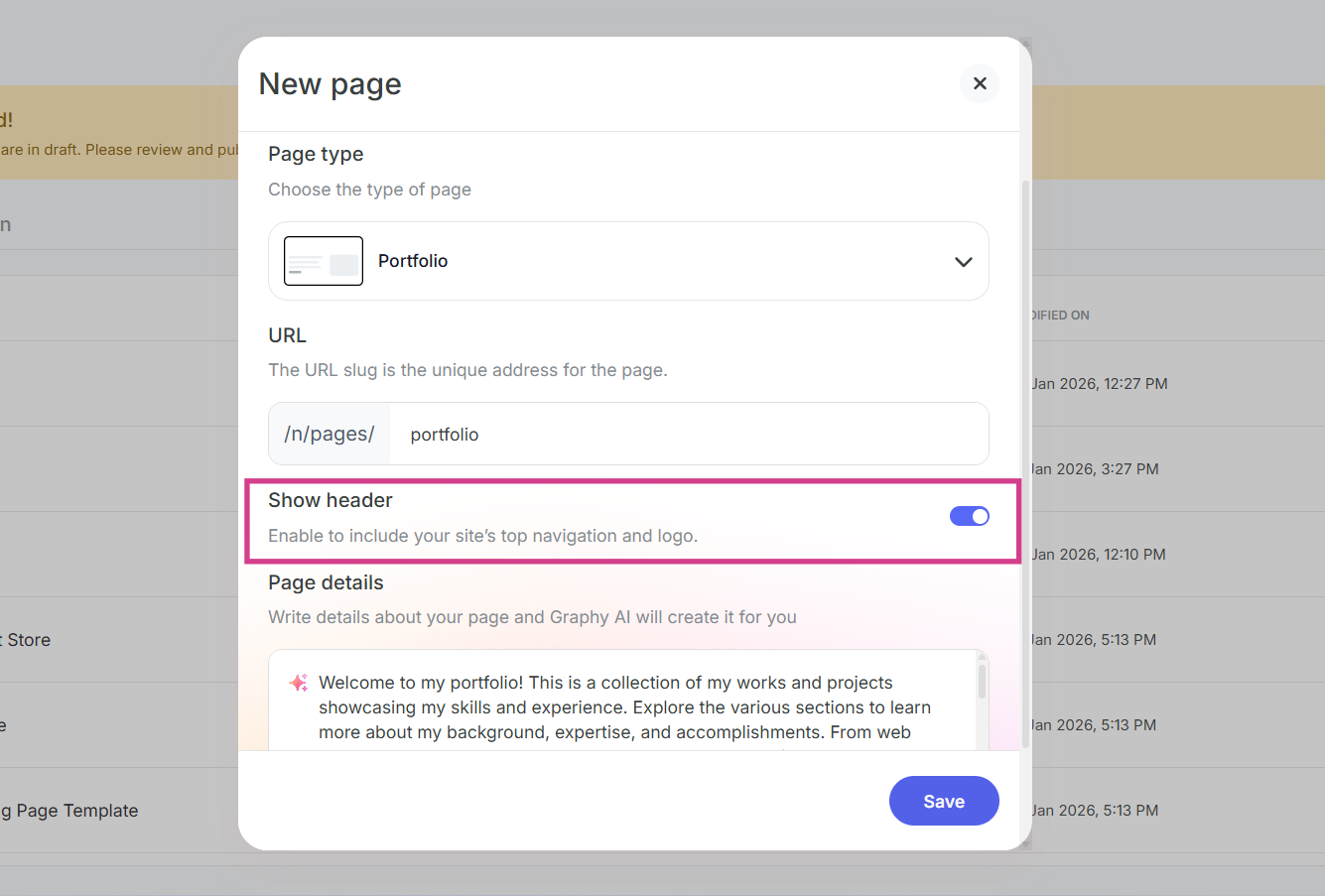
Step 7: Choose whether you want to show the header on this page or not.
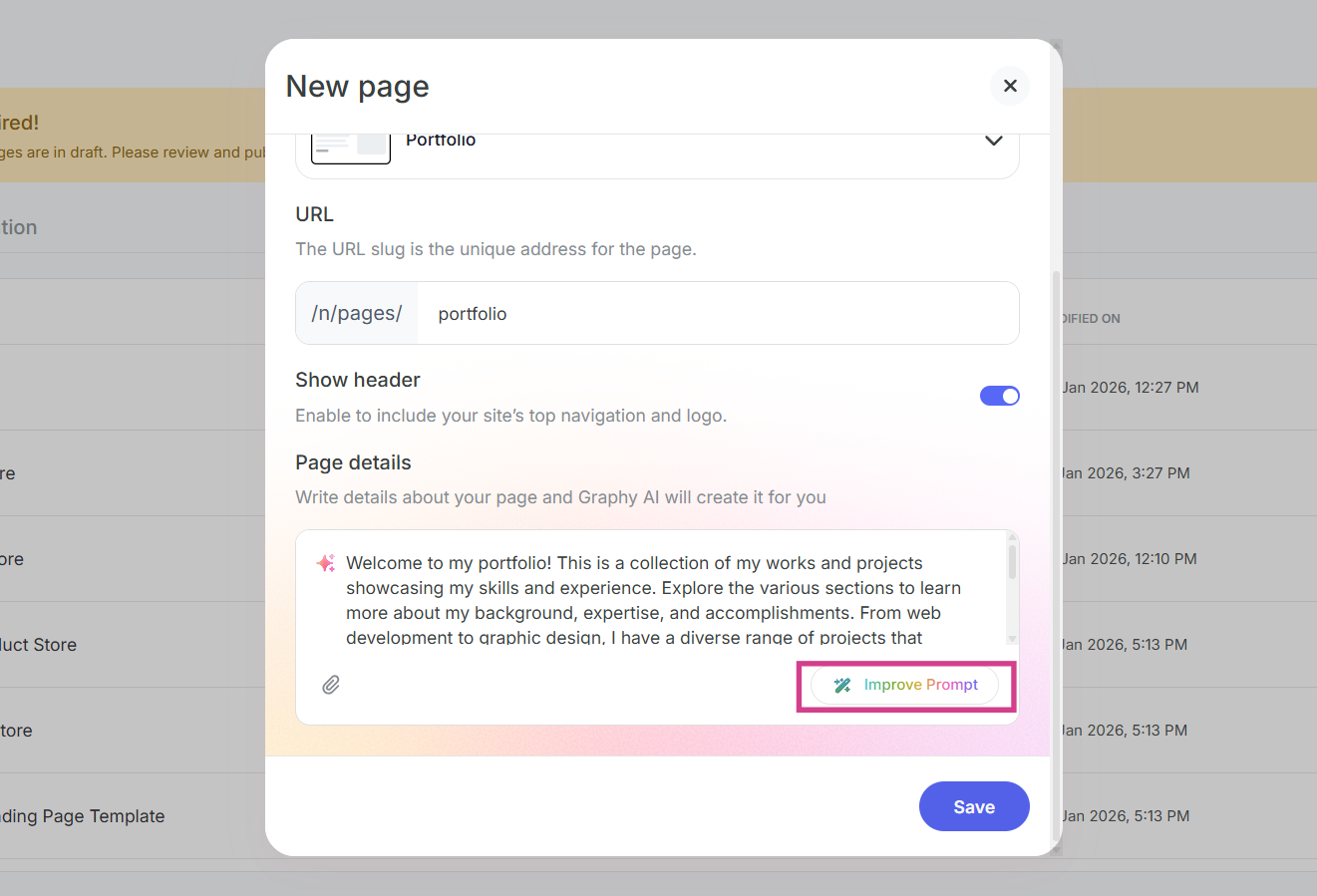
Step 8: Based on the title you enter, Graphy automatically generates the page details for you. You can click on Improve prompt to enhance it using AI, or manually edit the description yourself.
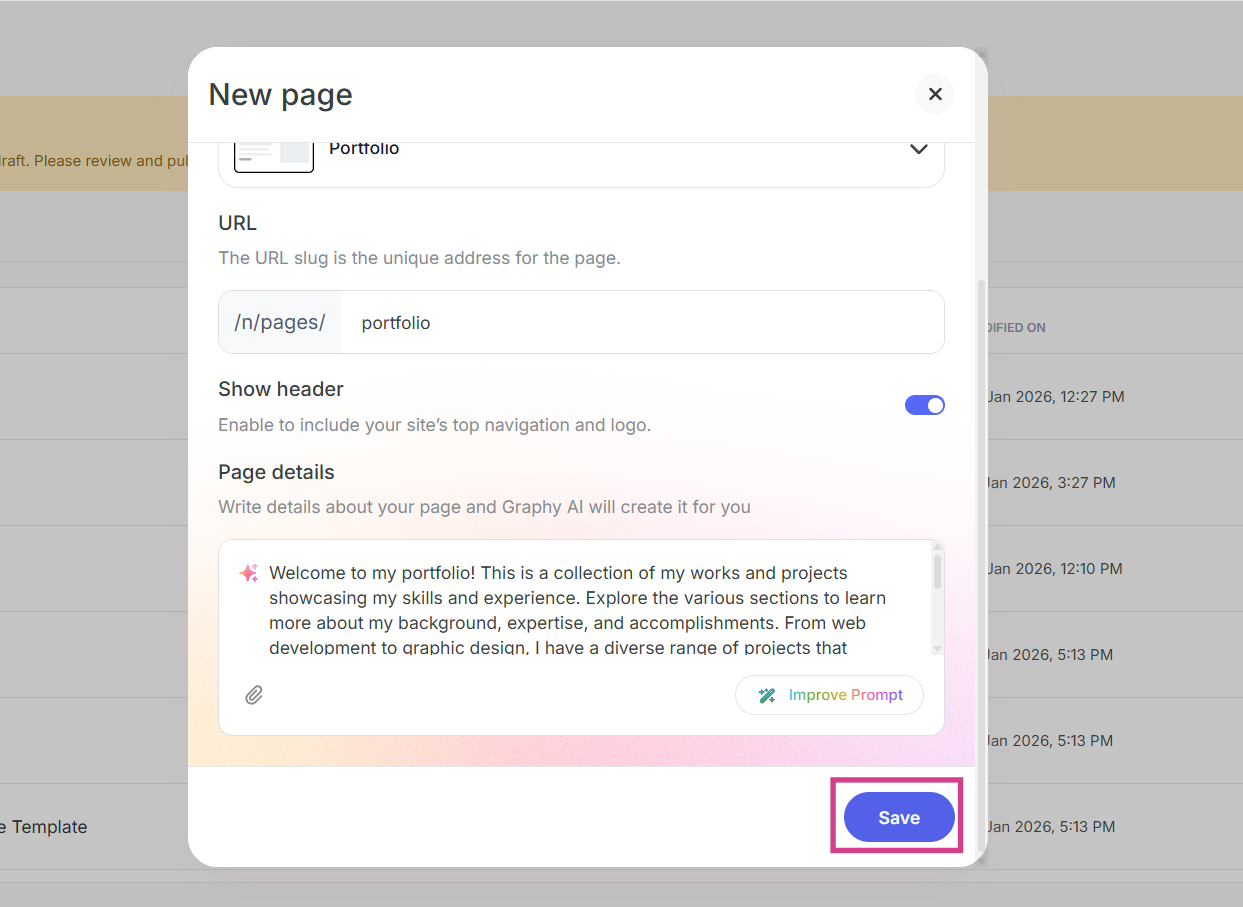
Step 9: Once you're done, click on Save.
Step 10: You'll now be taken to the editor, where your page starts generating.
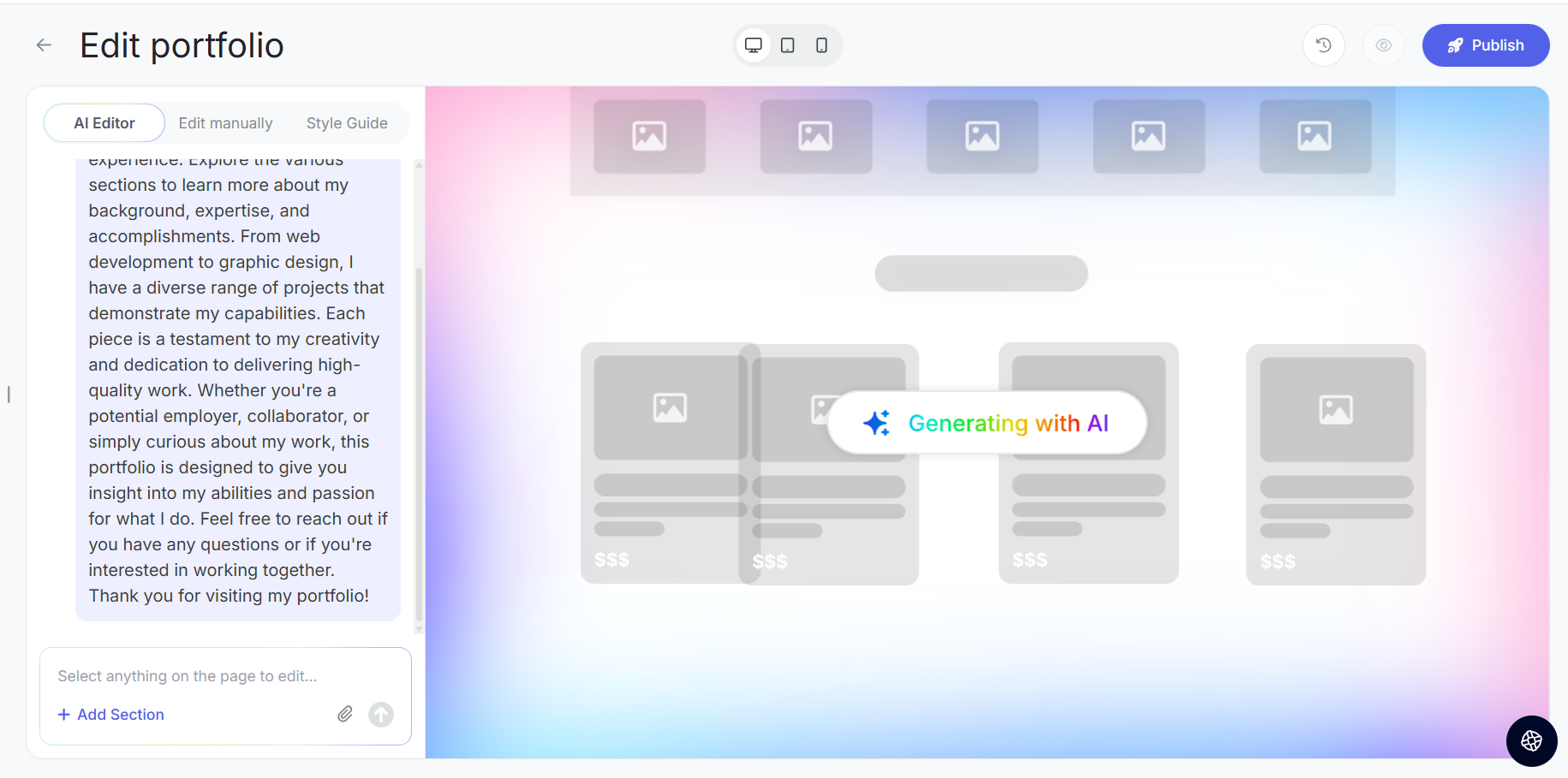
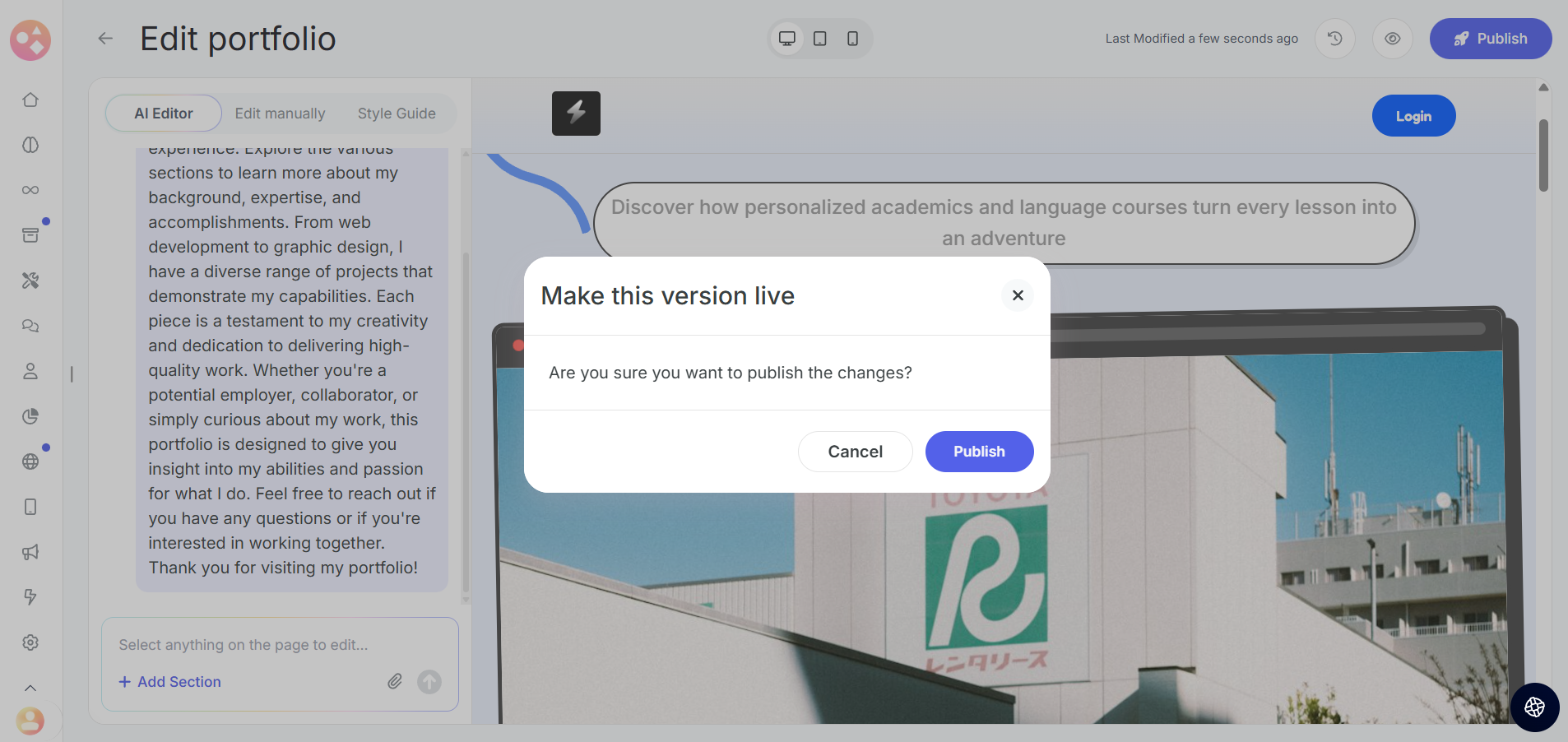
Step 11: After finishing all edits, publish the page by clicking Publish.
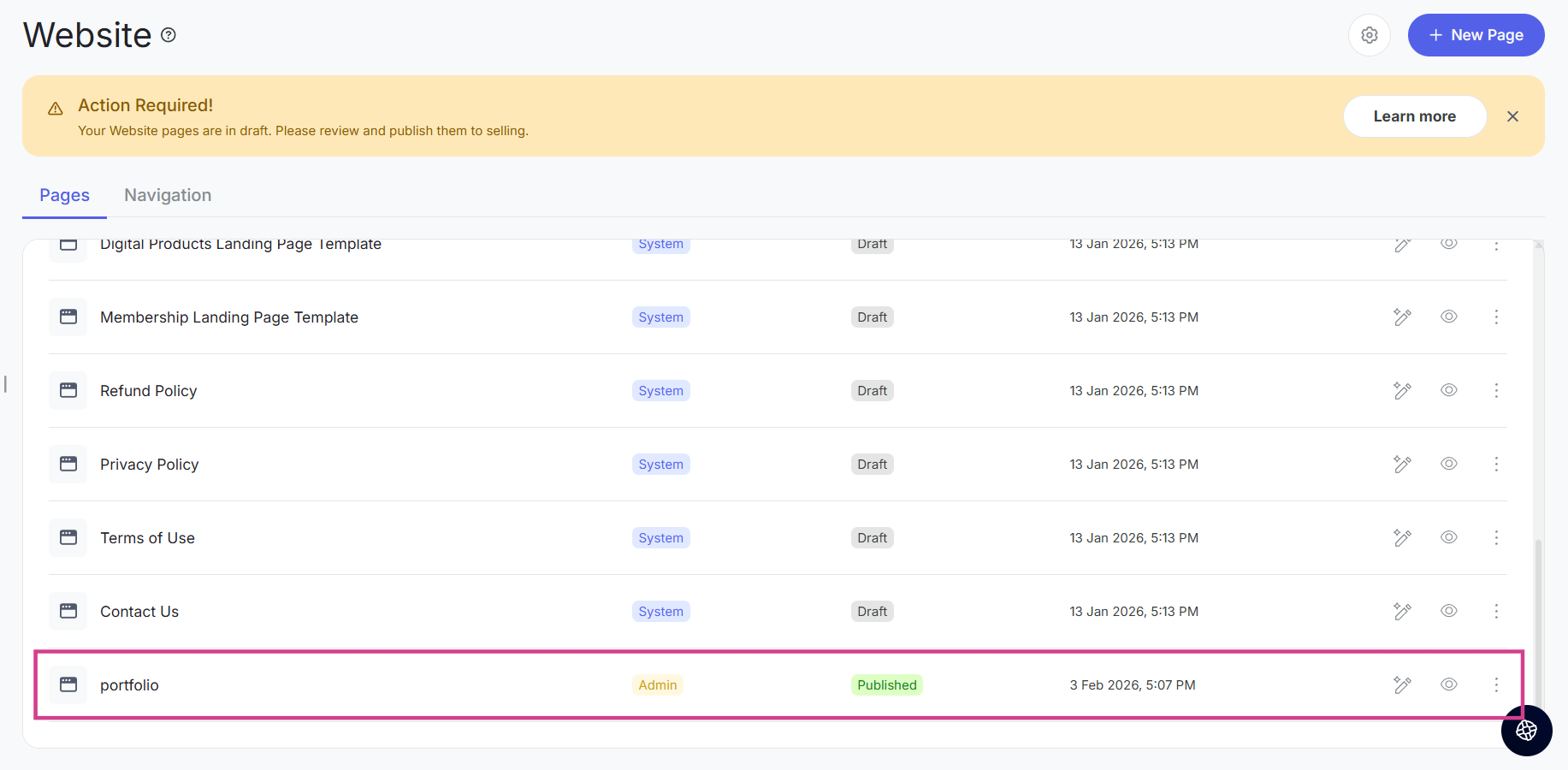
Step 12: Find your new page in the Website Pages section by scrolling down and you can edit it further.
Was this article helpful?
That’s Great!
Thank you for your feedback
Sorry! We couldn't be helpful
Thank you for your feedback
Feedback sent
We appreciate your effort and will try to fix the article