This article is a step-by-step guide on using version history to track changes, rolling back to previous versions, and restoring your website pages on Graphy.
Version History keeps a complete record of all changes made to your website pages. You can easily roll back to any previous version with just a click, whether from the AI editor chat or from the Version History panel. This gives you complete confidence to make changes, knowing you can always return to an earlier version if needed.
Option 1: Roll Back from Chat
Step 1: In the AI editor chat, simply scroll up and click on Roll Back for the version you want.
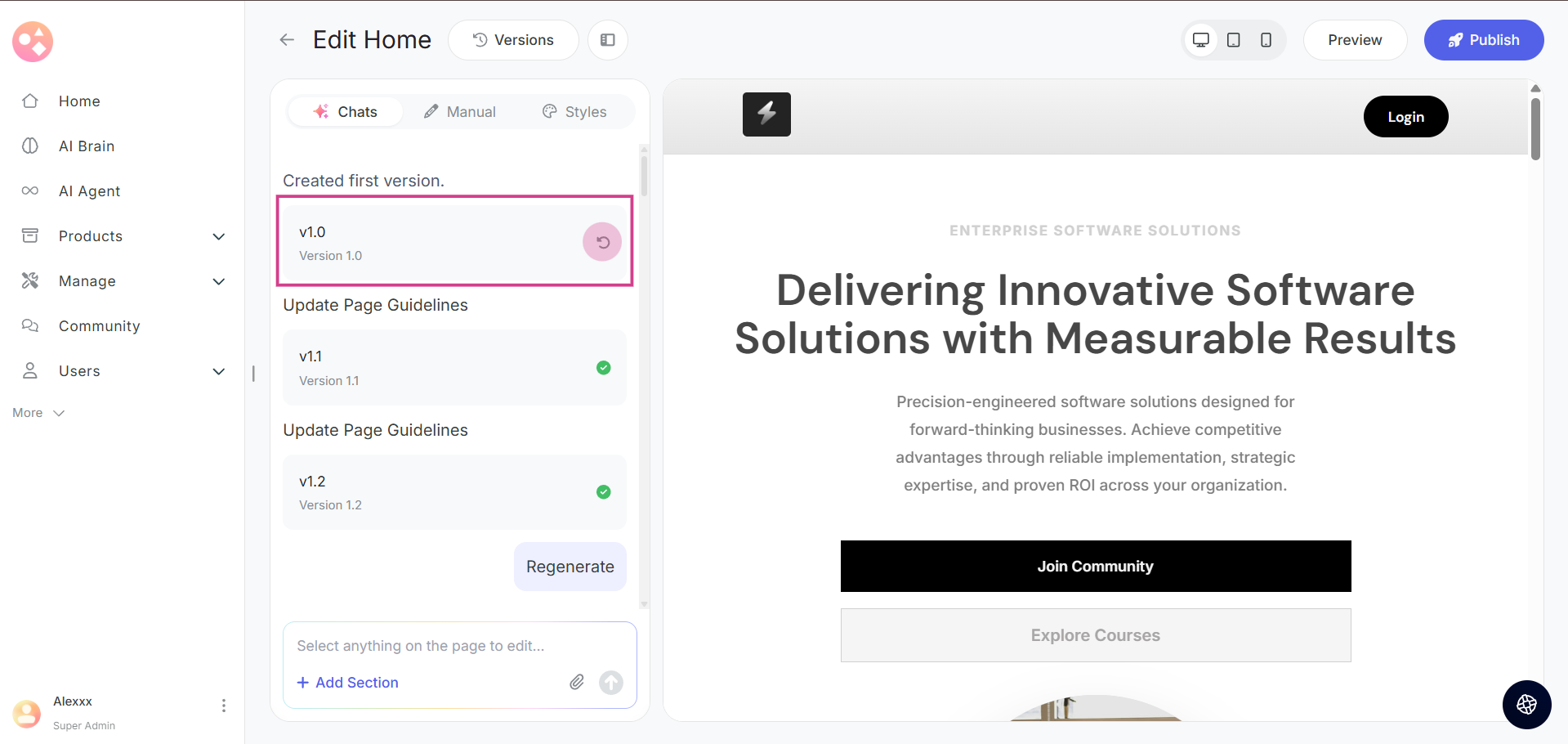
This will instantly revert your page to that specific version. You then need to publish it to make it live.
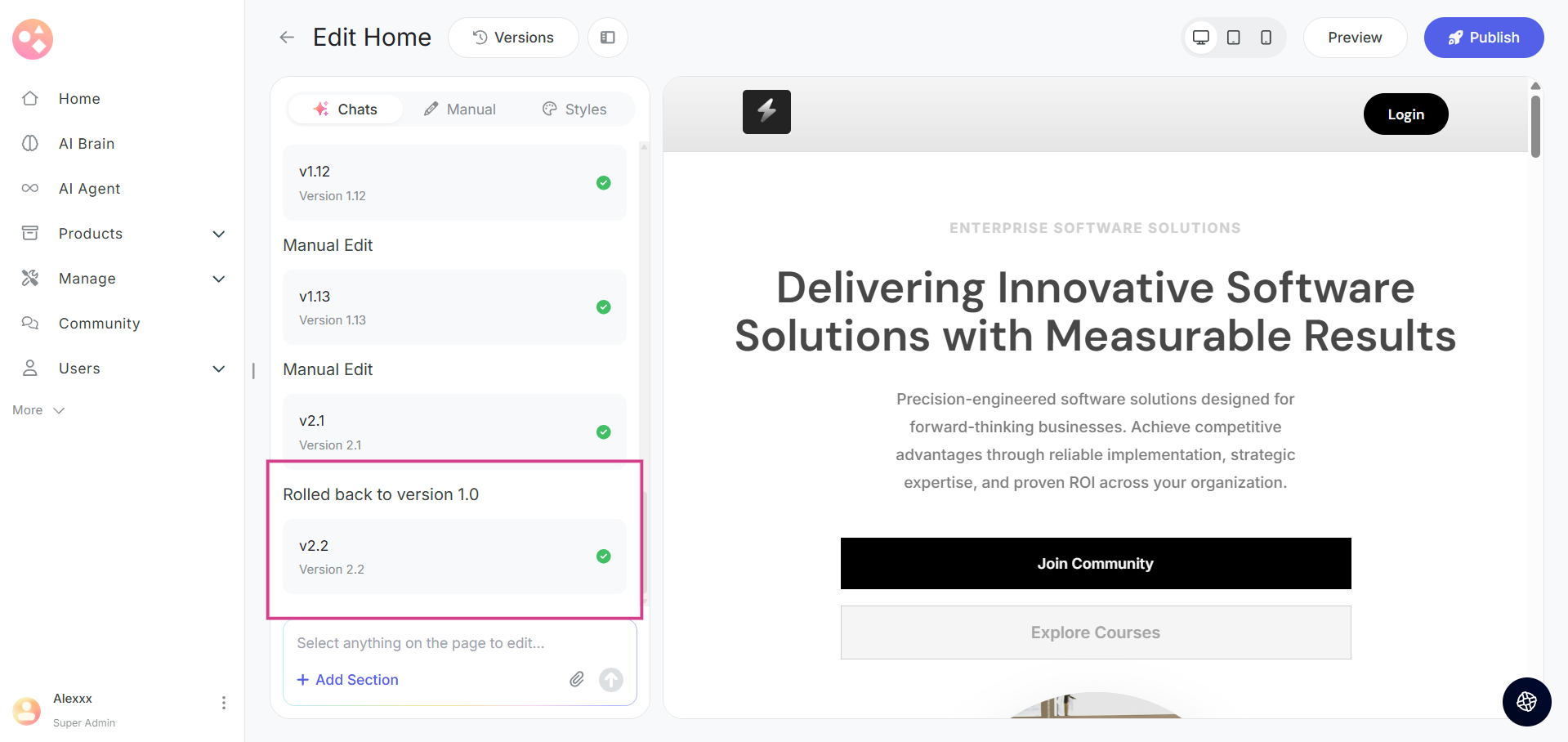
Option 2: Roll Back from Version History
Step 2: Alternatively, you can go to Version History.
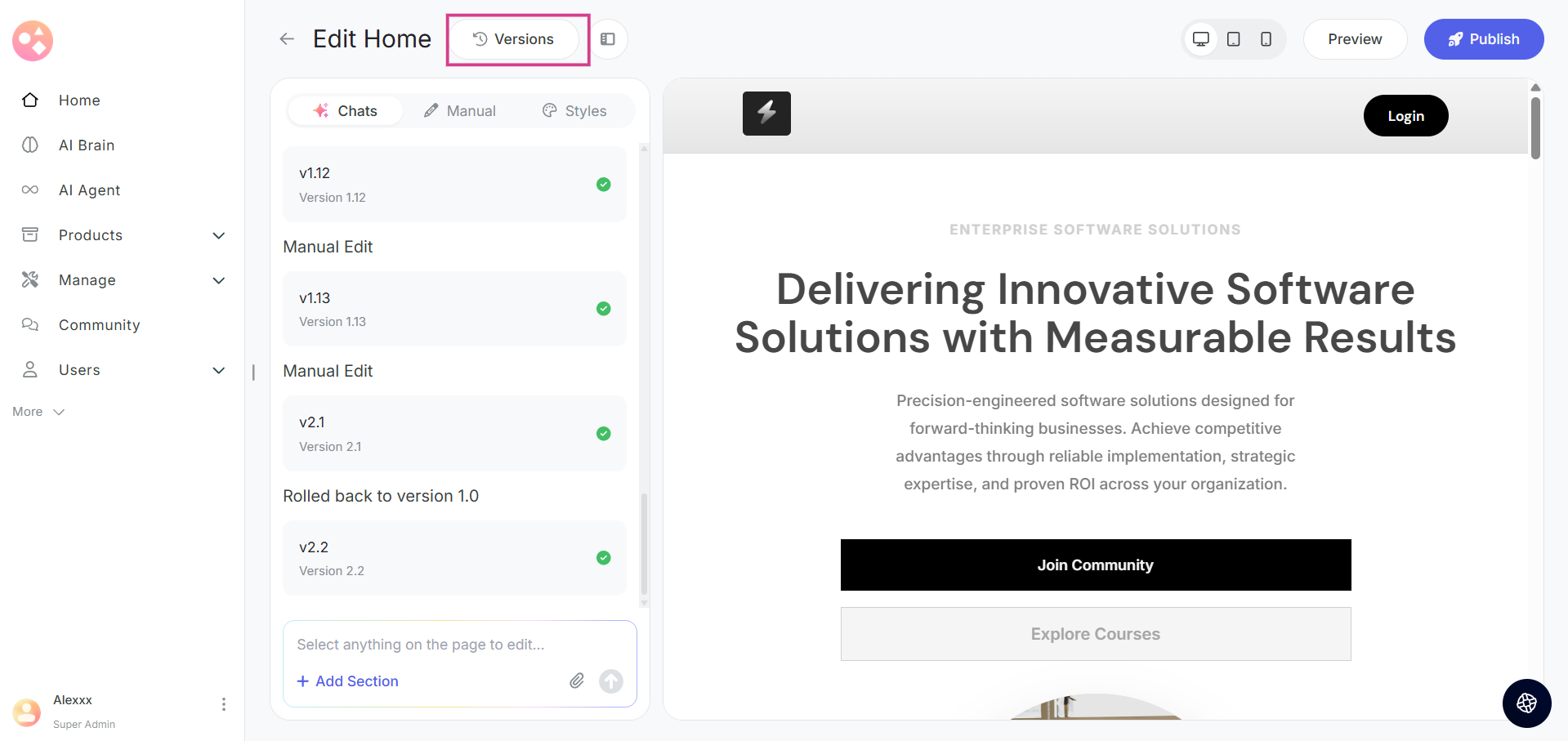
Here, you'll be able to see all the versions that have been created.
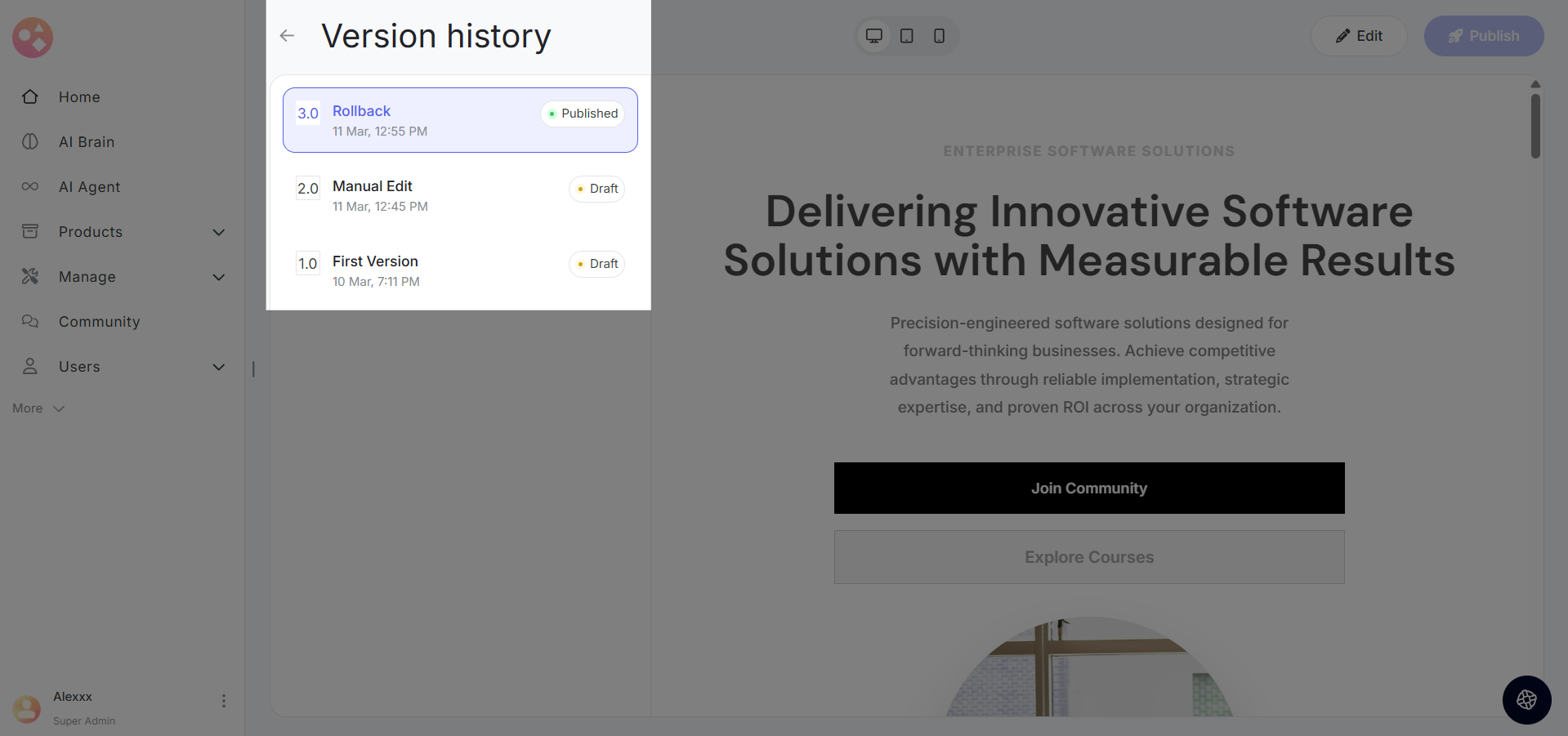
Selecting a Version to Restore
Step 3: Click on the version you want to roll back to, review it, and then publish to make that version live.
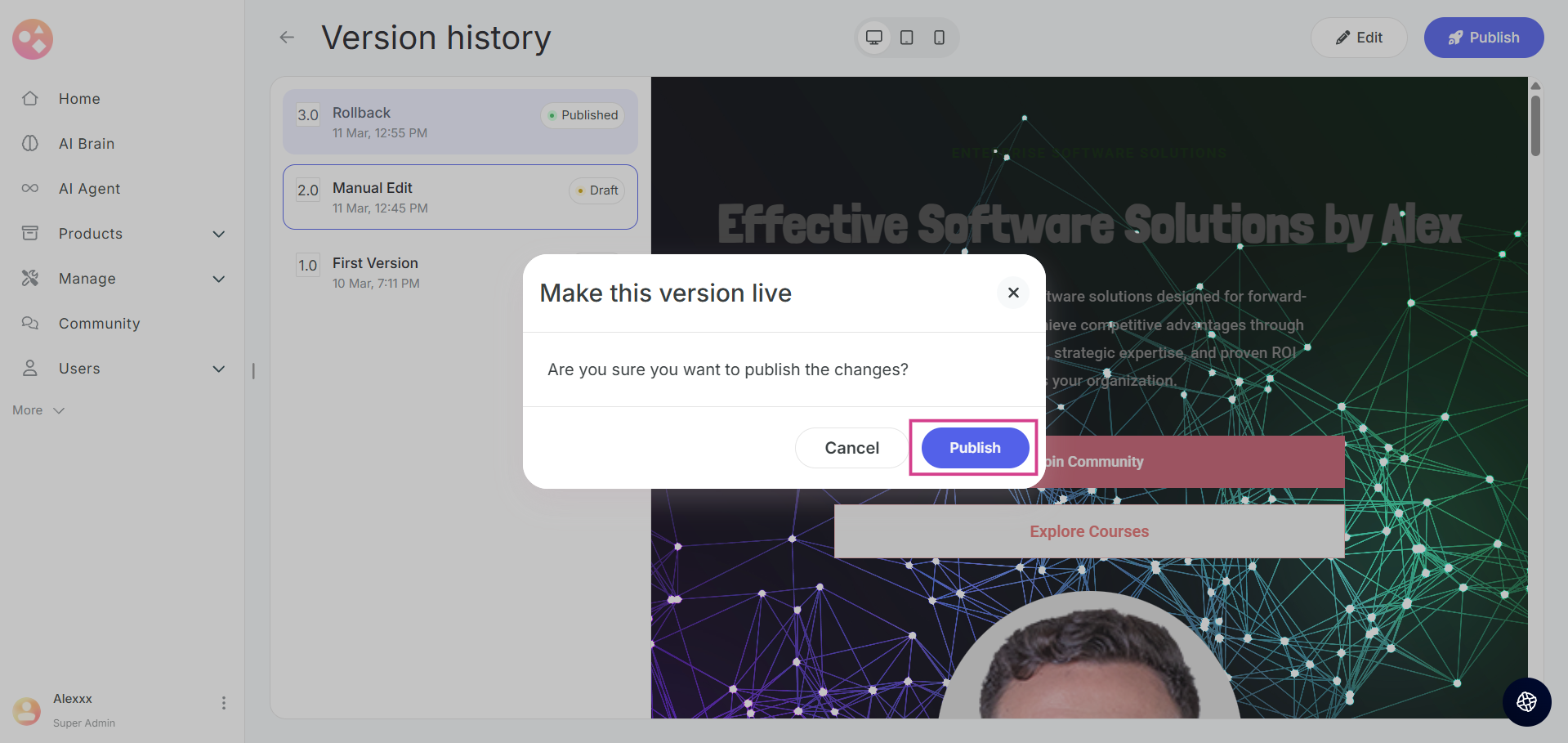
Important Note: When you publish a version, all the minor versions created before that version will be automatically deleted from your version history. Only the published version and any newer versions will be retained. Plan accordingly before publishing to avoid losing version history.
Previewing Your Page
Step 4: At any point, you can click on the preview icon to see how your page looks before publishing.
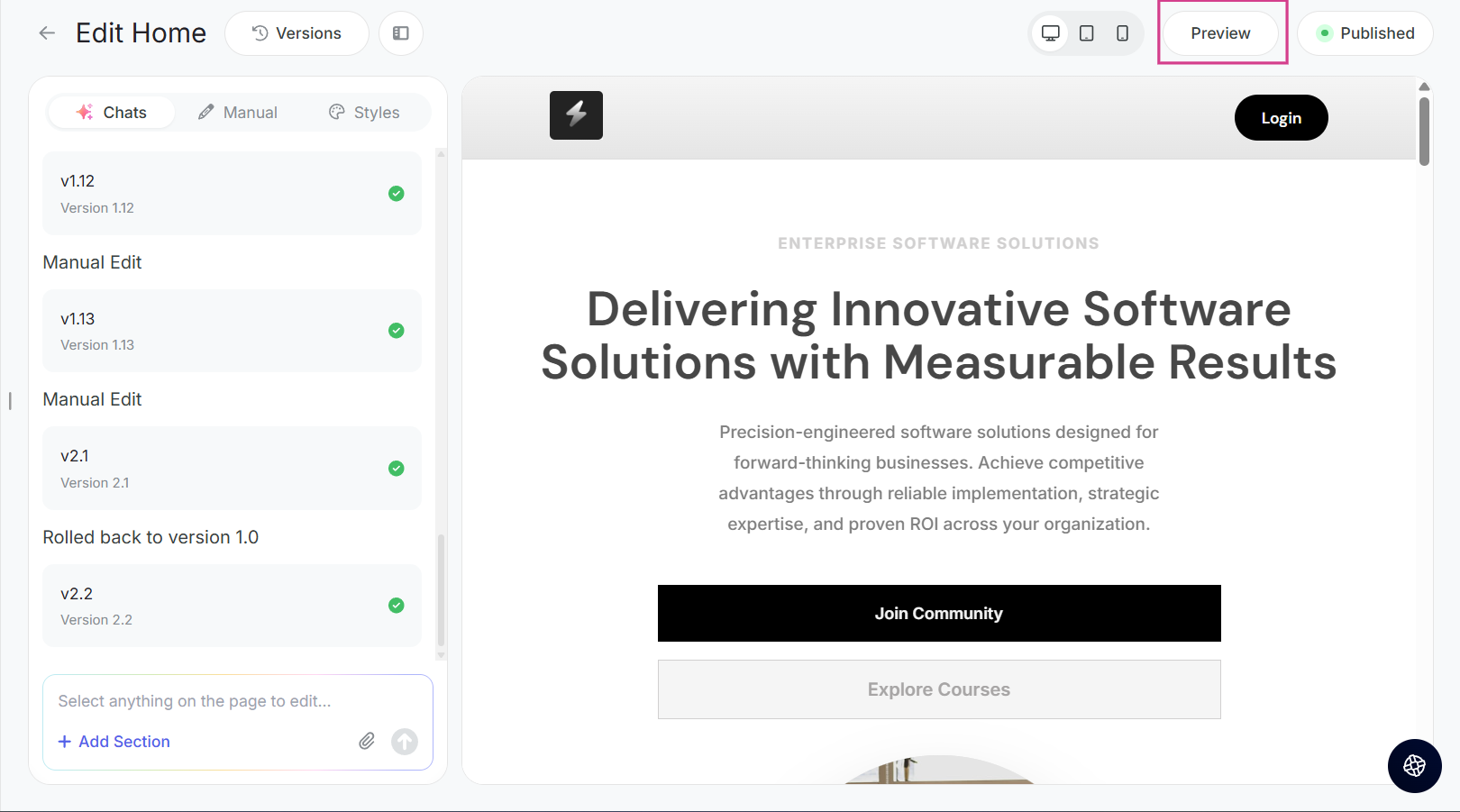
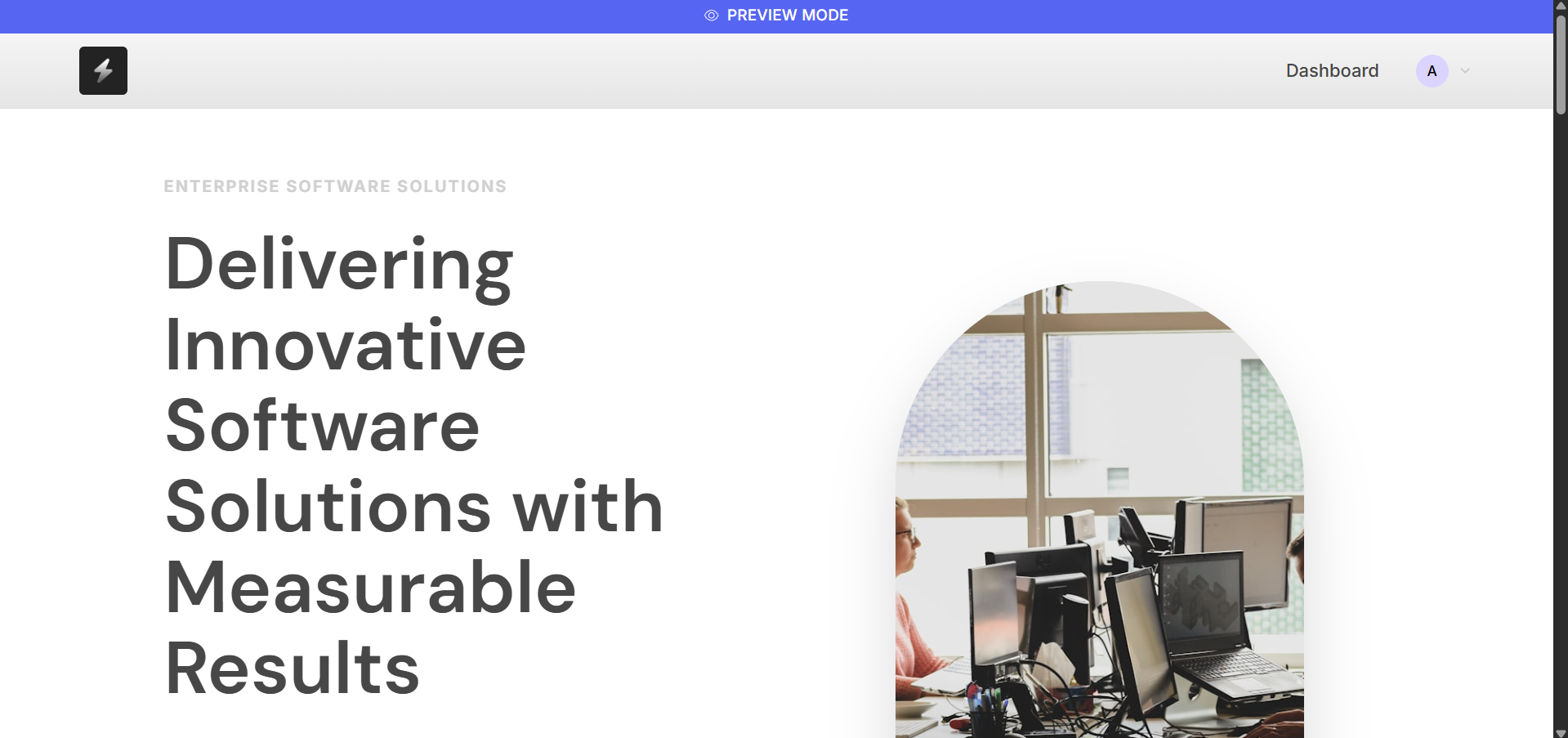
Note: This is a preview mode and interactions will be disabled here.
Related Articles:-
Was this article helpful?
That’s Great!
Thank you for your feedback
Sorry! We couldn't be helpful
Thank you for your feedback
Feedback sent
We appreciate your effort and will try to fix the article