This article is a step-by-step guide on editing your website pages using the AI Editor on Graphy.
The AI Editor is a powerful tool that lets you regenerate entire sections, customize specific elements, generate images, and add new sections to your page with a single click. Use AI prompts to rewrite content, update images, and transform your website in minutes without any coding knowledge.
Accessing Your Website Pages
Step 1: From your Graphy dashboard, go to the left panel and click on Website.

You'll be redirected to the Website section where you can see all the pages of your website. These pages are created as drafts so that you can view, make changes, and publish them whenever you want.
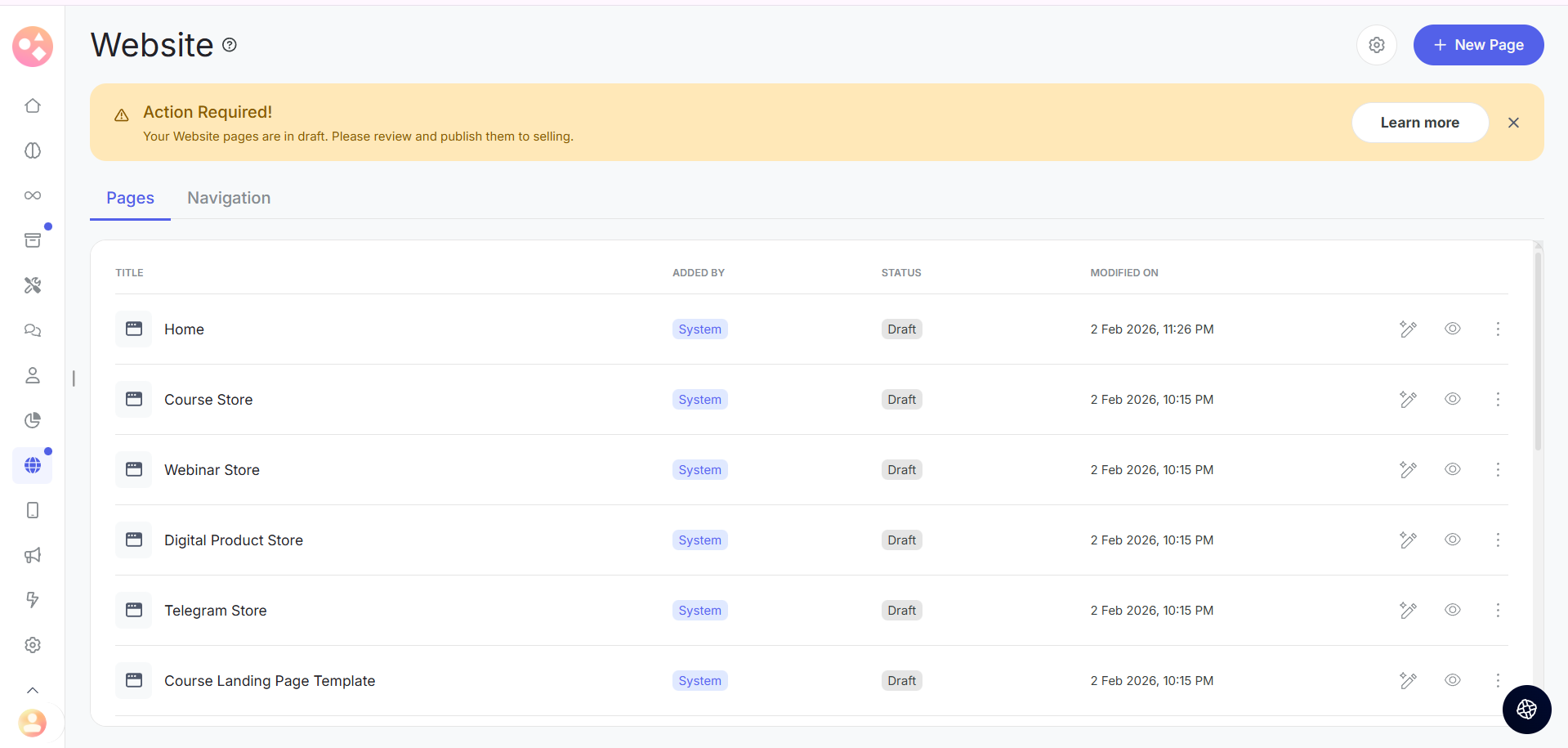
Navigating to Edit
Step 2: You can click on any page, or simply click on the Design icon to start making changes.
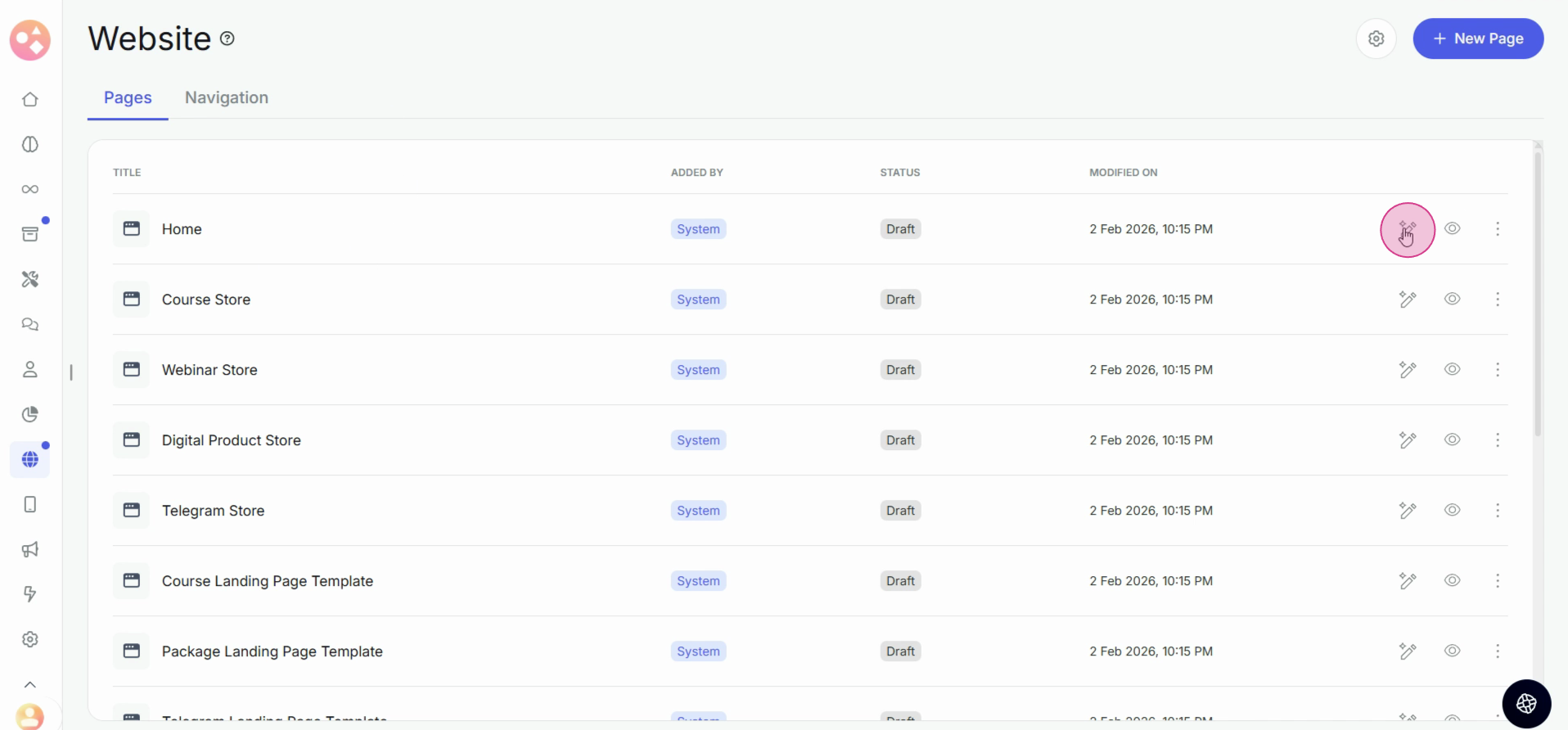
Editor Overview
Step 3: Inside the editor, you'll find three tabs at the top:
AI Editor
Edit Manually
Style Guide
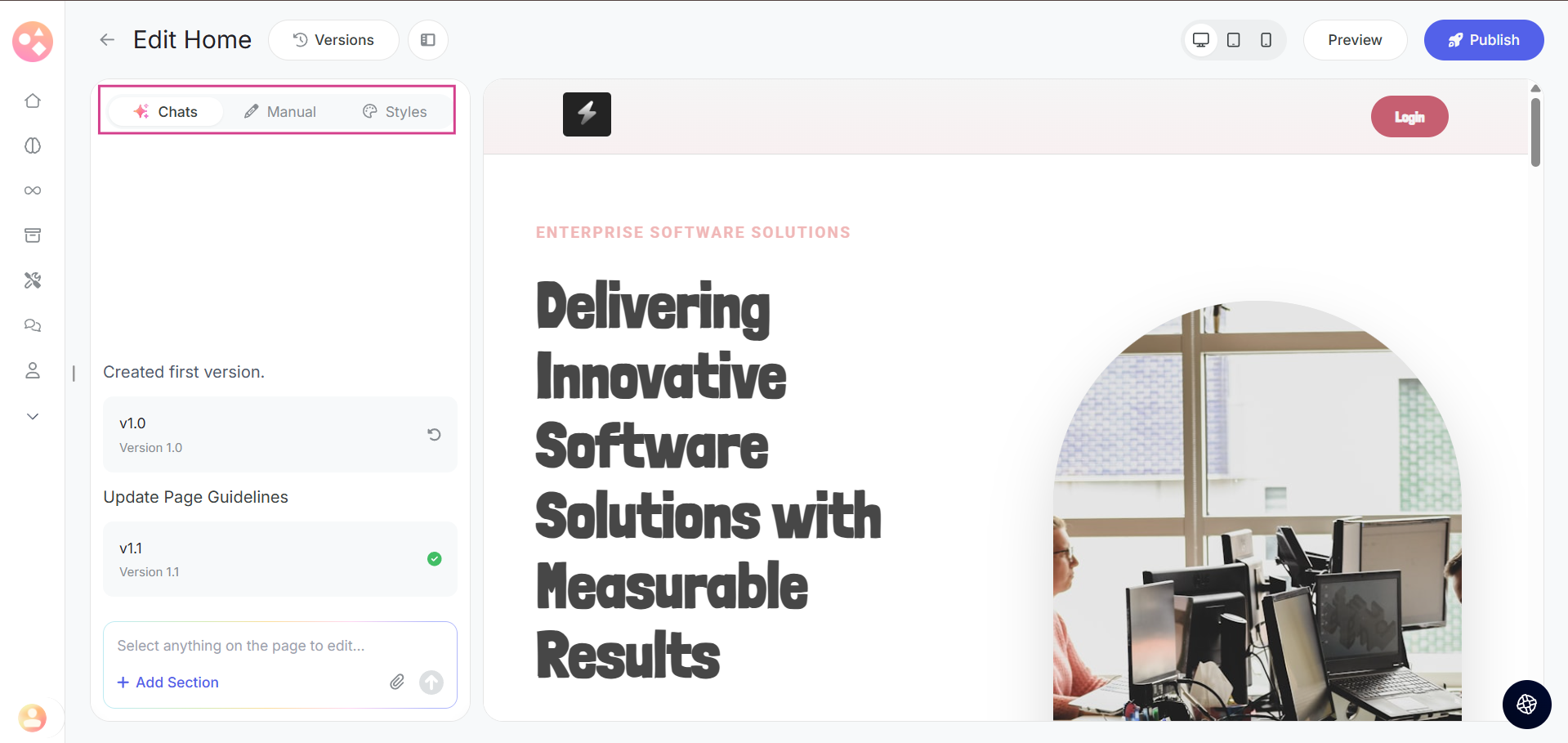
Using the AI Editor
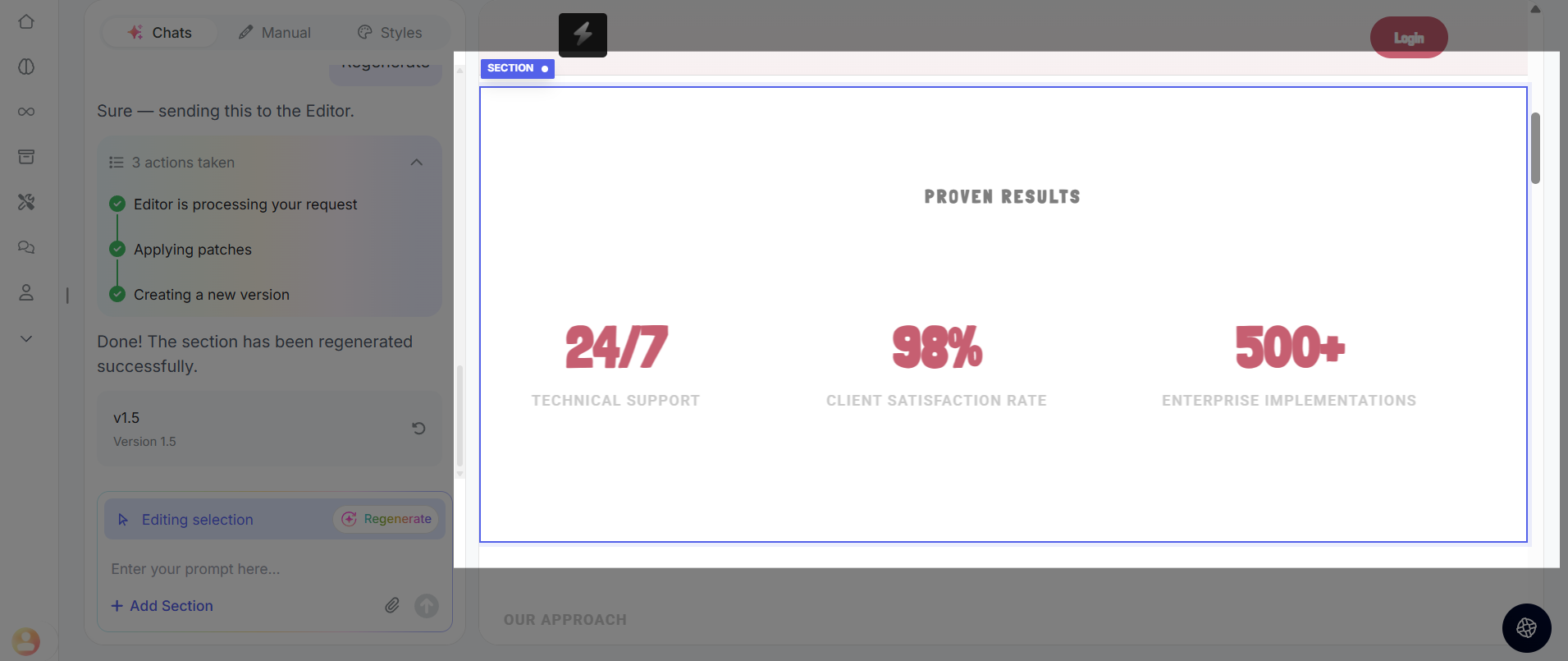
Step 4: In the AI Editor, you can select any section and click on regenerate.
You can click on Regenerate either from the chat or from the AI Edits tab that appears when you select a section.
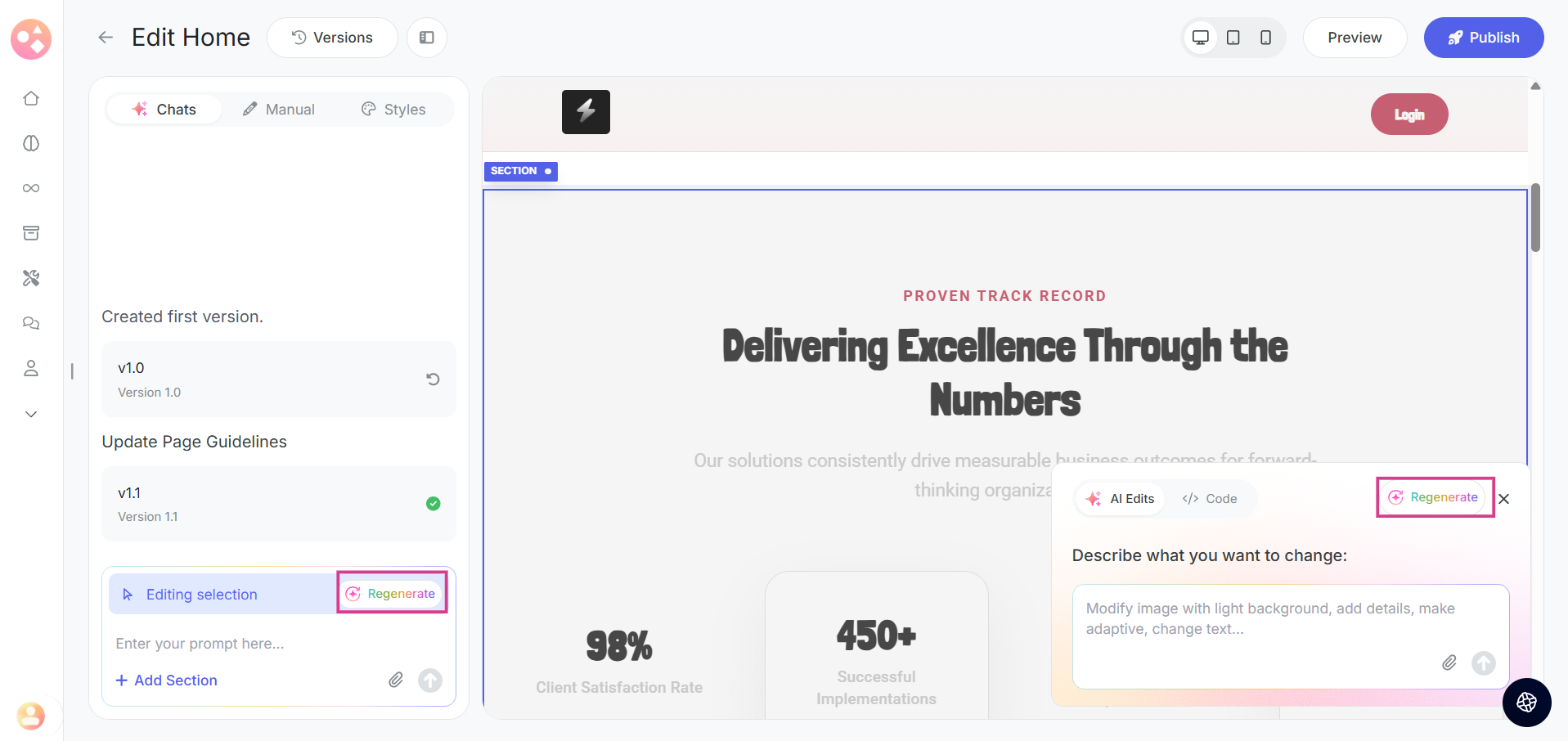
The AI will instantly regenerate the selected section for you.
Editing Specific Elements
Step 5: You can also select specific sections or elements like text or descriptions and give a custom prompt either in the the chat or in the AI Edits tab.
For example, you can ask the AI to rewrite a description according to your business or domain.
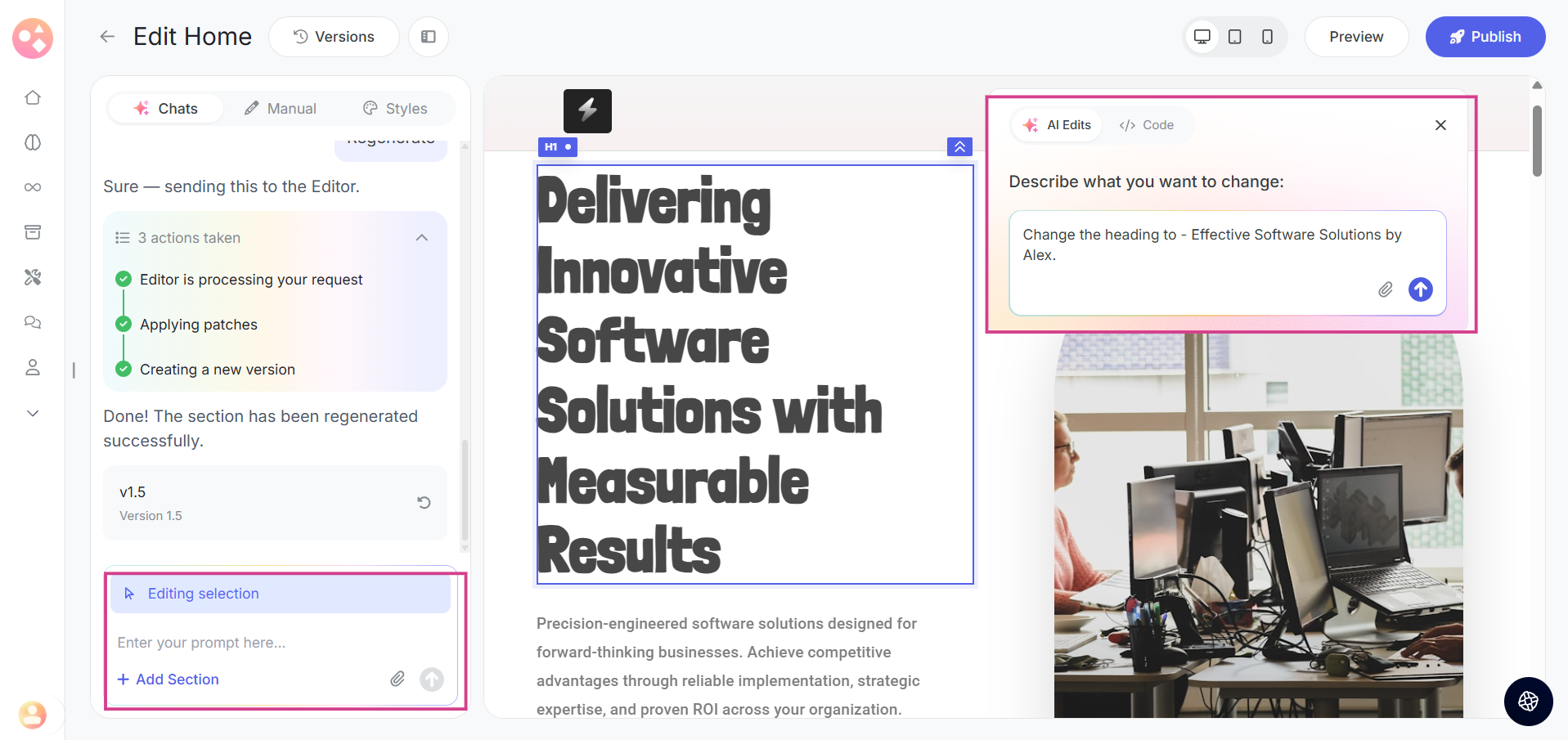
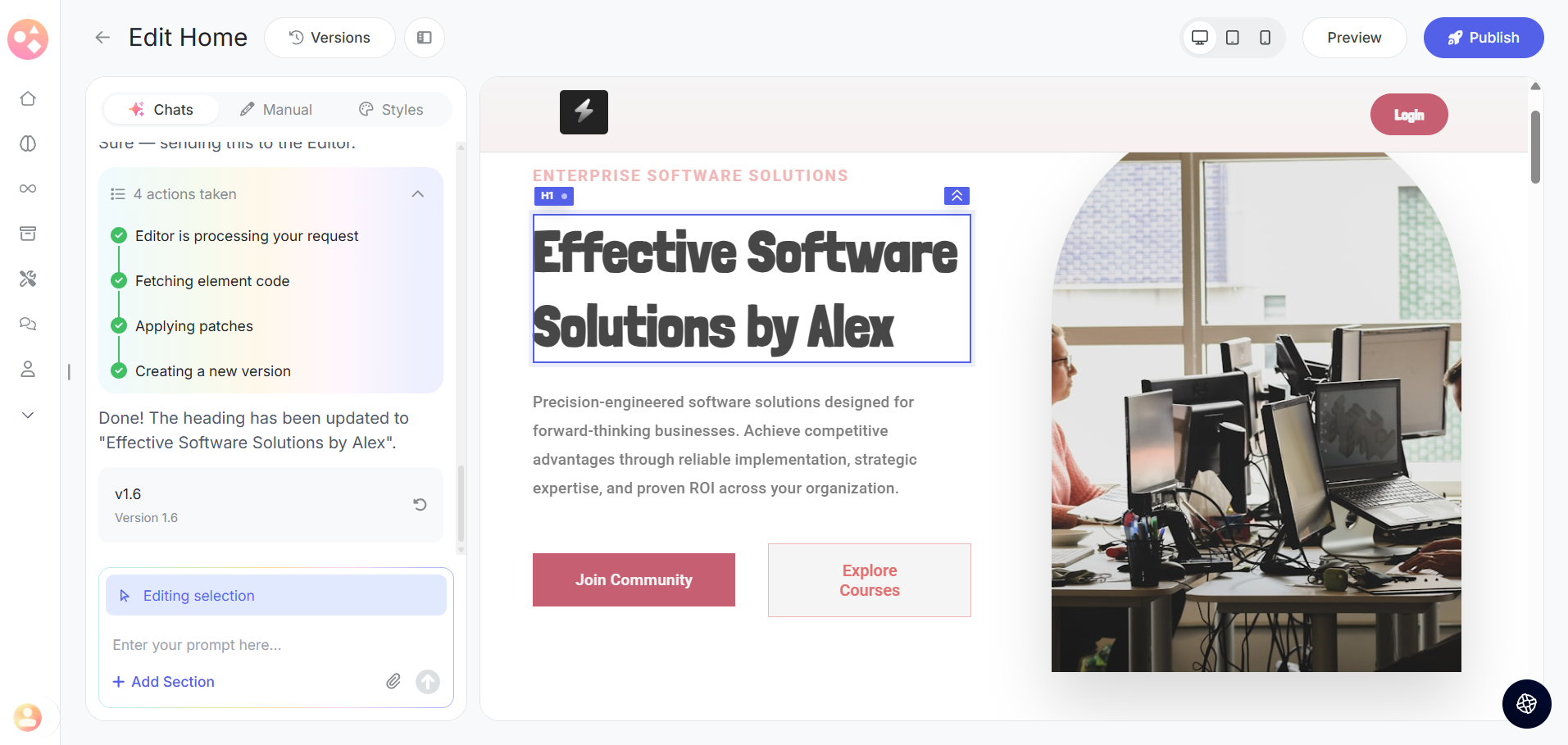
The AI will instantly edit or update the selected element or section according to your prompt.
Updating Images
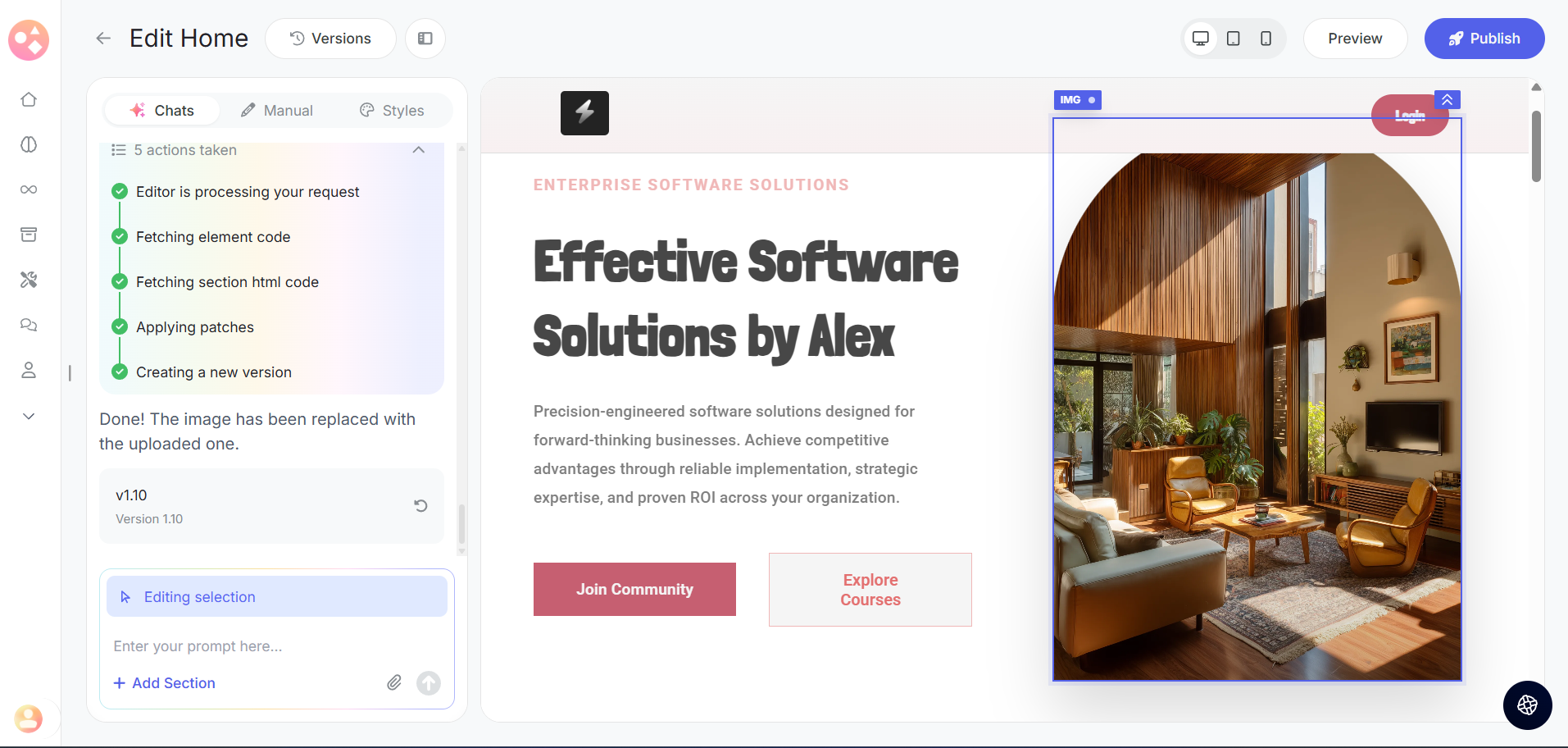
Step 6: You can upload your own image and replace the photo in the selected section.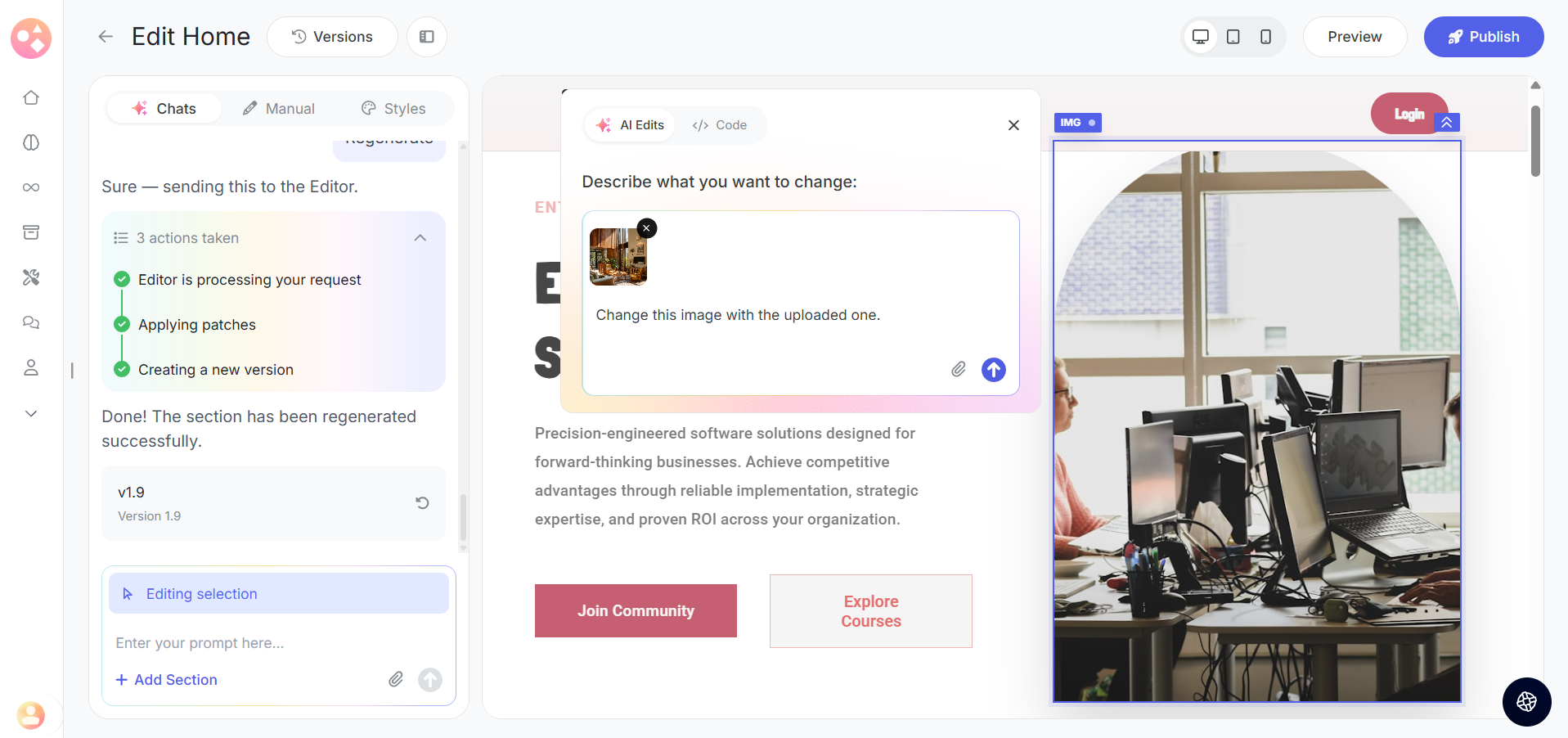
Alternatively, you can give a prompt describing the type of image you want, and the AI will generate it for you.
Adding a New Section
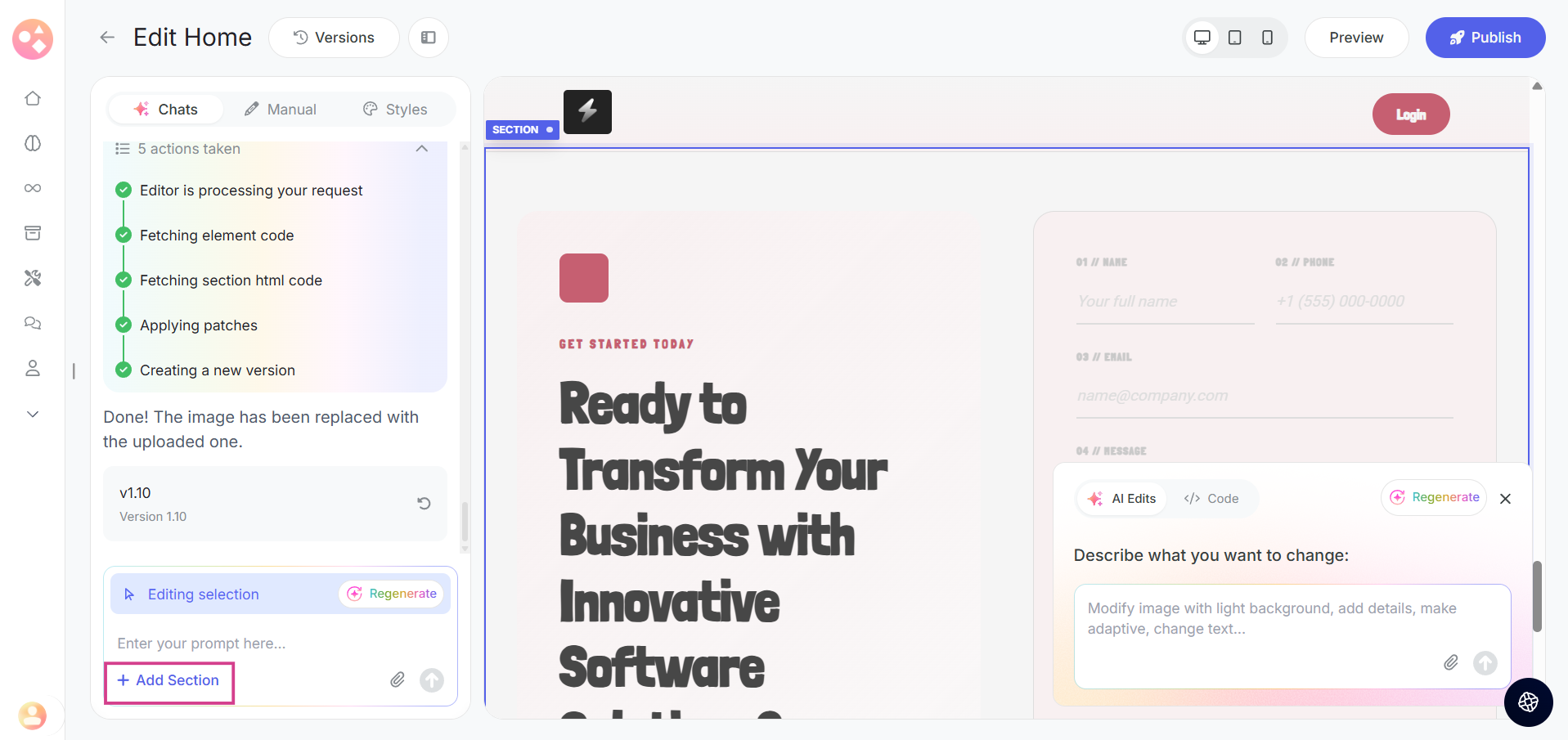
Step 7: If you want to add a new section to your page, follow these steps:
Select the section below which you want to add it.
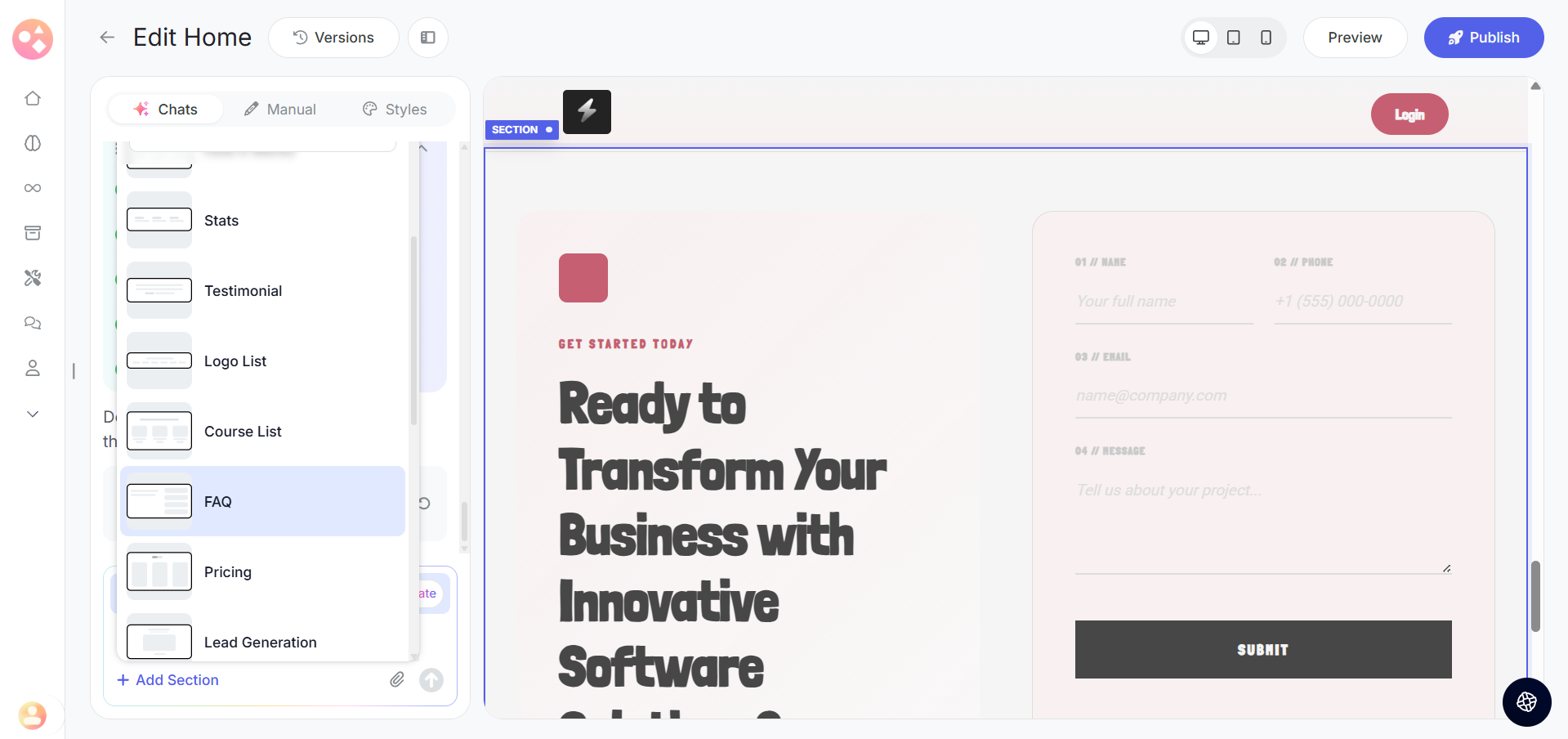
Click on New Section.
Choose the section type you want.
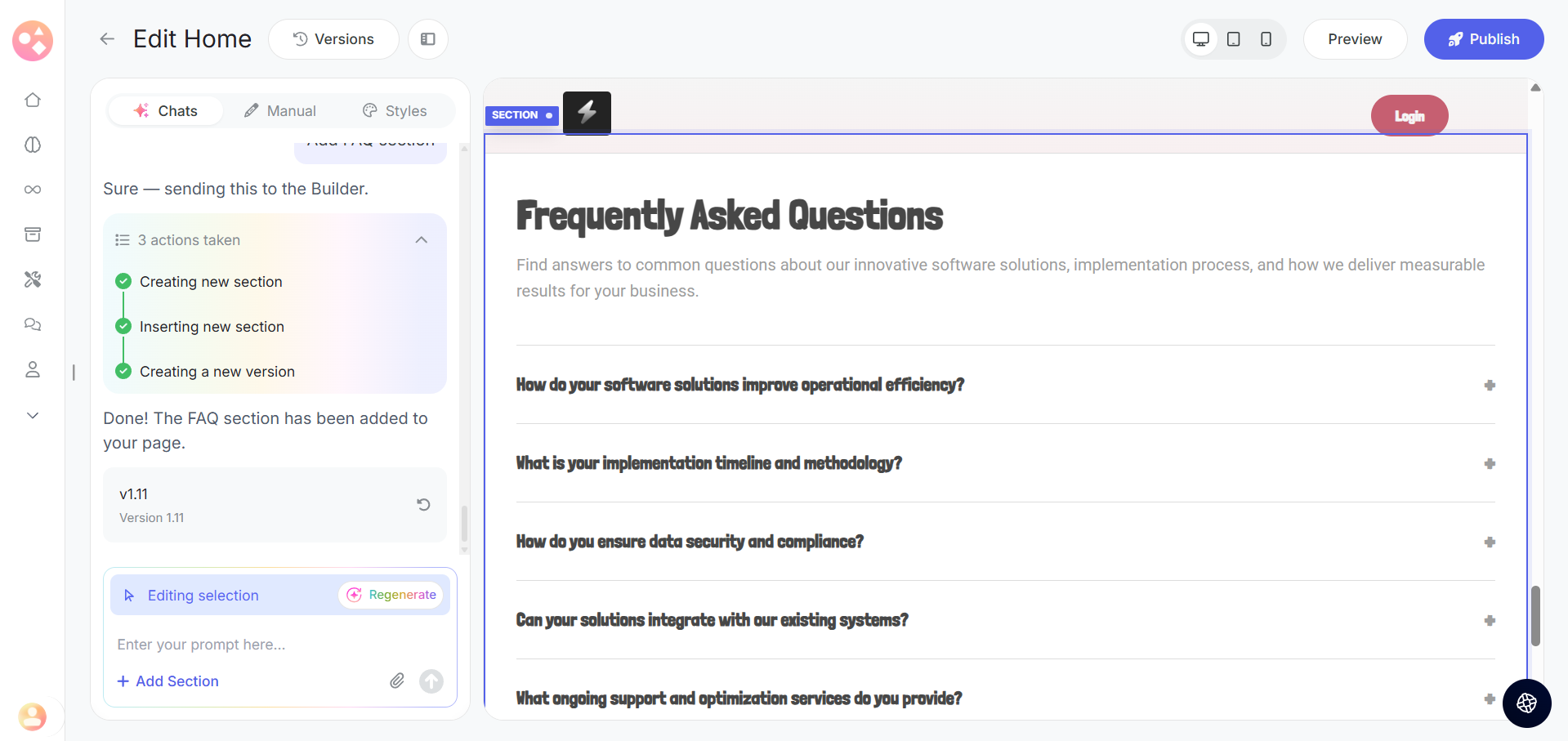
The AI editor will add it to your page.
Related Articles:-
- How to Manage Version History and Roll Back Changes on Graphy?
- How to Customize Your Website Design with Style Guide?
- How to Manually Edit your Website Pages on Graphy?
Was this article helpful?
That’s Great!
Thank you for your feedback
Sorry! We couldn't be helpful
Thank you for your feedback
Feedback sent
We appreciate your effort and will try to fix the article