Learners can archive their courses and packages if they want to keep their learning dashboard organized and clutter-free. Archiving helps you hide courses or packages from your main view while keeping them accessible whenever you need them.
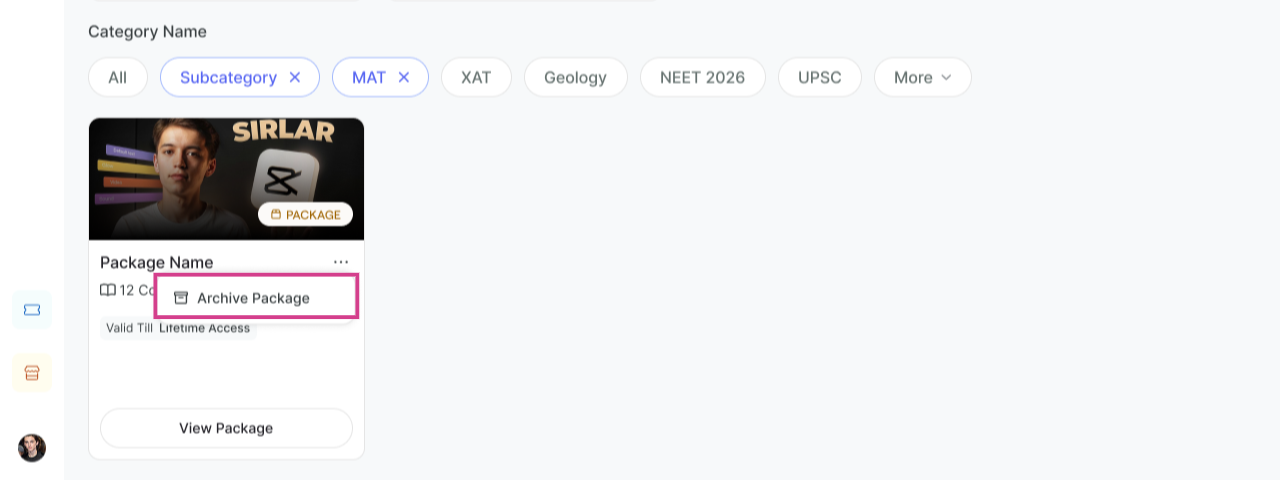
Step 1: Archive a Course or Package
Hover over any course or package and click on the three dots menu. Select the Archive Course/Archive Package option to archive that course or package.
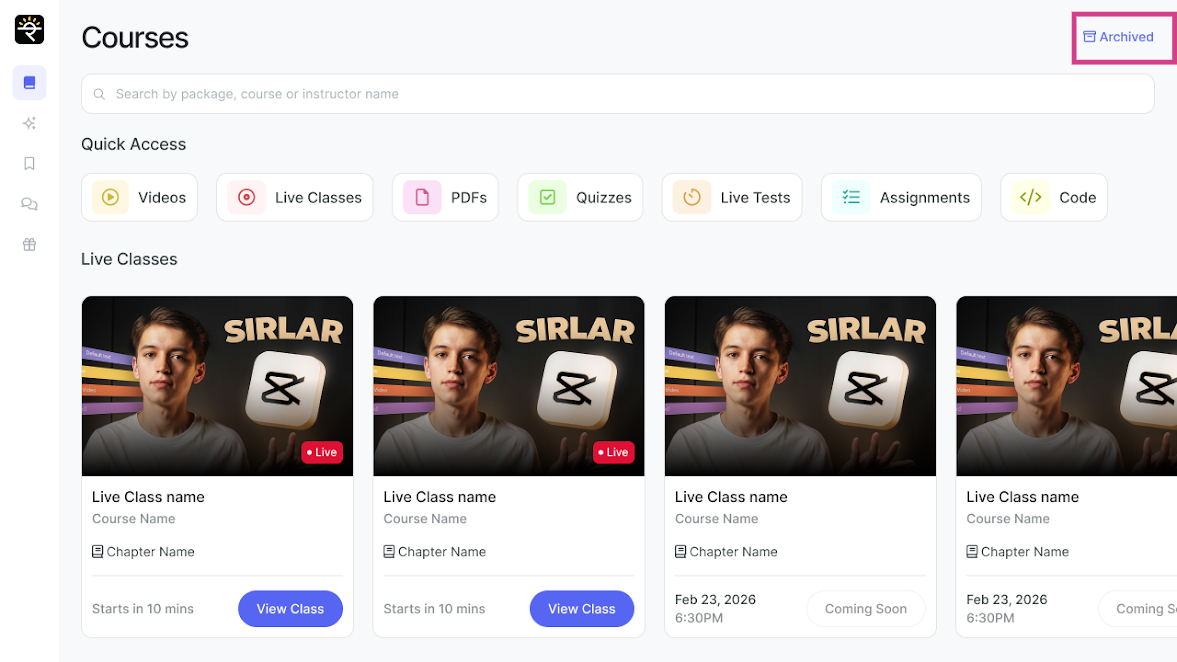
Step 2: Course or Package Gets Archived
Once archived, the course or package is removed from your main dashboard view and can be viewed in the Archived Courses section.
Step 3: View and Manage Archived Courses and Packages
In the Archived Courses section, you will see all your archived courses and packages. You can make it active by clicking on Make it Active option under the 3 dots. This will ensure that these courses are visible under Active Courses again. 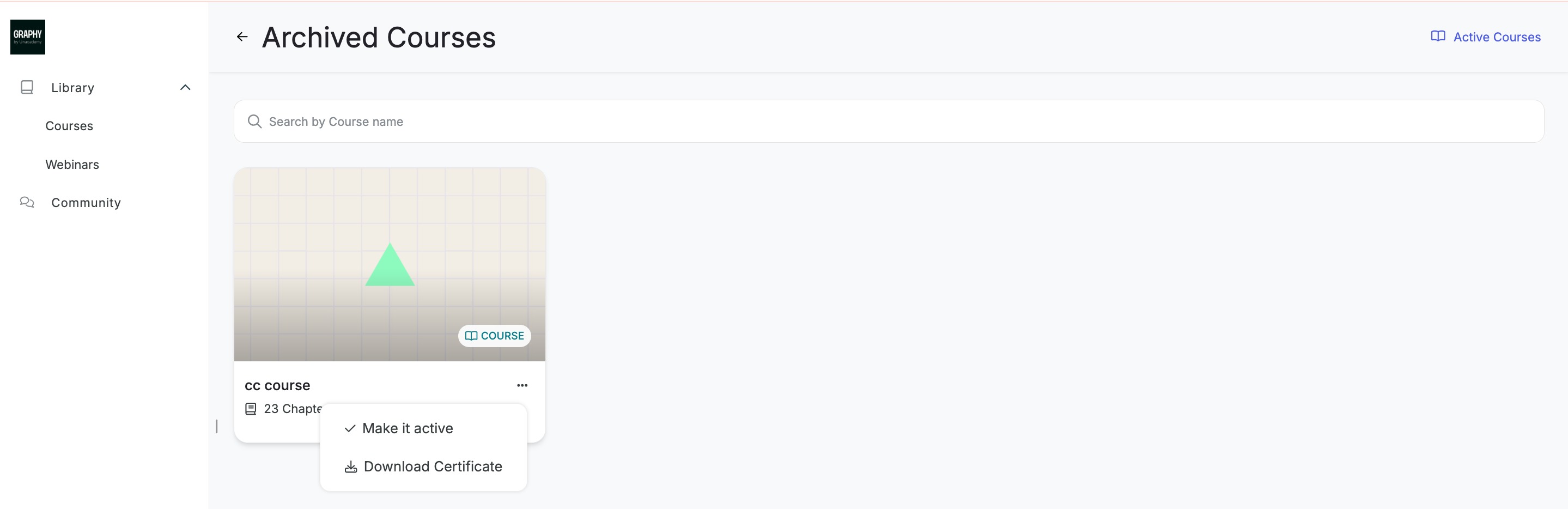
Related Articles
1. A New Library Experience For Learners- Find, Track, Engage on Courses and Packages
2. Packages inside Library View3. Inside an Independent Course View under Library Tab
4. Enable Advanced Library View for a more engaging Learner Library Experience
Was this article helpful?
That’s Great!
Thank you for your feedback
Sorry! We couldn't be helpful
Thank you for your feedback
Feedback sent
We appreciate your effort and will try to fix the article