Learner support is crucial for maintaining engagement and satisfaction. Graphy now enables learners to escalate and raise their concerns directly to you through AI Agent. This ensures that important issues are brought to your attention immediately.
Whenever a learner escalates their concern, you will be notified via email or webhook, depending on how you configure your settings. This real-time notification system ensures you never miss critical learner issues and can respond promptly to their needs.
1. Customize Your Notify Me Settings
Follow these simple steps to configure notifications for escalated learner chats:
Step 1: Access Advanced Settings in the AI Agent Tab
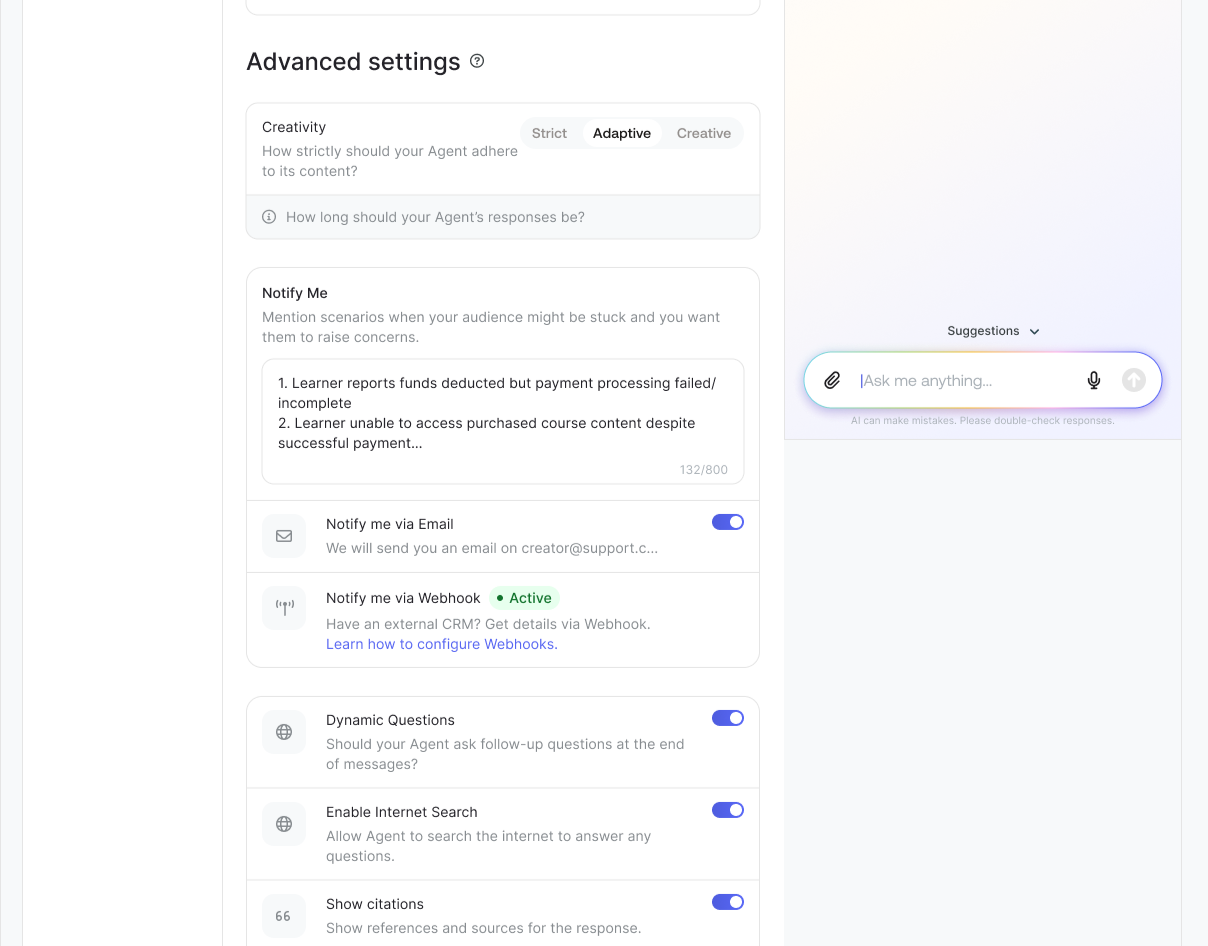
Navigate to the AI Agent tab from your dashboard. Under the Overview section, locate the Behaviour section. Here you will find the Advanced Settings option.
In the Advanced Settings, you will see two notification options available:
• Notify via Email (we'll send you an email everytime a learner raises a concern)
• Notify via Webhook (we'll inform you via a webhook)
Select the notification option that best suits you. You can enable either or both options depending on your preference.
Step 2: Configure Webhook Settings (If you want to receive updates via a Webhook)
If you prefer to receive notifications via Webhook, and the webhook option is currently disabled, click the Configure button to set up your Webhook settings.
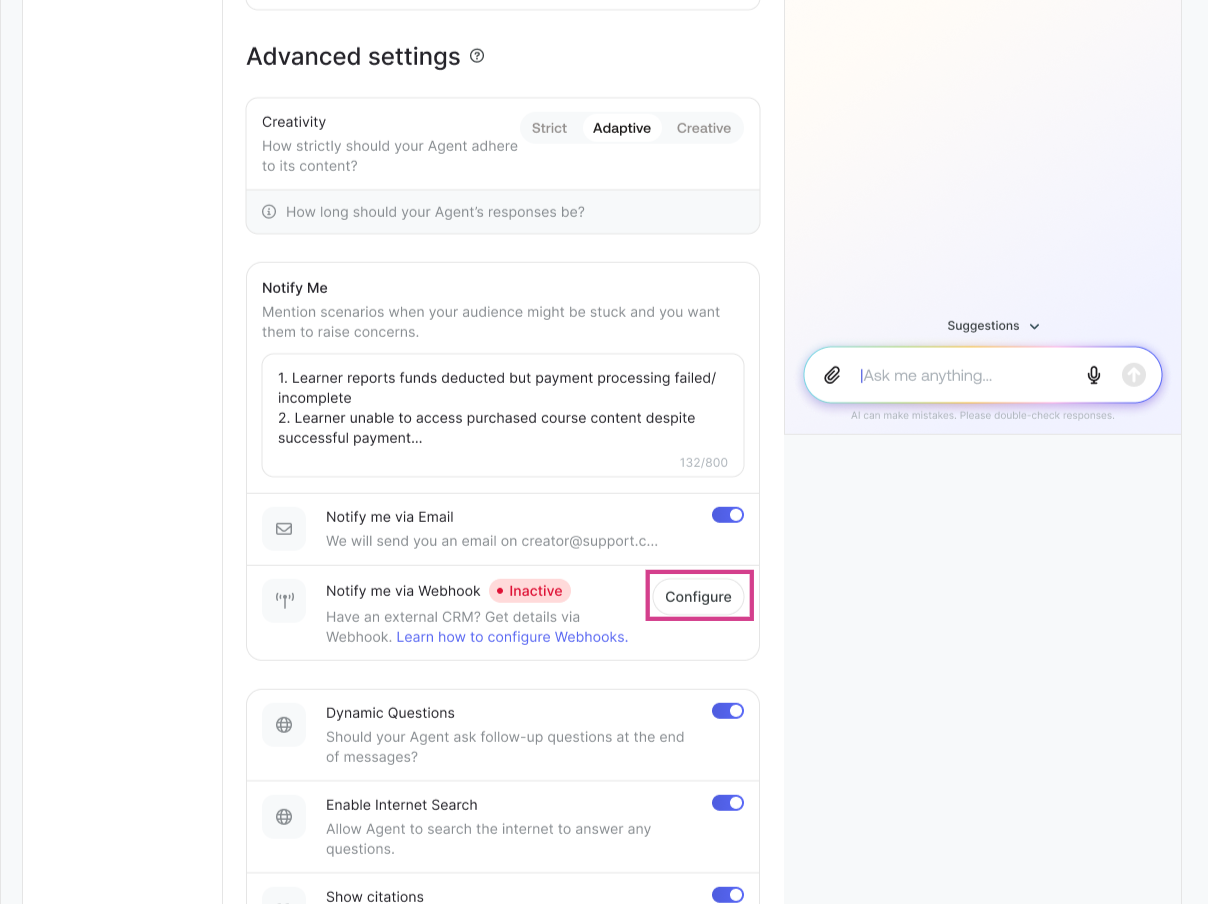
Upon clicking Configure Button, you’ll be led to the Webhook Modal Window. In the webhook configuration panel, you will need to provide your webhook URL and any additional settings required for your integration. This allows escalated chat notifications to be sent directly to your external systems or applications.
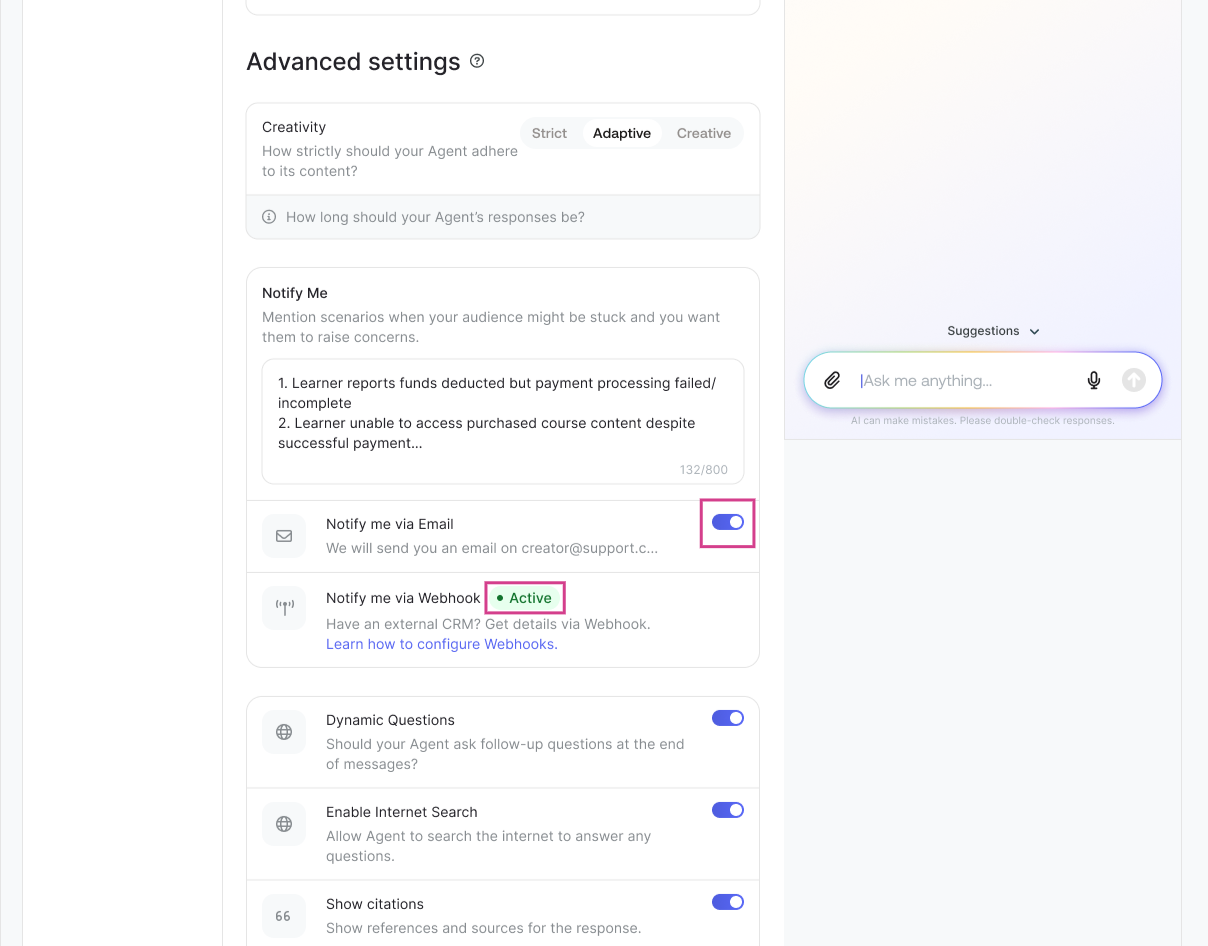
Need help? Learn how to configure webhook settings by visiting How to integrate Webhooks within your course platform? Your webhook notification status will change to Active when you’ve successfully connected your webhook URL in the Webhook Window.
Enable Notifications and Stay Informed
Once you have decided your preferred notification method, whether email or webhook, enable the option by toggling it on.
By enabling these notifications, you will be immediately alerted whenever a learner escalates a concern and raises an issue directly with you. You can then come to the Graphy platform and reply to the learner’s message or log that communication to your in-house CRM tool.
With this being done, set up your notification preferences today and stay connected with your learners every step of their learning journey!
Email Notifications
Once your learner escalates an issue to your Agent, you will be notified via email communications, example below. You can view conversation on the platform and reply to the learner.
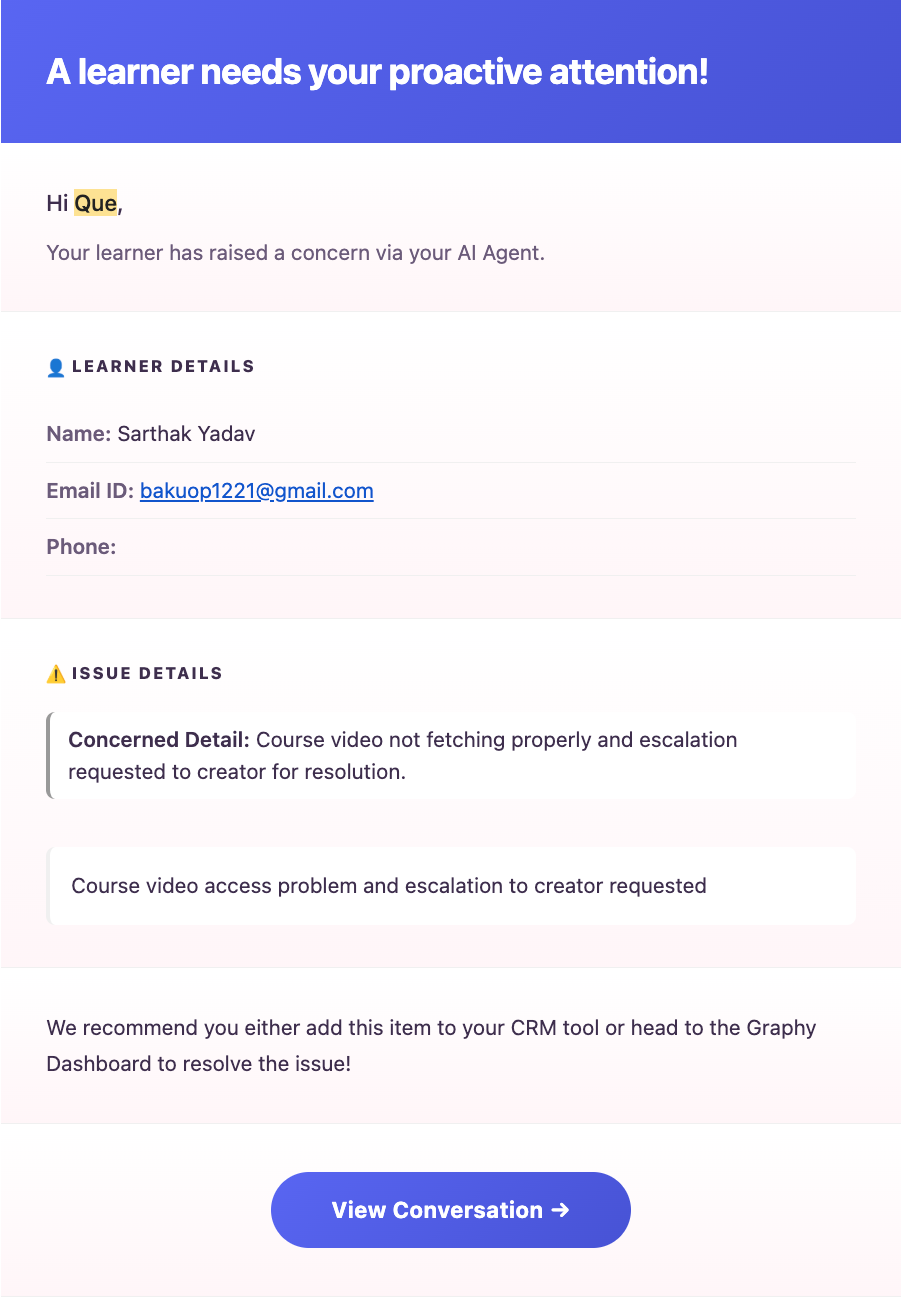
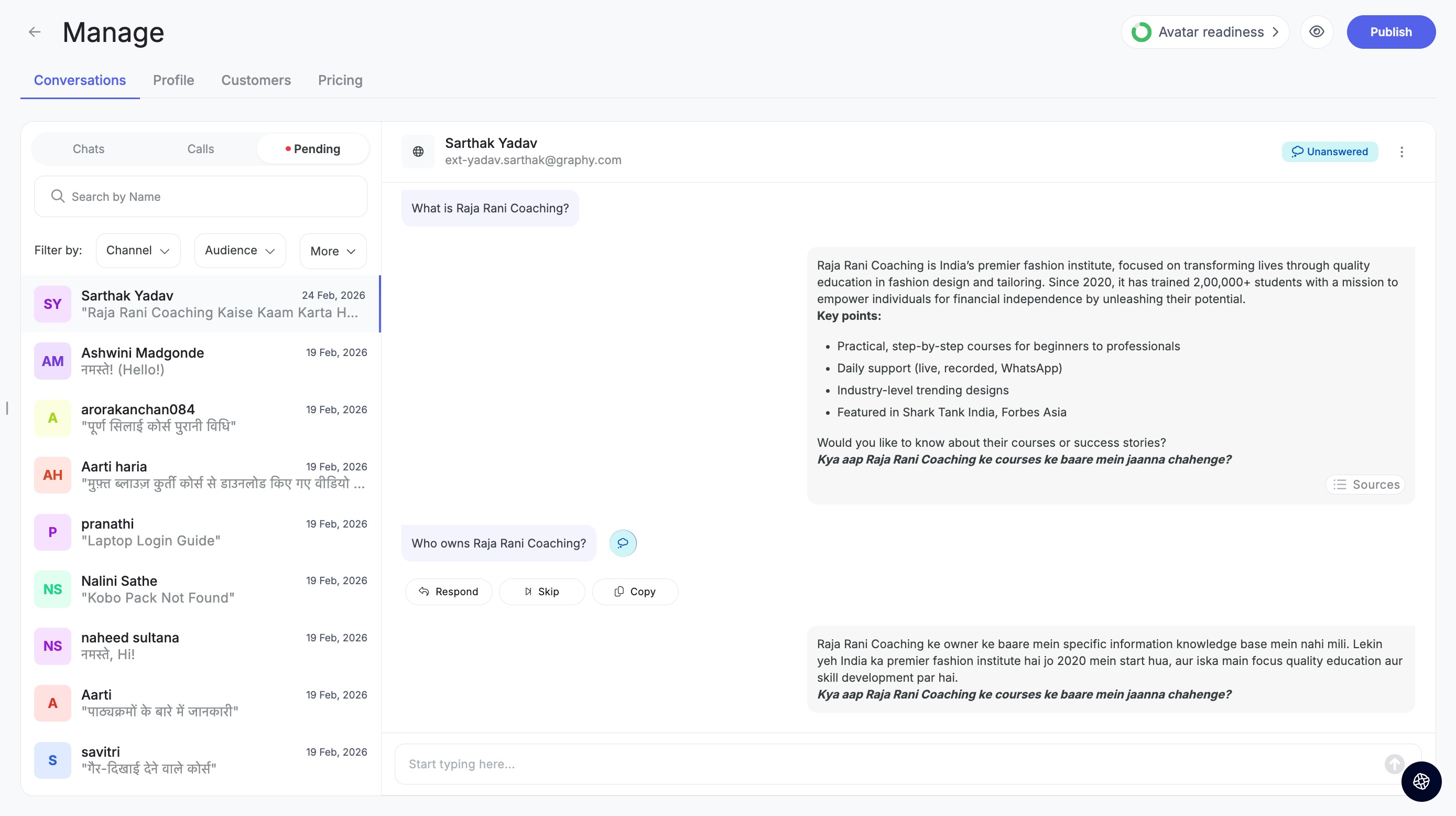
We strongly recommend that you get back to the learner and address the concerns they escalate. All concerns will be shown under the Pending Tab under Agent> Conversations. Learn more at how Agent reports priority concerns to you on your dashboard
Was this article helpful?
That’s Great!
Thank you for your feedback
Sorry! We couldn't be helpful
Thank you for your feedback
Feedback sent
We appreciate your effort and will try to fix the article