This article covers page-level controls like vibe and colors, SEO settings, and overall website settings including favicon, logo, domain, and custom scripts.
Page Guidelines
For each page, you'll find page-level controls to customize its appearance.
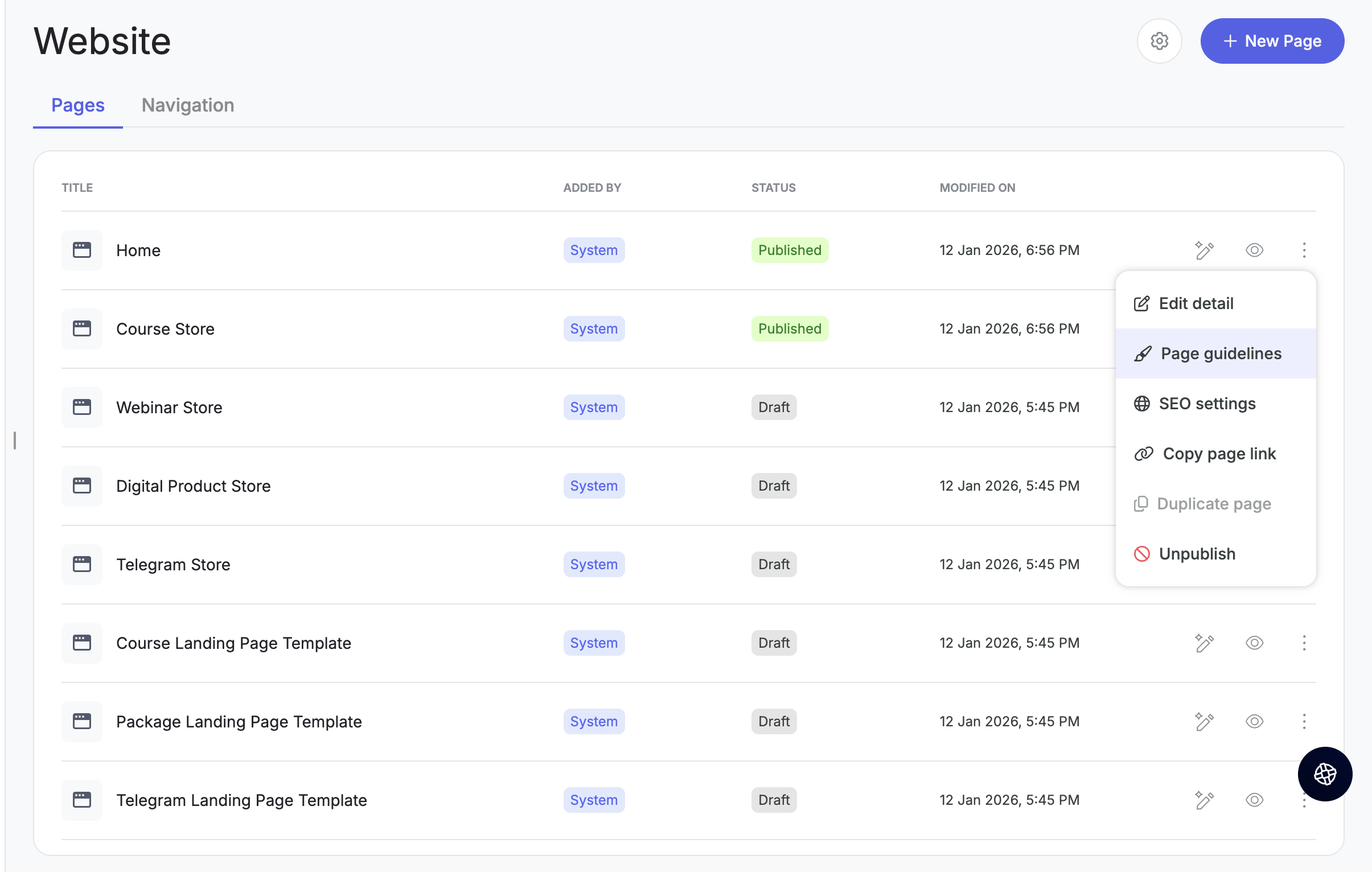
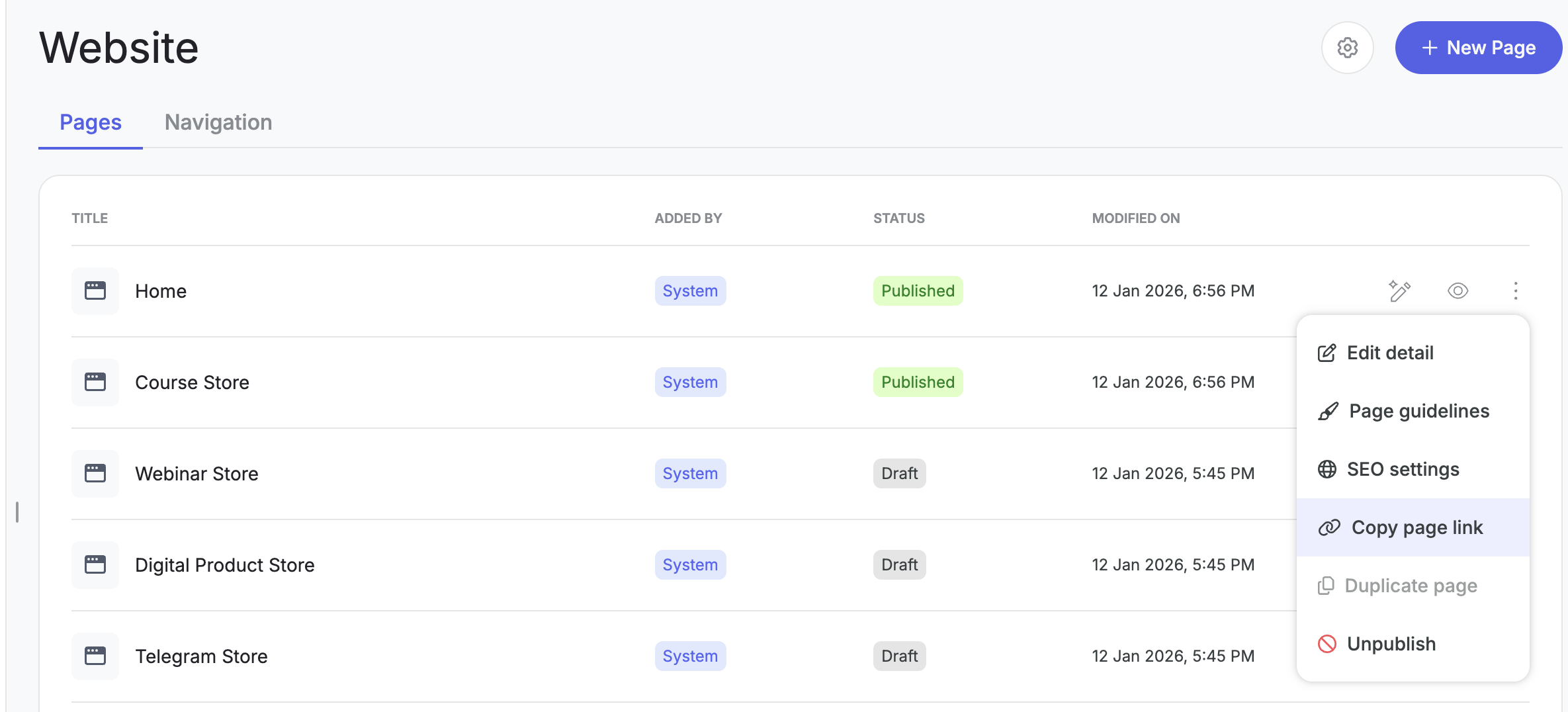
Step 1: From the page, click on the three dots and click on Page guidelines.
Step 2: Click on vibe dropdown to Change vibe to regenerate fonts and colors for that page.

Step 3: You can customize colors further, or reset back to the defaults.
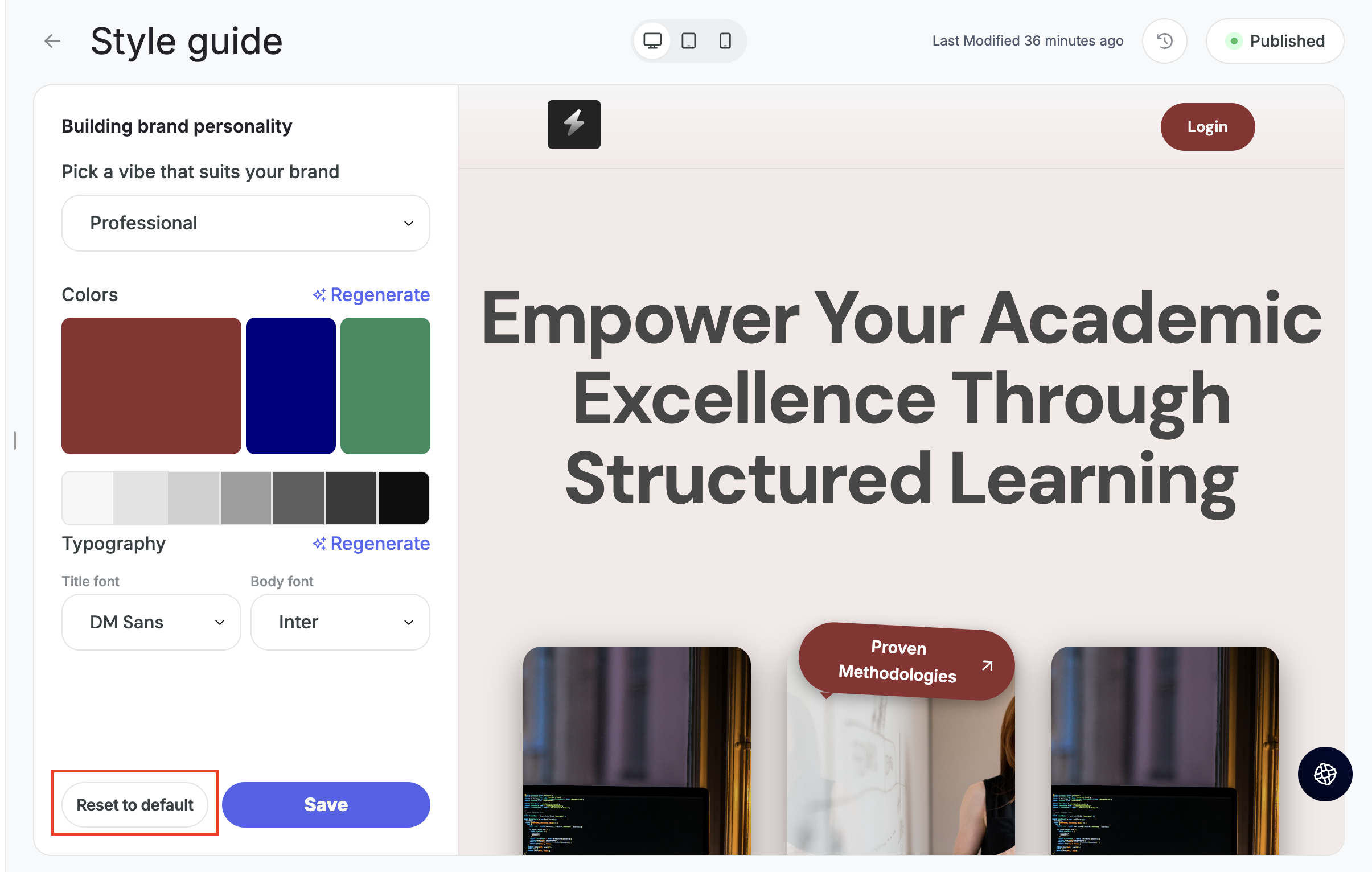
Step 4: Click Save to apply your changes.
SEO Settings
Optimize your pages for search engines to help them rank better.
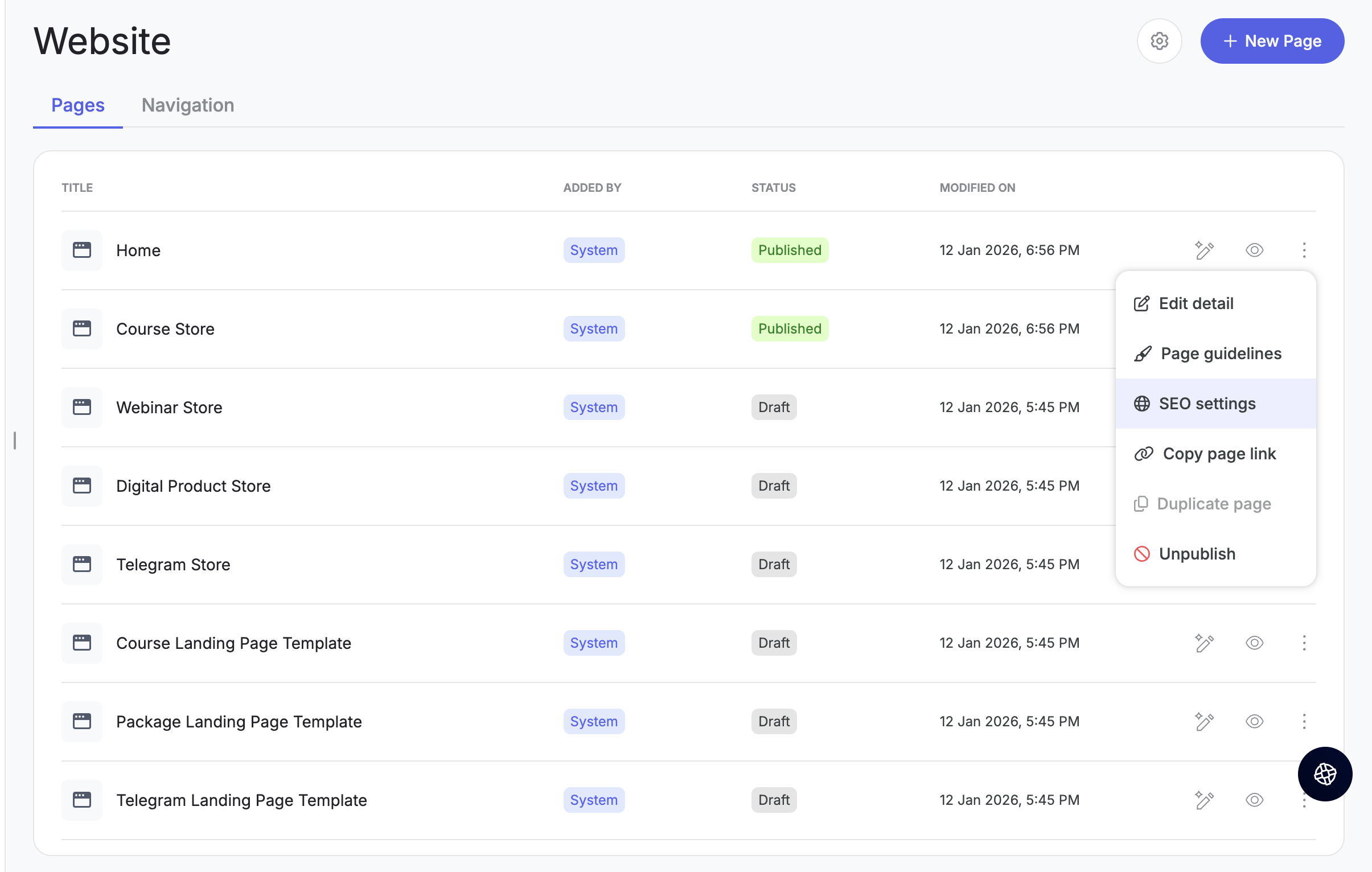
Step 5: From the three-dot menu on any page, click on SEO settings.
Step 6: Add your SEO details:
- SEO title — this is the title that appears in search engine results.
- SEO description — a brief summary that appears below the title in search results.
- Add relevant keywords to help your page rank for specific search terms.
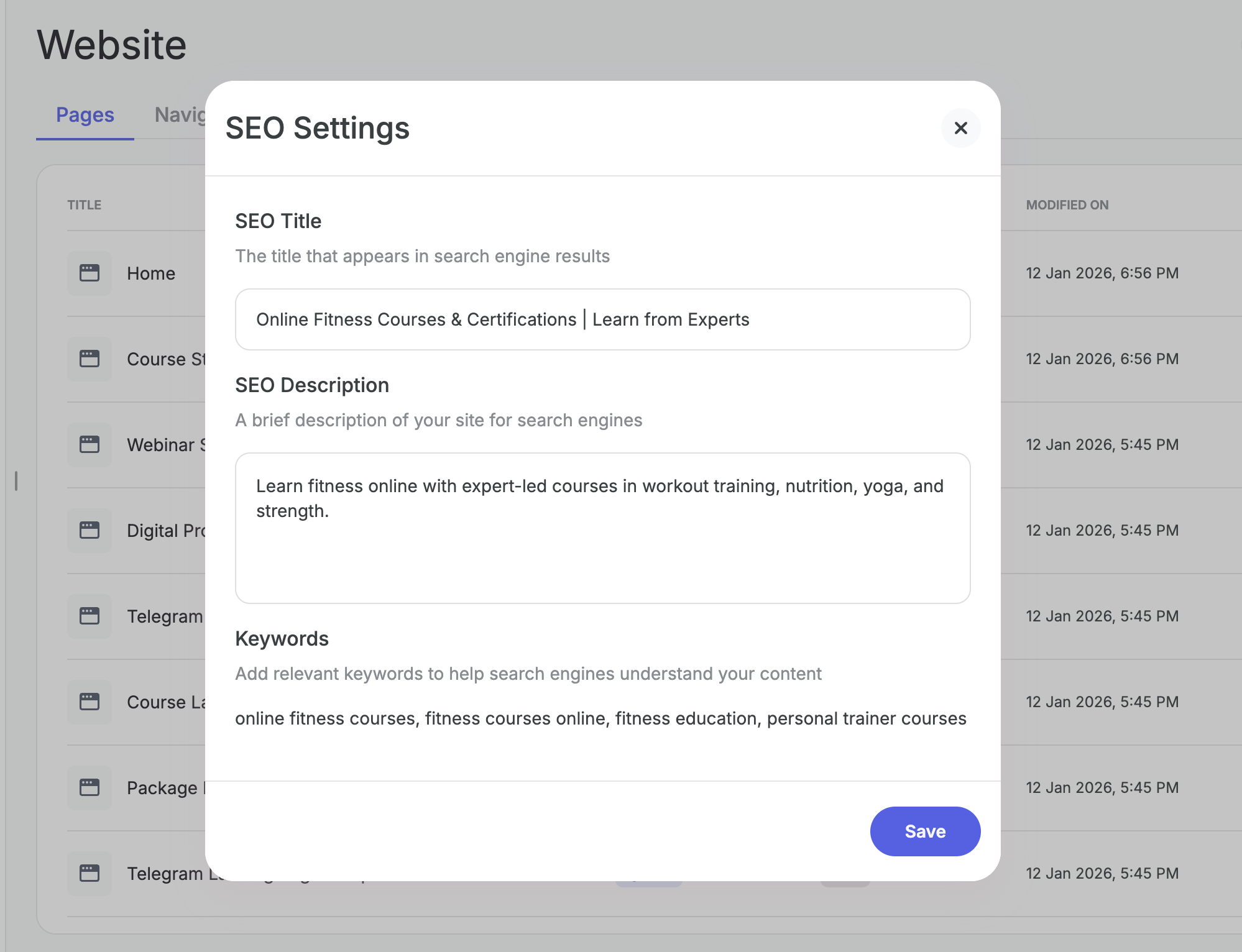
Step 9: Click Save to apply your SEO settings.
Copying & Sharing Page Links
From the three-dot menu, you can also copy the page link to see exactly how it looks for your learners.
Website Settings
For overall website settings that apply across all pages:
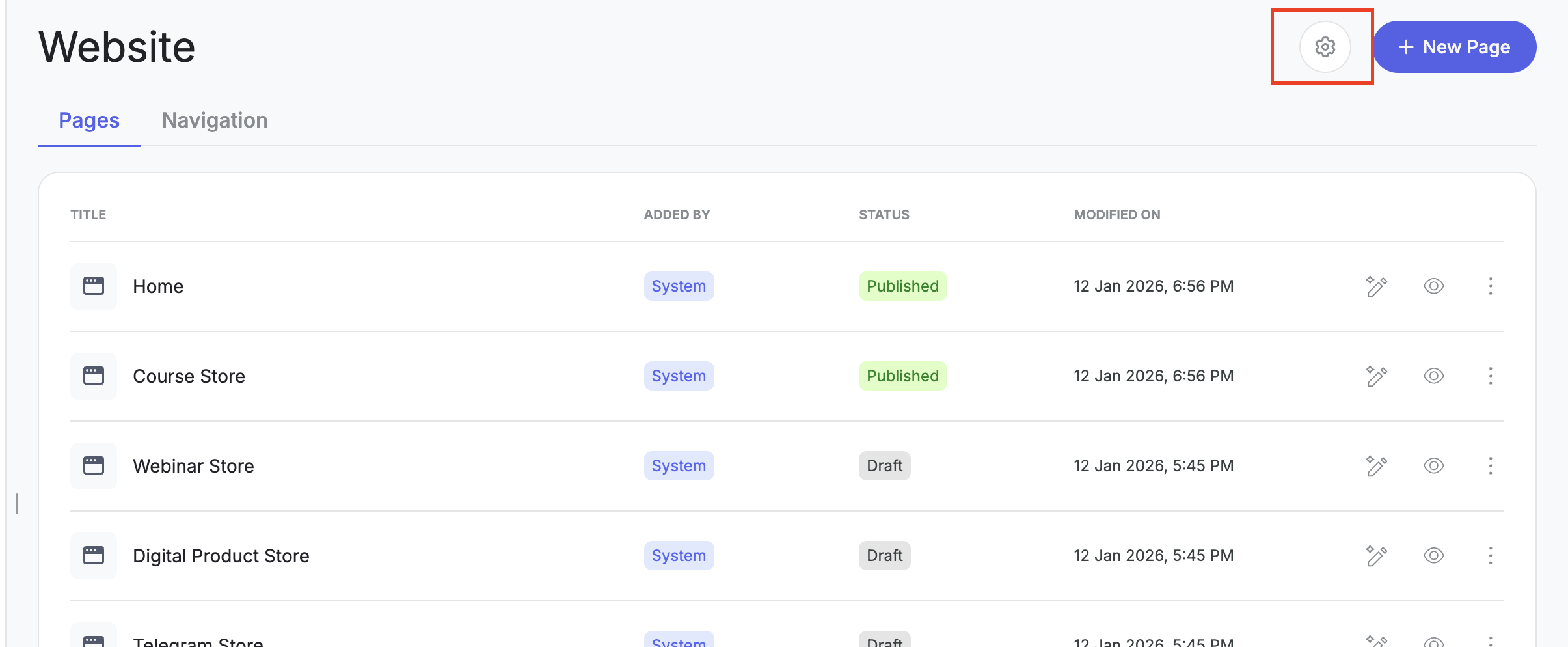
Step 10: Click on the settings icon on the top right of your Website section.
Favicon & Logo
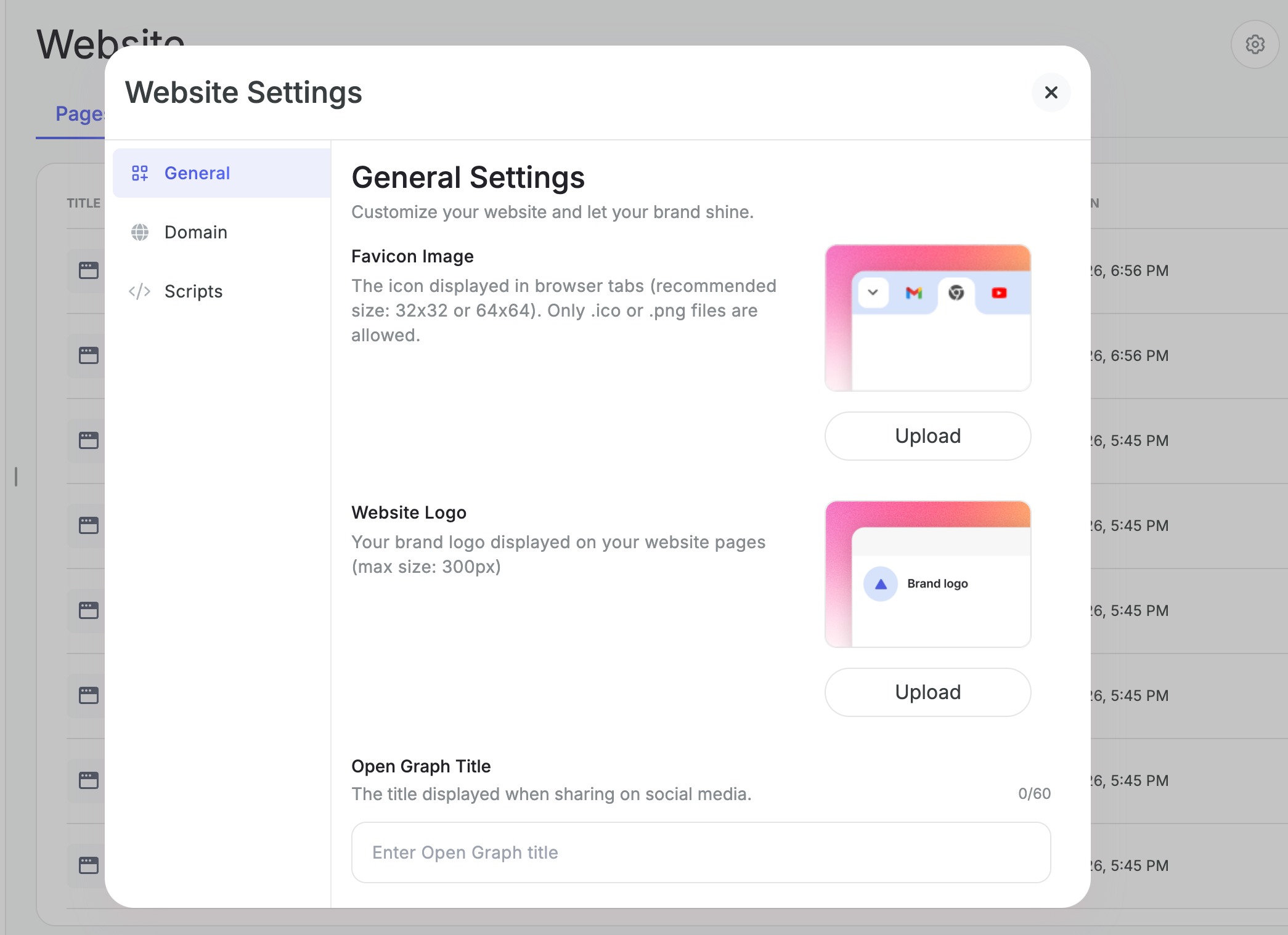
Step 11: Upload your favicon — the small icon that appears in browser tabs.
Step 12: Upload your website logo — this appears in your header and other branded areas.
Social Media Sharing
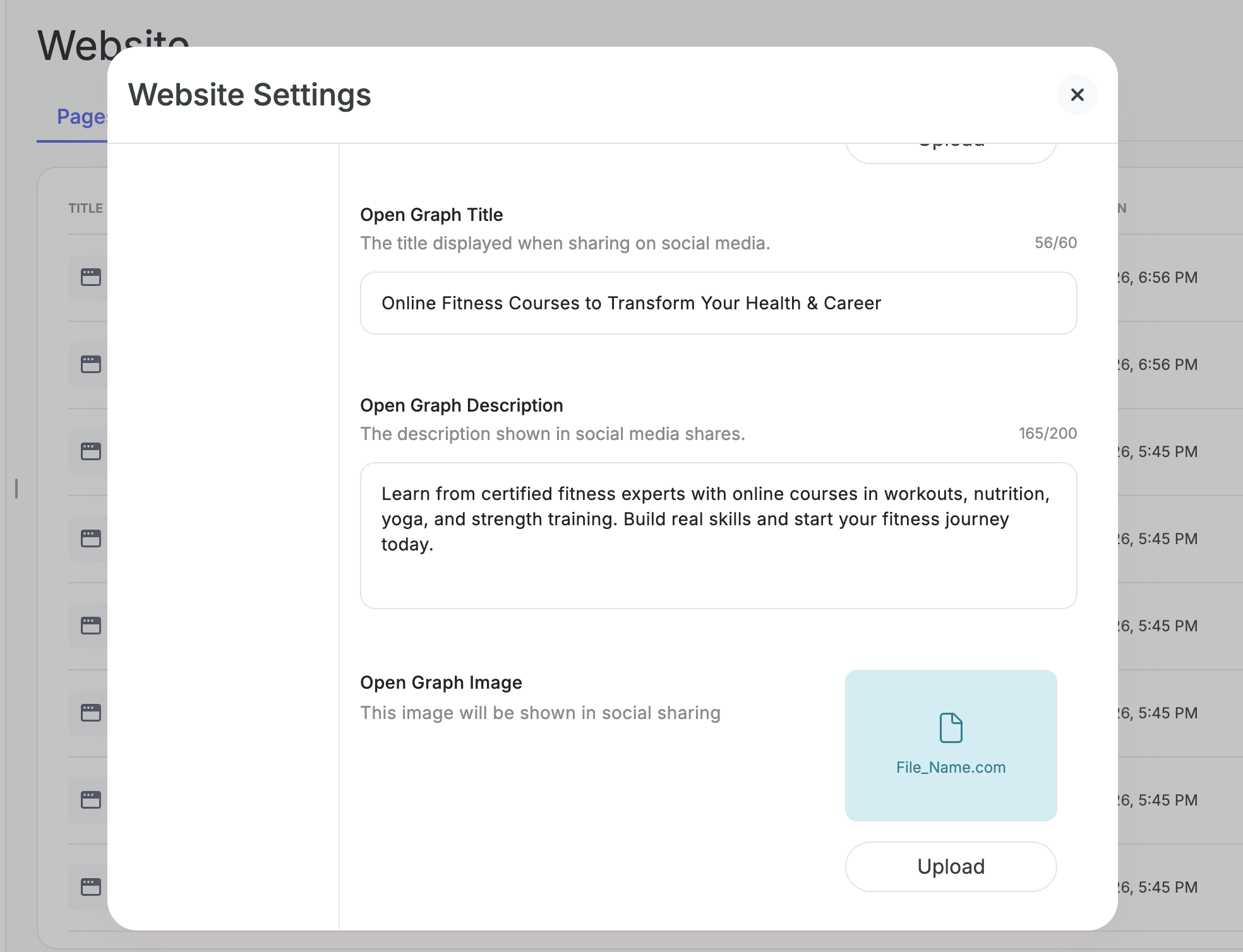
Step 13: Add the Open graph title that appears when your site is shared on social media.
Step 14: Add the Open graph description that appears when your site is shared on social media.
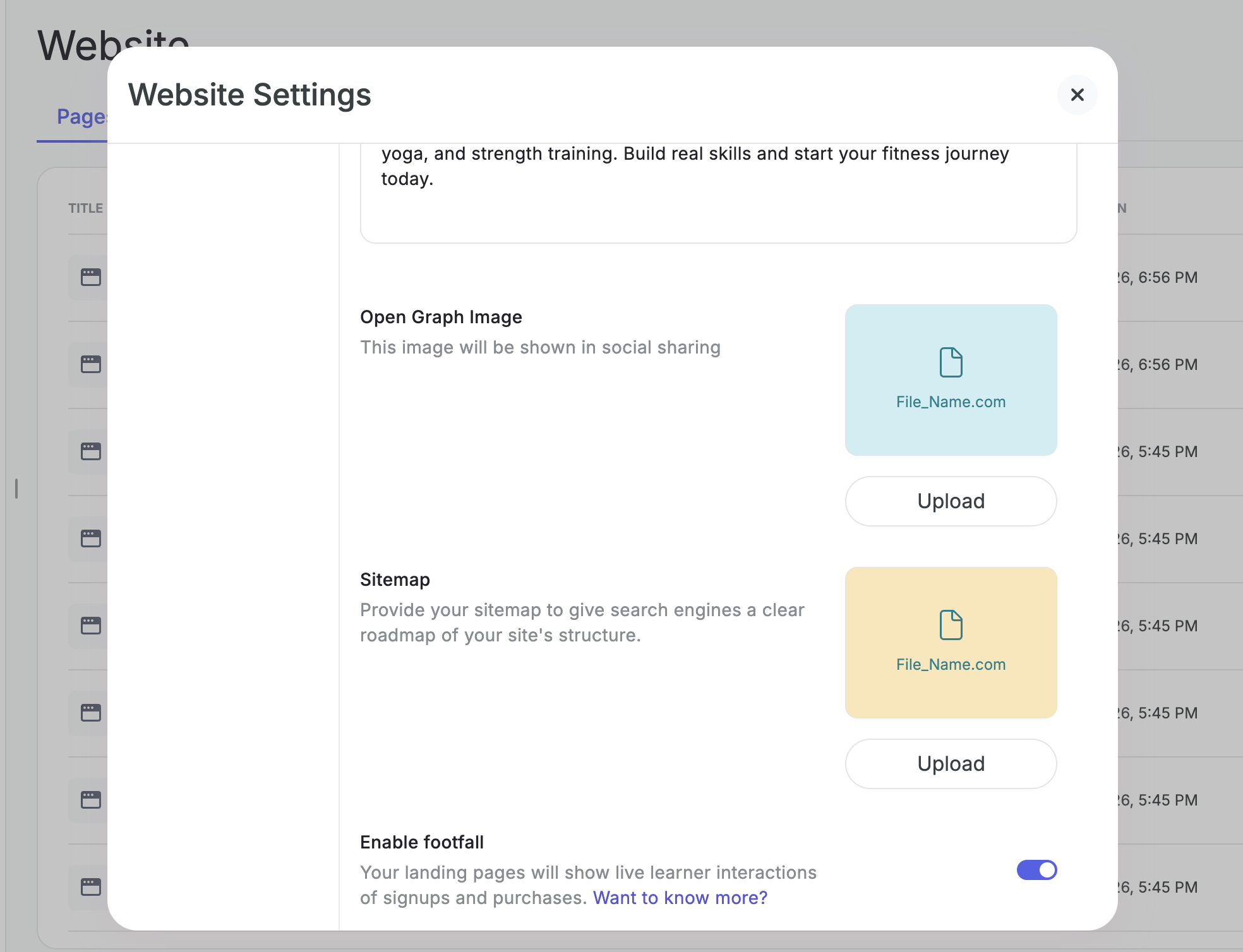
Step 15: Upload an image that will be shown when someone shares your website link.
Sitemap
Step 16: Upload a sitemap to help search engines better understand and index your website structure.
Footfall (Live Activity Banner)
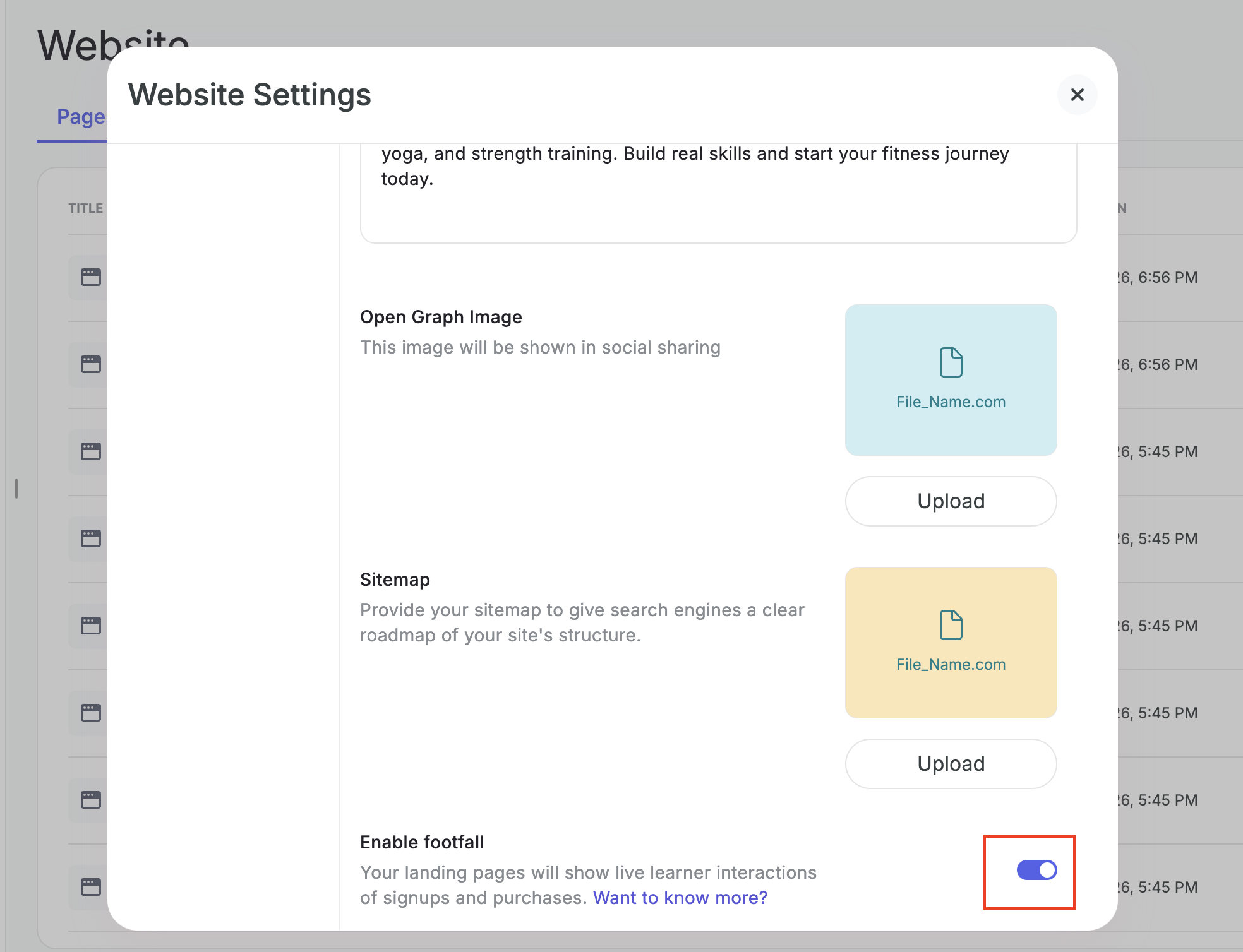
Step 17: Enable footfall to show live activity like sign-ups and purchases as a banner on your website.
This social proof feature helps build trust with visitors by showing real-time activity.
Domain Settings
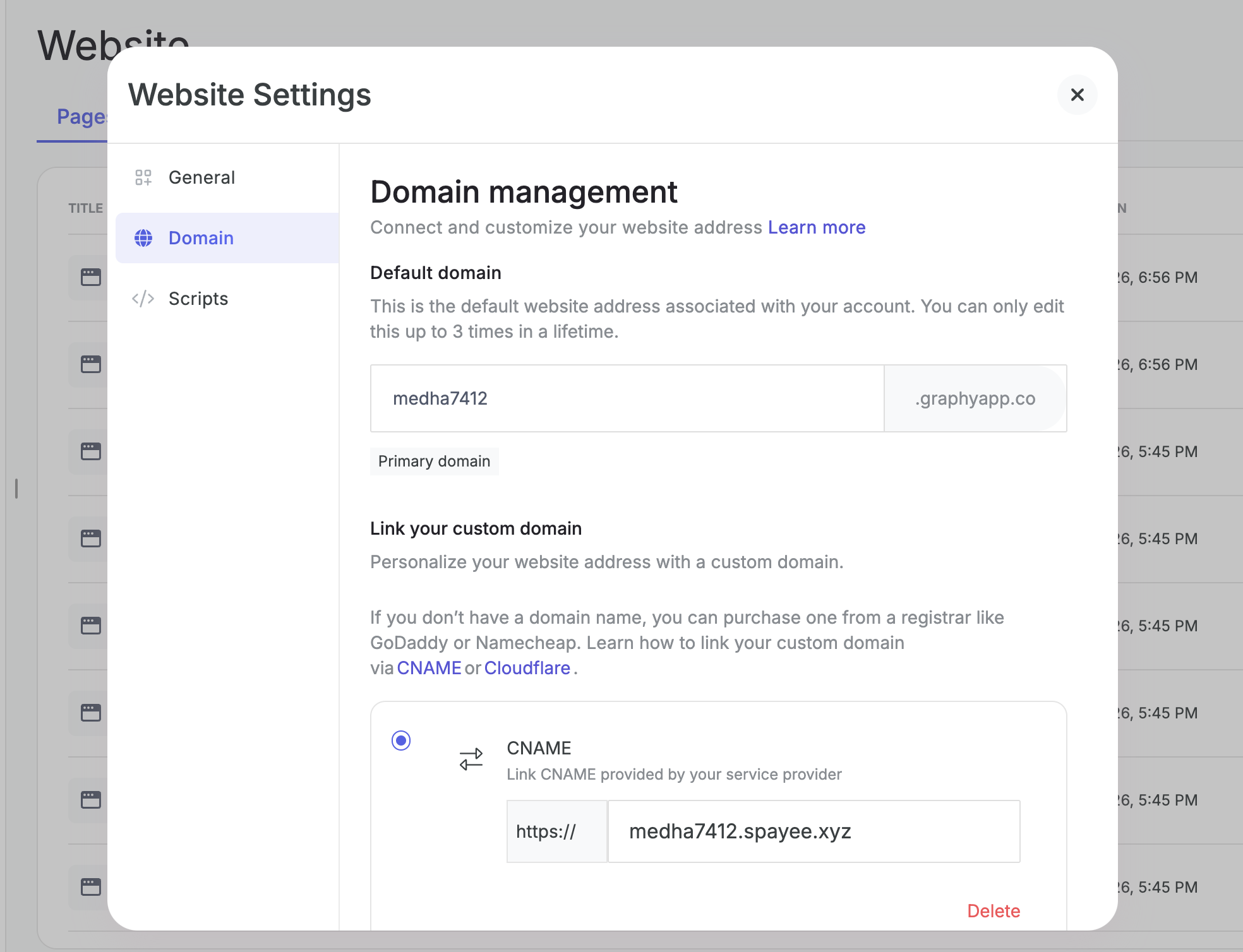
Step 18: In Domain Settings, you can connect your own custom domain to personalize your website address.
Note: We've provided a detailed help article to guide you through the domain connection process.
Custom Scripts & CSS
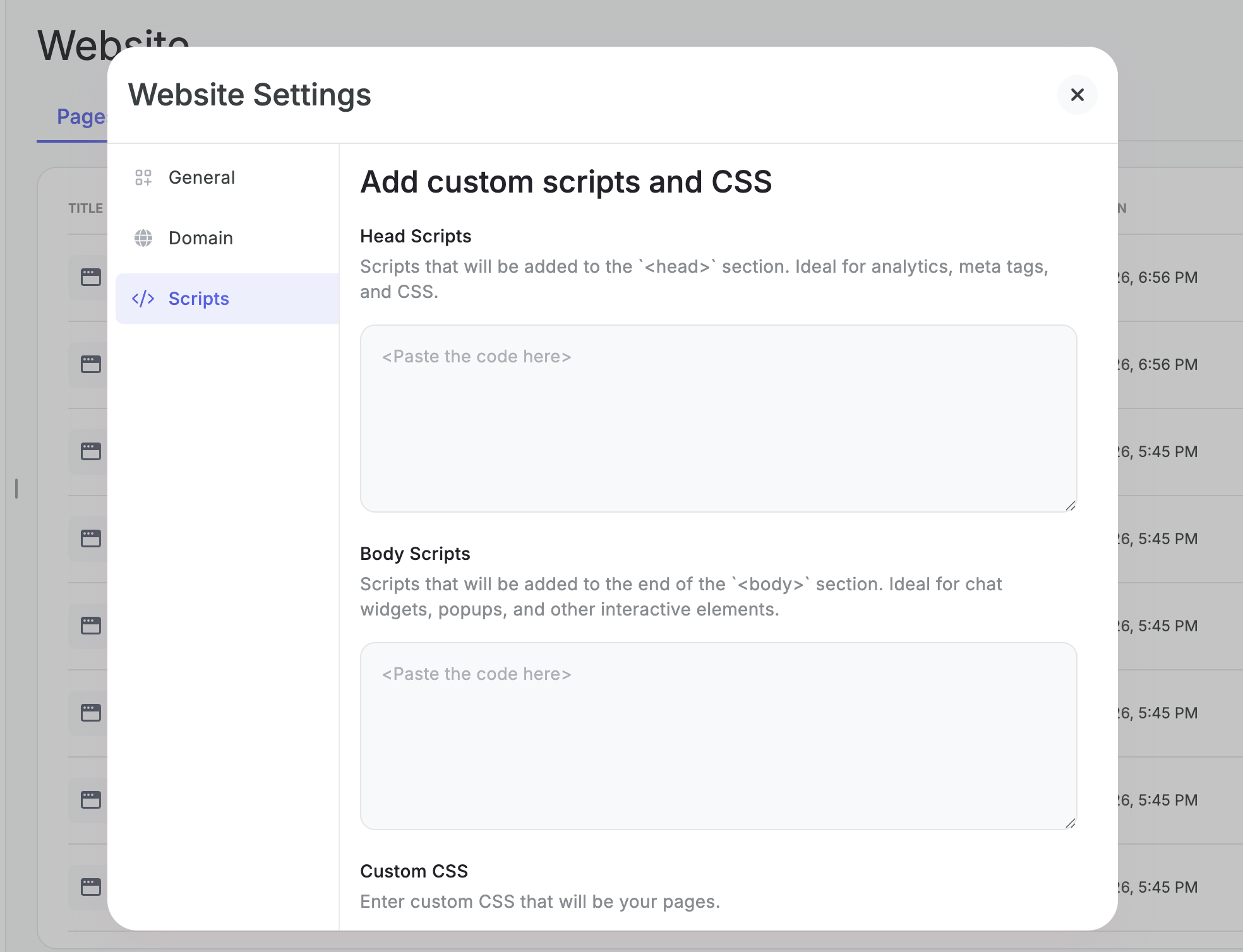
Step 19: Add custom scripts to the head or body of your site for tracking, analytics, or other integrations.
Step 20: Apply custom CSS across your pages for advanced styling customizations.
Was this article helpful?
That’s Great!
Thank you for your feedback
Sorry! We couldn't be helpful
Thank you for your feedback
Feedback sent
We appreciate your effort and will try to fix the article