This article is a step-by-step guide on creating new pages, editing with AI, managing versions, and publishing your website pages on Graphy.
Now that your AI website is ready, let's see how you can edit and manage it.
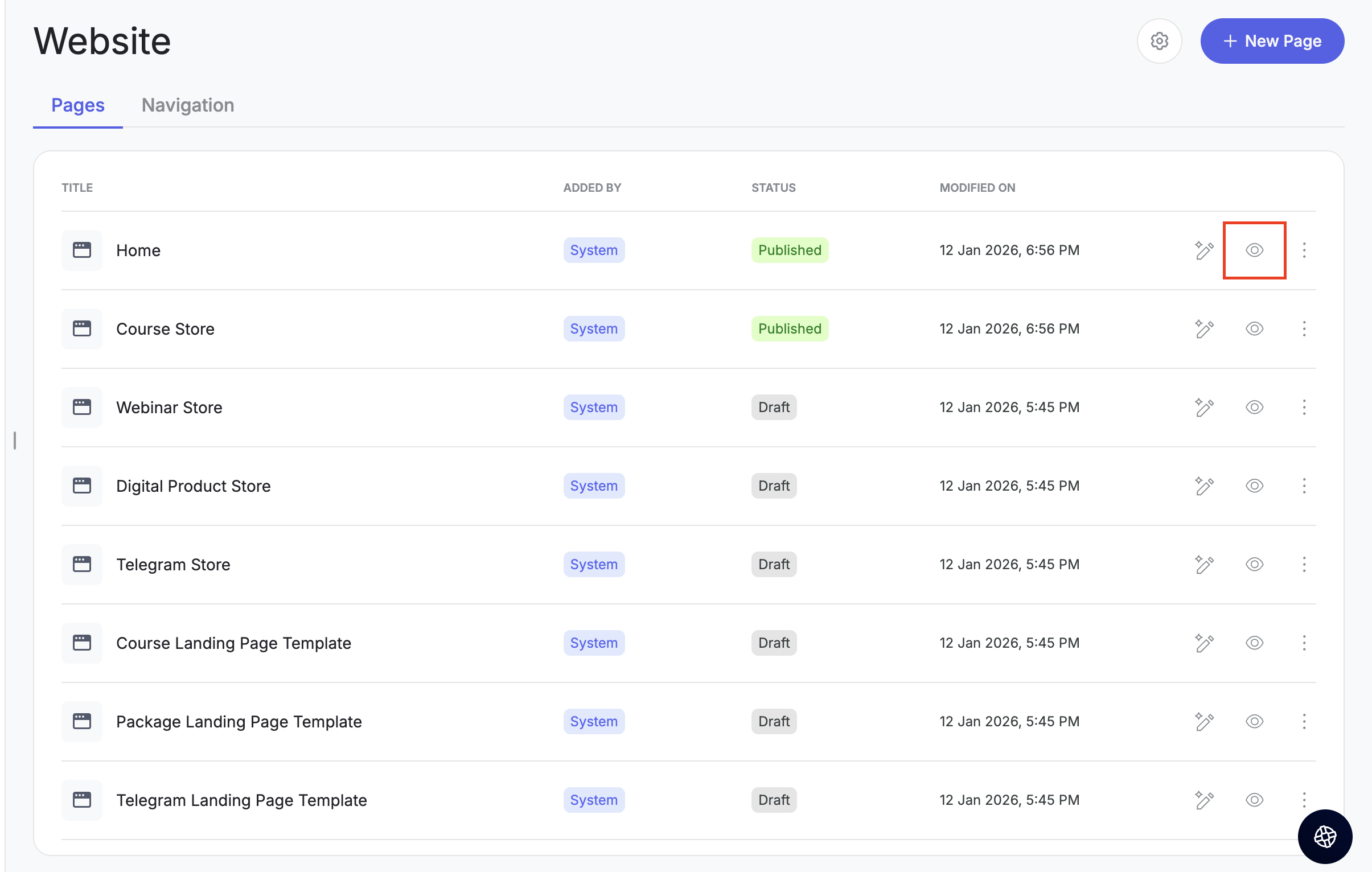
Accessing Your Website Pages
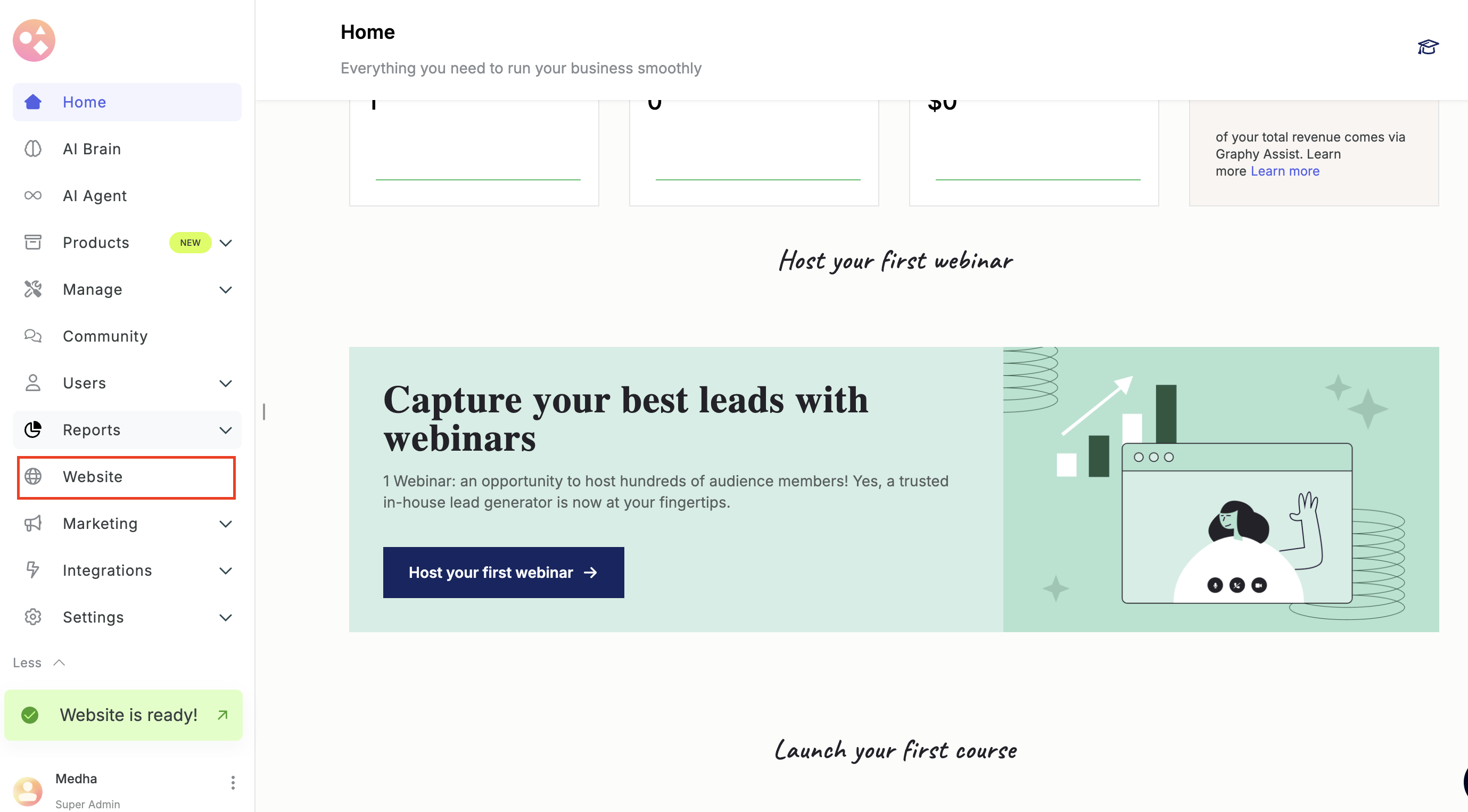
Step 1: From your Graphy dashboard, go to the left panel and click on Website.
Step 2: Here, you'll see all the pages that have been created for you. These pages are created as draft so that you can view, make changes, and publish them.
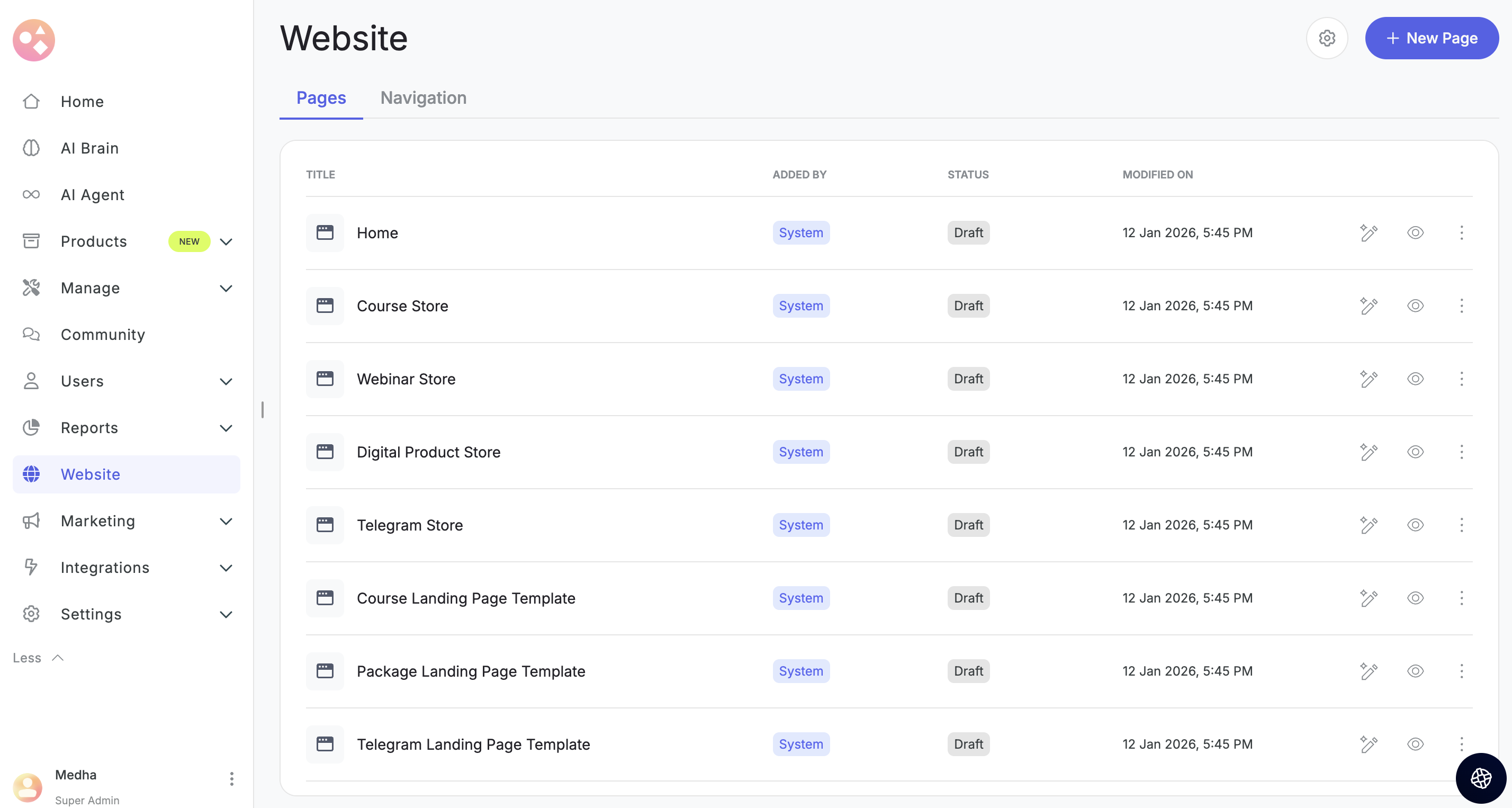
You can check the status of each page — whether they are live or still in draft. You can also see when each page was last updated.
Creating a New Page
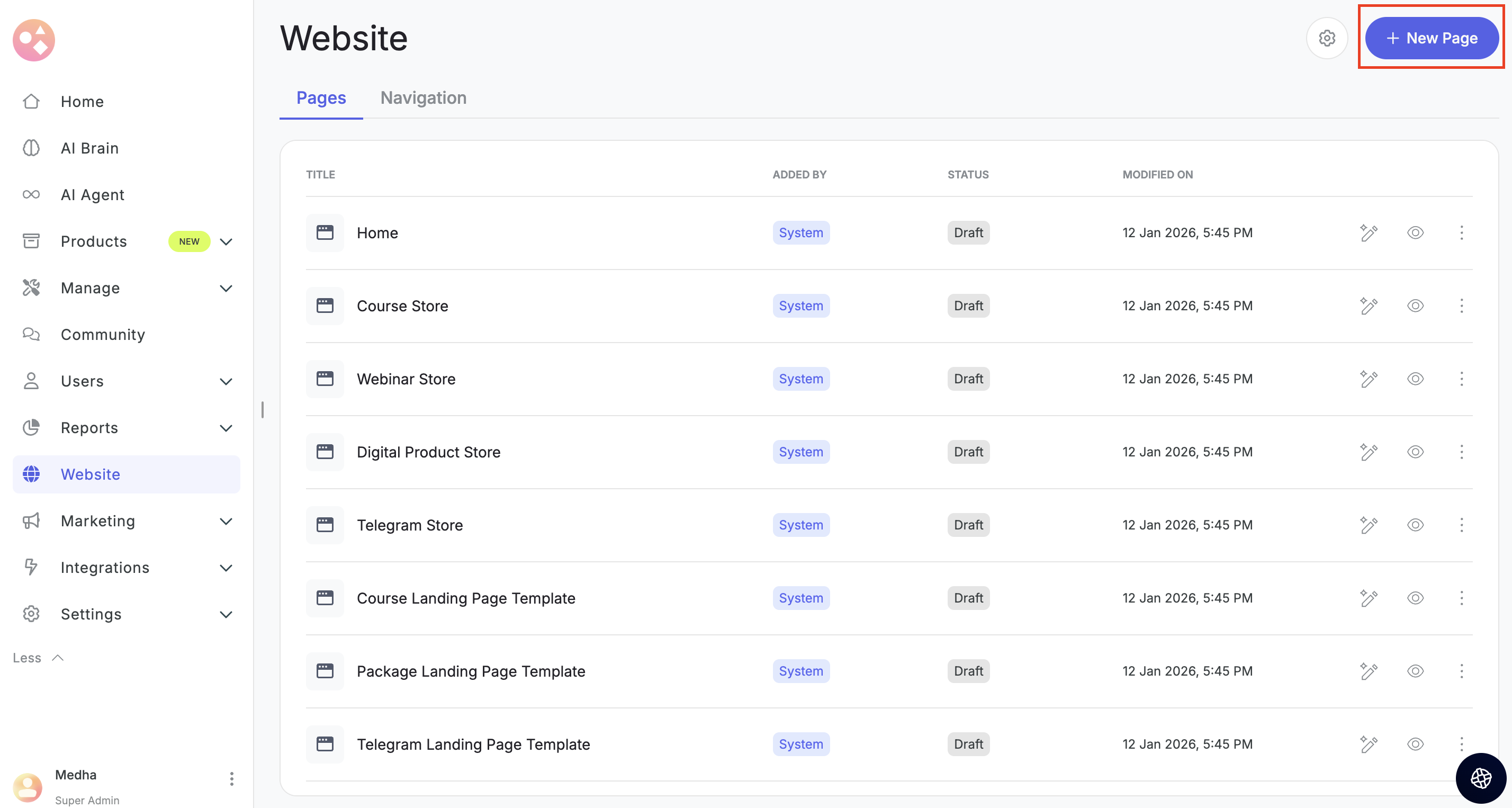
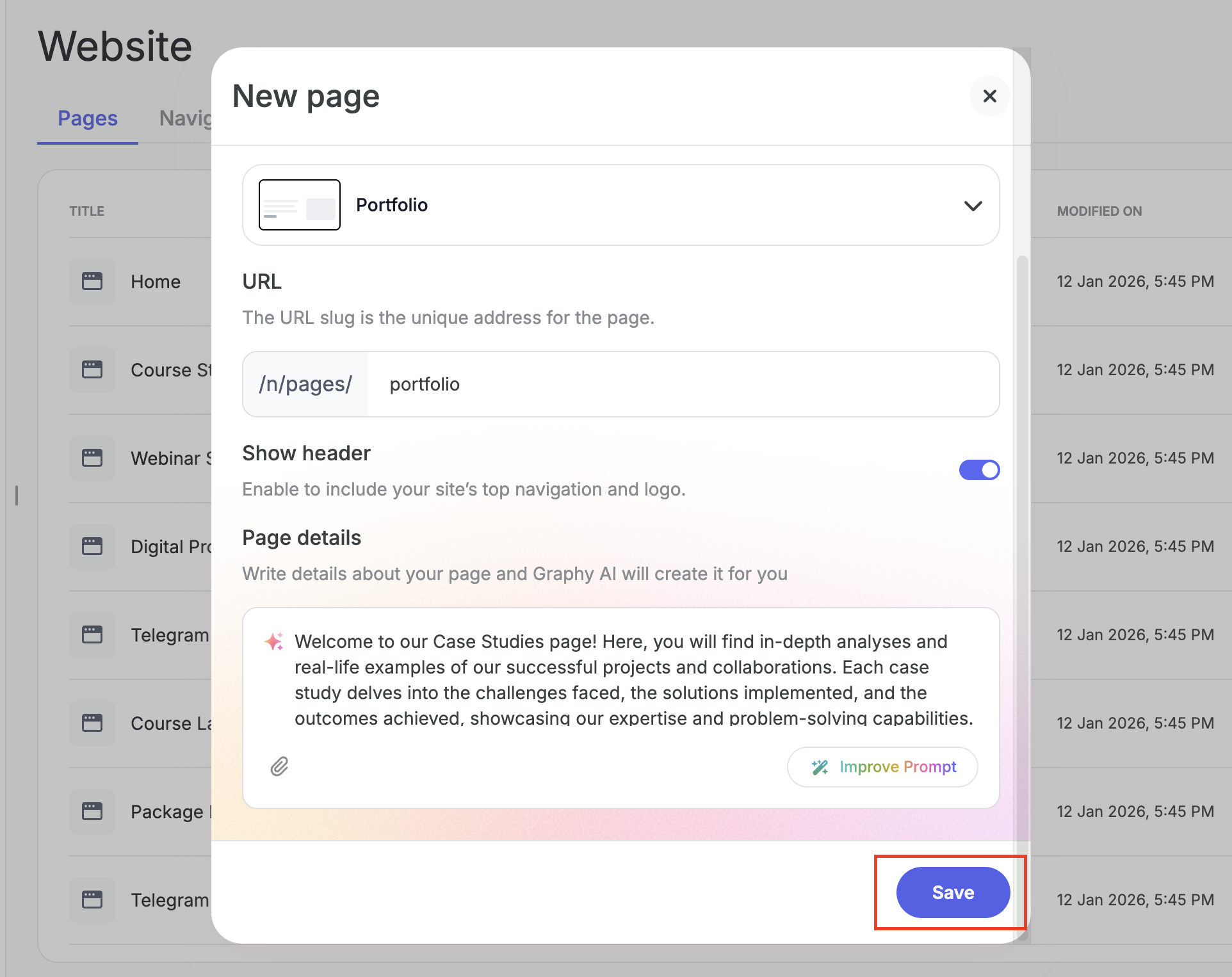
Step 3: Click on New page on the top right.
Step 4: Enter the page title. This is the title that appears on the top of the browser window. The page description will be auto generated by AI.
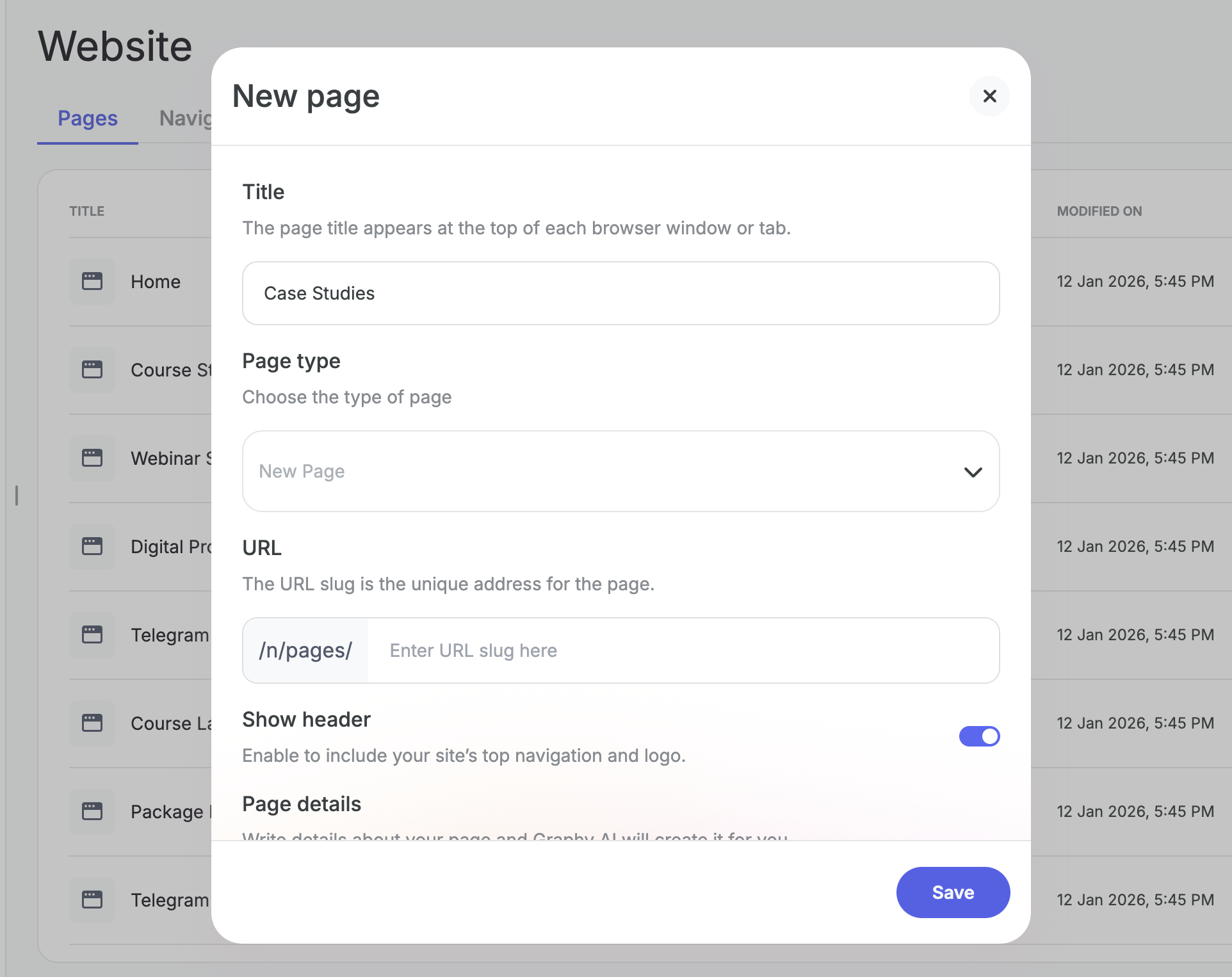
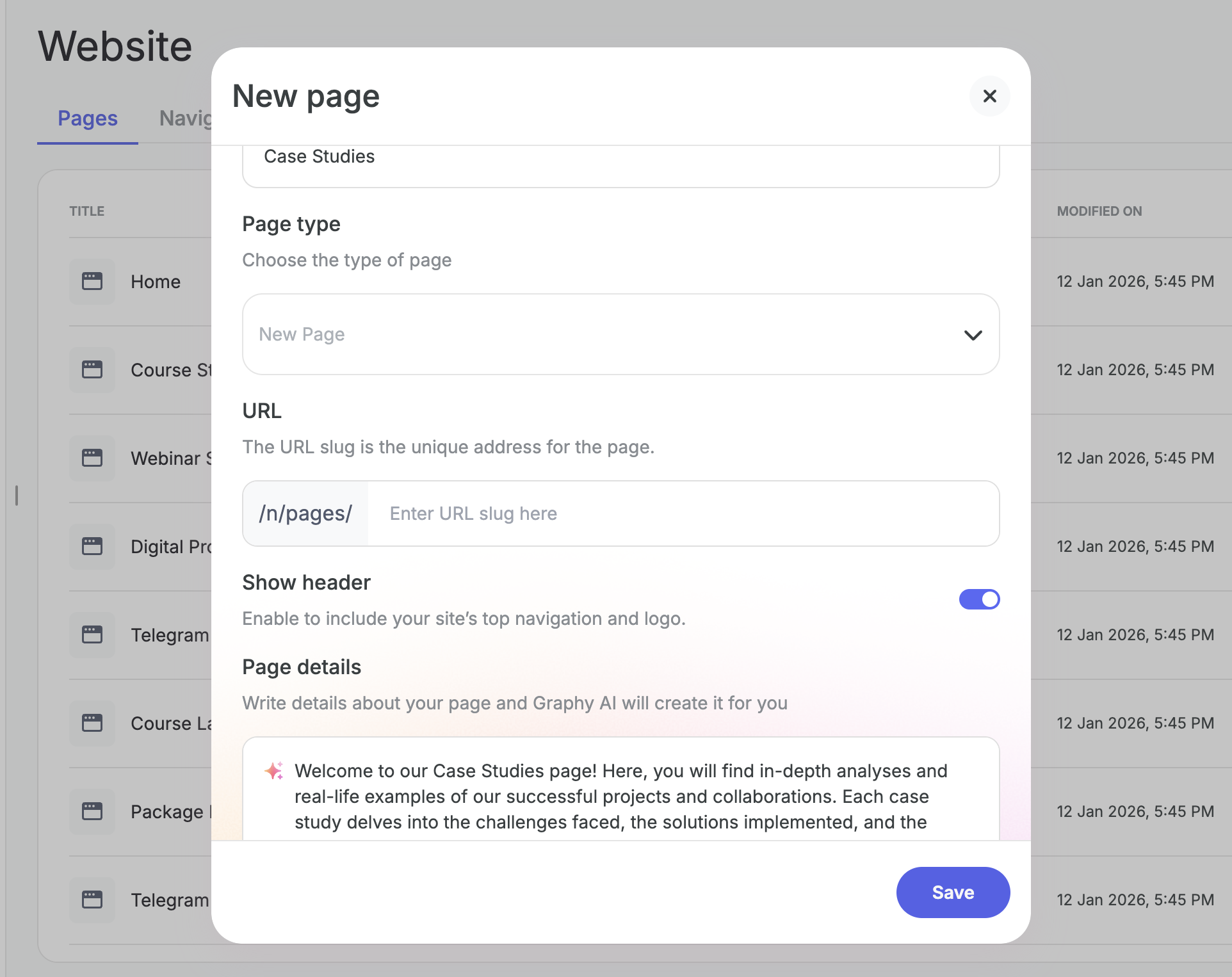
Step 5: Choose a page type from the available options.
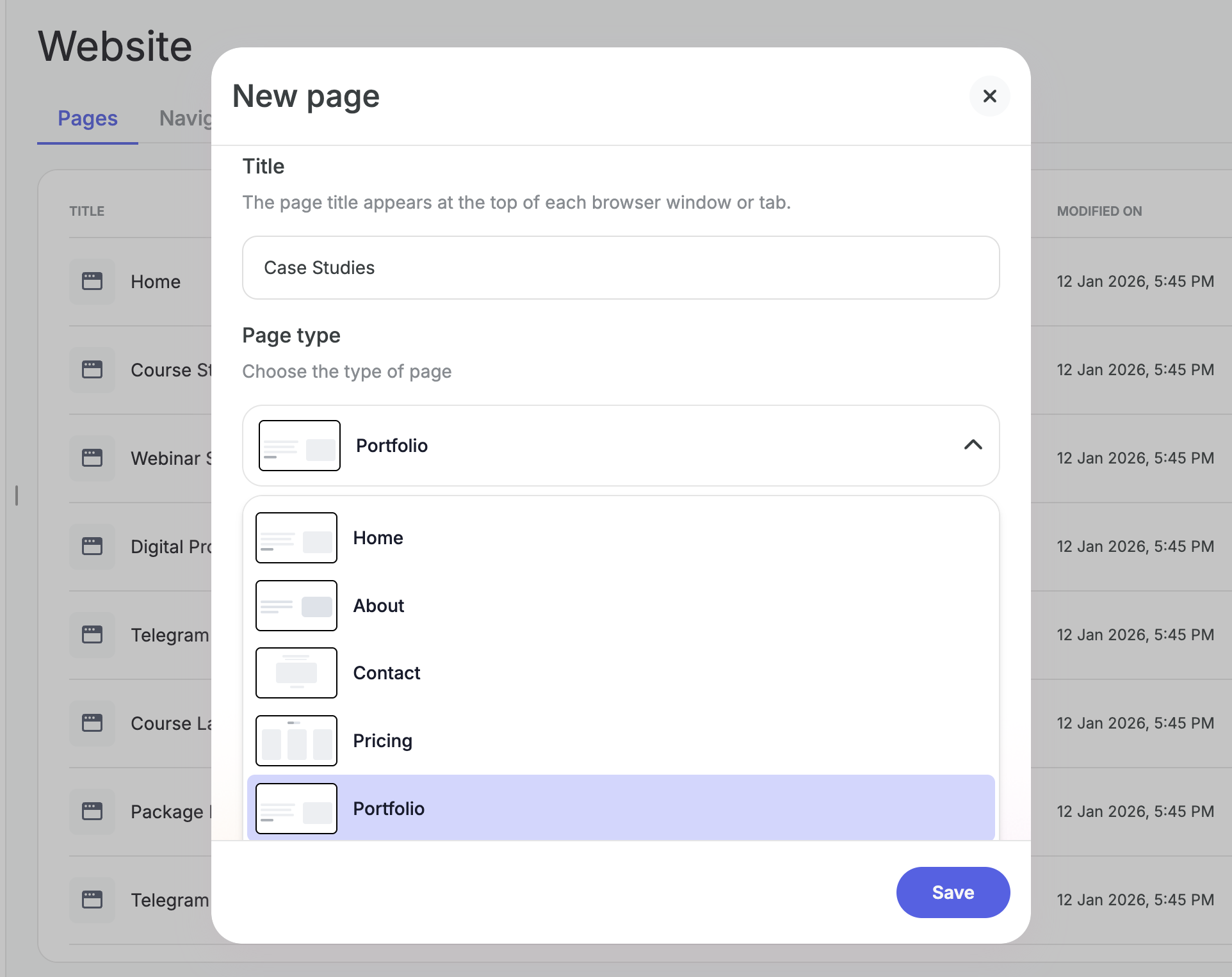
Step 6: Enter the page URL — this will be the unique address of your page.
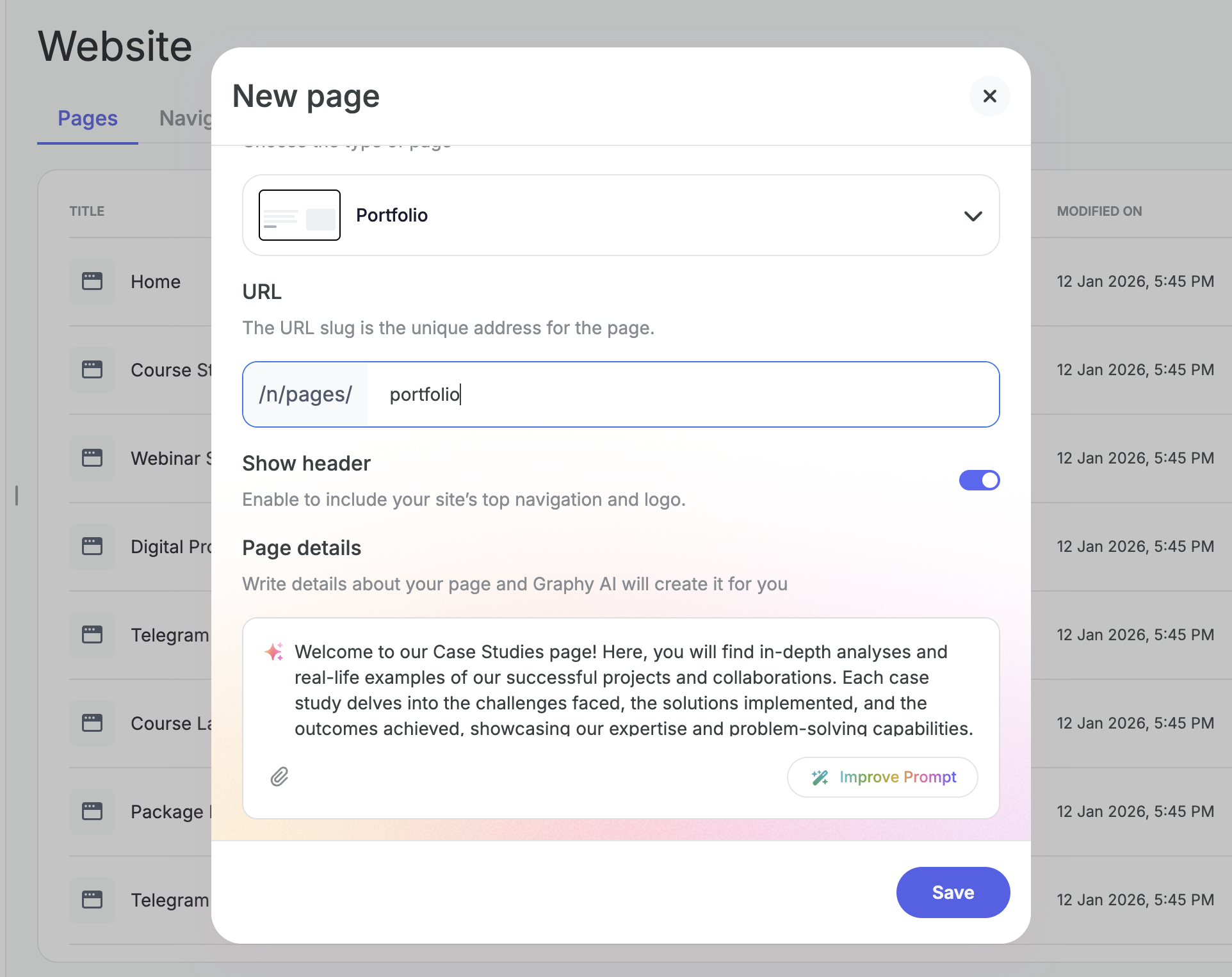
Step 7: Choose whether you want to show the header on this page or not.

Step 8: Based on the title you enter, Graphy automatically generates the page details for you. You can click on Improve prompt to enhance it using AI, or manually edit the description yourself.
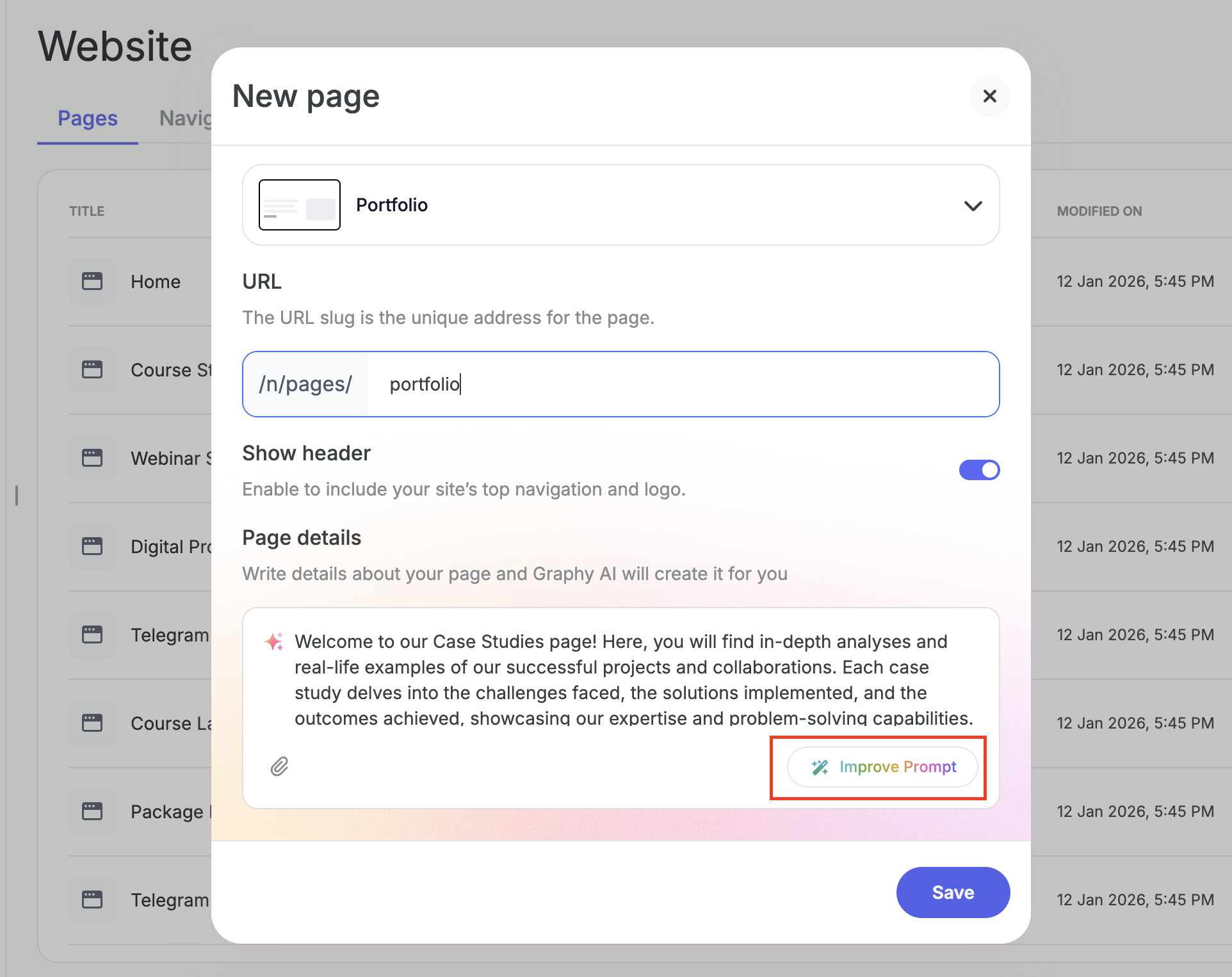
Step 9: Once you're done, click on Save.
You'll now be taken to the editor, where your page starts generating.
Understanding Mock Data
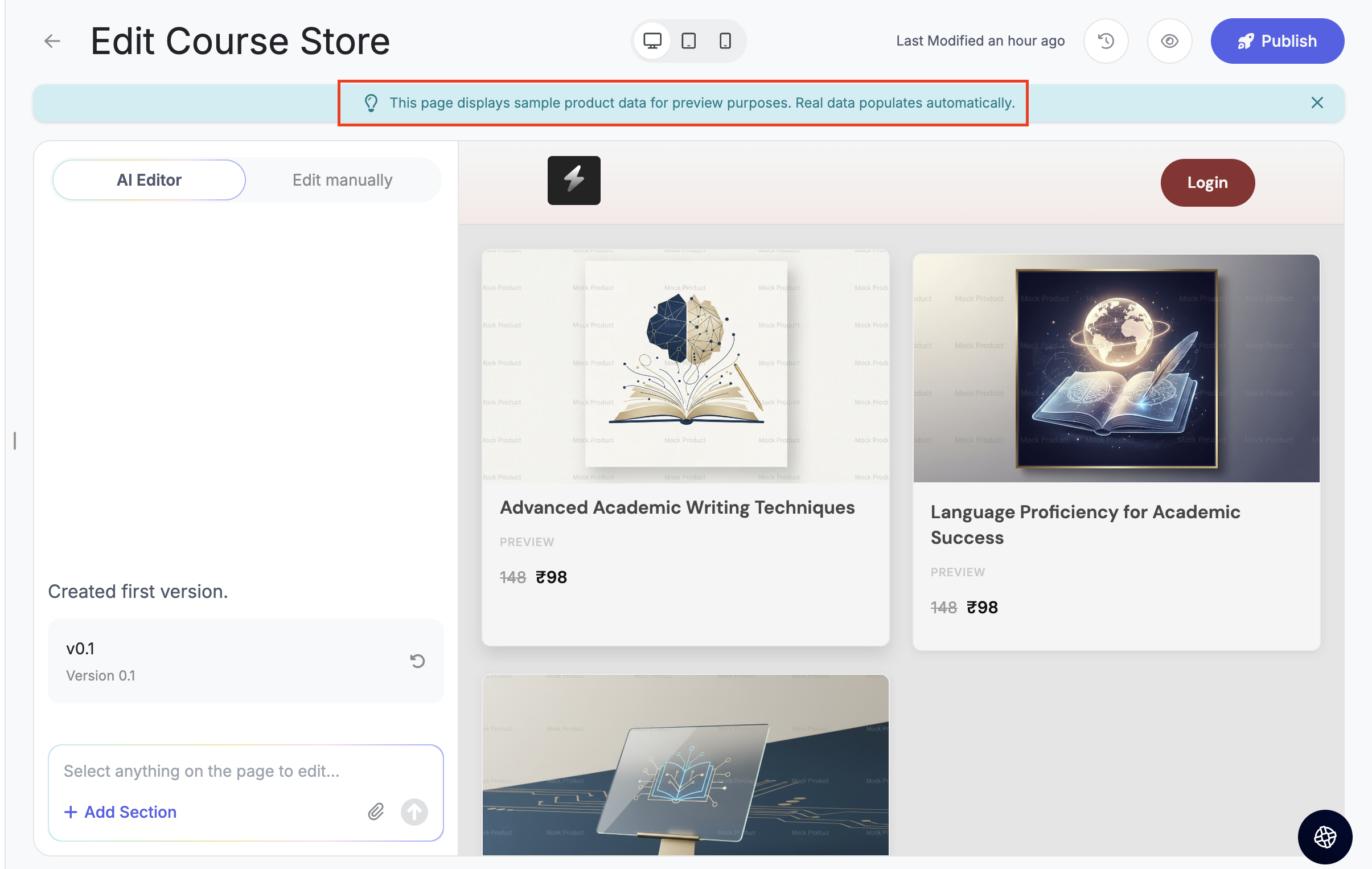
On all store pages and template pages like the Course store, Course landing pages, Telegram landing pages, etc you may see some mock data if you haven't created actual products yet.
Note: This data is only for preview and design purposes. It helps you understand how these pages will look once real products are added. As soon as you create actual courses or products on Graphy, that real data will automatically appear on these pages in the same design.
Editing Pages with AI Prompts
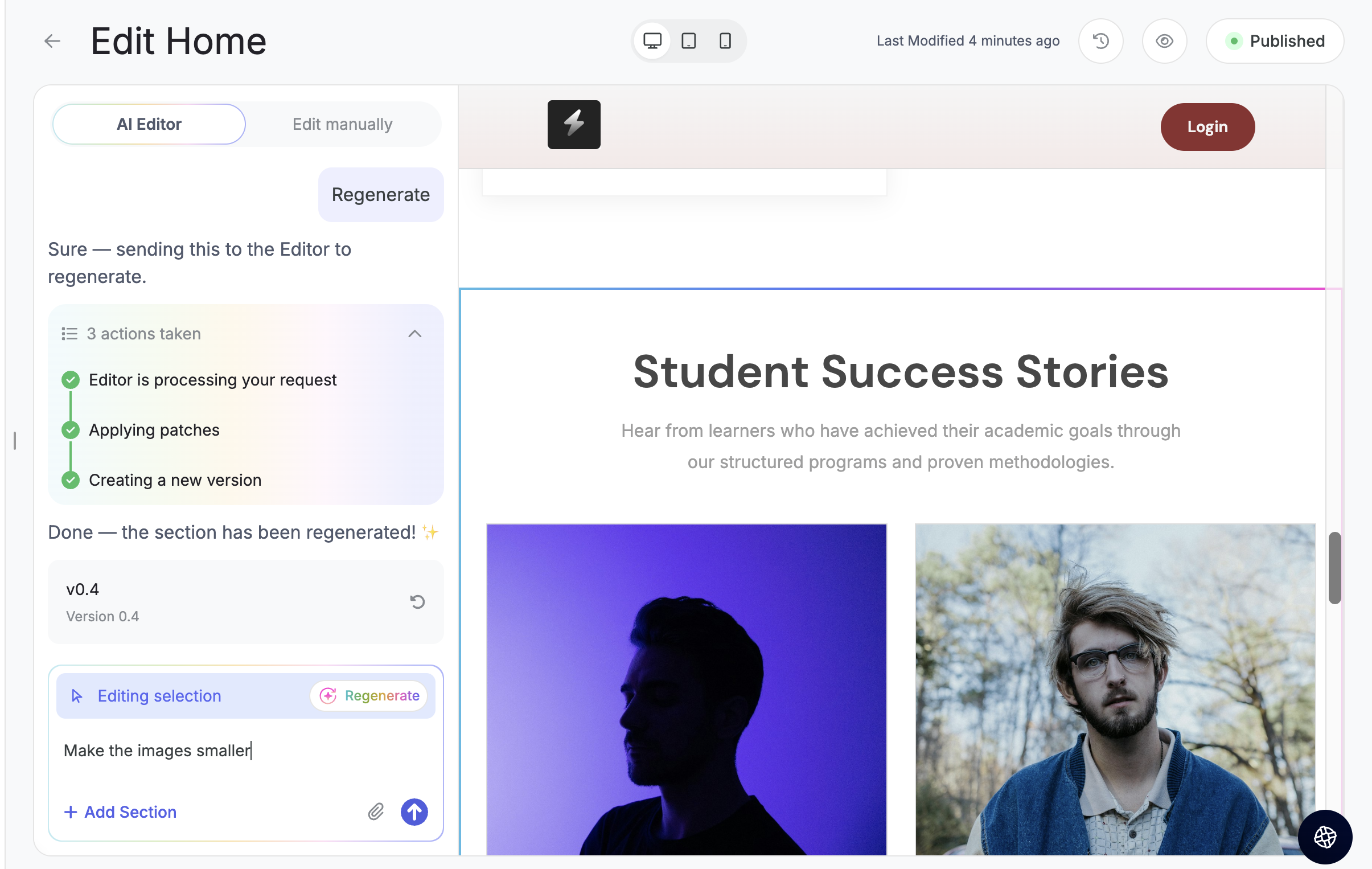
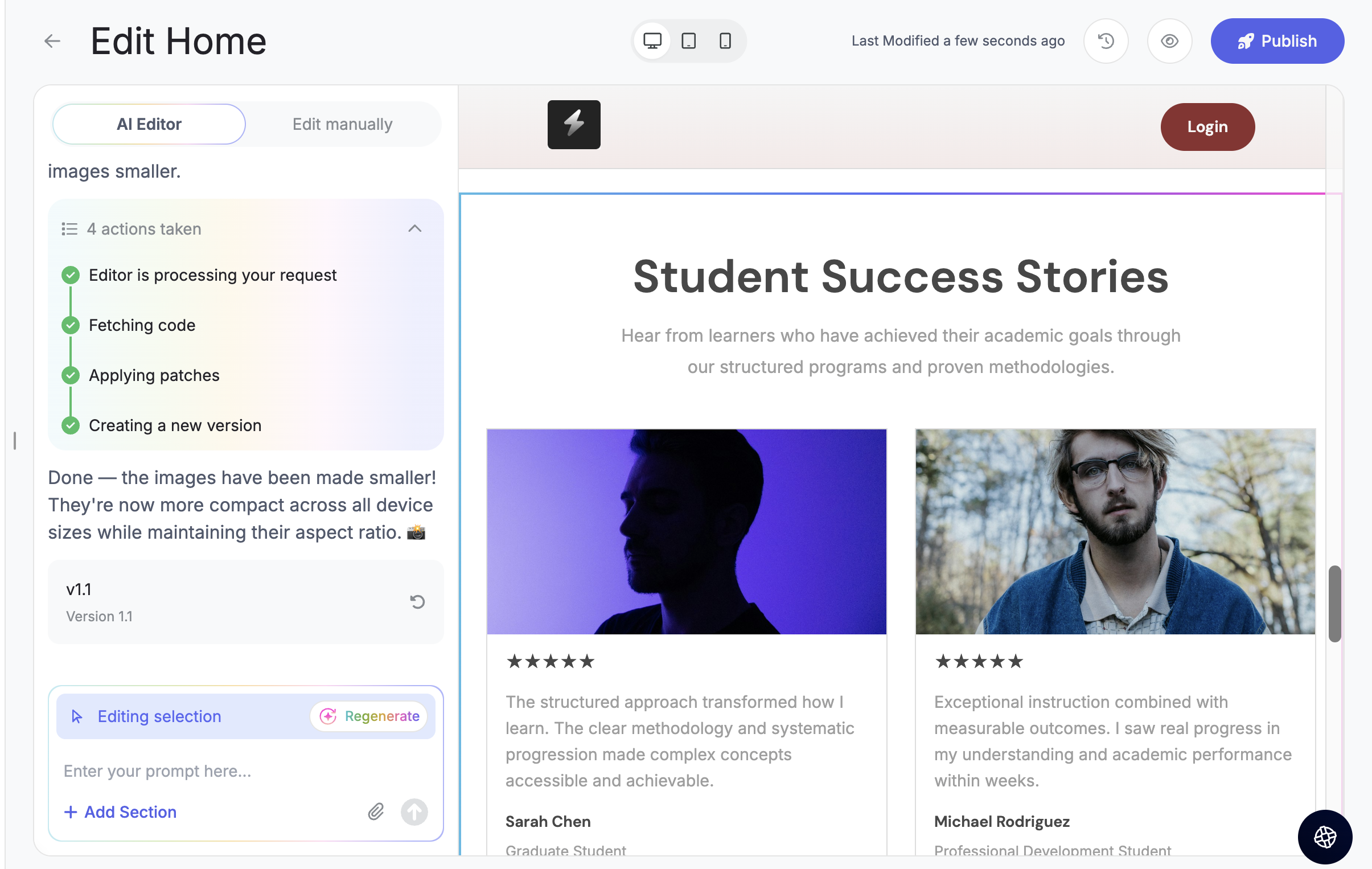
Step 10: From the editor, you can give a prompt, double-click on a section to regenerate it, or select a specific element and ask AI to modify just that part.
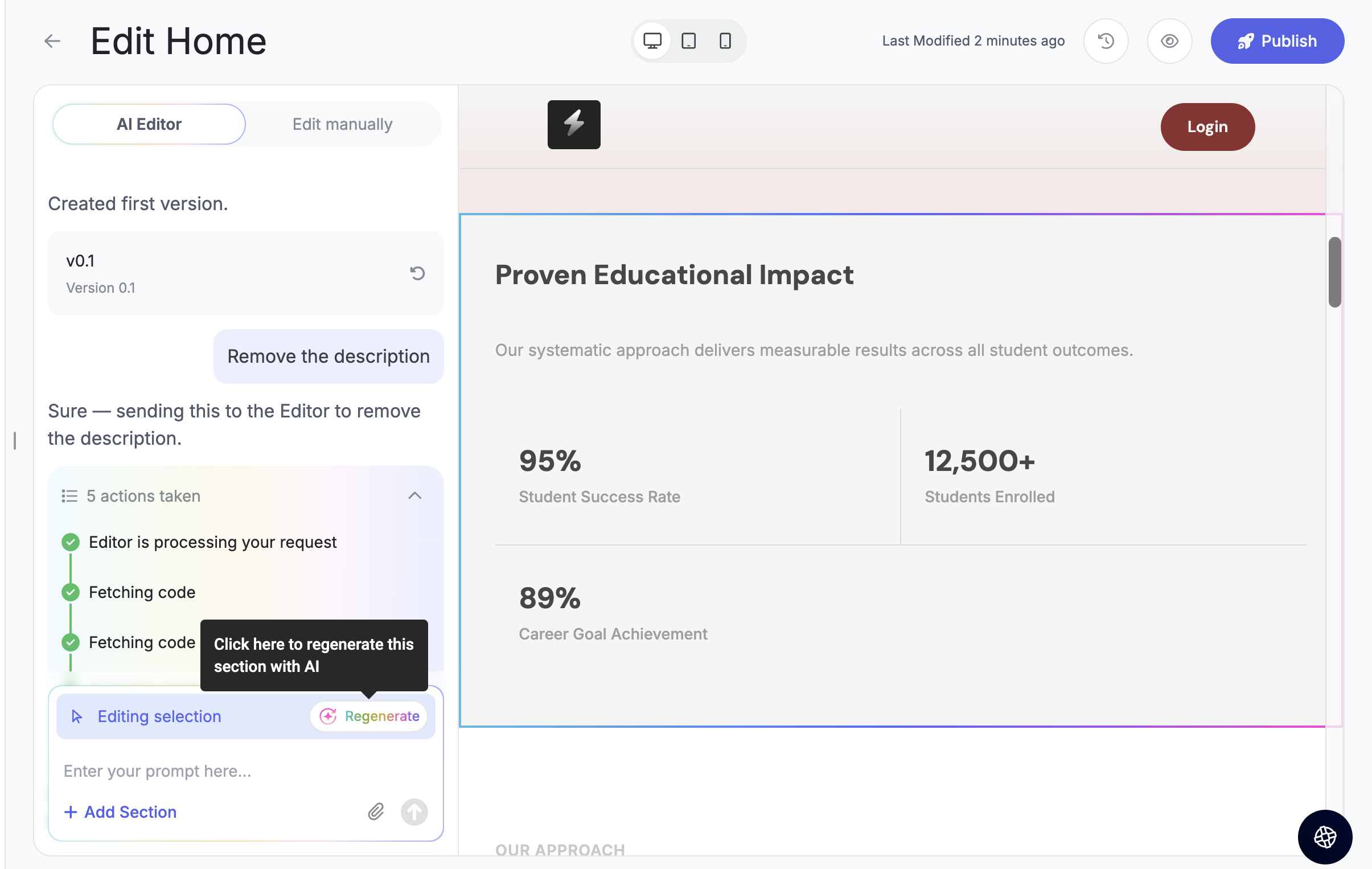
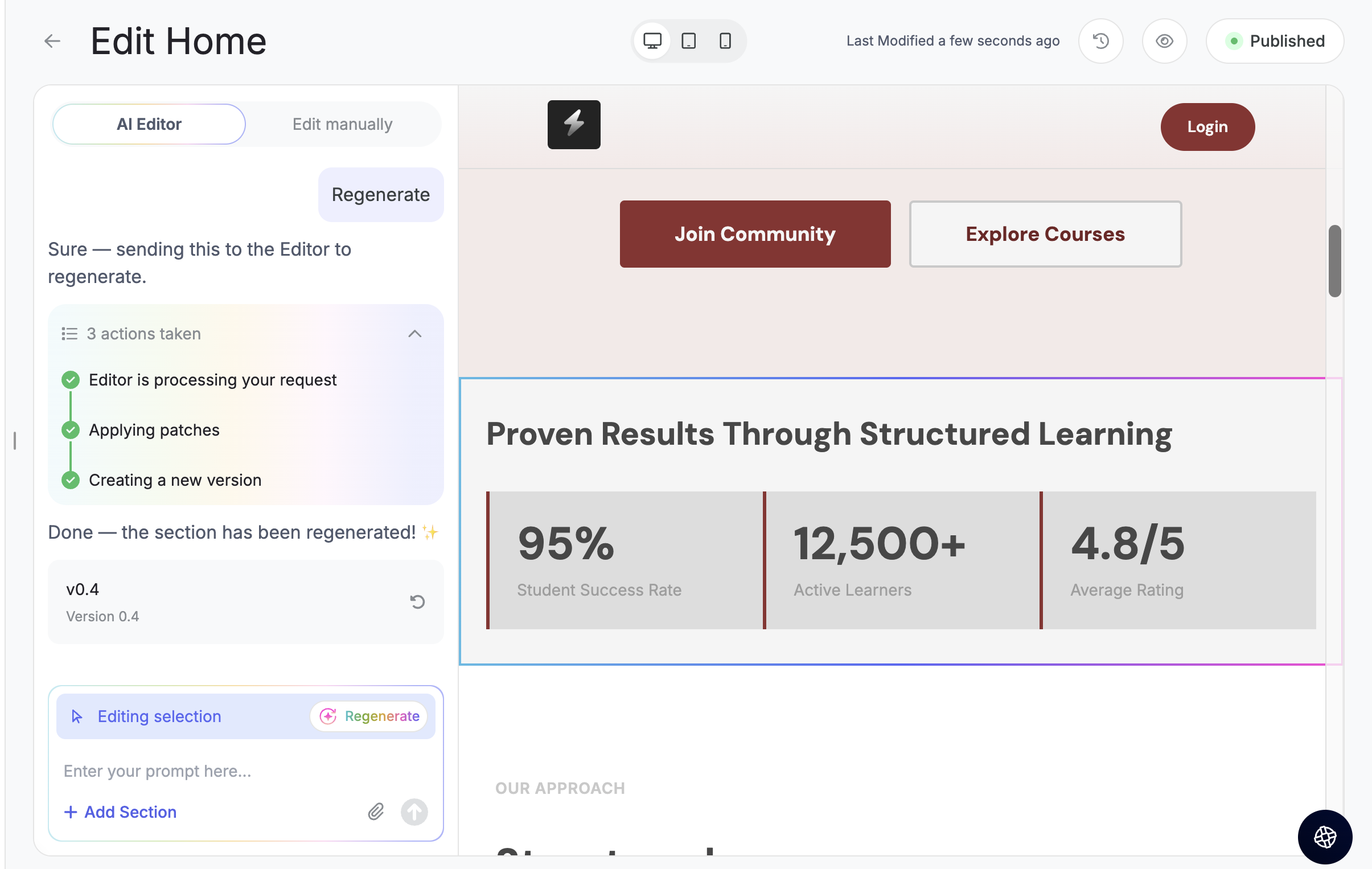
Step 11: Once the page is ready, click on any section and write a prompt to update it.
For example, you can ask AI to:
- Rewrite the content
- Change the layout
- Make it more premium
- Tailor it for a specific audience
Version History
If you don't like a change made by AI, you can easily go back.
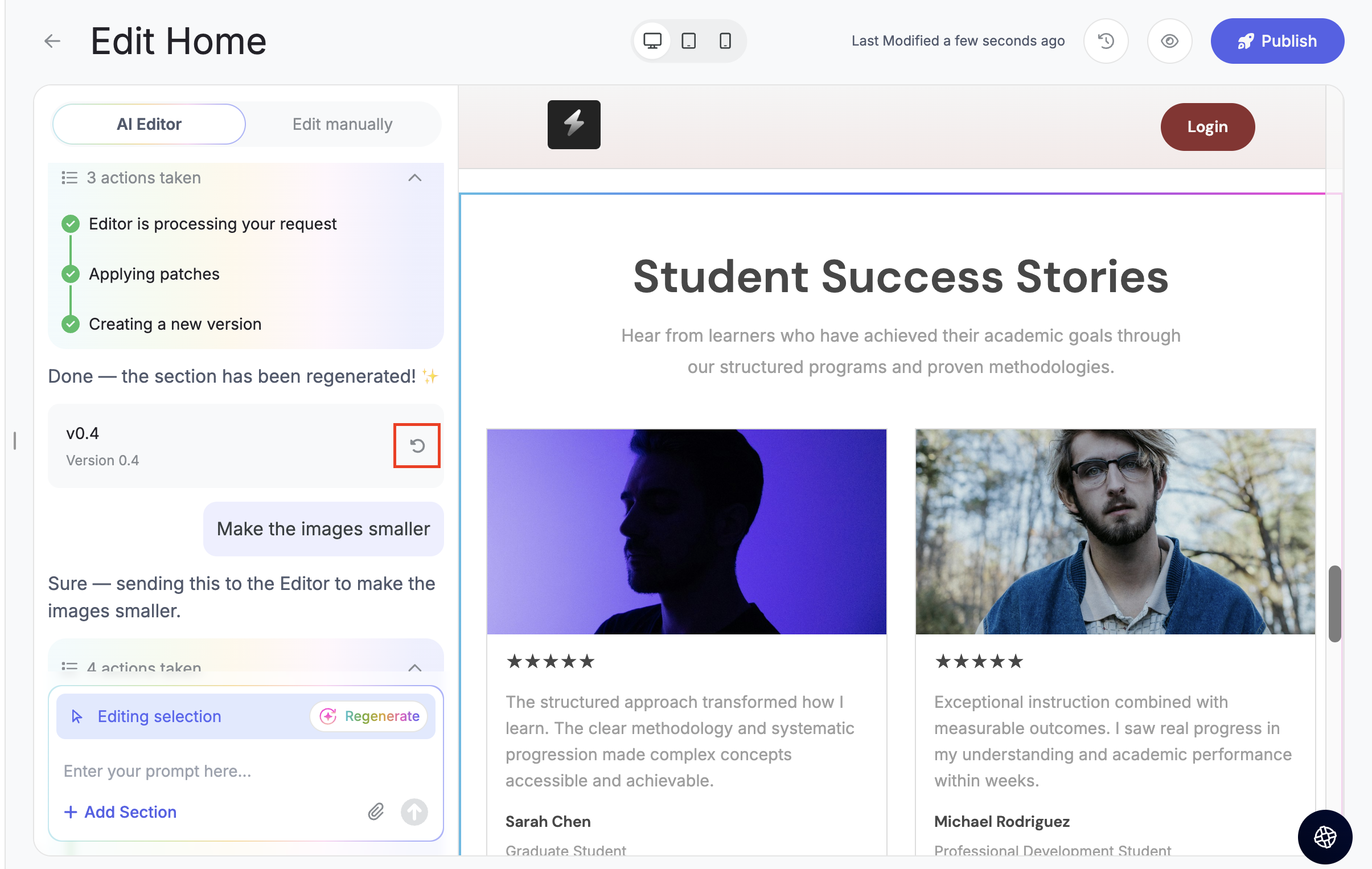
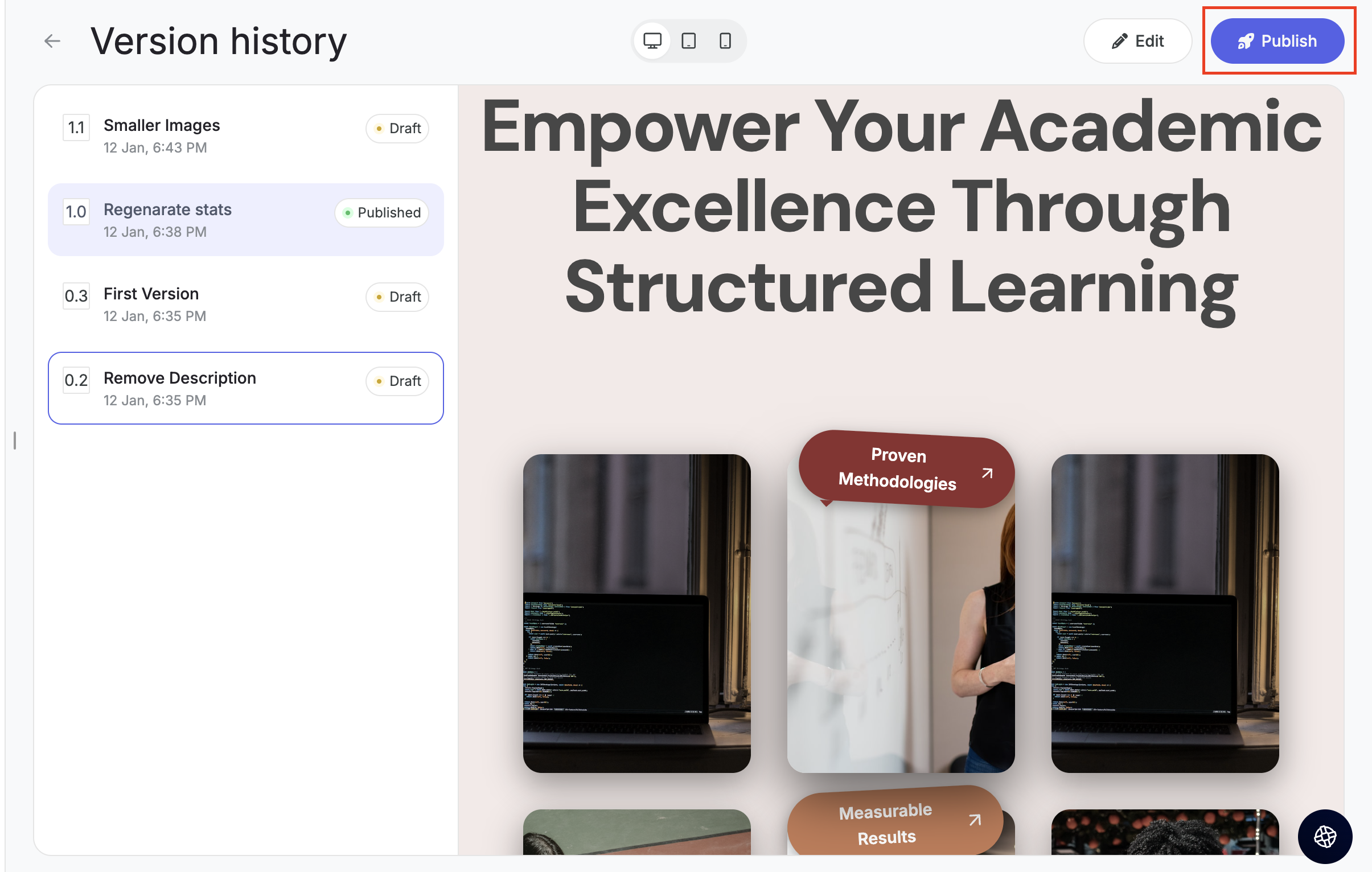
Step 12: You can roll back directly from the chat, or open Version History to view both the current live version and previous versions.
- Roll back from chat
- Version History
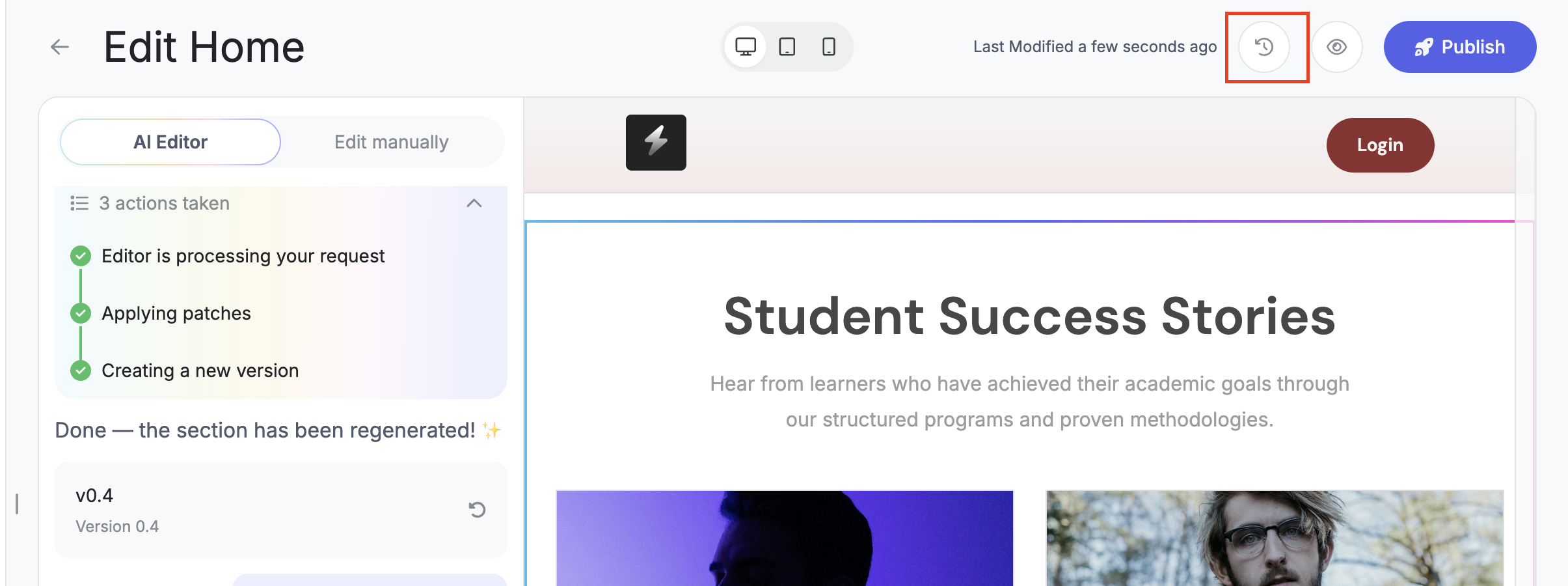
Step 13: To restore an older version, simply select it and click Publish. This instantly makes that version live again.
Manual Editing
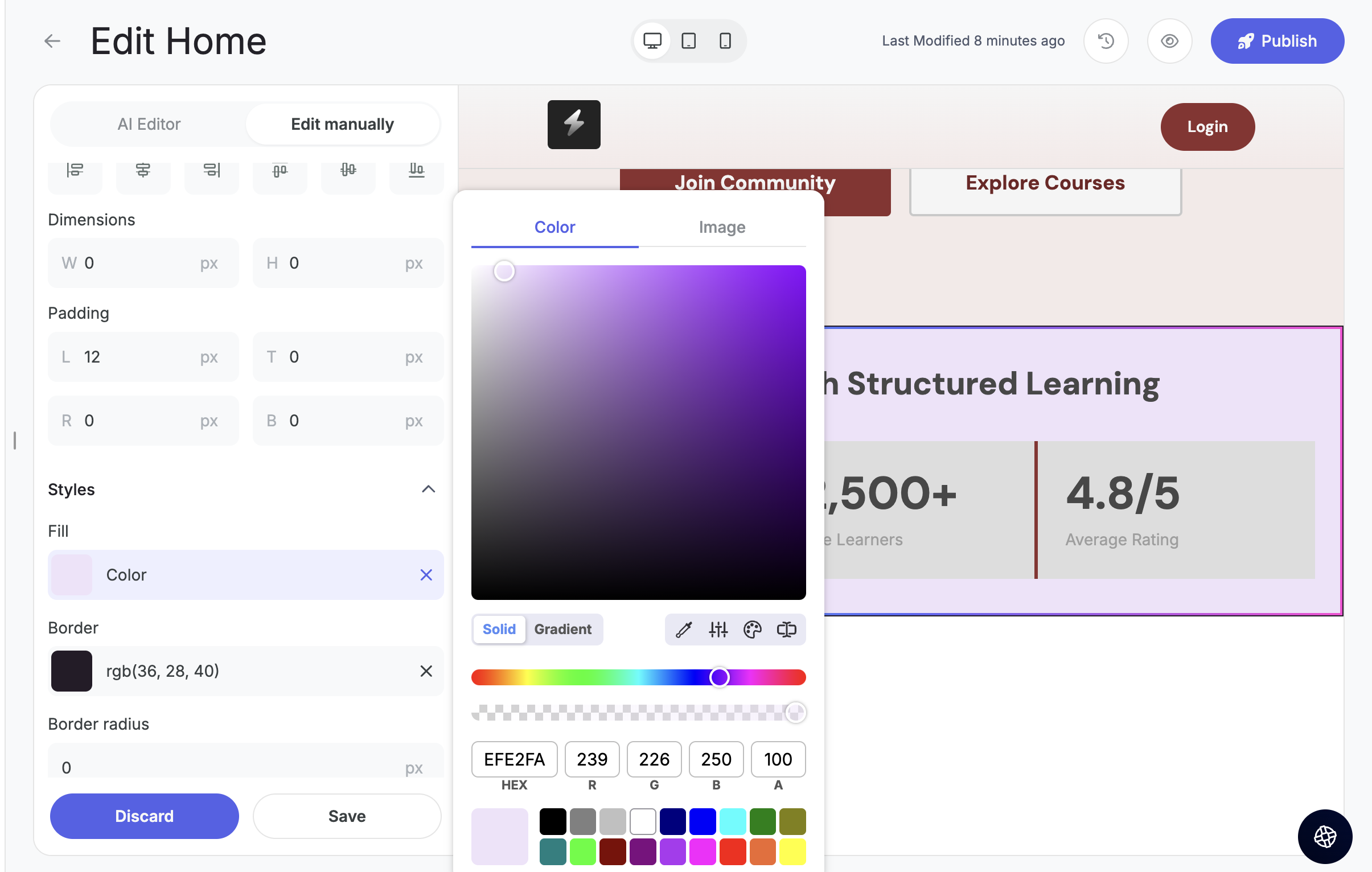
Step 15: Switch to Edit manually to make precise changes — like adjusting alignment, spacing, dimensions, or colors, without needing any code.
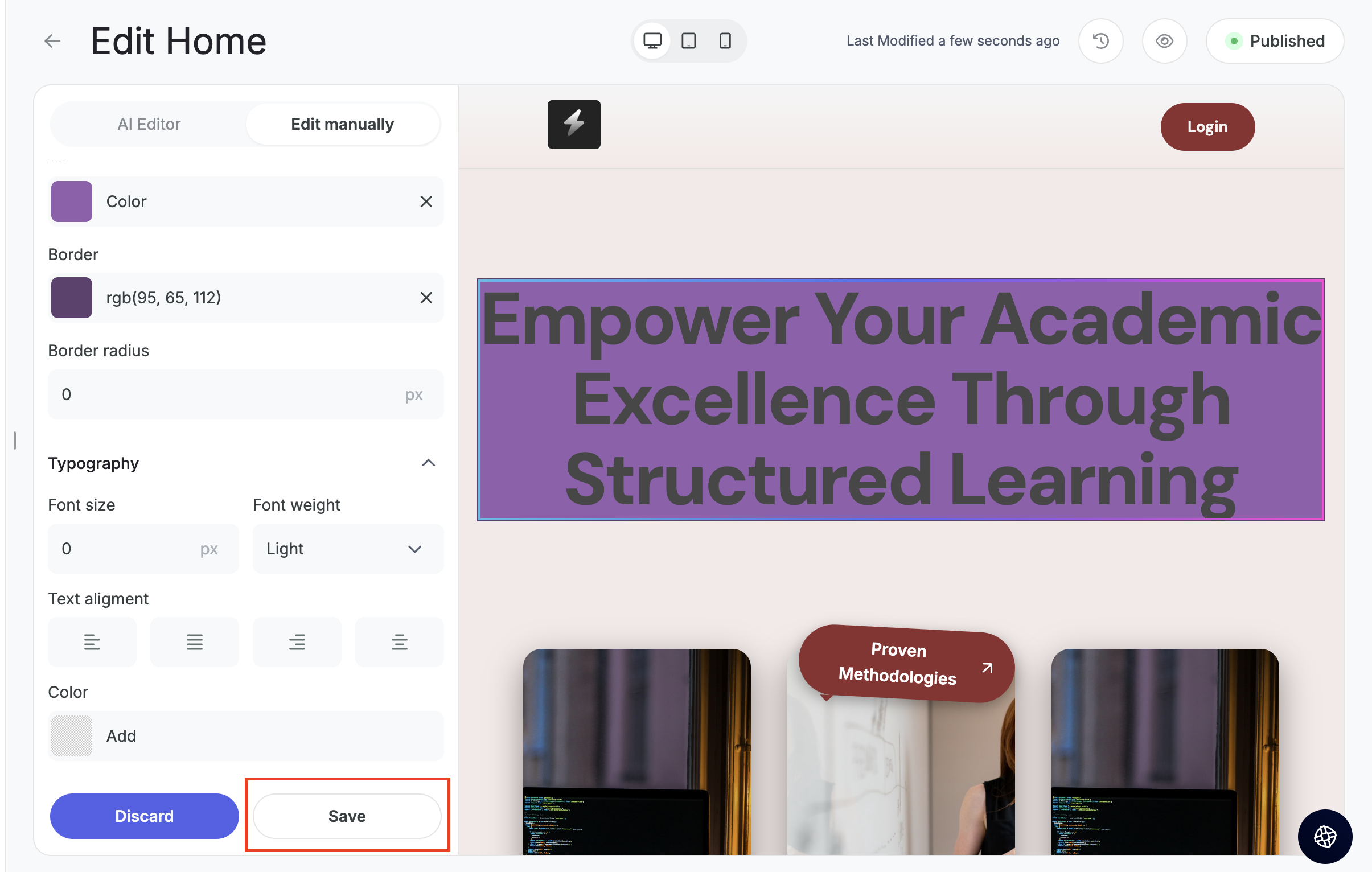
Step 16: Click on Save to make the changes live.
Unpublishing Pages
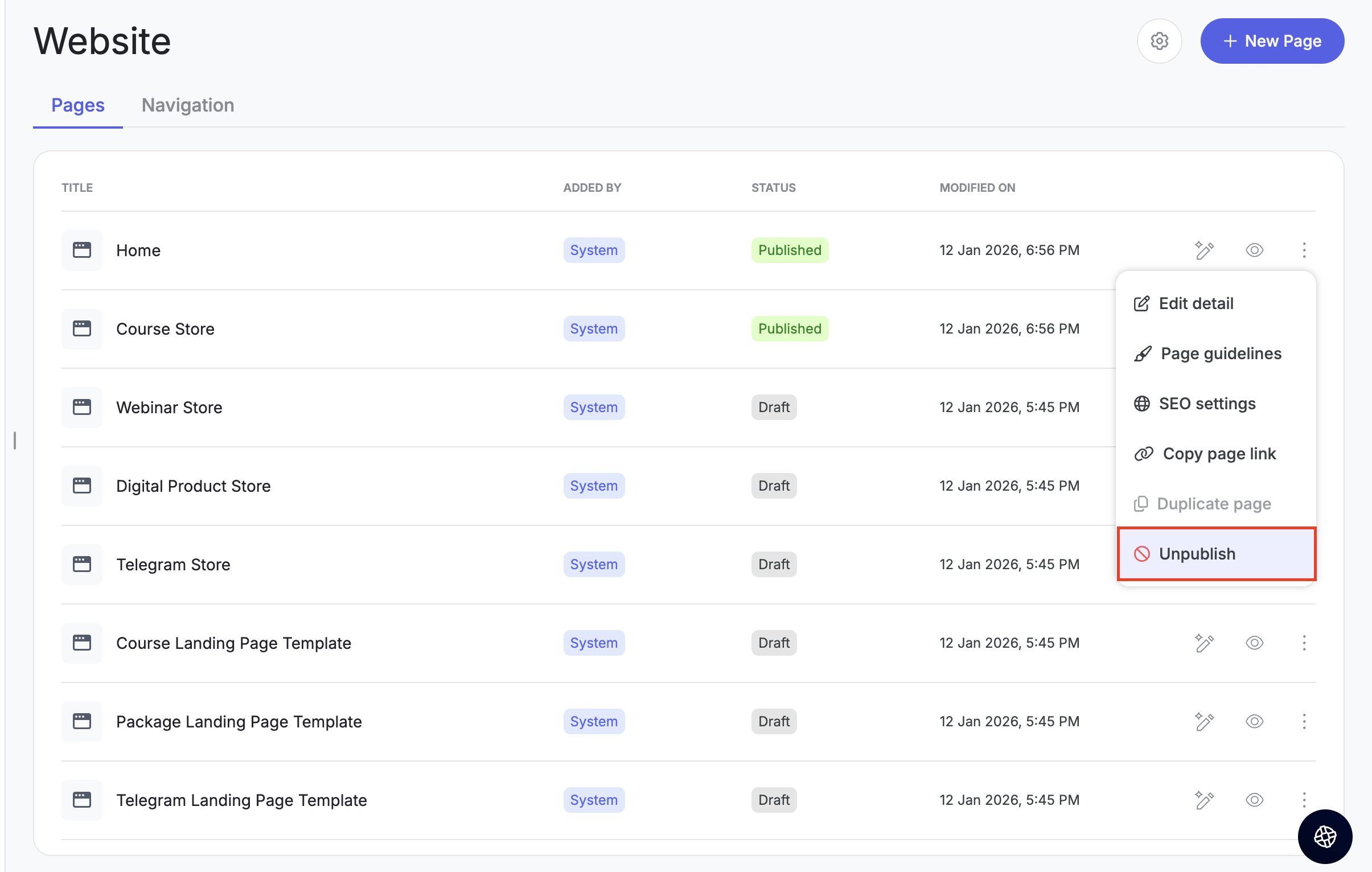
Step 16: You can also unpublish a page anytime from the three-dot menu.
Previewing Your Page
At any point, you can click on the preview icon to see how your page looks before publishing.
Note: This is a visual preview, so interactions will be disabled.
Related Articles
- How to Customize Page Settings, SEO & Website Settings on Graphy
- How to Edit Navigation & Footer on Your Graphy Website
- How to Sign Up and Activate Your AI-Powered Website on Graphy
Was this article helpful?
That’s Great!
Thank you for your feedback
Sorry! We couldn't be helpful
Thank you for your feedback
Feedback sent
We appreciate your effort and will try to fix the article