The Test Reports section in your Graphy dashboard gives you a consolidated view of how learners are performing across all your quizzes and live tests - total candidates, completions, and individual learner-level data, all in one place.
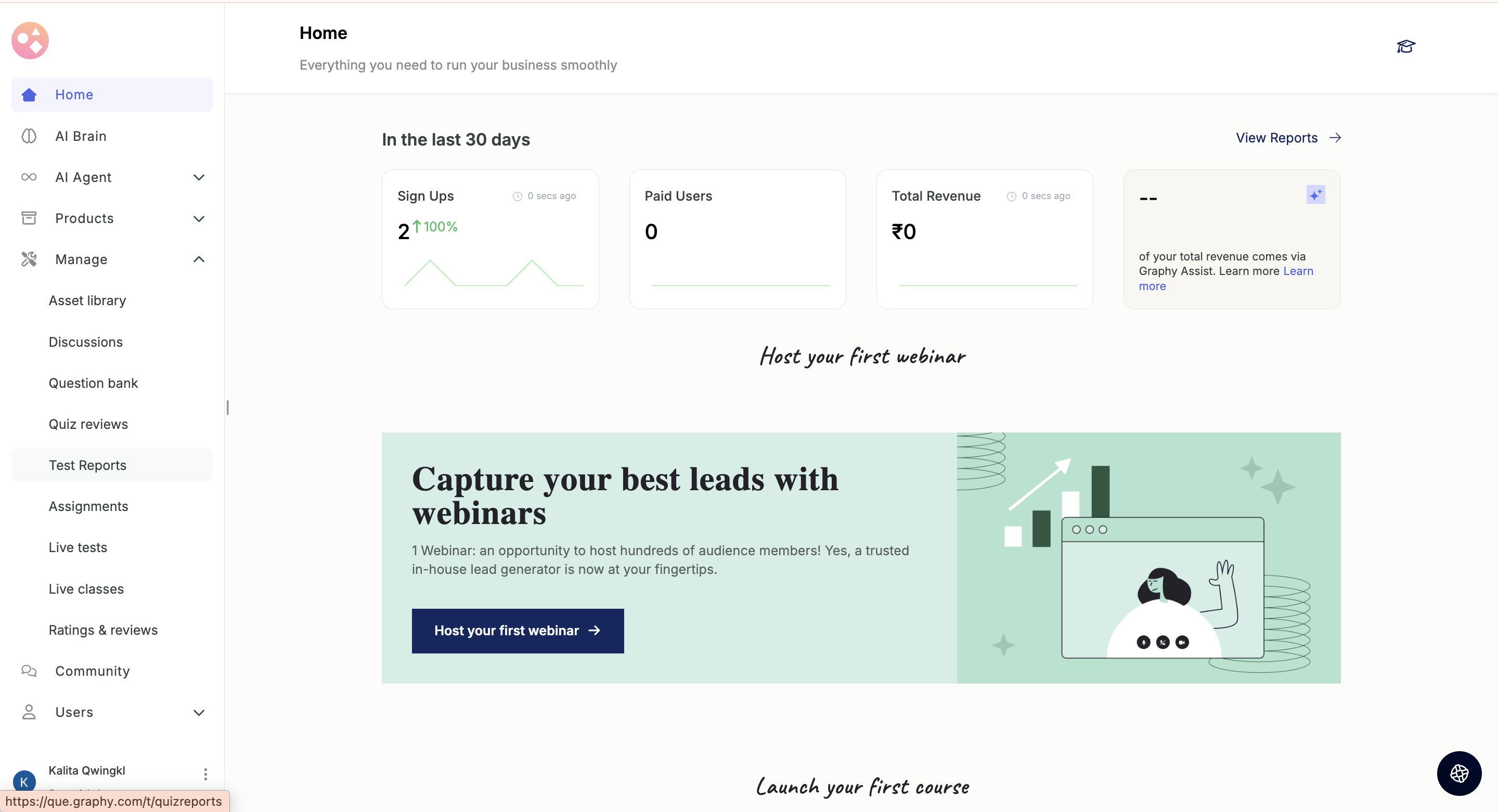
Step 1: You will land on the Test Reports page. At the top, use the search bar to find a specific quiz or live test by name.
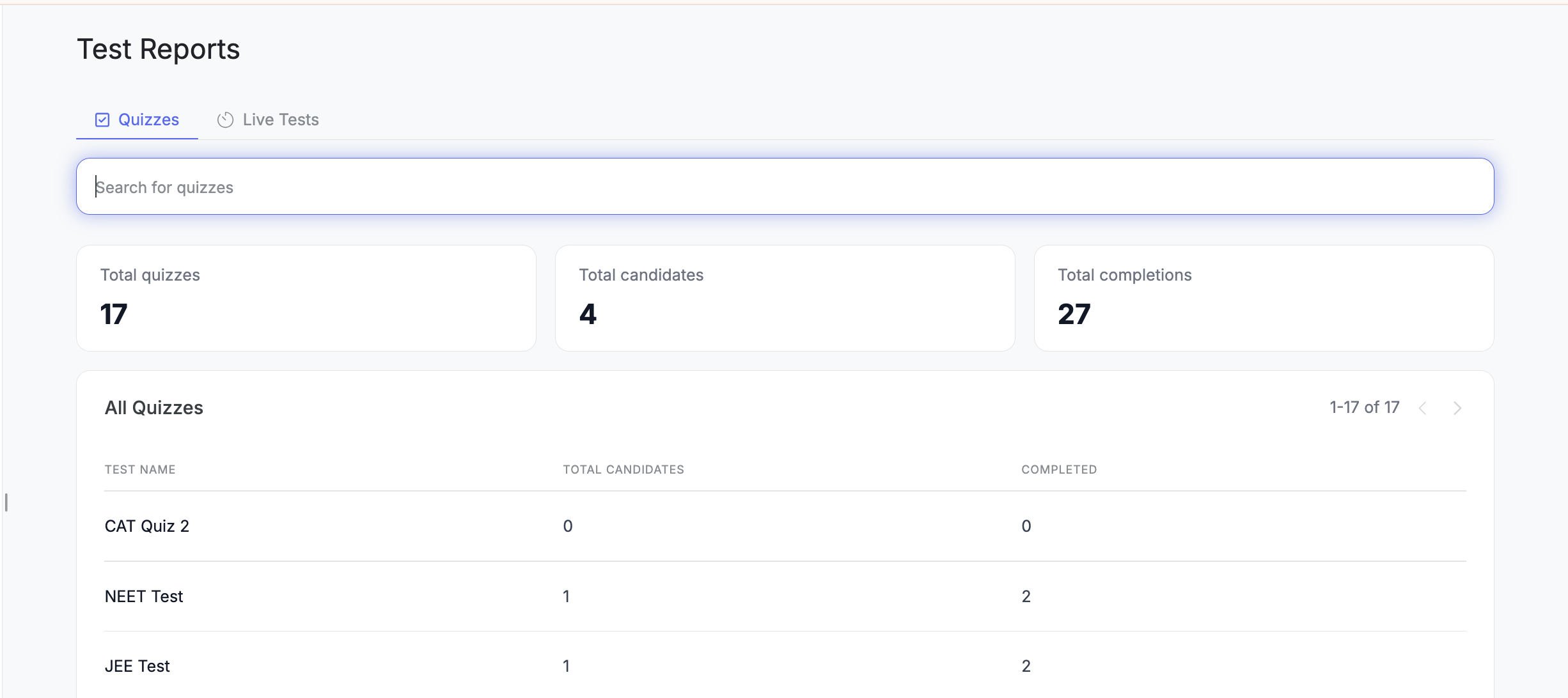
Step 2: The page is split into two tabs:
Quizzes: Shows reports for all quizzes uploaded to your account.
Live Tests: Shows reports for all live tests.
Click on the relevant tab to view the data you need.
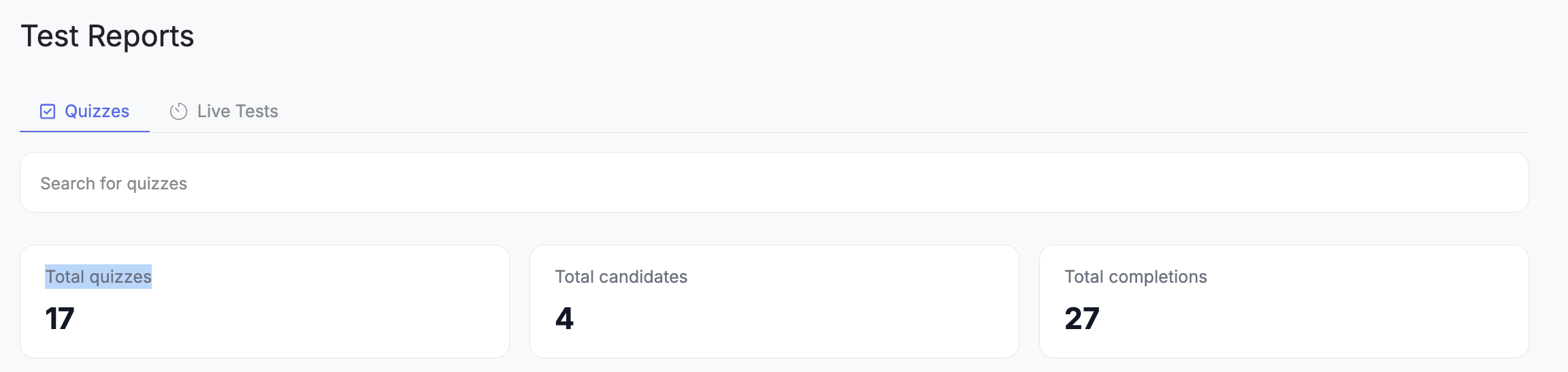
Step 3: At the top of the Quizzes tab, three summary cards give you a high-level overview:
Total Quizzes: Total number of quizzes across your account.
Total Candidates: Total number of learners who have attempted at least one quiz.
Total Completions: Total number of quiz completions across all quizzes.
Step 4: Below the summary cards, the All Quizzes table lists each quiz with the following columns:
Test Name: The name of the quiz.
Total Candidates: Number of learners who started this quiz.
Completed: Number of learners who completed this quiz.
Use the pagination controls on the top right of the table to navigate through all quizzez and live tests.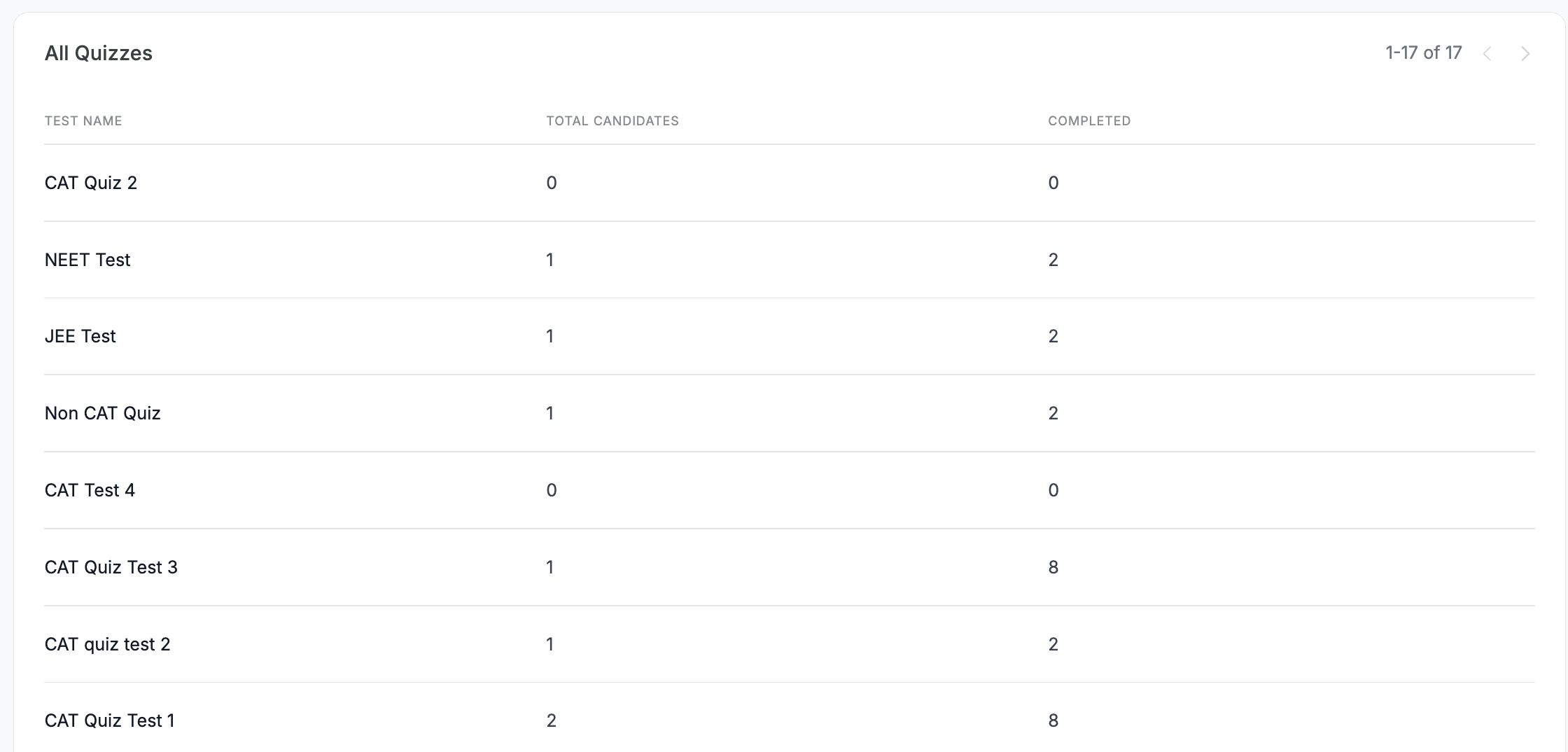
Was this article helpful?
That’s Great!
Thank you for your feedback
Sorry! We couldn't be helpful
Thank you for your feedback
Feedback sent
We appreciate your effort and will try to fix the article