As learners using Graphy, once you complete a quiz on Graphy, you get a detailed report that breaks down how you performed, from your overall score to how you handled individual topics and difficulty levels. This article walks you through every part of the report and what it tells you.
How to Access Your Quiz Report
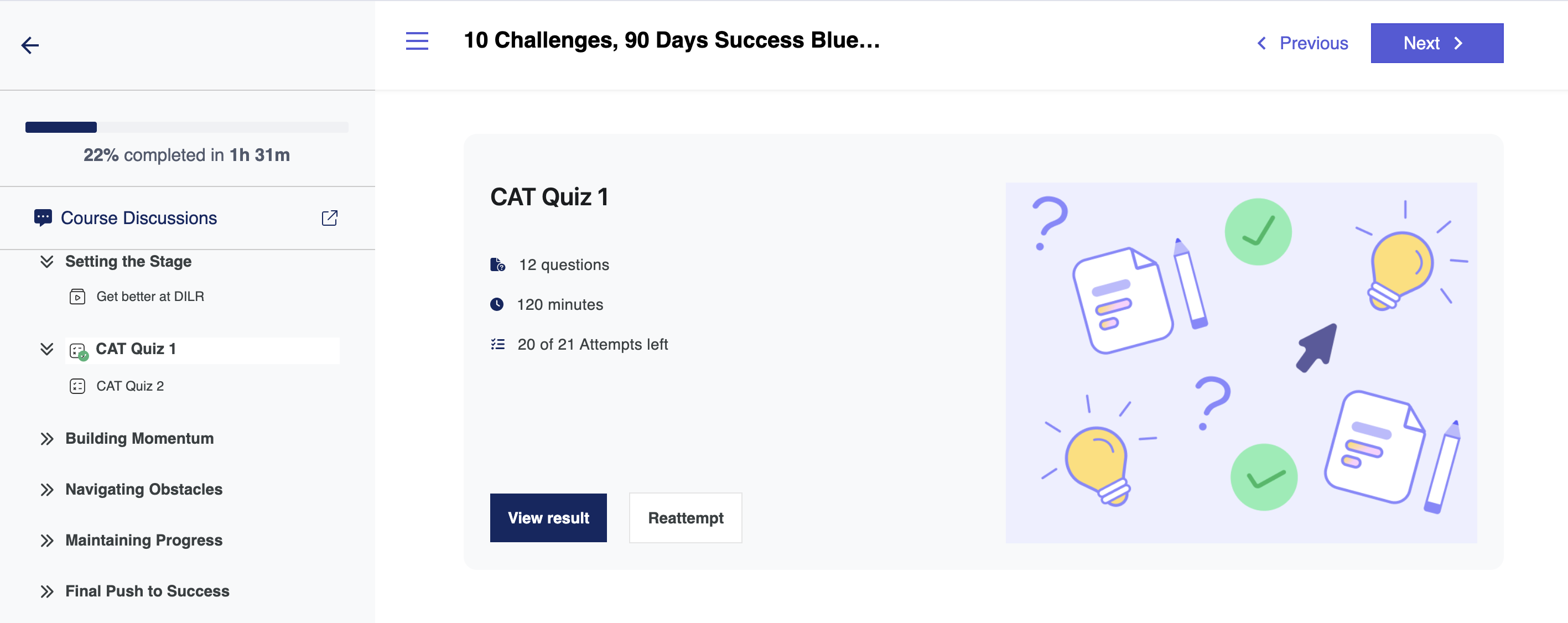
- Go to My Courses from your learner dashboard and click on the relevant course card.
- Inside the course, find the quiz in the course content, it appears as a chapter item.
- Click on the quiz chapter item. You'll see two options: View Report and Restart Quiz.
- Click View Report — the full quiz report opens in a popup.
The Report Components
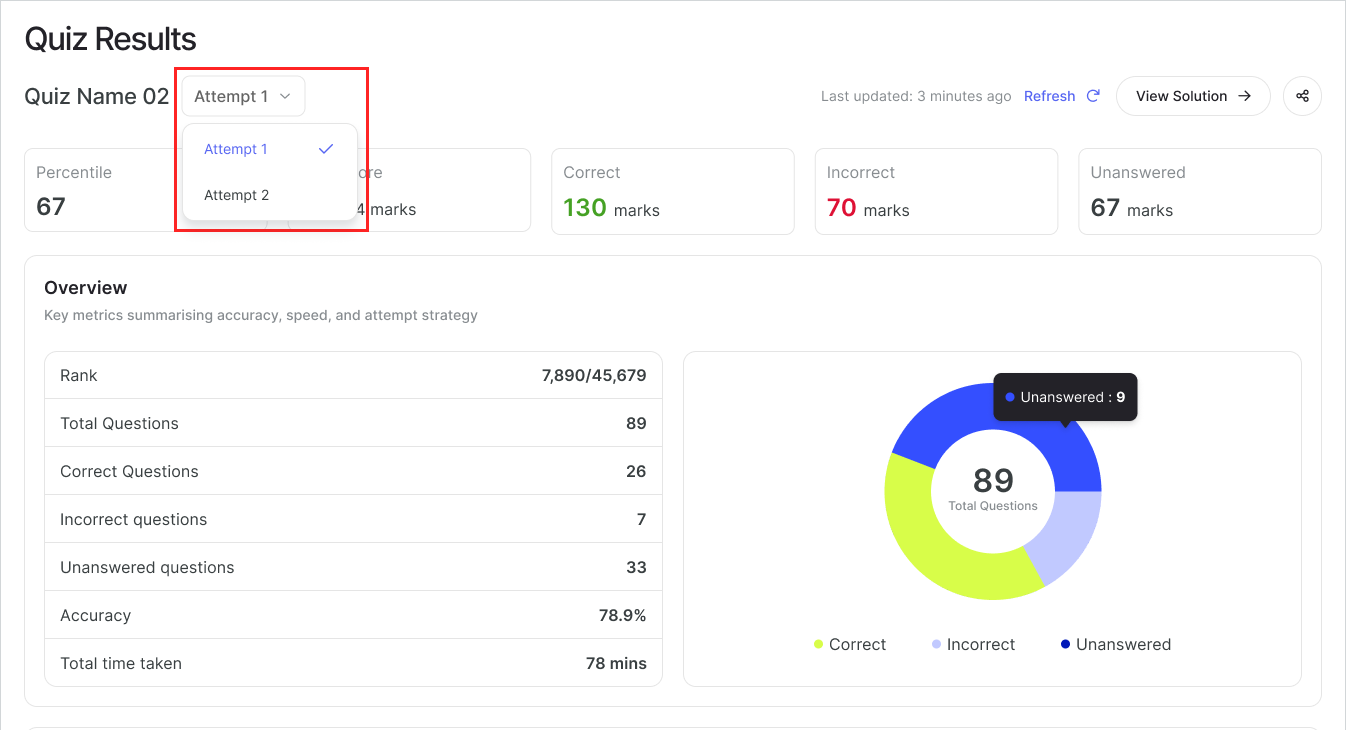
At the top of the report, you'll see the quiz name and the attempt number. If you've taken the quiz multiple times, use the Attempt dropdown to switch between reports for different attempts.
The Summary Bar
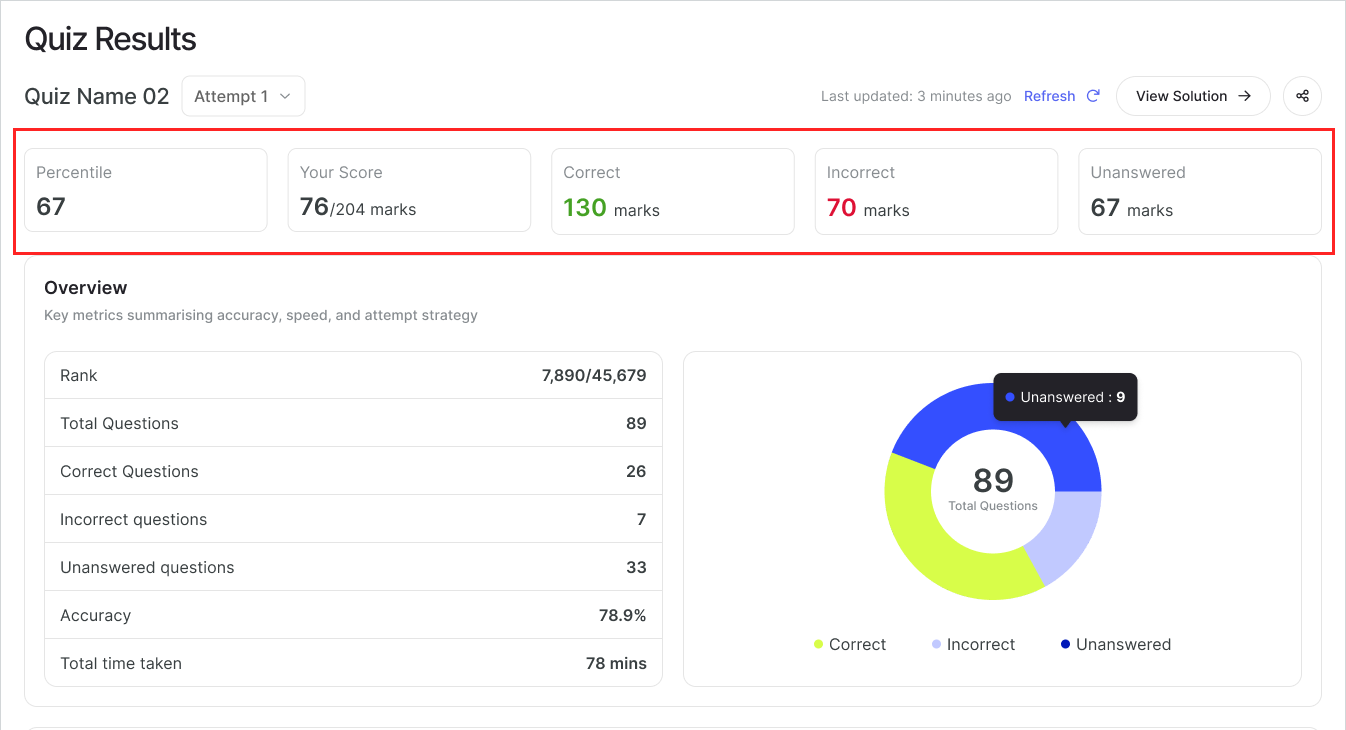
At the very top of the report, five numbers give you an instant snapshot of how you did:
- Percentile — Where you rank compared to everyone who took the same quiz. A percentile of 83.90 means you scored better than ~84% of test-takers.
- Your Score — Your total marks out of the maximum (e.g., 71/204).
- Correct — Marks earned from questions you got right (shown in green).
- Incorrect — Marks lost to wrong answers, factoring in negative marking (shown in red).
- Unanswered — Questions you left blank. These carry no penalty but also no marks.
Overview
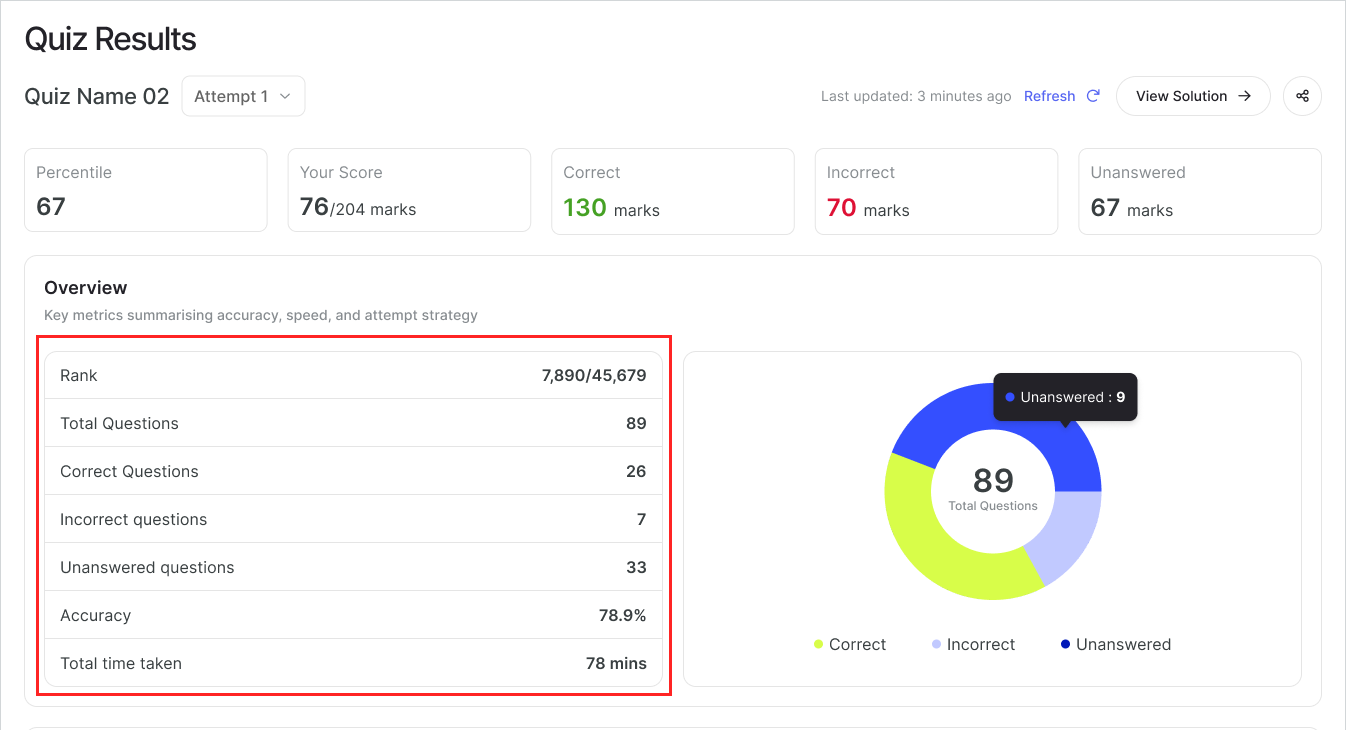
The Overview section gives you a more complete breakdown of your attempt:
| Metric | What it means |
|---|---|
| Rank | Your position among all learners who took this quiz (e.g., 7,890 / 45,679) |
| Total Questions | How many questions were in the quiz |
| Correct Questions | Count of questions you answered correctly |
| Incorrect Questions | Count of questions you got wrong |
| Unanswered Questions | Count of questions you skipped |
| Accuracy | Correct answers as a percentage of questions you actually attempted |
| Total Time Taken | Total time you spent on the quiz |
A donut chart on the right gives you a visual split of Correct, Incorrect, and Unanswered questions at a glance.
 Section-wise Overview
When the quiz is divided into sections (e.g., VARC, DILR, and QA for CAT-style tests), this block appears below the Overview. It shows each section's score, percentile, accuracy, and time spent side by side — useful to immediately spot which section needs the most attention.
This section is not shown for non-sectional quizzes.
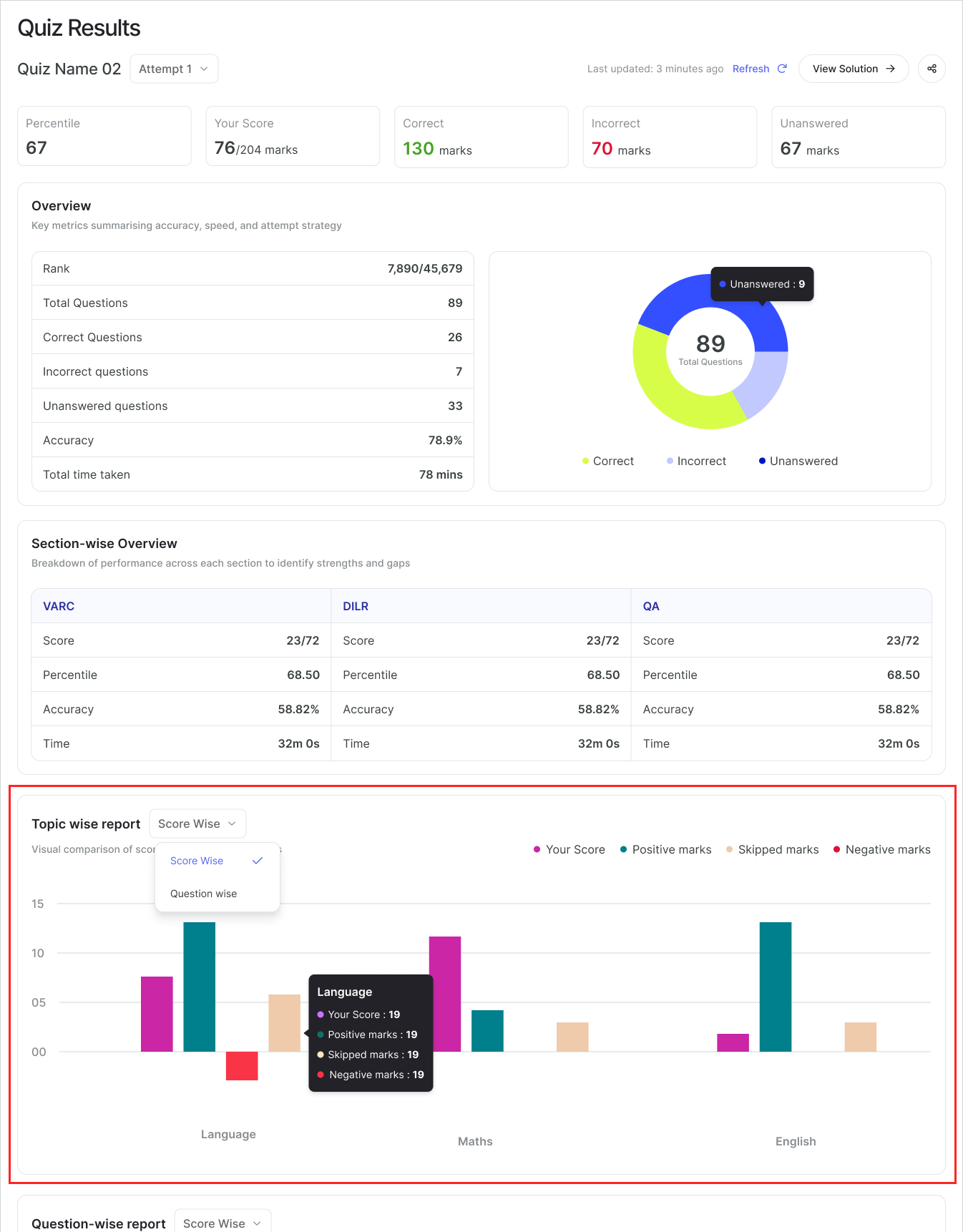
Topic-wise Report
This chart gives you a visual comparison of your performance across the different topics or subjects in the quiz. There are two ways to view the data, which you can toggle using the dropdown:
- Score Wise
Shows four bars per topic — Your Score, Positive marks available, Marks lost to skips, and Marks lost to wrong answers. This helps you see where you left marks on the table versus where negative marking hurt you.
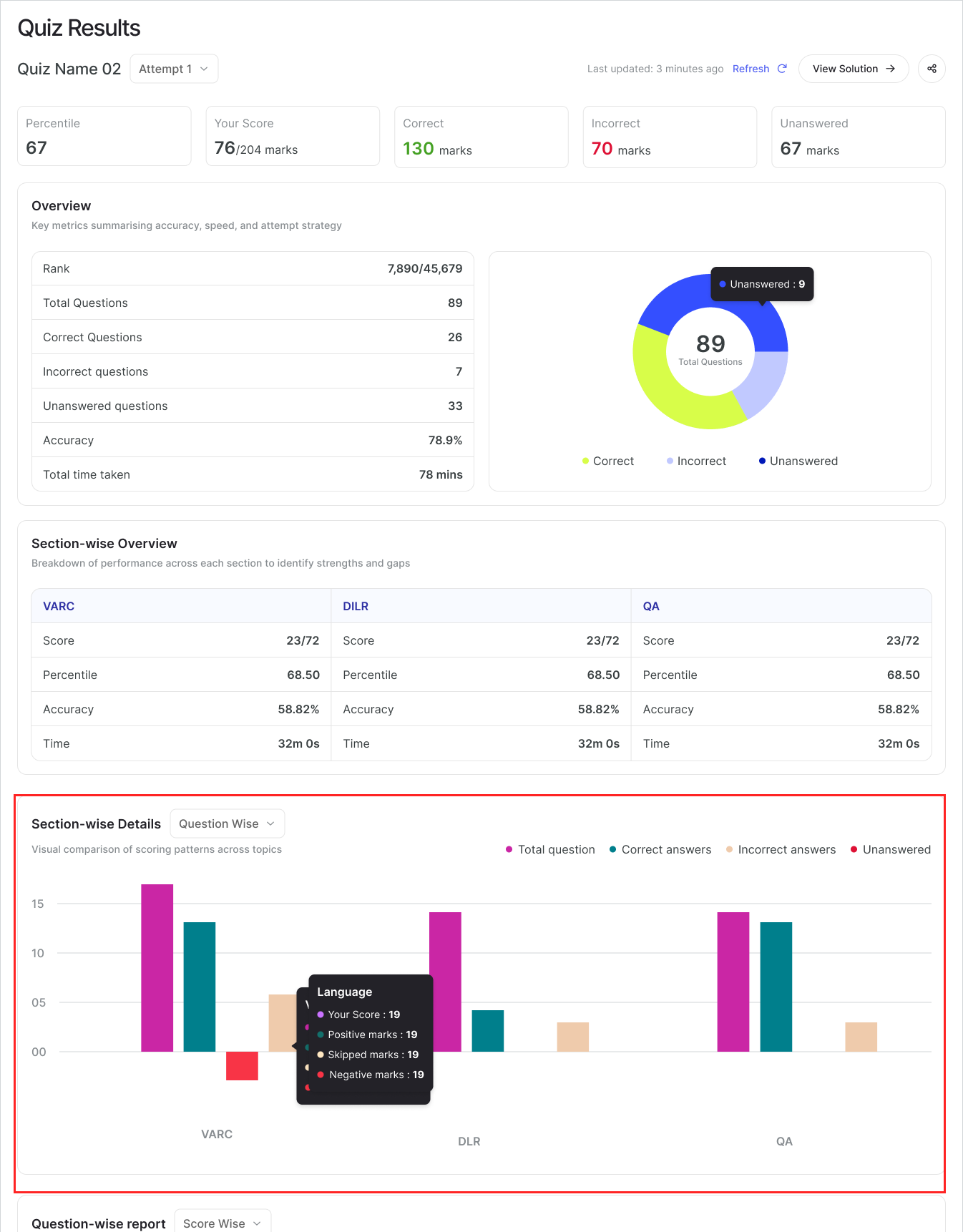
-Question Wise
Switches the view to Section-wise Details — showing Total questions, Correct answers, Incorrect answers, and Unanswered questions per section. Hover over any bar cluster to see the exact numbers in a tooltip.
Question-wise Report
Below the charts, you'll find a table listing every question in the quiz with the following columns:
- Question — Question number.
- Difficulty — Easy, Medium, or Hard (if set by the creator).
- Attempt % — What percentage of all learners attempted this question.
- Correct % — What percentage of all learners got it right.
- Your Time — How long you personally spent on the question.
- Average Time — The average time all learners spent on it.
- Result — Whether you got it Correct, Incorrect, or Skipped.
You can control how many rows appear per page using the Items per page dropdown, and navigate pages using the pagination at the bottom right.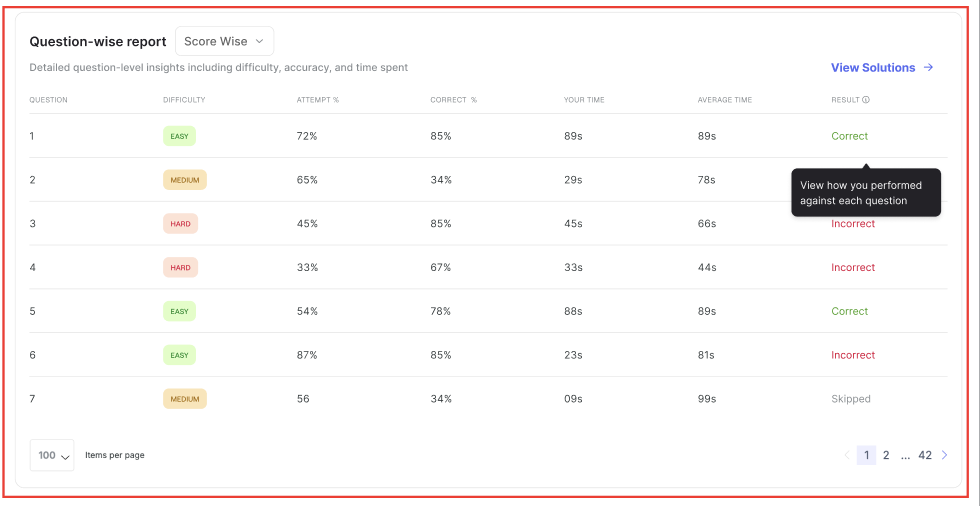
Difficulty Analysis (Shown when difficulty levels are set)
This section breaks your performance down by difficulty level — Easy, Medium, and Hard — within each section of the quiz. Each question is shown as a small bubble (labelled Q1, Q2, etc.) colour-coded by your result:
- Green — Attempted and correct
- Red / Pink — Attempted and incorrect
- Dashed outline — Skipped
Below each difficulty cluster, a short summary shows the count of correct, wrong, and skipped questions for that difficulty level.
Clicking on any question bubble takes you directly to that question in the Solutions tab, where you can review the full question, options, correct answer, and explanation.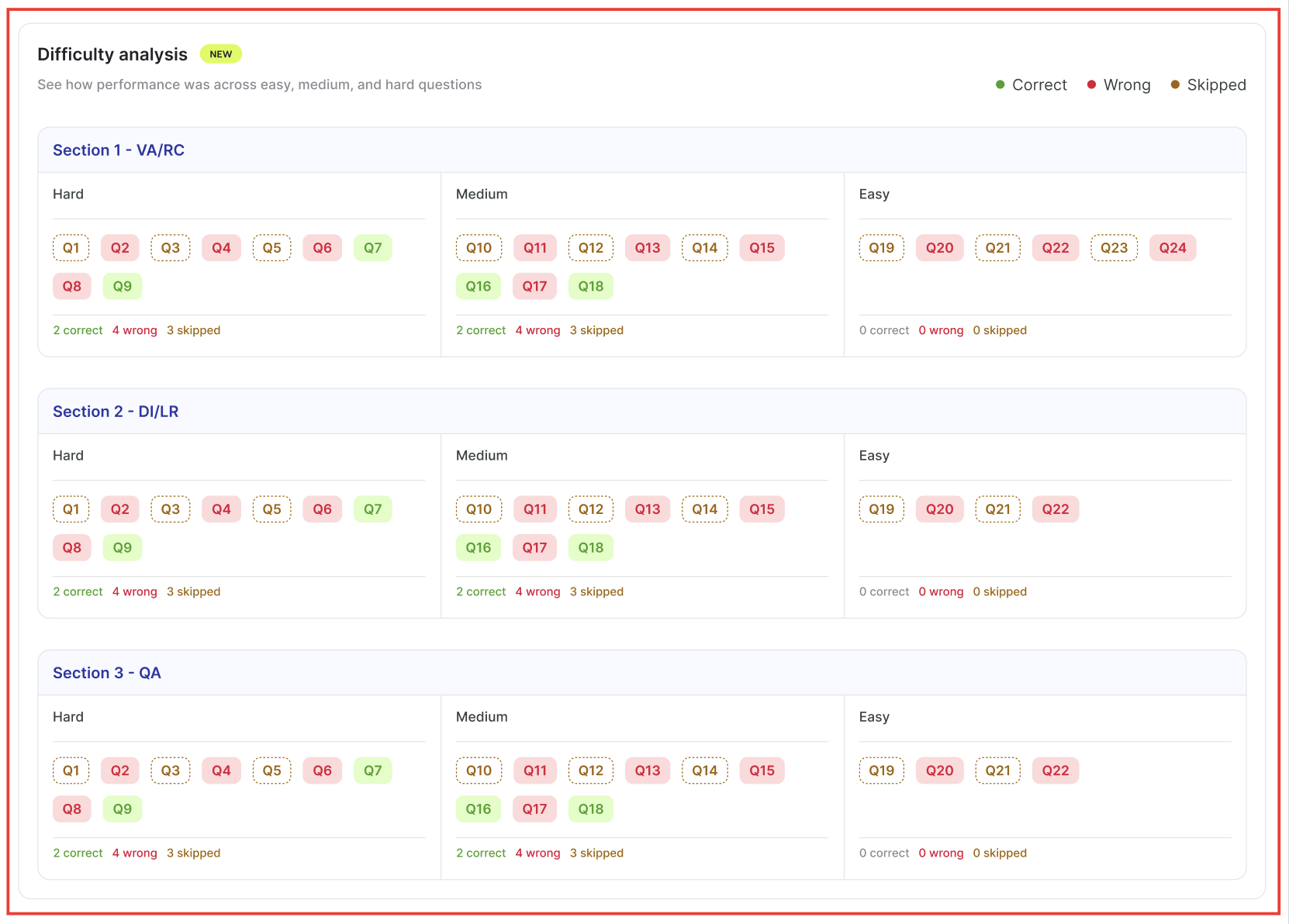 Note: If the creator hasn't assigned difficulty levels to any questions, this section won't appear at all. If difficulty is set for only some questions, a banner will let you know the data is partial.
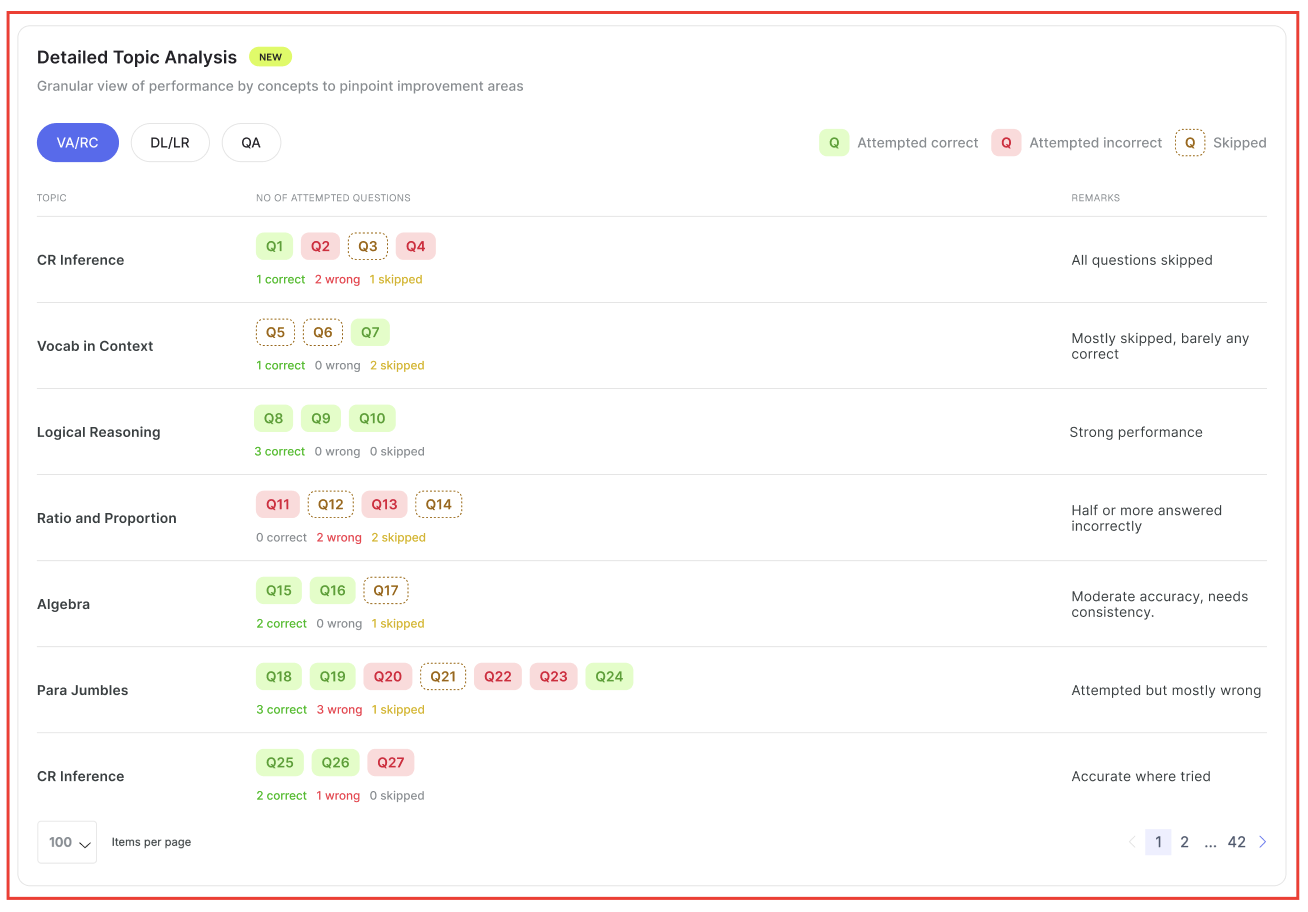
Detailed Topic Analysis
This section gives you the most granular view of your performance — broken down by individual topic within each subject. Use the tabs at the top (e.g., VA/RC, DL/LR, QA) to switch between subjects.
For each topic (e.g., CR Inference, Logical Reasoning, Algebra), you'll see:
- Every question you encountered, shown as colour-coded bubbles (green = correct, pink = incorrect, dashed = skipped).
- A count summary — e.g., "3 correct, 3 wrong, 1 skipped".
- A Remark on the right that tells you how to act on your performance for that topic.
 Viewing Solutions
On the Solutions page, each question is displayed with:
- The question number and its unique Question ID (e.g.,
ID: 4657485483746573657). This ID is useful if you want to discuss that question offline with your course admin - The correct answer highlighted.
- Marks awarded, Difficulty, Attempt %, Correct %, Your Time, and Average Time shown below the question.
Image placeholder: Screenshot of the Solutions page showing Question 1 with the Question ID displayed next to the question number.
Was this article helpful?
That’s Great!
Thank you for your feedback
Sorry! We couldn't be helpful
Thank you for your feedback
Feedback sent
We appreciate your effort and will try to fix the article