The Communications Section has been re-designed to provide a better experience of sending transactional communications to your learner bases. You can now manage your Email and WhatsApp communications from separate, dedicated tabs, making it more intuitive for you to configure and customize each channel. independently.
Managing Email Communications
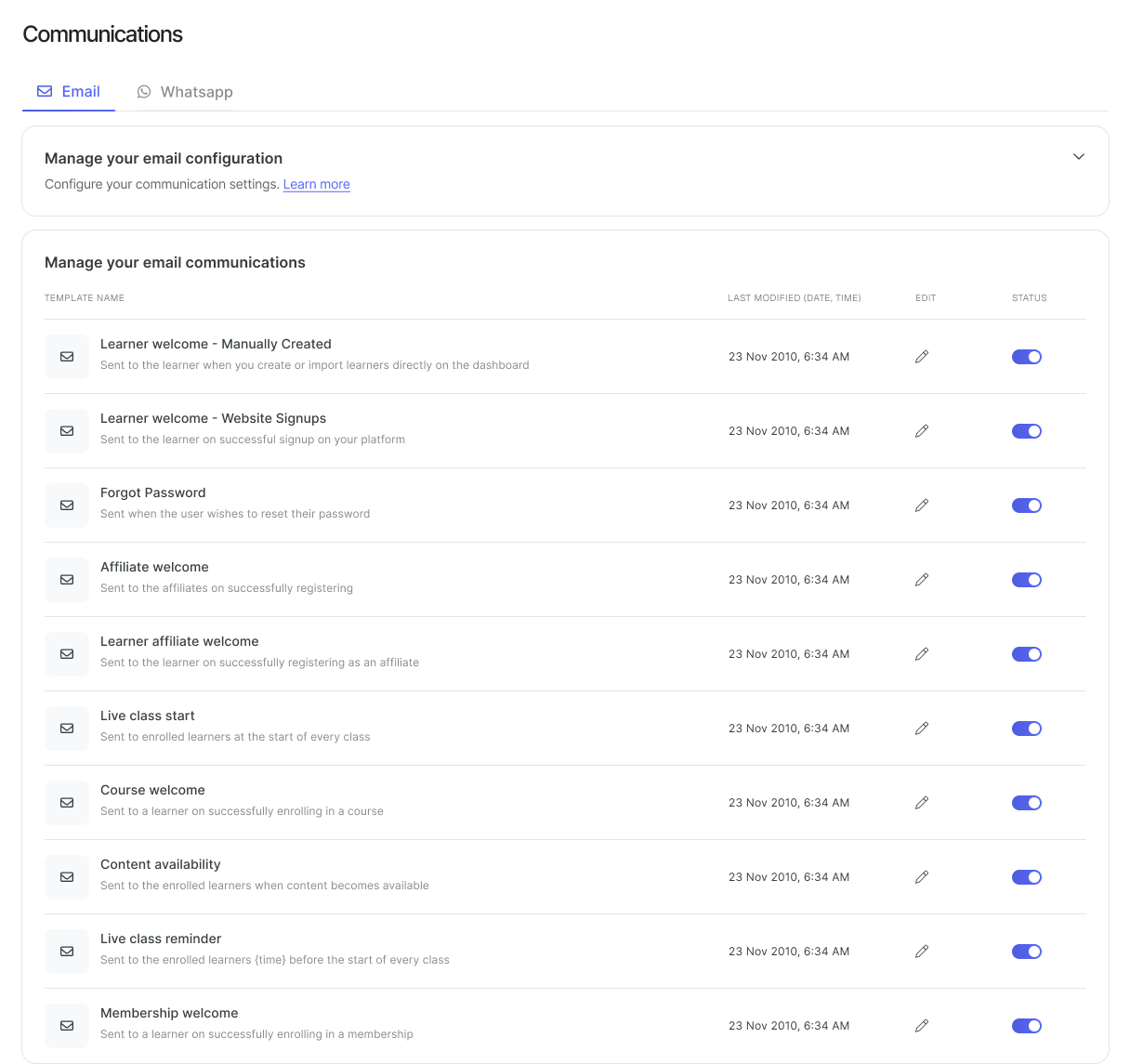
The Email tab allows you to configure your email settings and manage all your email communication templates in one place.
Step 1: Access Email Configurations
Navigate to the Communications section from Settings in the left panel of your Graphy Dashboard. Here you can manage your email configurations and email communication templates.
Step 2: Edit Email Templates
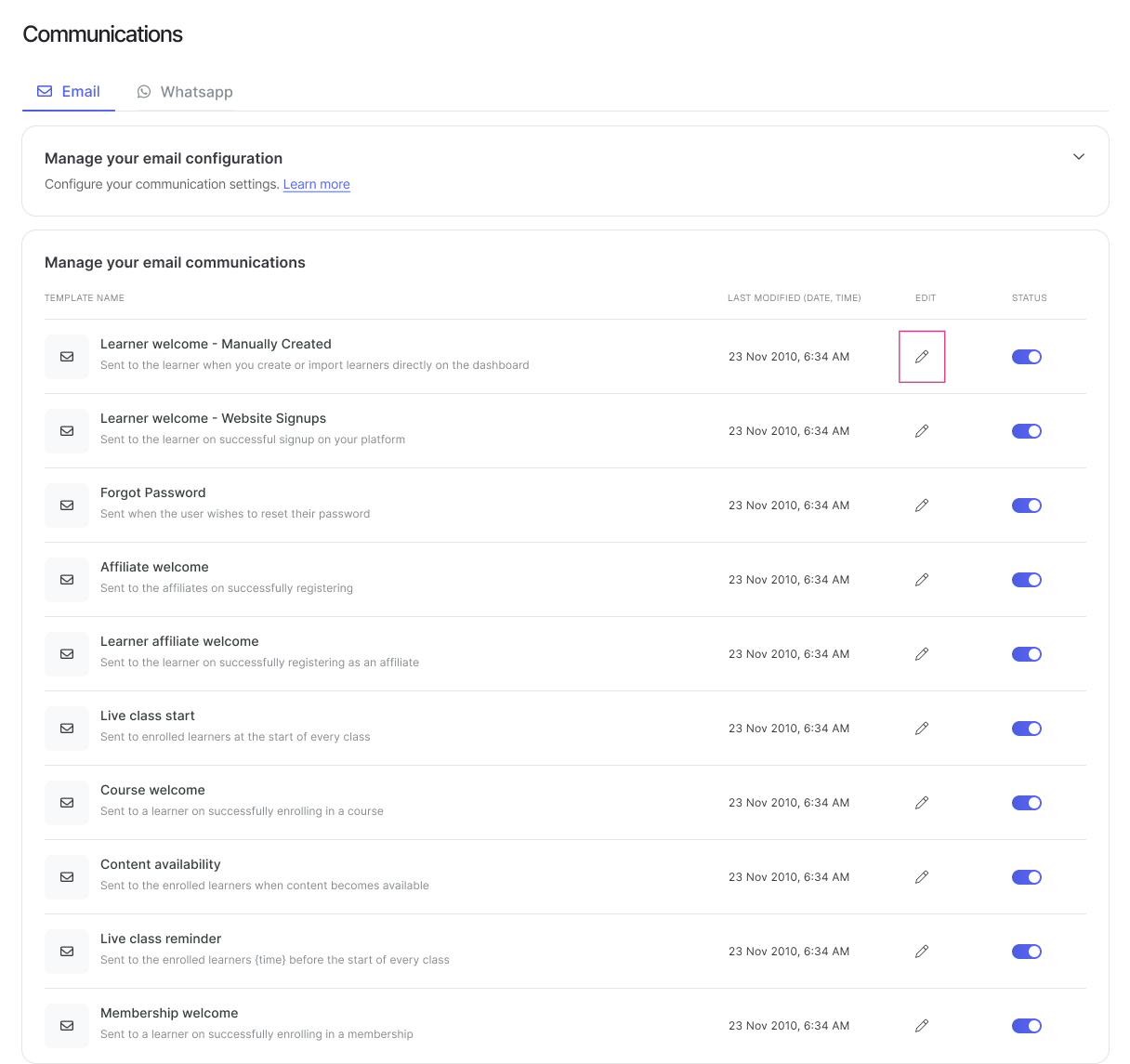
Click on 'Edit' on any template to modify it. The status on your email template will be default ON. You can turn it off if you wish, and that message won't be sent.
Step 3: Save Your Changes
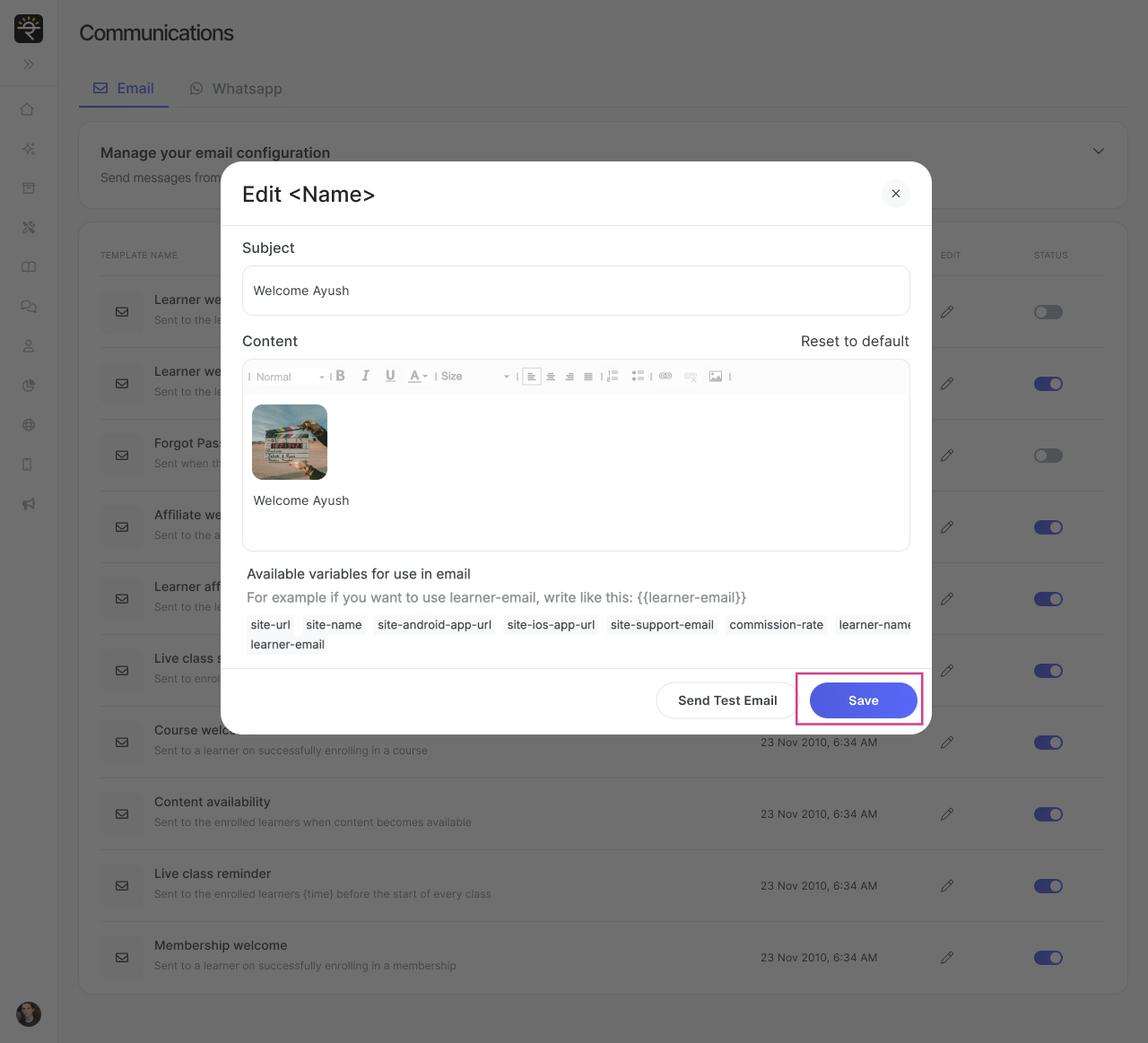
Make your desired changes to the email template and click on 'Save' to apply them. If you want to send a test email to yourself, you can do so by clicking on Send Test Email option.
Managing WhatsApp Communications
The WhatsApp tab now provides tools to set up your WhatsApp Business Account, manage your WhatsApp templates and send messages to learners.
Step 4: Switch to WhatsApp Tab
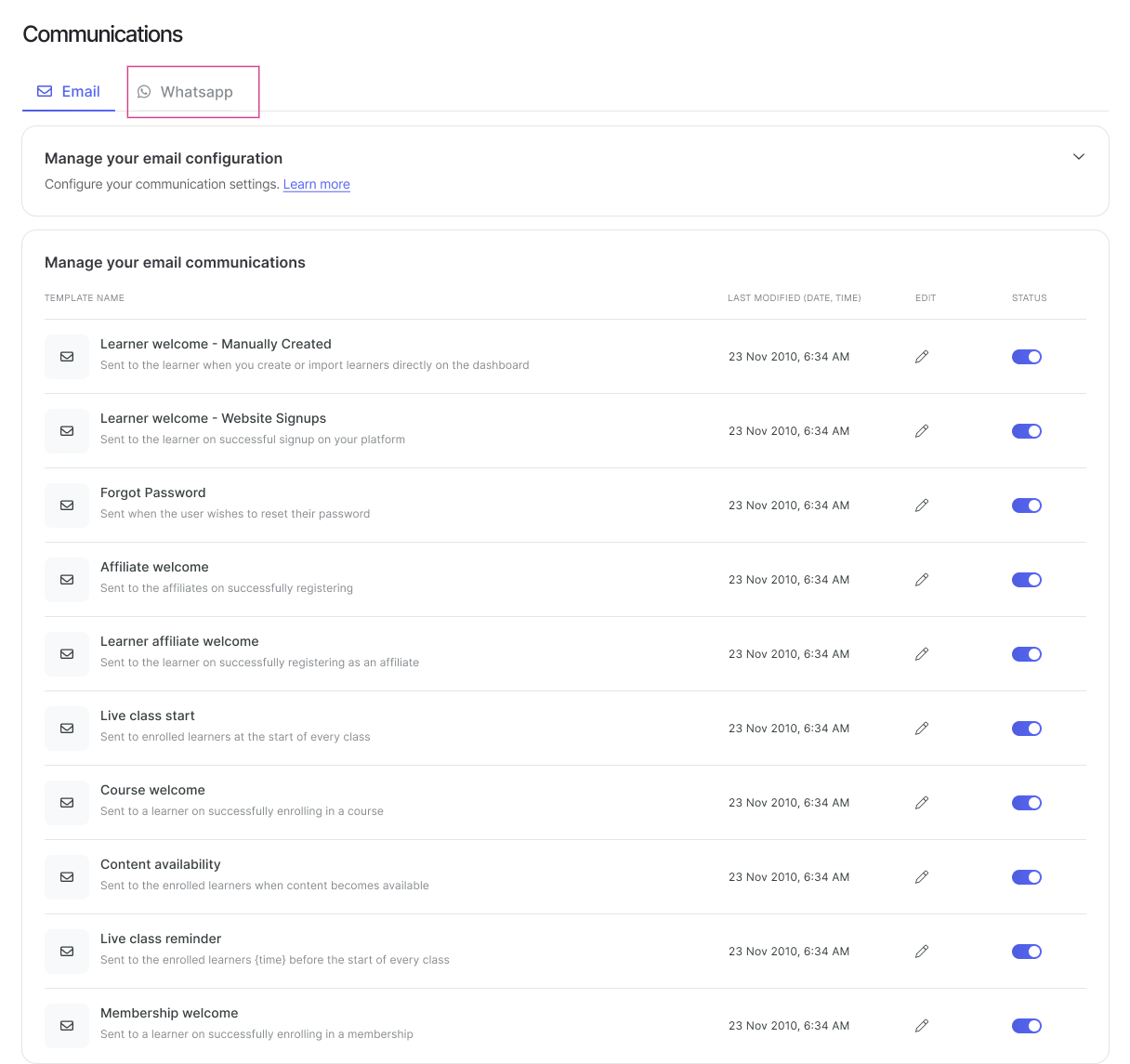
To send WhatsApp transactional messages, switch to the WhatsApp tab.
Step 5: Brand Your WhatsApp
If you want to send Branded (in-your-name) WhatsApp communications, you need to brand your WhatsApp and link your Meta Business Account. Click on 'Get Started' to begin the setup process.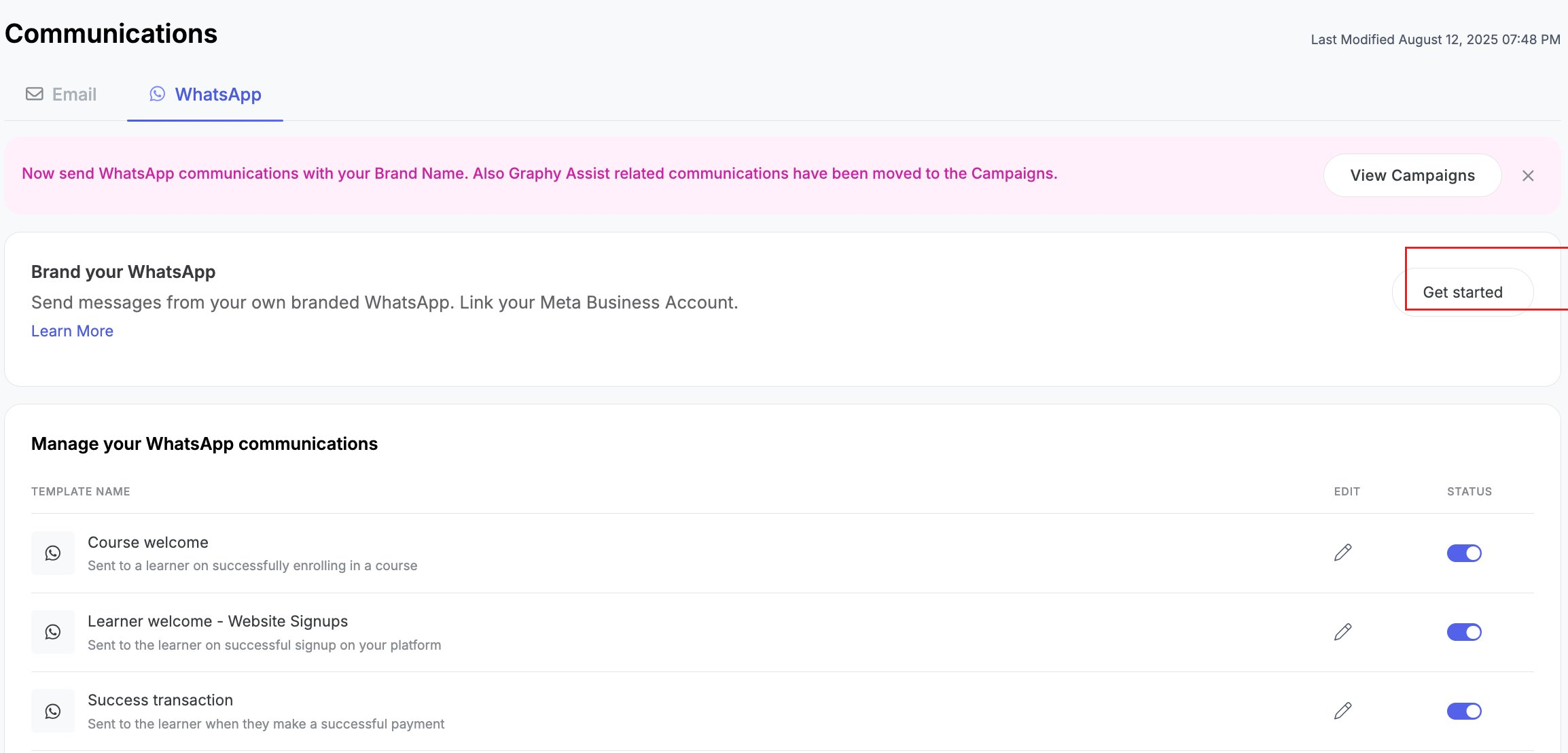
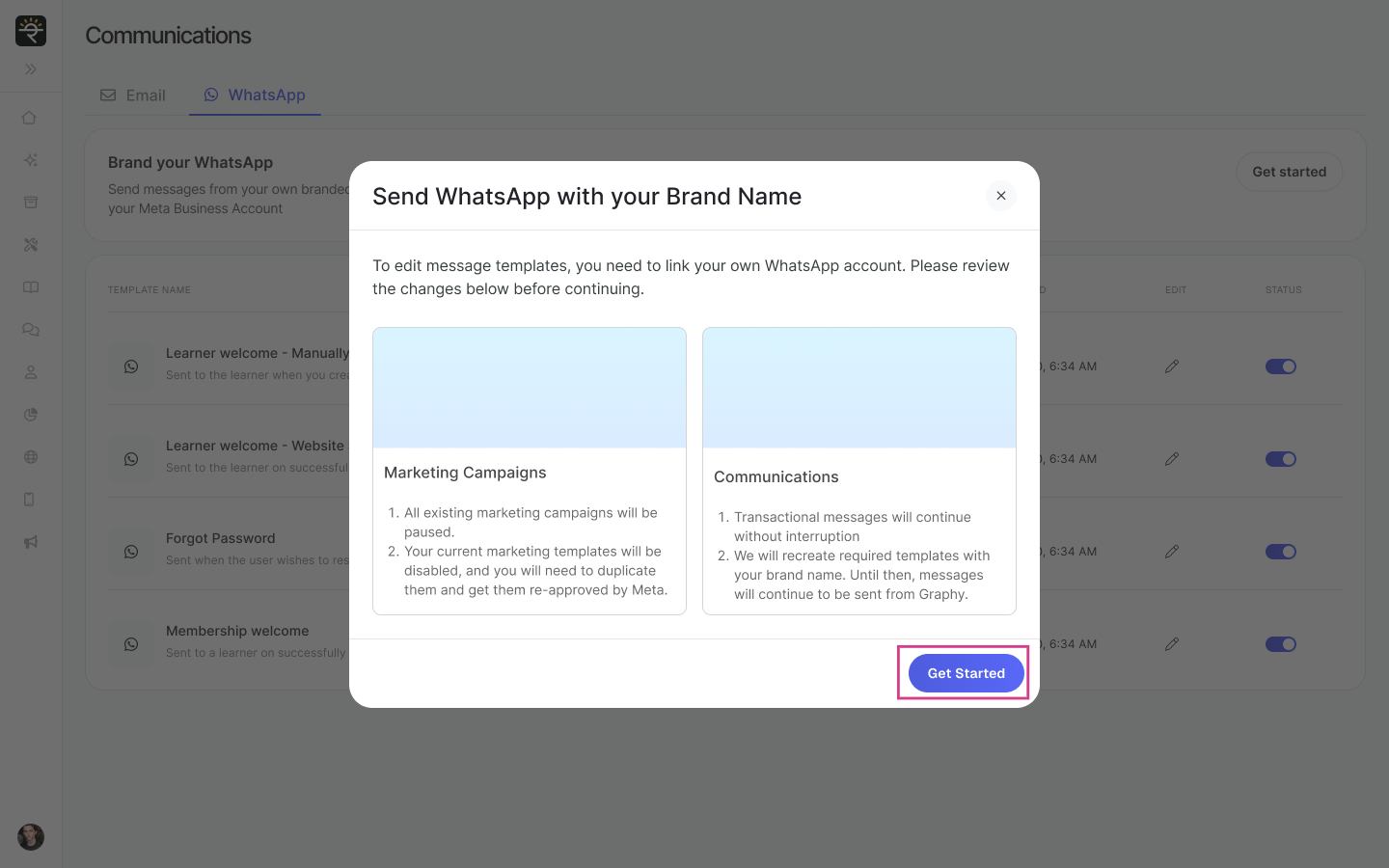
Step 6: Review and Setup WABA
Review the changes and requirements in the modal shown to you. Click on 'Get Started' to set up your WhatsApp Business Account (WABA).
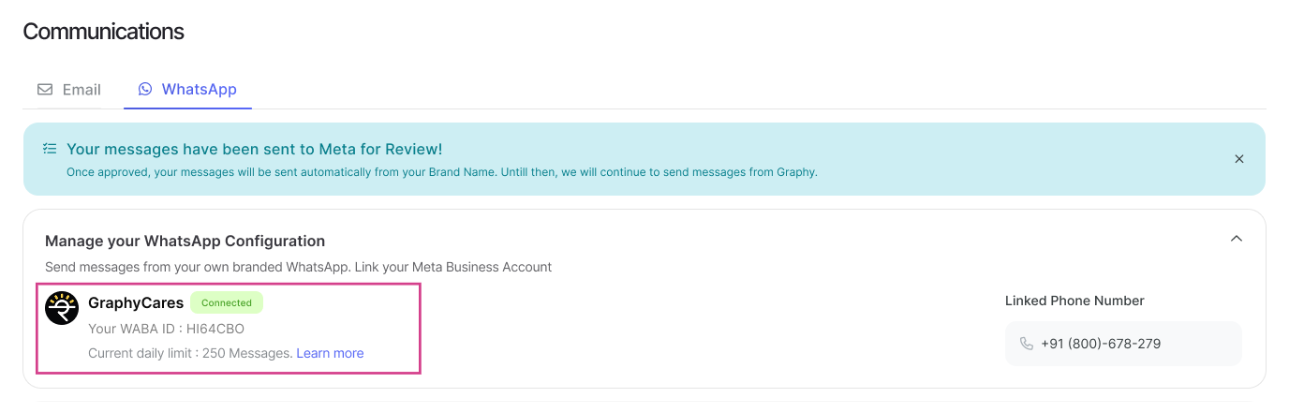
Step 7: Manage WhatsApp Communications
After your WhatsApp whitelabelled/branded solution is connected, you will see a 'connected' tag appear under Manage Your WhatsApp Configuration section. This means, you're now ready to send branded whatsapp templates for Meta's approval, or you can use Graphy's pre-existing templates too (this will mean that messages will continue to go from Graphy's name, even though you connected your WABA. You'll also need to whitelist your WABA templates with Meta)
Step 8: Edit WhatsApp Templates
Click on 'Edit' to modify any WhatsApp message template. These templates are already made available for you, and you can make changes to it. Note that once you edit any template, these would go to Meta for approval on the changes, and there may be a waiting period of a few hours involved. If your template gets approved, the white-label pending tag will go away.
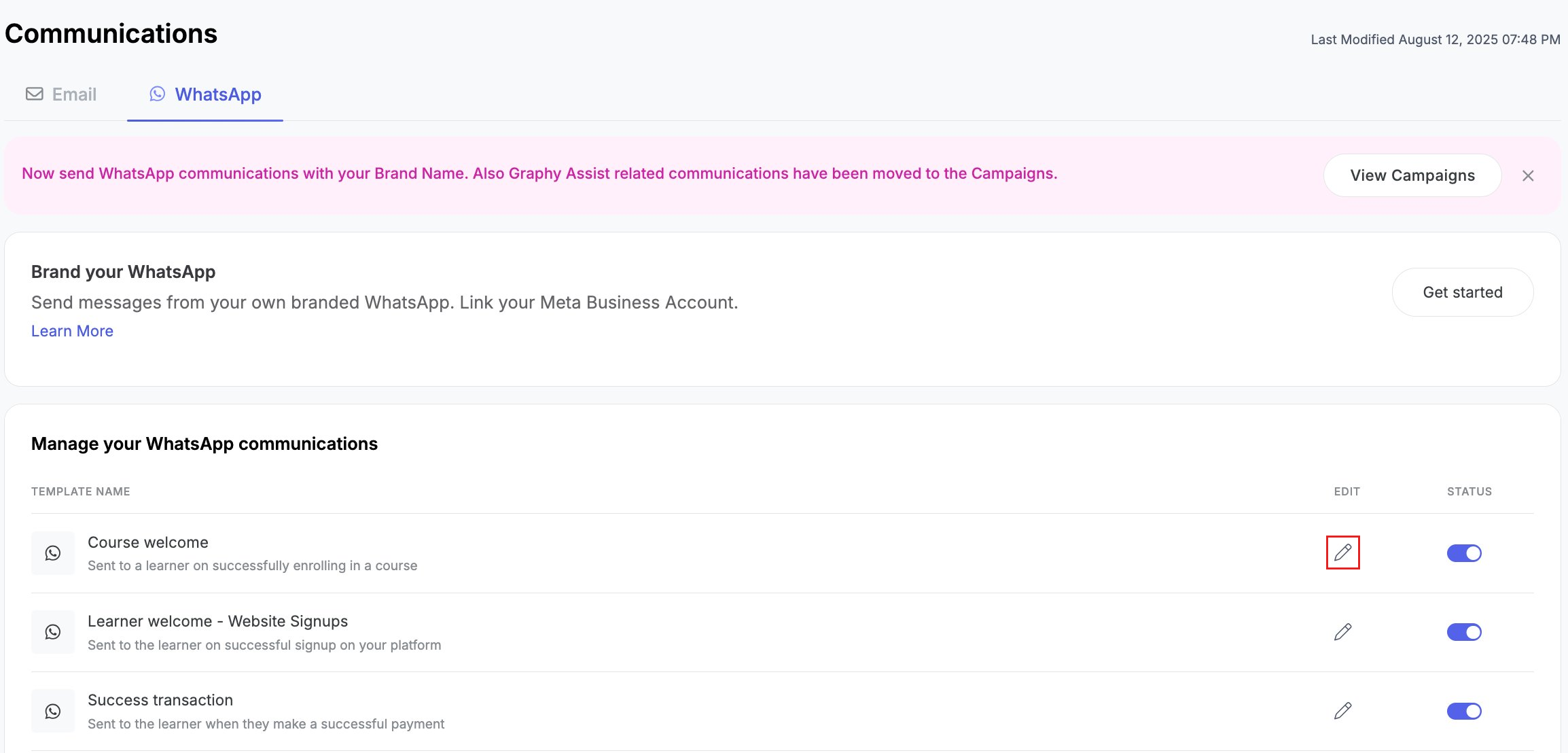
Step 9: Edit and Continue
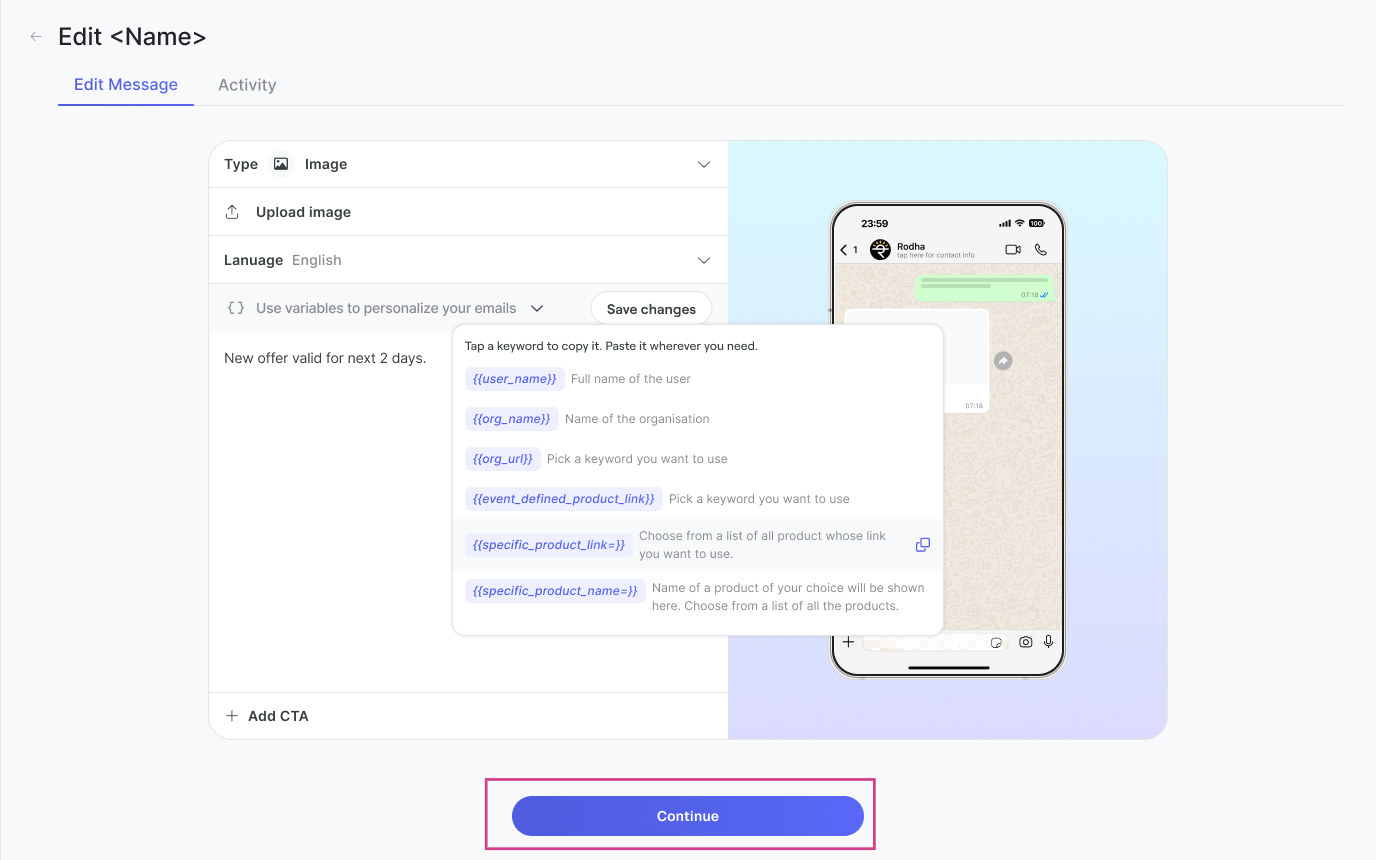
To edit your your message, click on the pencil option. This will open the modal to Edit Message tab in a new window. Here, you are required to add languages, variables(you will find options pre created which you can choose from), add images and CTA, and hit 'Continue' once done. Parallely, as you input these details, you will also see a preview of your message in the right side window.
Step 10: Review Approval Prediction
Once you're done making edits, Graphy AI will display a modal which will show the chance of approval for the template and suggest changes to increase the chance of approval. You can accept the suggested changes or click on 'Submit Anyway' if you prefer to keep your original version. Selecting Accept will take you back to the Edit Window where you can edit your message.

Step 11: Submit for Meta's Review
After submitting, your template gets sent for review by Meta. It will be live and running once approved. Until then, messages will continue to go in Graphy's name, if you have status enabled on a particular template.
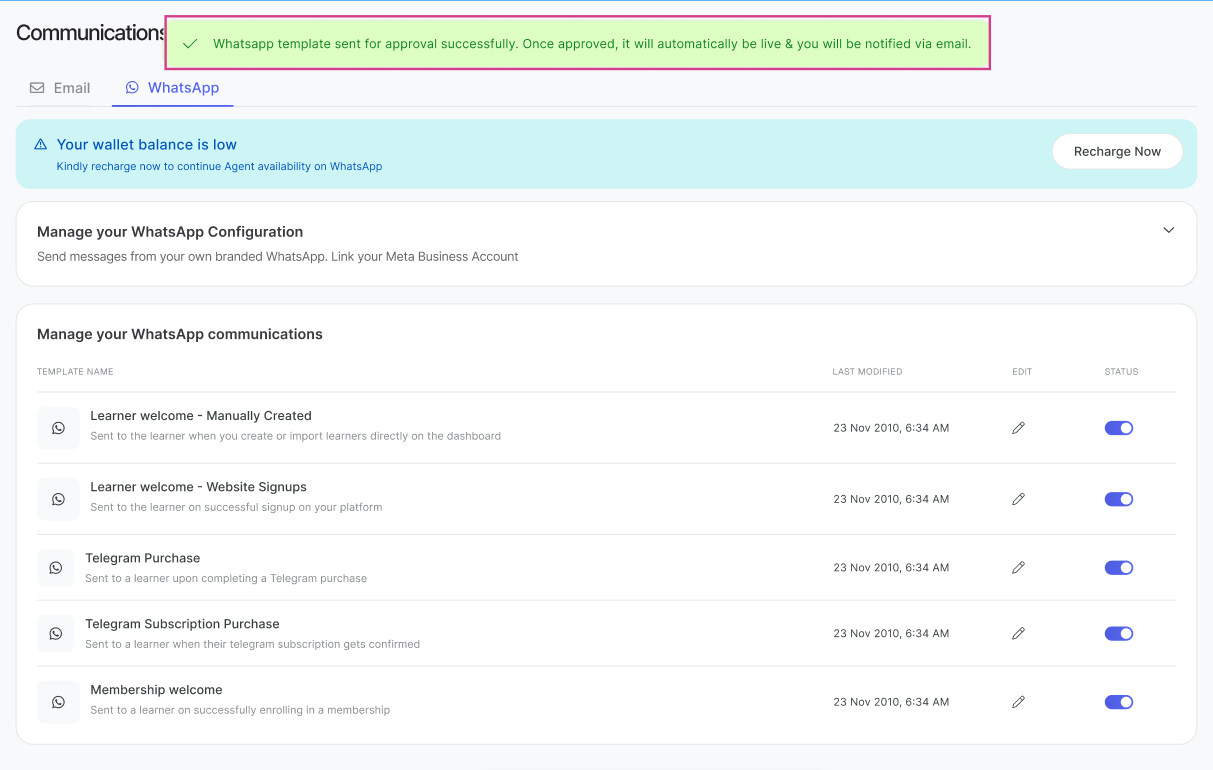
Step 12: Track Activity and Status
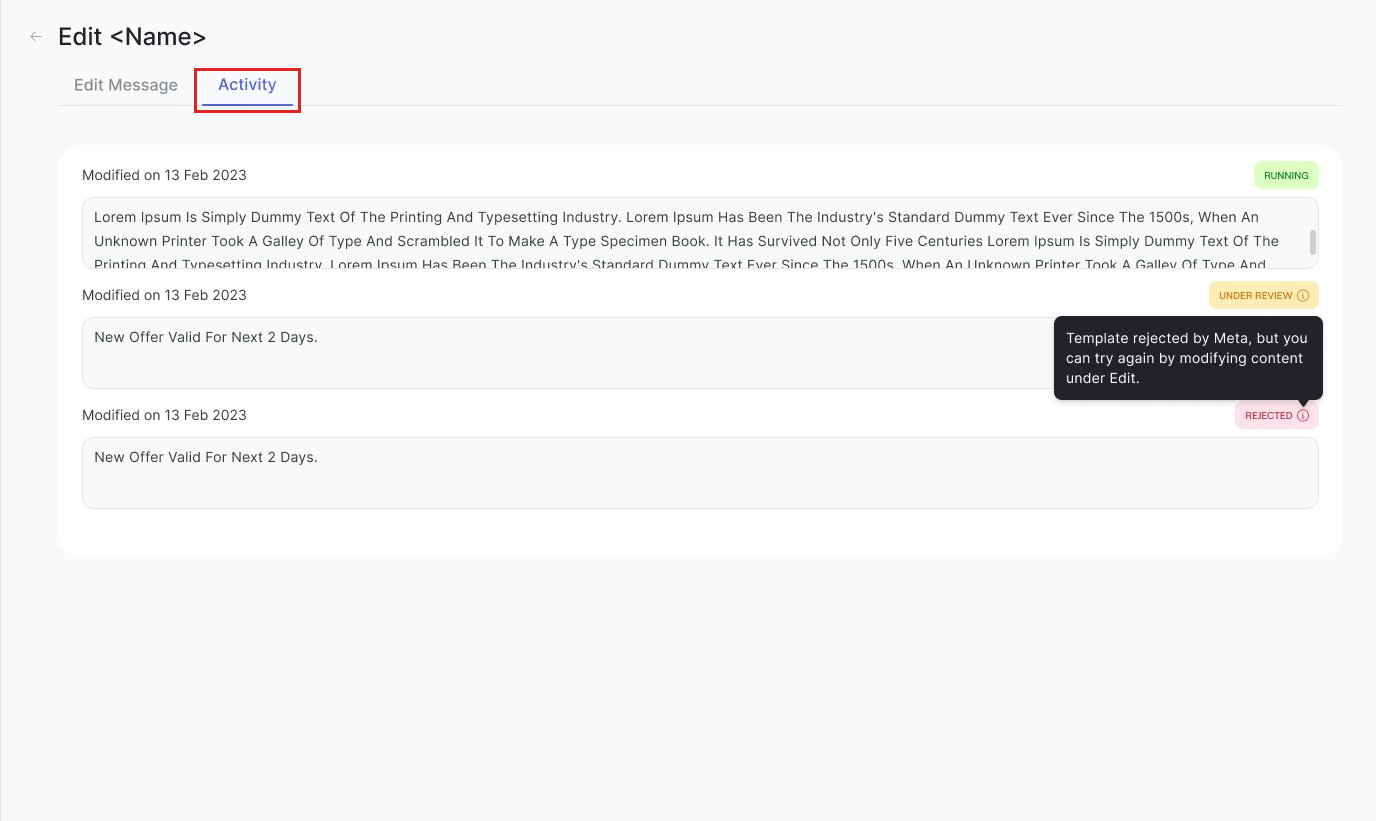
The Activity tab under Edit Message will give you a view on templates you edited, and their approval/rejection/review statuses. Note that you cannot send new templates if a template is under review. If rejected, can copy any of the activity content text and improve it, under Edit Message, and resend for approval.
Message Costs
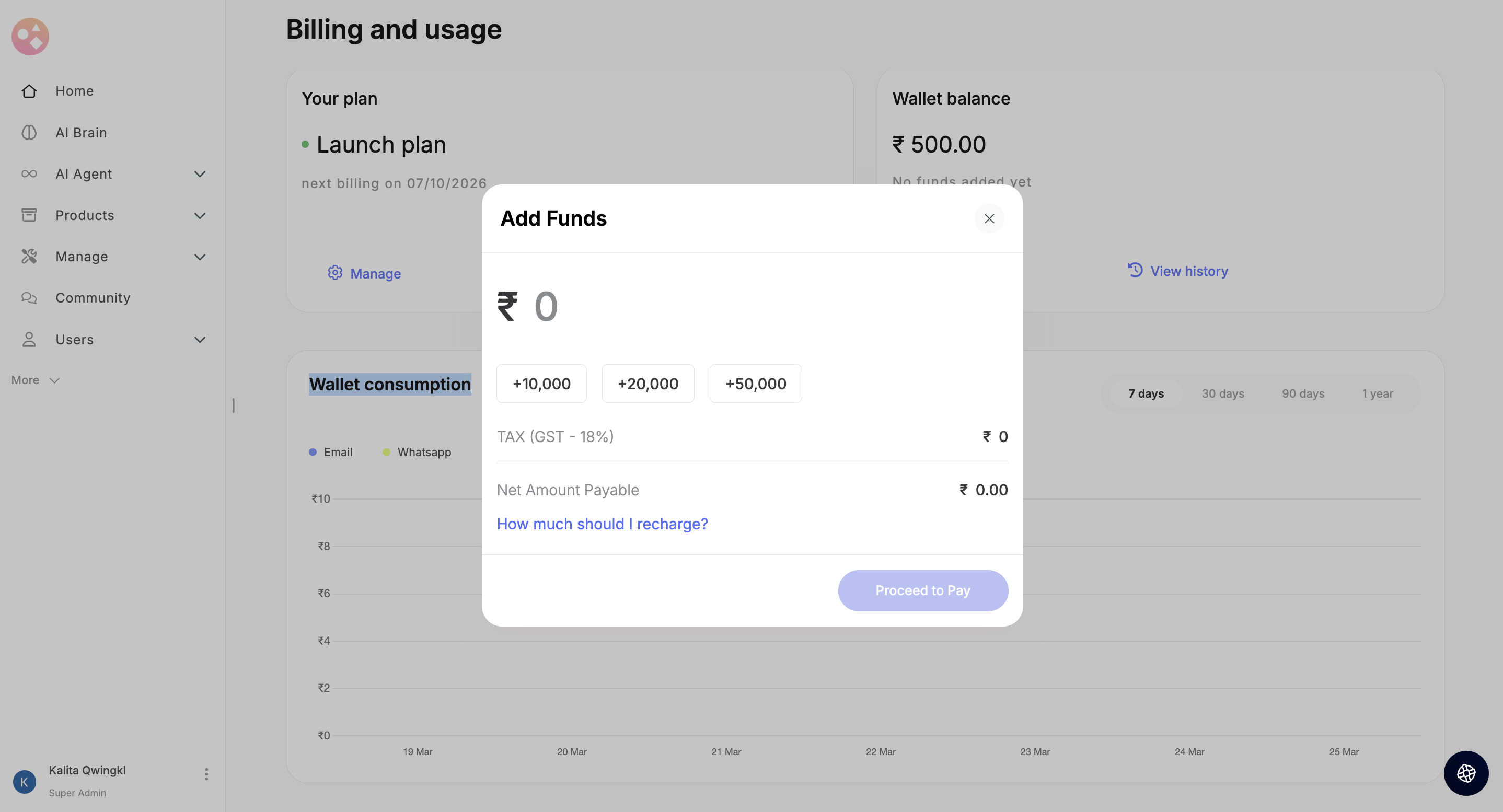
Note that sending communications to learners will have a cost and you need to keep your wallet recharged for this. You can do so under Billing and Usage> Wallet Balance > Add Funds.
Pricing structure-
1. Your marketing communications messages(sent from Campaigns) will now be charged at 1 rupee 5 paisa per message.
2. Your utility/transactional communications messages (sent from Communications and Campaigns, both) will now be charged at 15 paisa per message.
Was this article helpful?
That’s Great!
Thank you for your feedback
Sorry! We couldn't be helpful
Thank you for your feedback
Feedback sent
We appreciate your effort and will try to fix the article