We've moved Abandoned Cart( previously part of Graphy Assist communications) to Campaigns. This change provides you with a more centralised and powerful way to manage all your customer campaigns. You can now edit and manage them directly from the Campaigns section.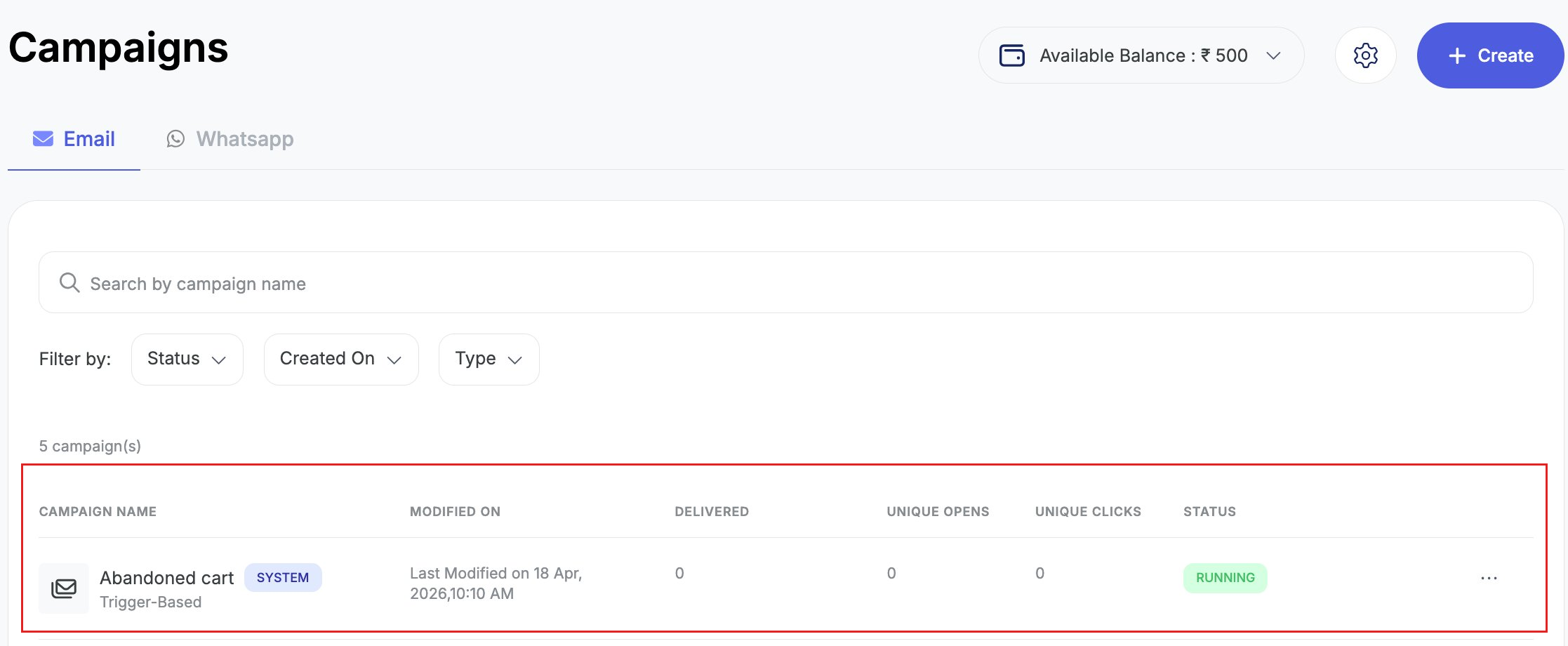
Step 1: Access Campaigns from Marketing under Navigation Bar
Just like your other marketing campaigns, will find all your Abandoned Cart Campaigns in the Marketing tab on the Graphy dashboard. Just head to Marketing> Campaigns. In the WhatsApp tab, you will see your pre-made and approved Abandoned Cart Campaign templates, ready for your use.
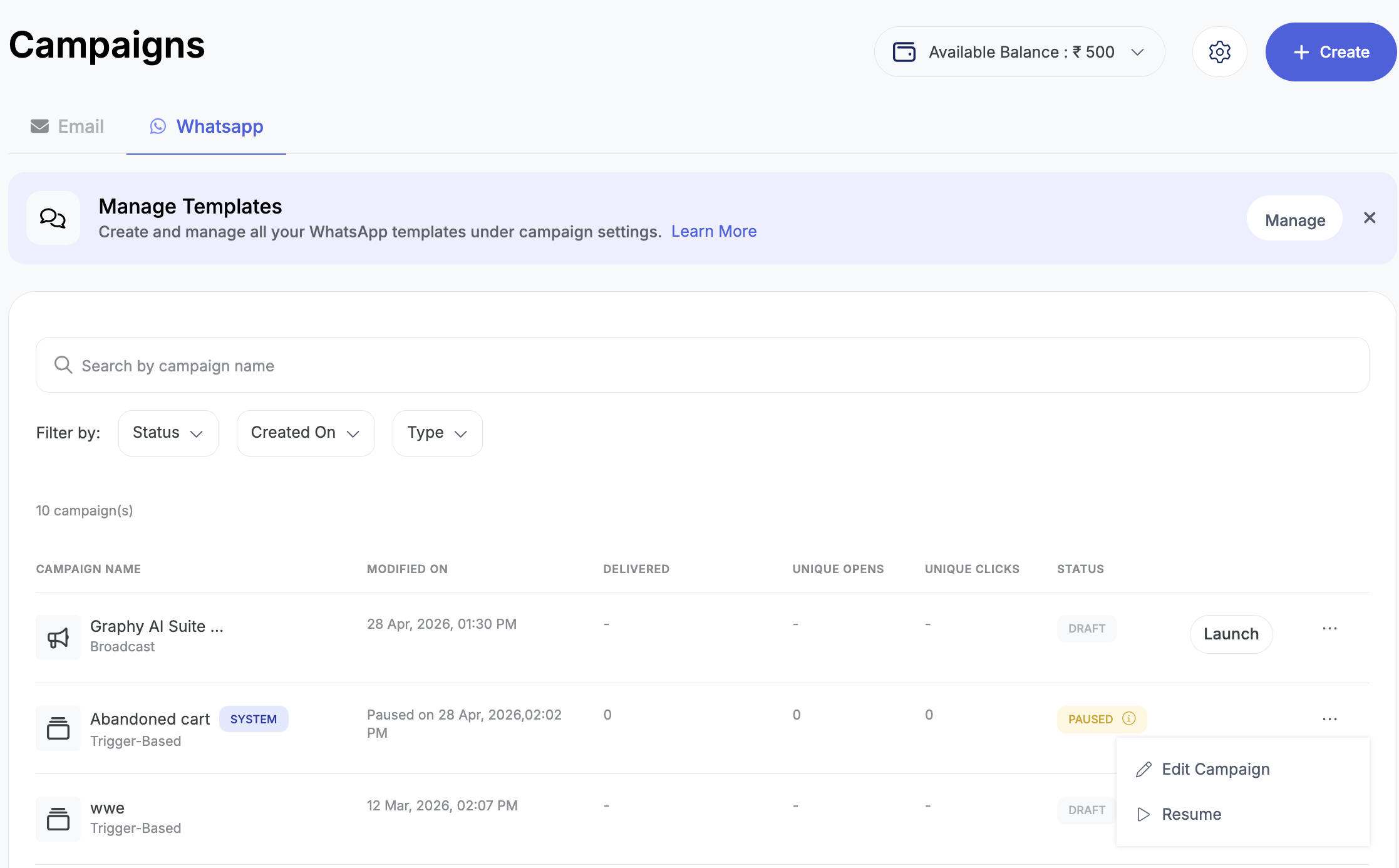
Step 2: Campaign Configurations- Edit, Pause, Resume options
You cannot edit the pre-created Abandoned Cart campaign. You can just pause the campaign. To edit, you will need to create a new campaign. You can resume your campaign.
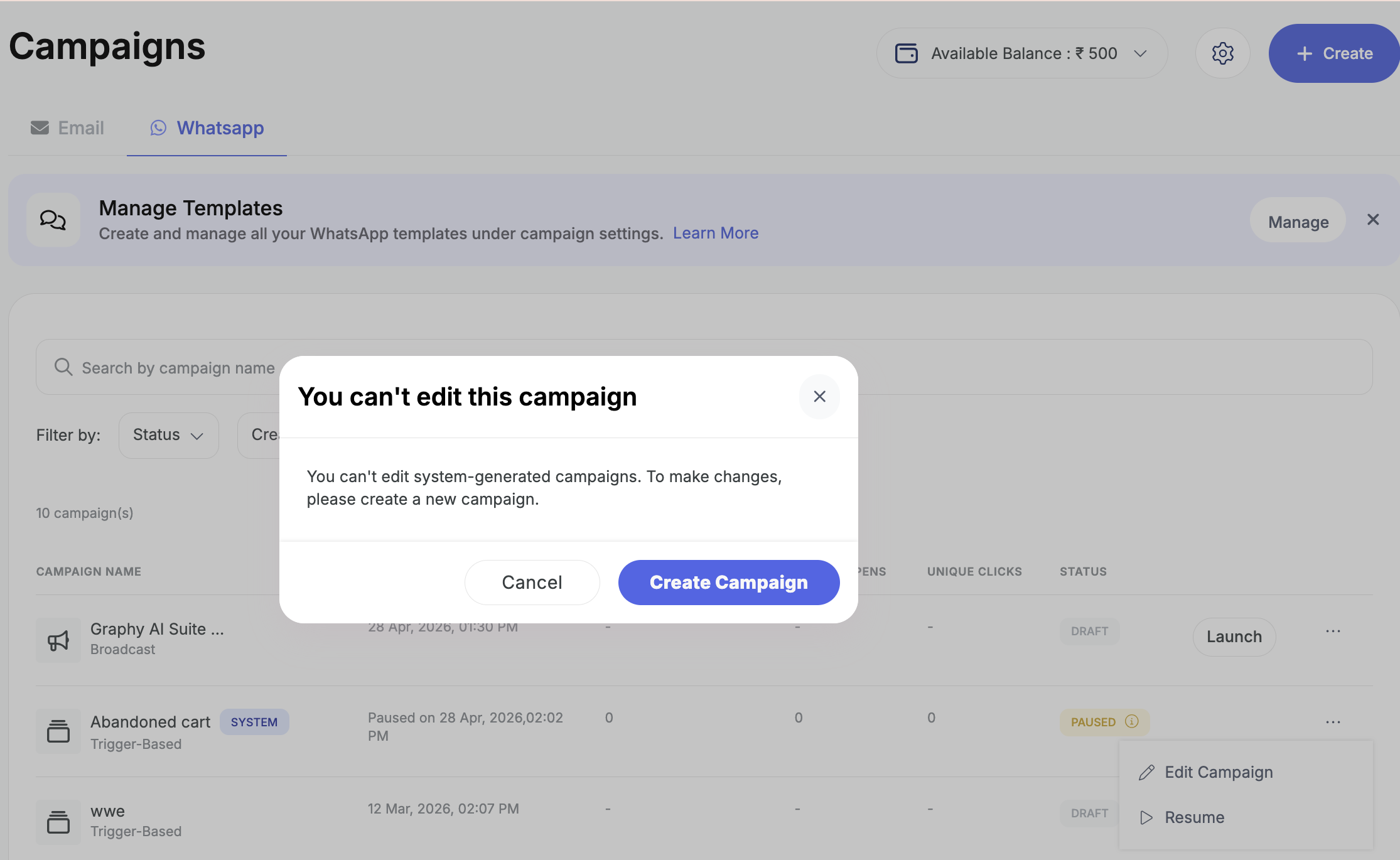
Additionally,
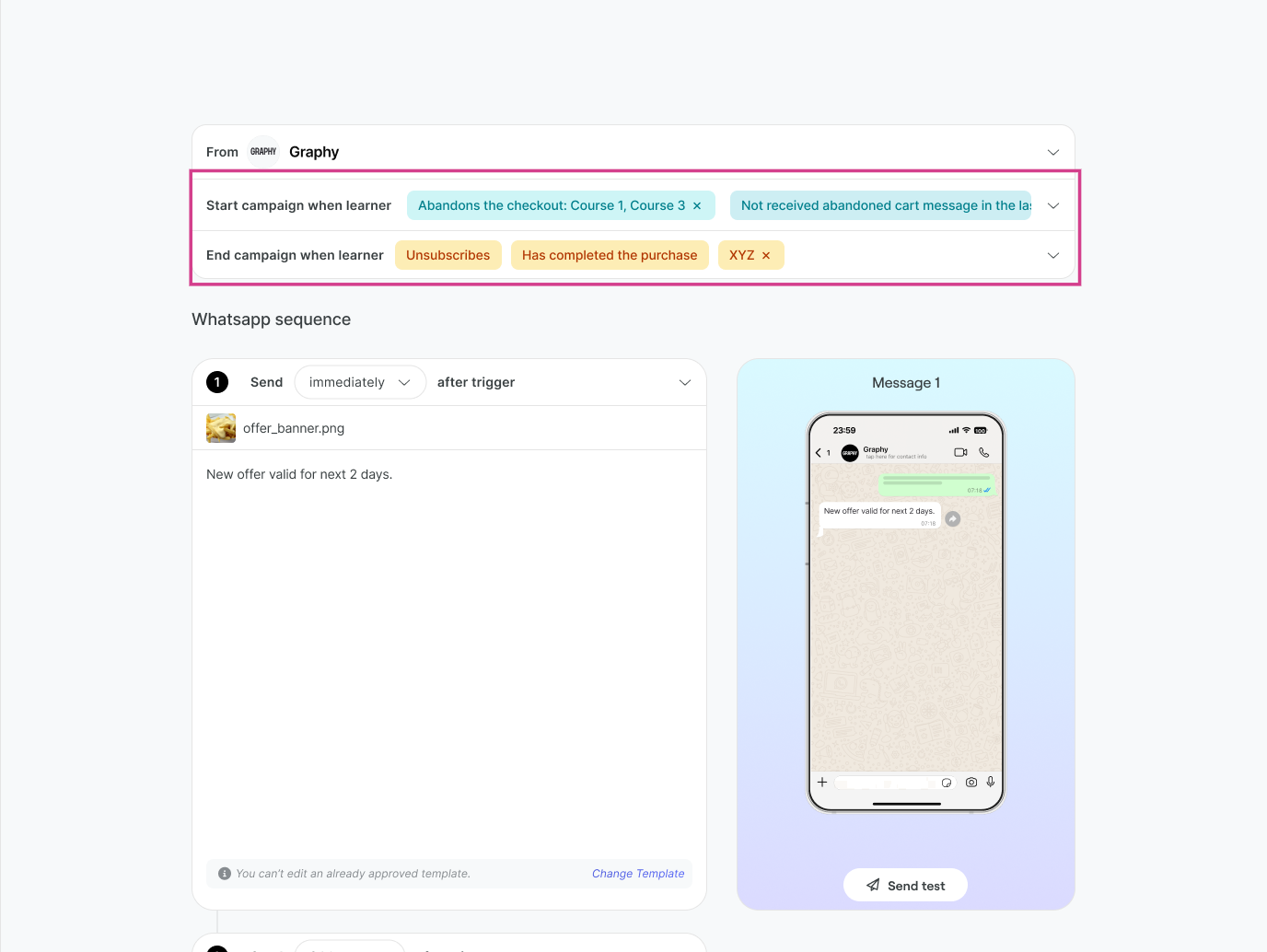
1. Abandoned Cart Campaign Basics: When you create a new abandoned cart campaign, you can define the following.
- Campaign Name: Give your campaign a descriptive name for easy identification
- Start Condition: This is auto-configured and non-editable. We have set the required condition in the backend for you to be able to send the campaign to the right learners.
- End Condition: This is auto-configured and non-editable. We have set the required condition in the backend for you to be able to send the campaign to the right learners.
- WhatsApp Sequence Settings: You can send campaigns immediately, after 24 hours or 36 hours. You can structure your sequence as per these options.
2. Add Filters from the Drawer in right side
When you create new abandoned cart campaigns, you can also add filters from the right hand side drawer. You can send campaigns to learners who abandoned cart across ALL Graphy Products, a specific Graphy Product like Course, Package, Memberships, Digital Products, or even to specific products within main products. Adding filter options will ensure your campaign reaches the right intended learner set.
3. You can send WhatsApp messages under Graphy's name or your own Brand Name. If you want to send branded campaigns, ensure to Brand Your WhatsApp. You can now do so by going to Settings and selecting Brand Your WhatsApp option.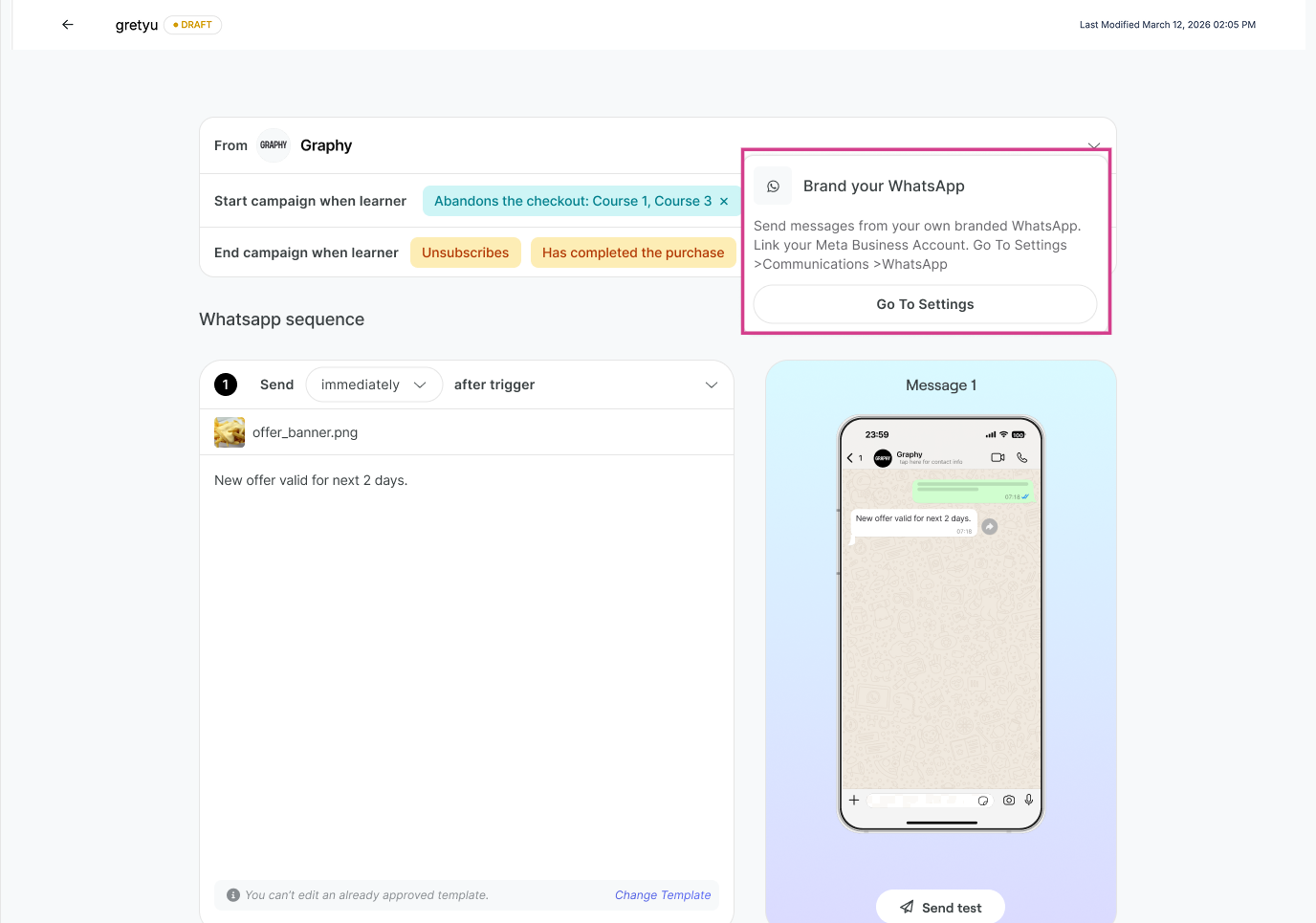
Was this article helpful?
That’s Great!
Thank you for your feedback
Sorry! We couldn't be helpful
Thank you for your feedback
Feedback sent
We appreciate your effort and will try to fix the article