This article is a step-by-step guide on signing up for Graphy, completing your onboarding, and activating your AI-generated website.
Your website shouldn't take weeks to build. On Graphy, your professional website is created in minutes — powered by AI and ready to launch.
Getting Started
Step 1: Go to graphy.com and click on Start Your Free Trial or Sign Up:

Step 2: Enter your name, email address, and phone number. Then, click on Continue to create your account.

Step 3: Verify your email by entering the OTP sent to your inbox.
Completing Your Onboarding
Once your email is verified, the onboarding process begins automatically.
Step 4: Enter your brand name and choose your industry from the dropdown. Then click on Continue.
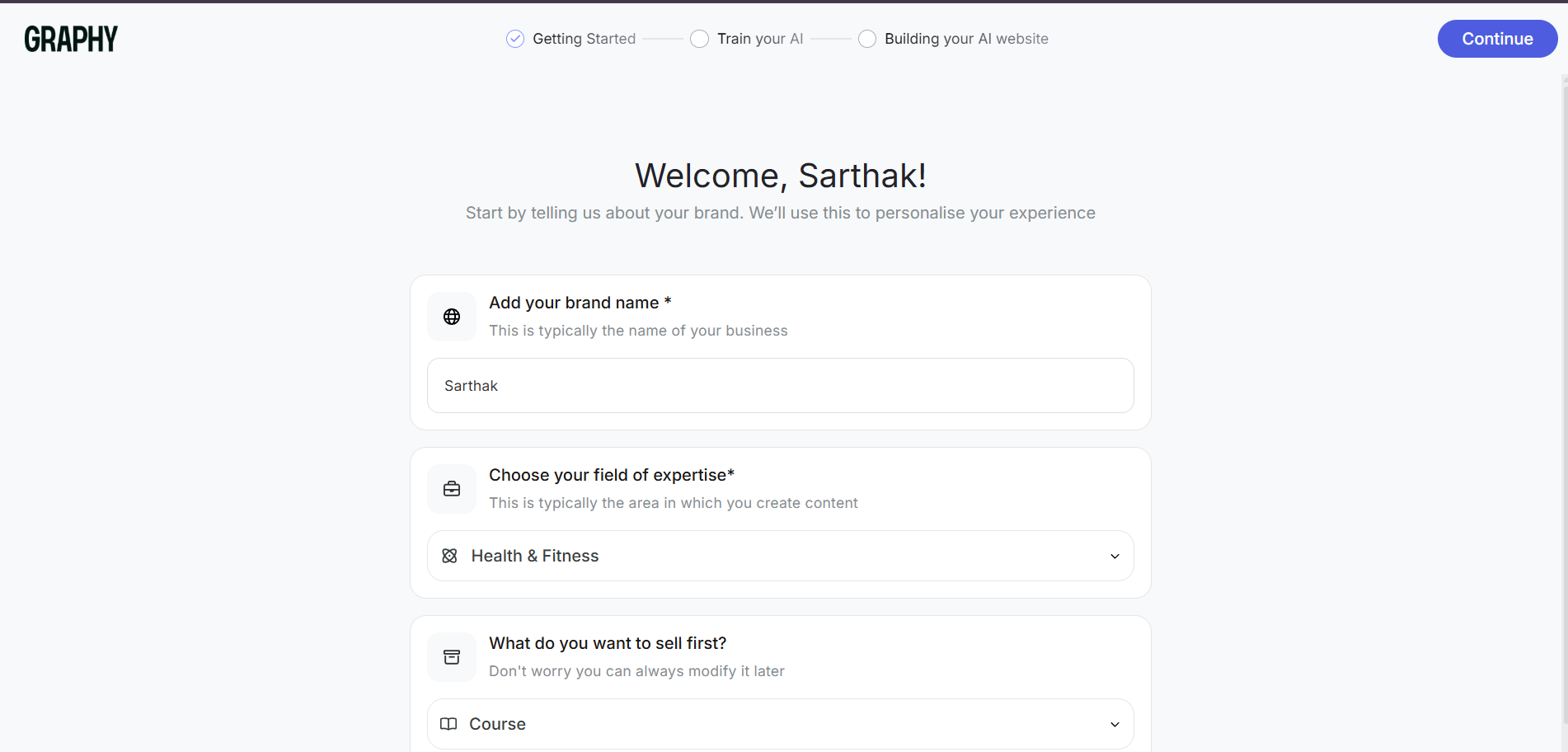
Step 5: Train your AI by adding your social media handles and your existing website (if you have one). This helps Graphy understand your brand and create a website that truly fits you.

Note: You can skip this step and move ahead if you prefer to add these details later.
Step 6: Graphy starts building your website. Your site's vibe is already pre-selected. You can change it if you want. Click on Continue after selecting the vibe.
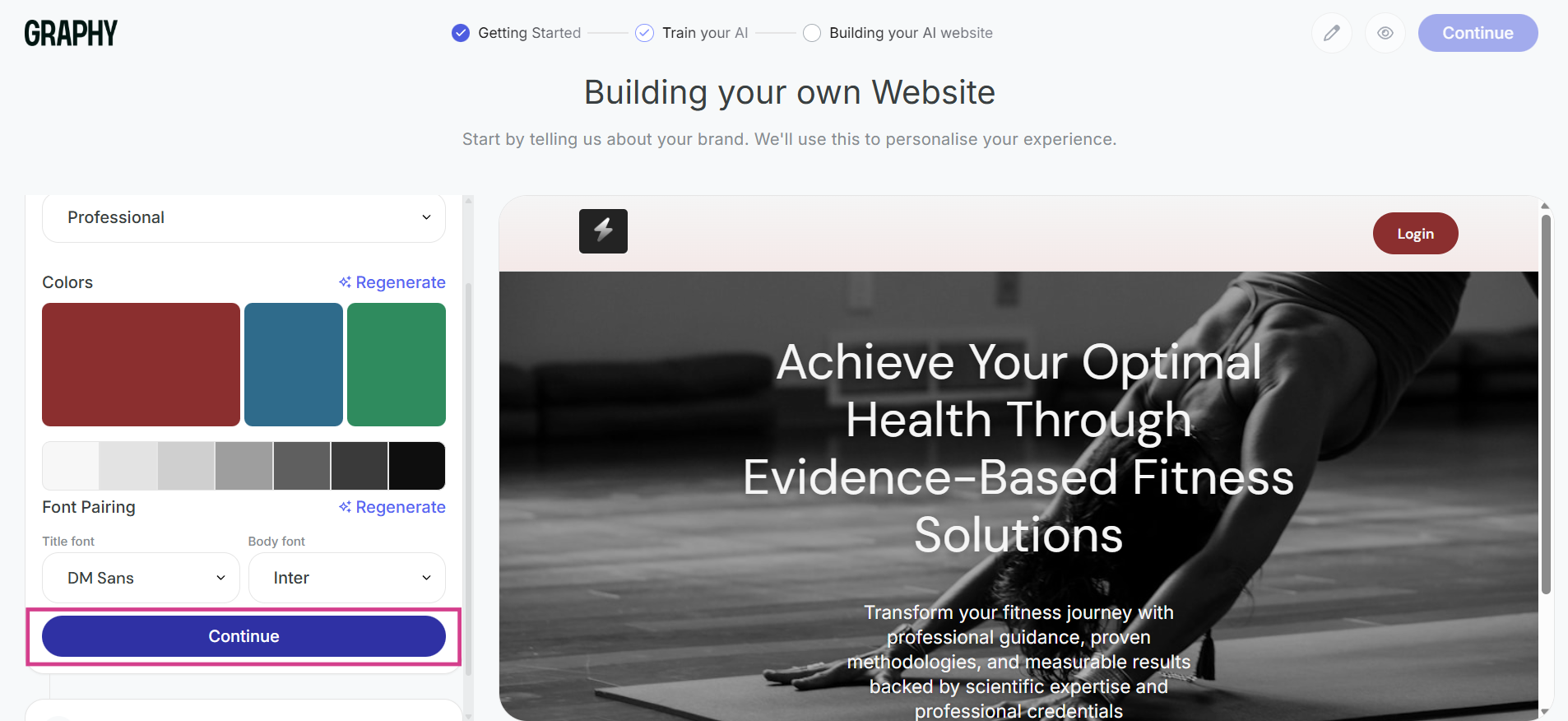
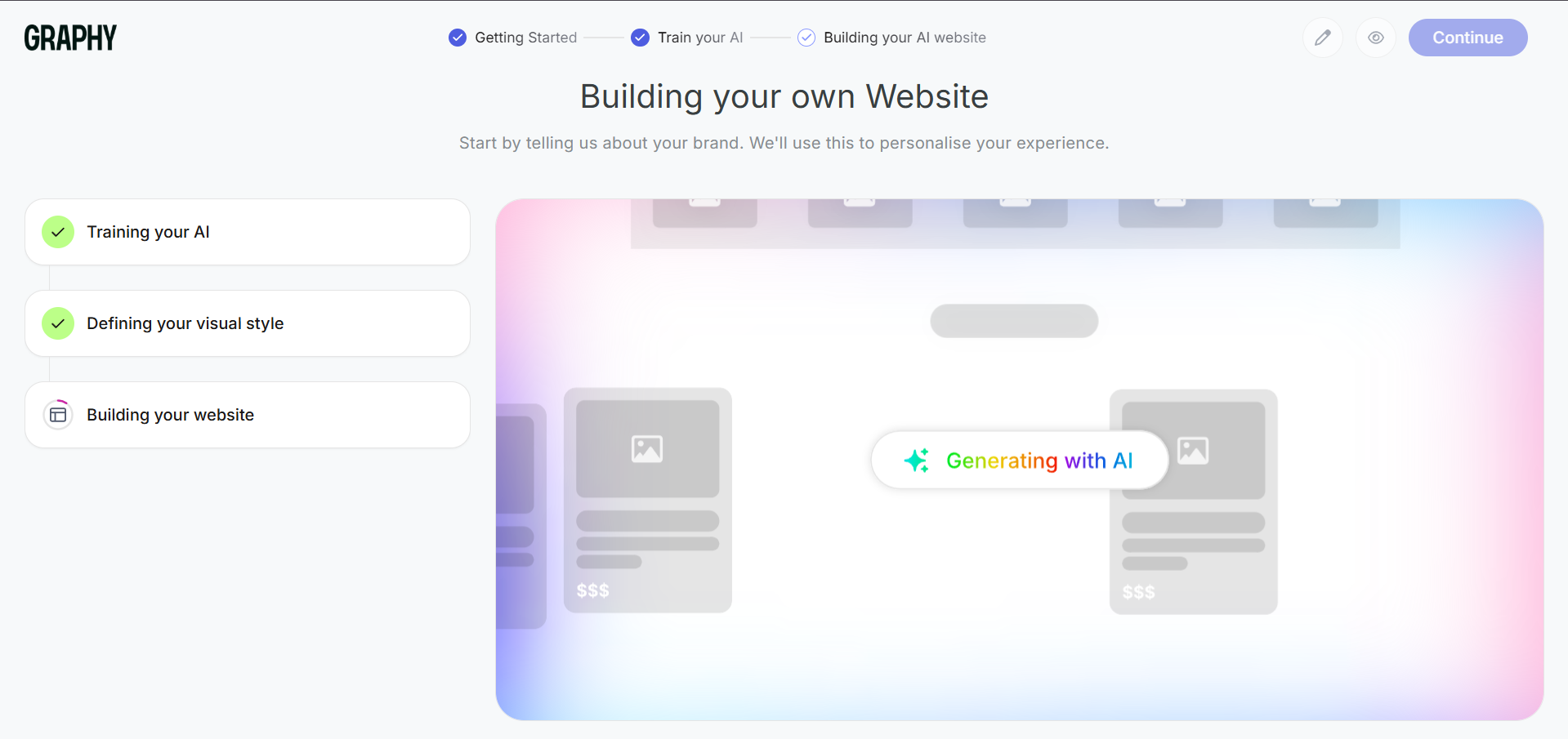
Step 7: The editor starts building your website.
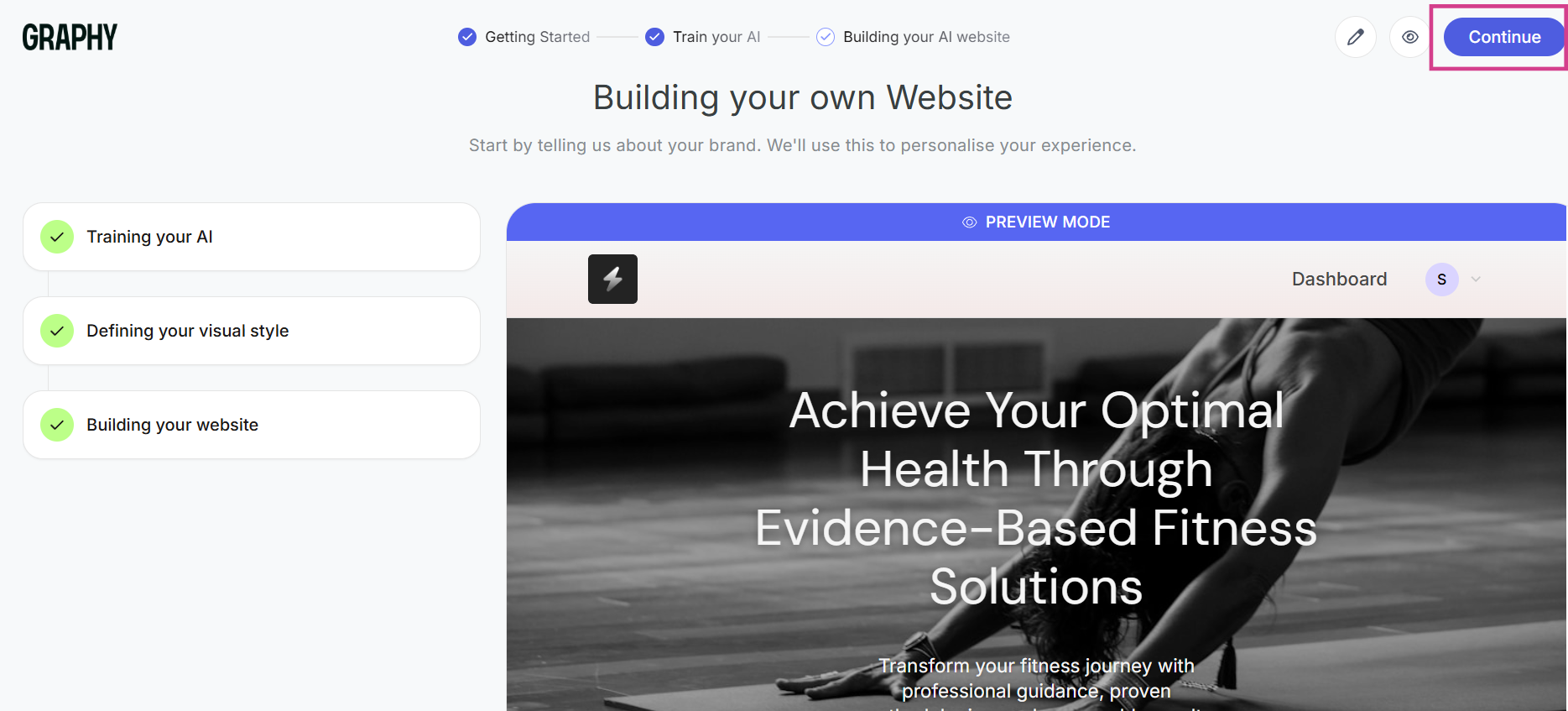
Step 8: With that, your onboarding is complete, click on Continue and you'll be taken inside the Graphy platform.
Activating Your AI-Generated Website
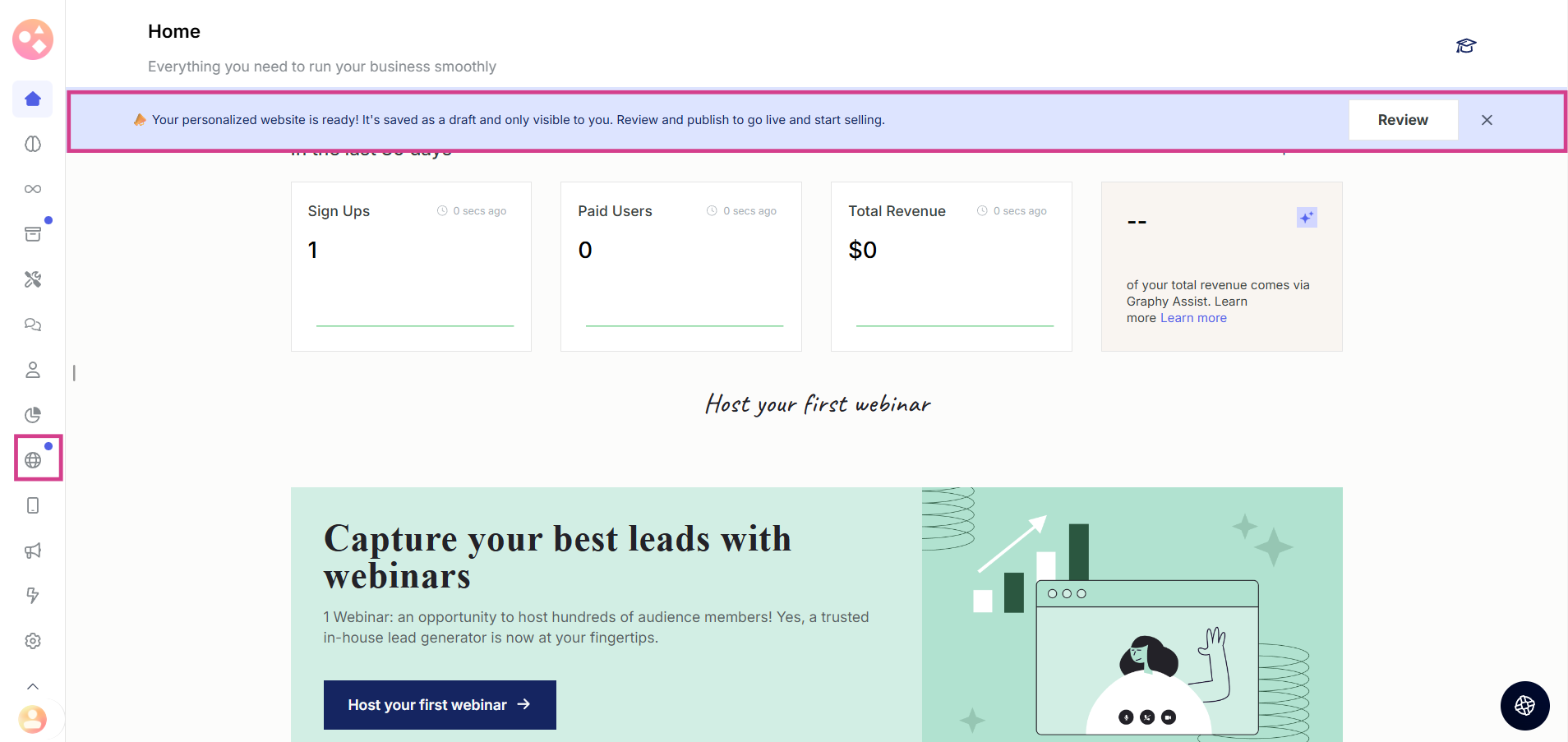
Step 9: Inside the dashboard, look for the banner in the top showing that your website is ready. Click review or click the website option from the left panel.
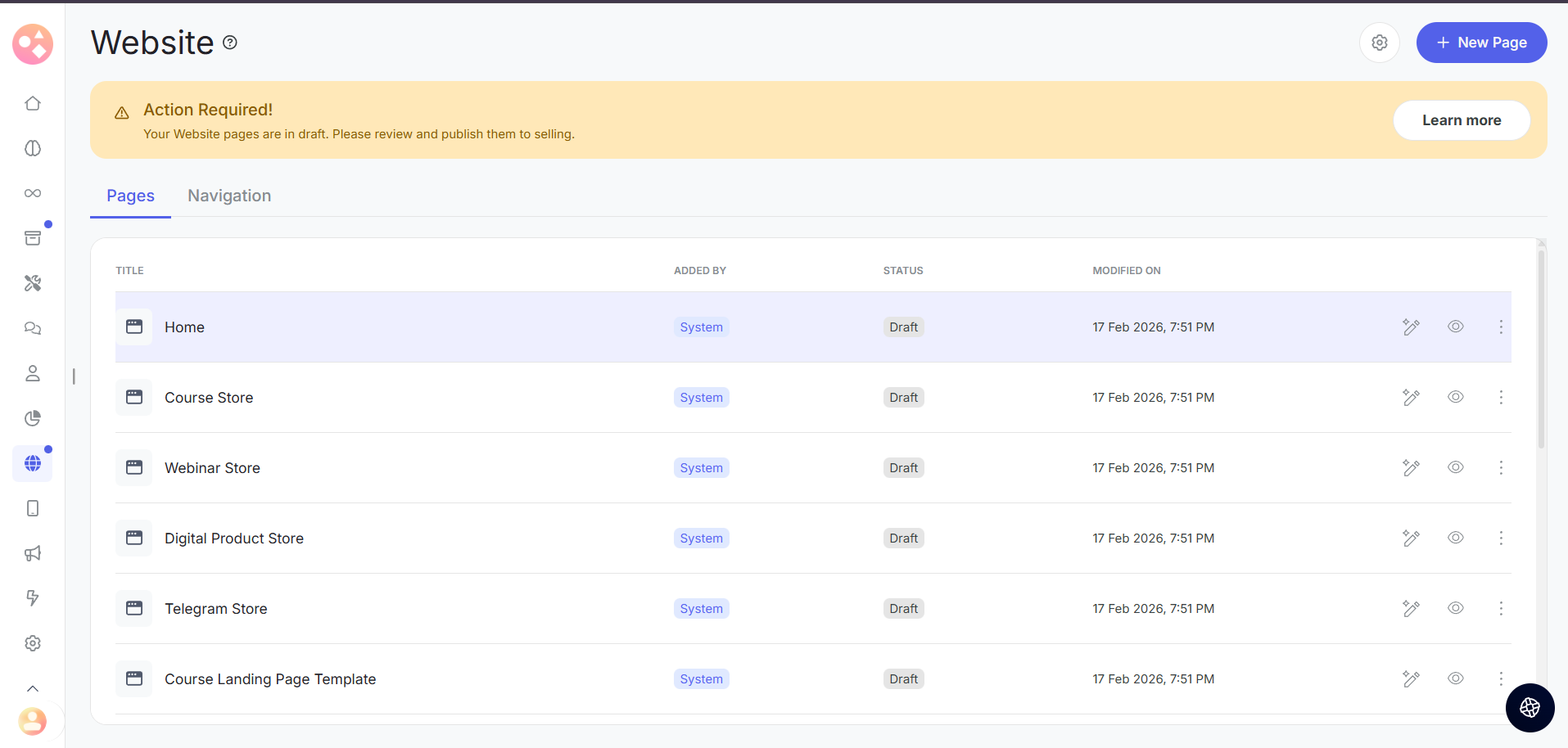
Step 10: You'll be taken to your Website Pages section. Here, you'll find all your pages already created using AI. They start in draft mode, so you can review, edit, and refine everything before going live.
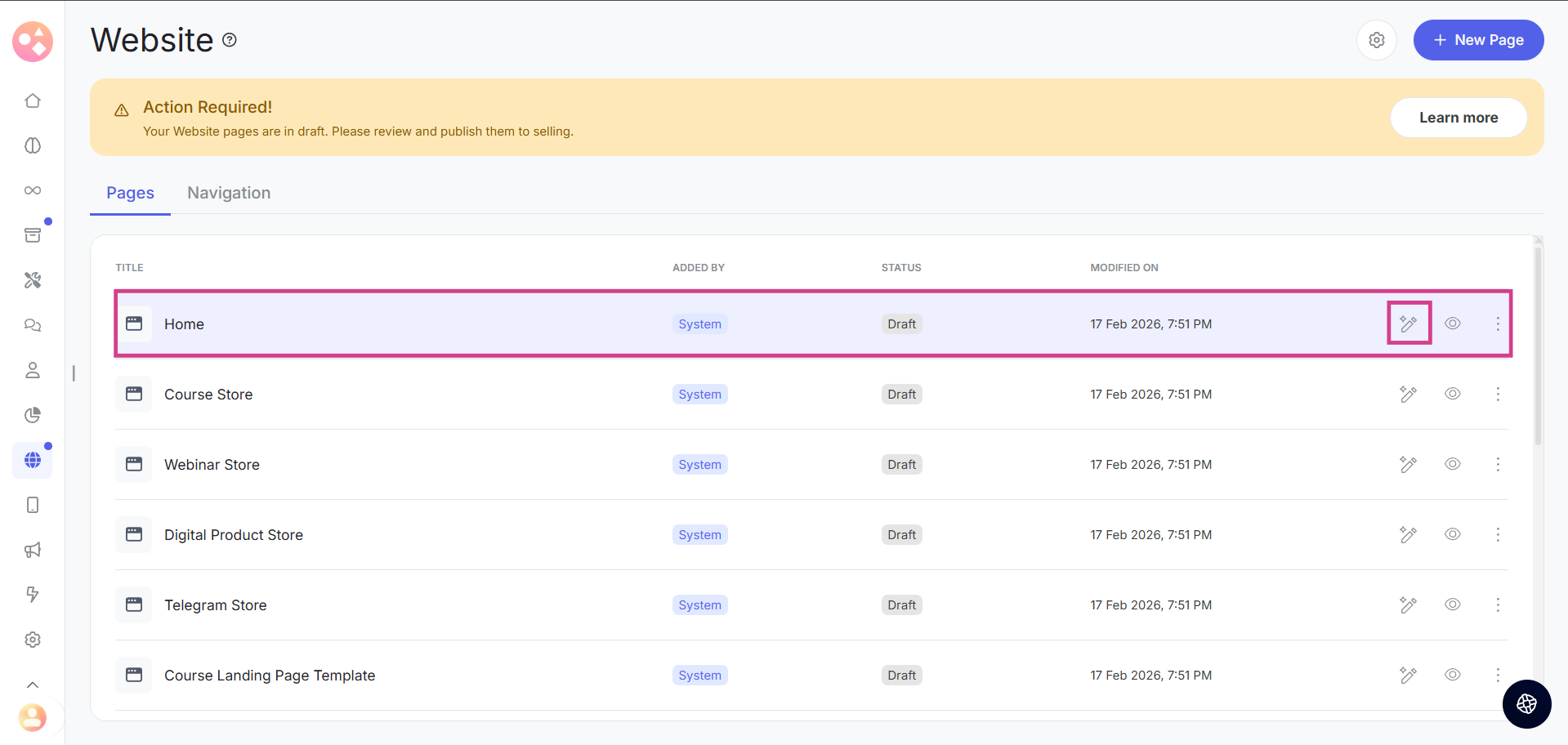
Step 11: Click on any page or click the edit option to preview or edit your website.
Publishing Your Website
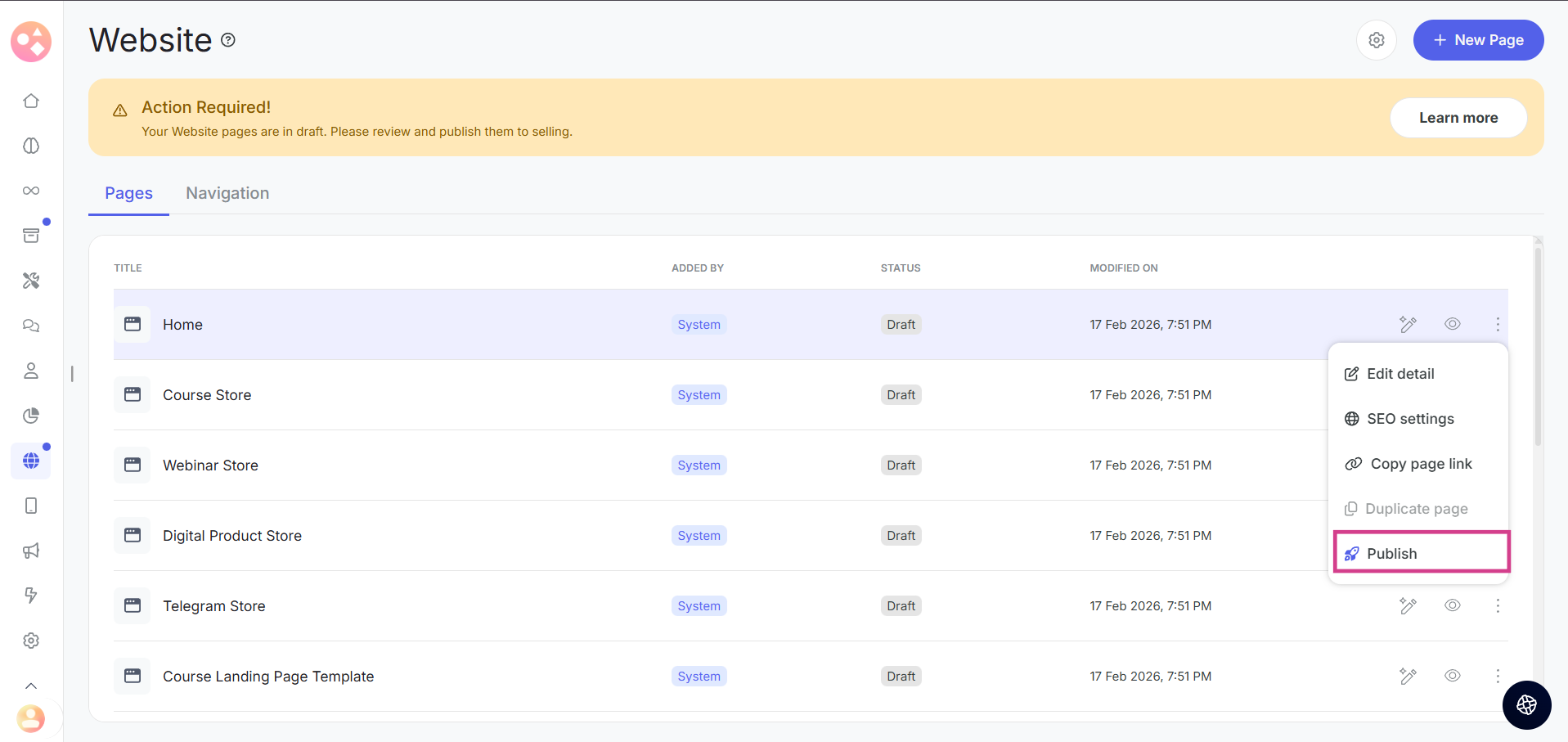
When you're ready to publish, you can do it in two ways:
Option 1: From the page list, click on the three dots (⋯) next to any page and select Publish.
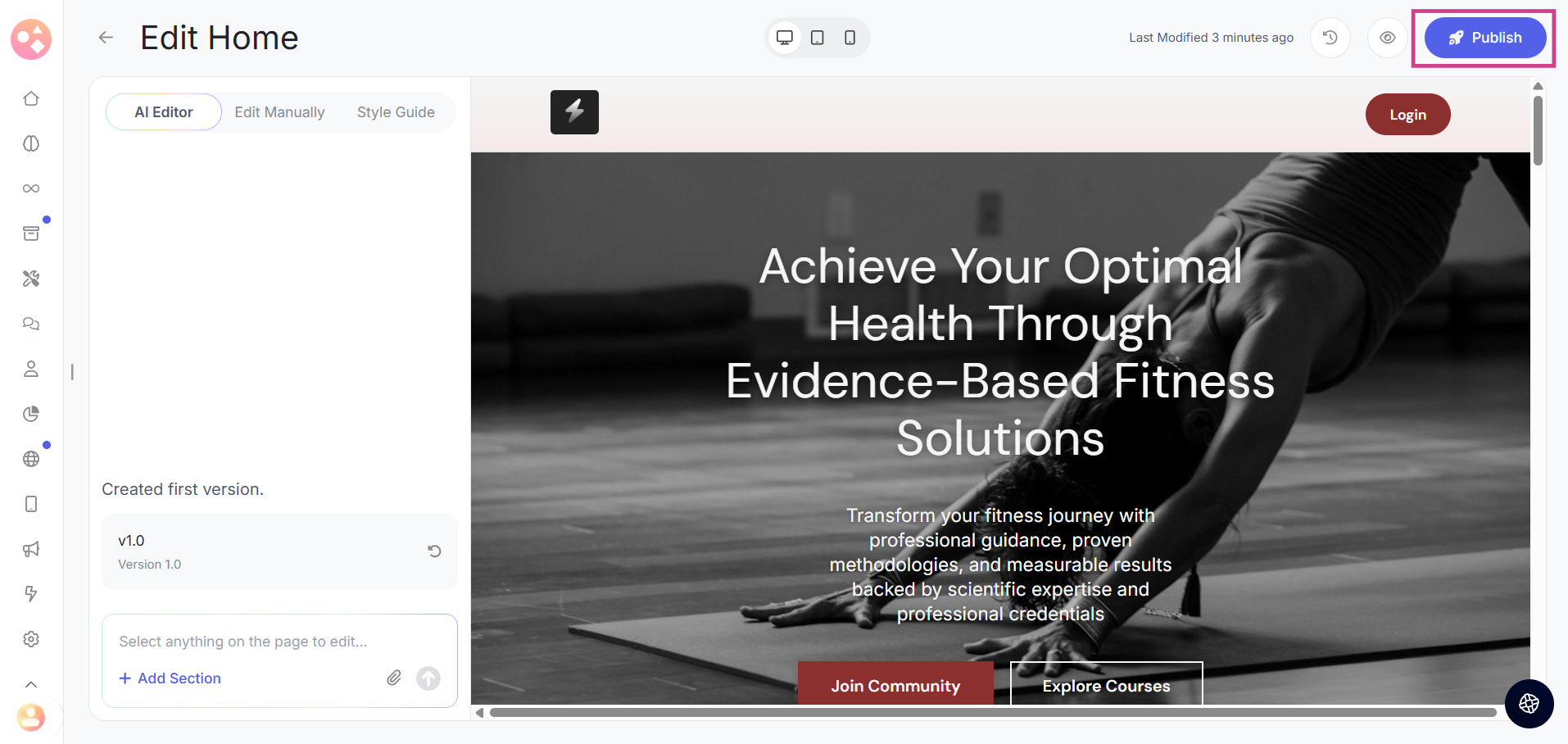
Option 2: Open a page and publish it directly from inside the editor.
And just like that, your AI-generated website is live!
In the next article, we'll show you how to fully customize your site using Graphy's Website Editor.
Was this article helpful?
That’s Great!
Thank you for your feedback
Sorry! We couldn't be helpful
Thank you for your feedback
Feedback sent
We appreciate your effort and will try to fix the article