Categories on Graphy allows users to organize your courses and packages into categories and, optionally, sub-categories that learners can browse through to allow for better discoverability. We have updated how the categories can appear on the Graphy Learner App (iOS and Android). Instead of being limited to a horizontal scroll that hides categories off-screen, your categories can now show in a row wise grid-like format. This article walks you through the process of updating the layout.
Where to find the new layout
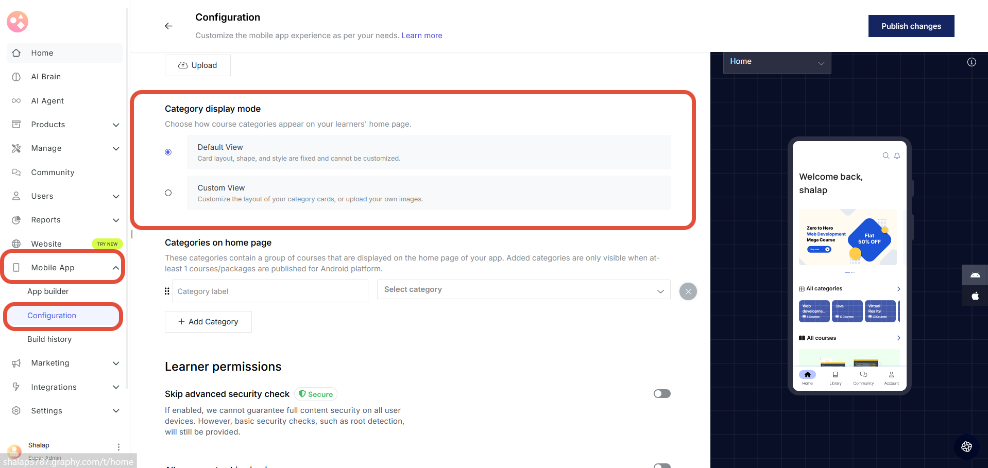
- On your Graphy Website dashboard, navigate from Mobile App > Configuration
- Scroll down to Category display mode to see Default View and Custom View.
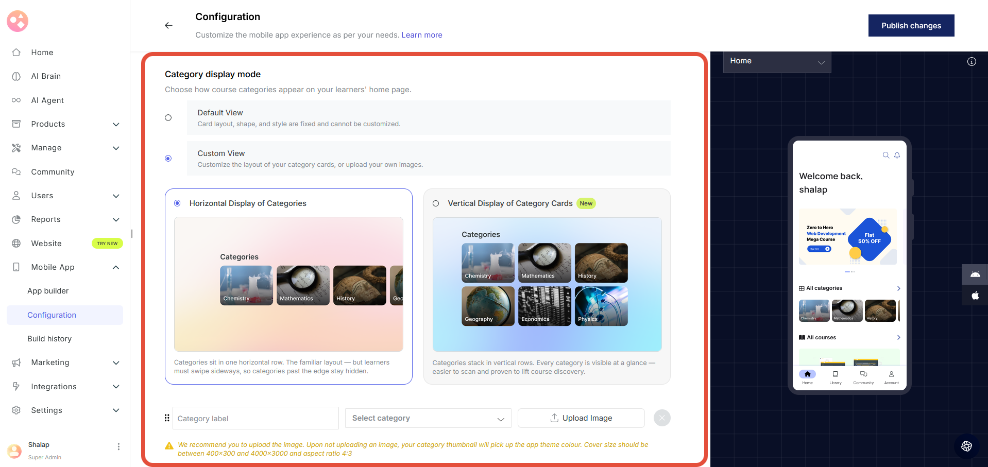
- You will see that Default View is already selected for you. To switch between the views, you must select Custom View.
- Here you can select between two different options: Horizontal Display of Categories (current) and Vertical Display of Category Cards (new option added).
- Click on Vertical Display of Category Cards. You should be able to see the changes being reflected in the preview screen on the right.
Updating the Category Cover Image
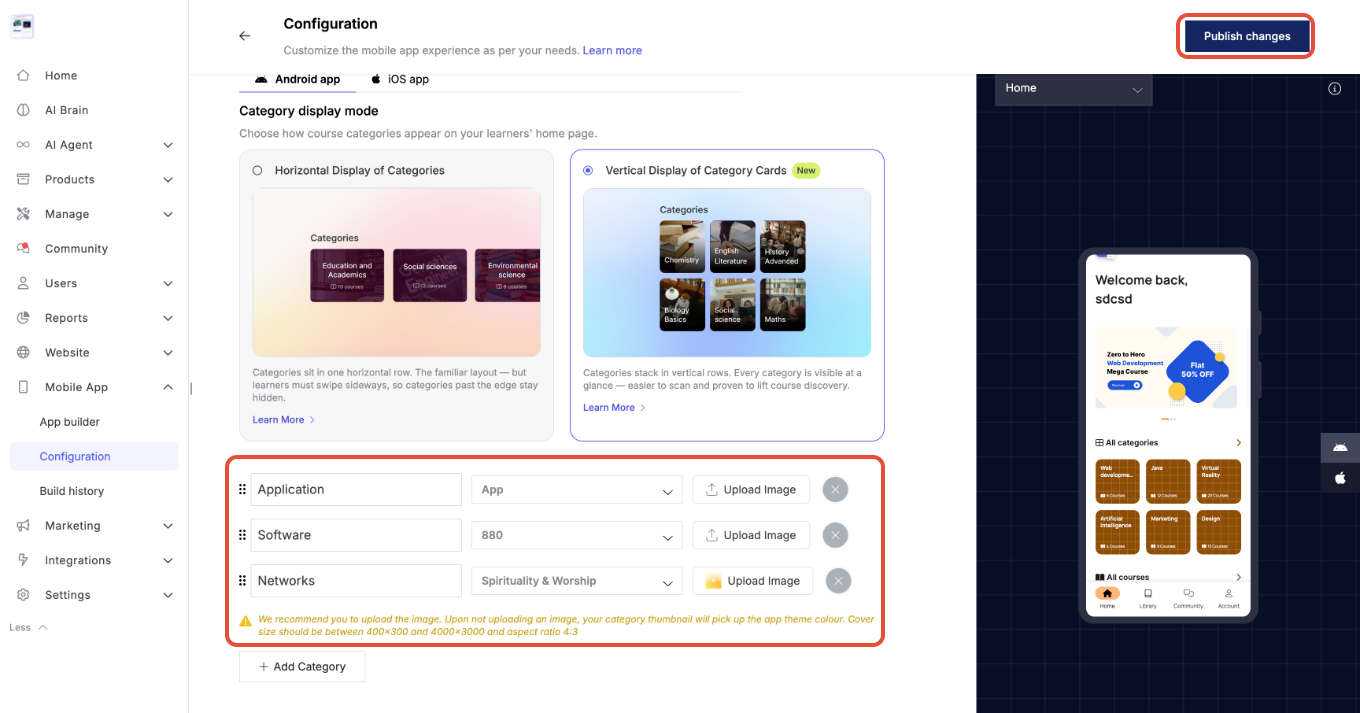
- After selecting your preferred layout click on "+ Add Category" directly under the different category layout cards.
- Set your Category Label in the input box and the category it belongs to from the drop-down menu.
- Click on "Upload Image" and upload your custom file. Note that the dimensions of the file should follow the set constraints.
- If an image is not uploaded the category thumbnail will just pick up your app's theme colors by default.
- Upon successful upload you should see a success pop-up.
- Click on the publish button to publish the changes to your app.
Optional: Use the drag handles on the left end of the category row to set the order of the categories to your preference. Note that the final output on your mobile app will follow this same order.
Changes on the app
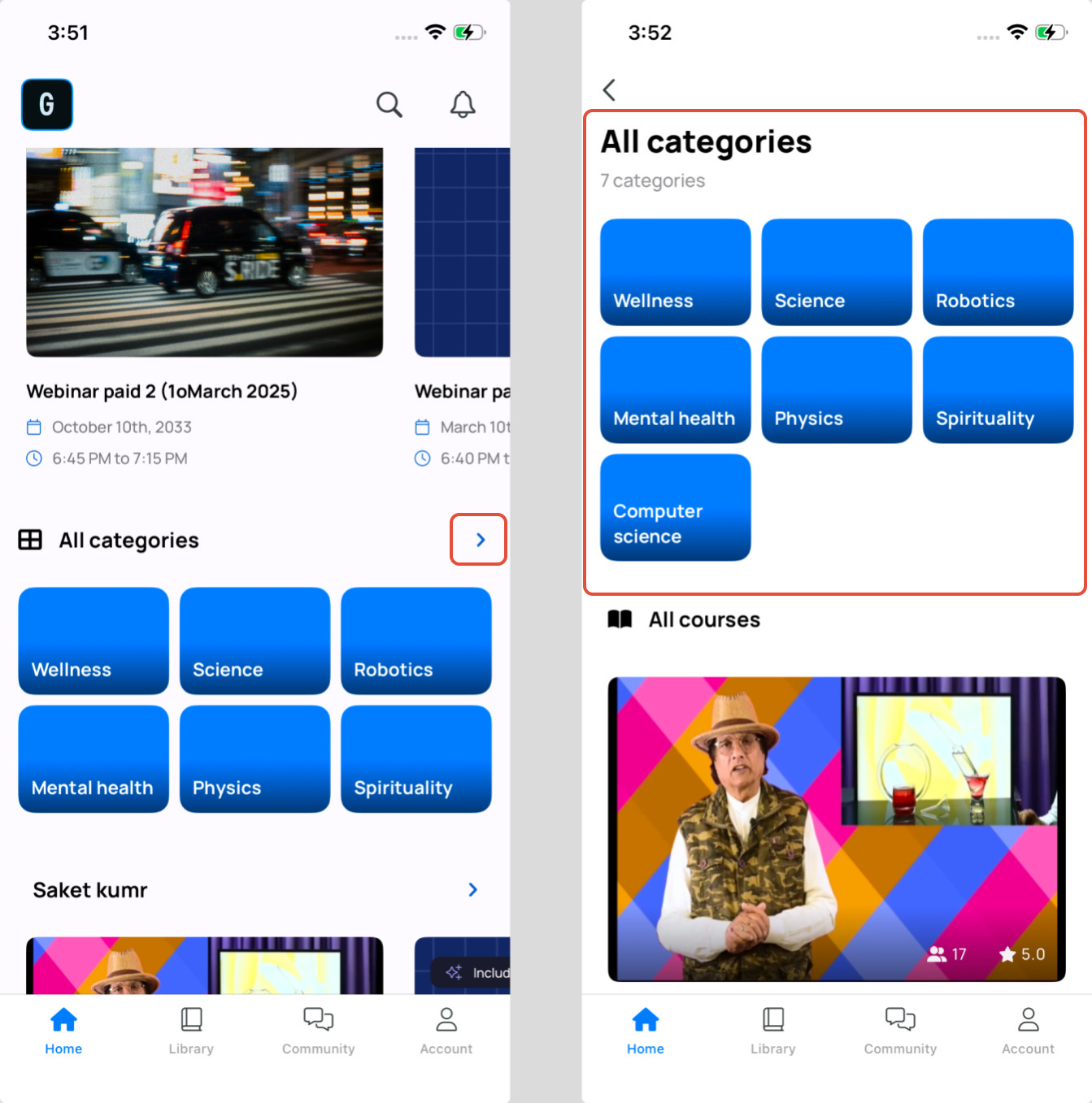
After selecting the "Vertical Display" and publishing your changes, the categories section on your mobile app homepage should look like this. The category cards should now appear in a 3x2 grid where your first 6 categories will be visible.
Note: The category cards in the section may appear differently on your mobile app if you have less than 6 categories listed on your Graphy Website Dashboard.
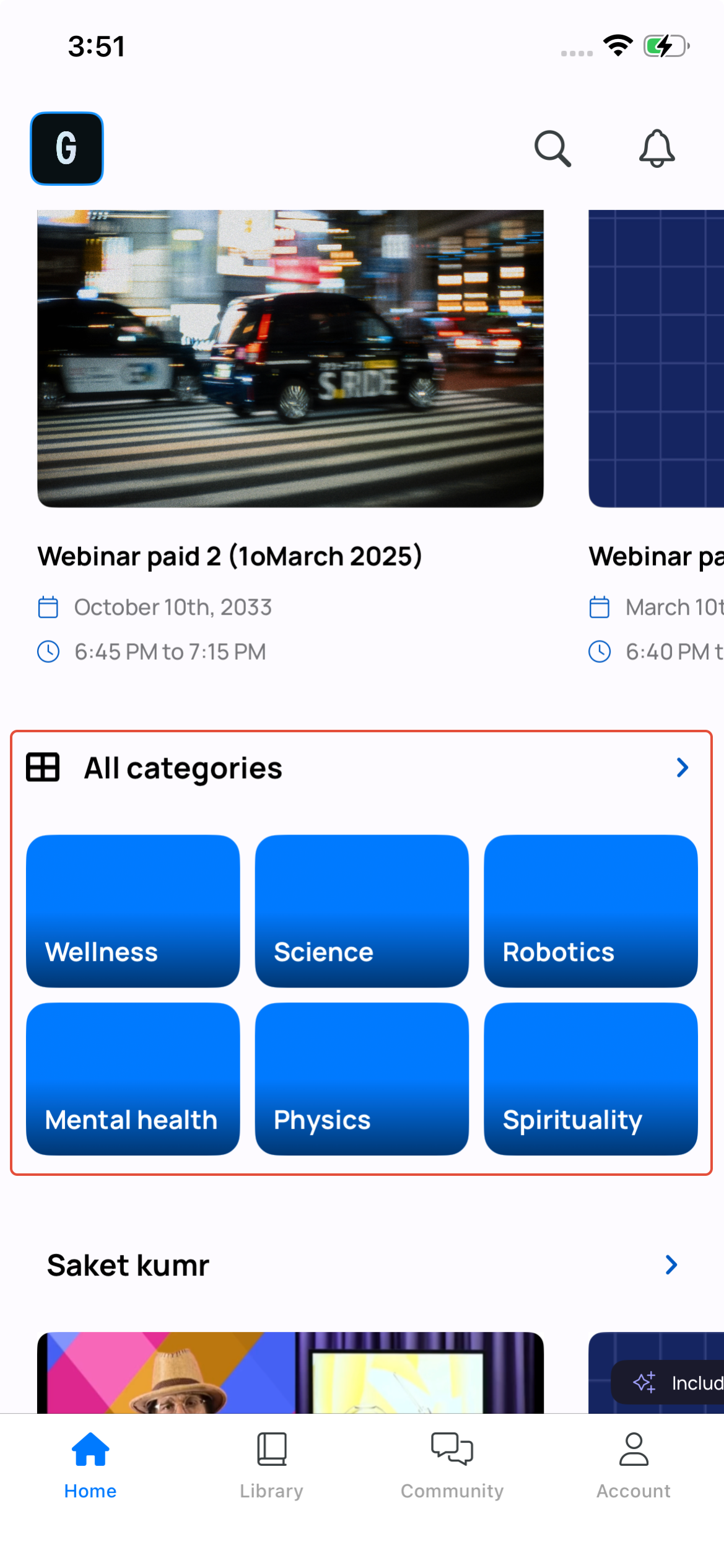
The learner can then click on the Chevron Right icon at the top of the section to view all the available categories. This will then take them to a new screen where they can see all the categories listed out in a similar grid layout.
Note: This Chevron Right icon will not be visible if the number of categories you have set up is less than, or equal to, 6.
Was this article helpful?
That’s Great!
Thank you for your feedback
Sorry! We couldn't be helpful
Thank you for your feedback
Feedback sent
We appreciate your effort and will try to fix the article