We are excited to introduce a powerful new feature that gives you complete control over your pricing strategy. Graphy now allows you to create custom split payment plans for your courses or packages, making it easier for learners to access your content through flexible payment options.
With this new functionality, you can split course and package fees into multiple instalments and customize each payment plan according to your specific needs.
How to Enable Split Payments: Step-by-Step Guide
Follow these simple steps to set up a custom split payment plan for your course:
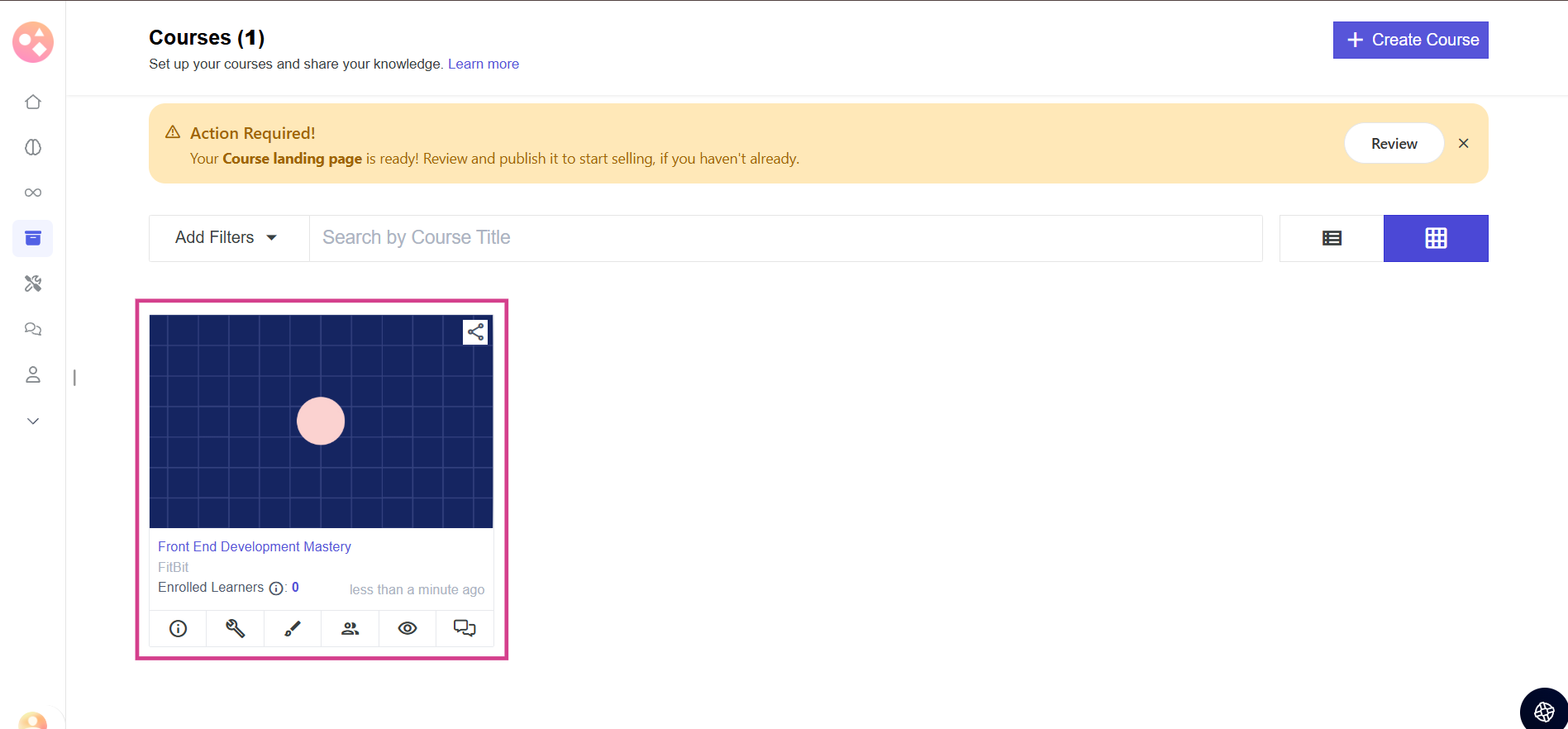
Step 1: Select the Course You Want to Add Custom Split Payment Plan Into
Navigate to your course dashboard and select the course for which you want to add a custom split payment plan. This is the foundation of setting up your flexible payment options.
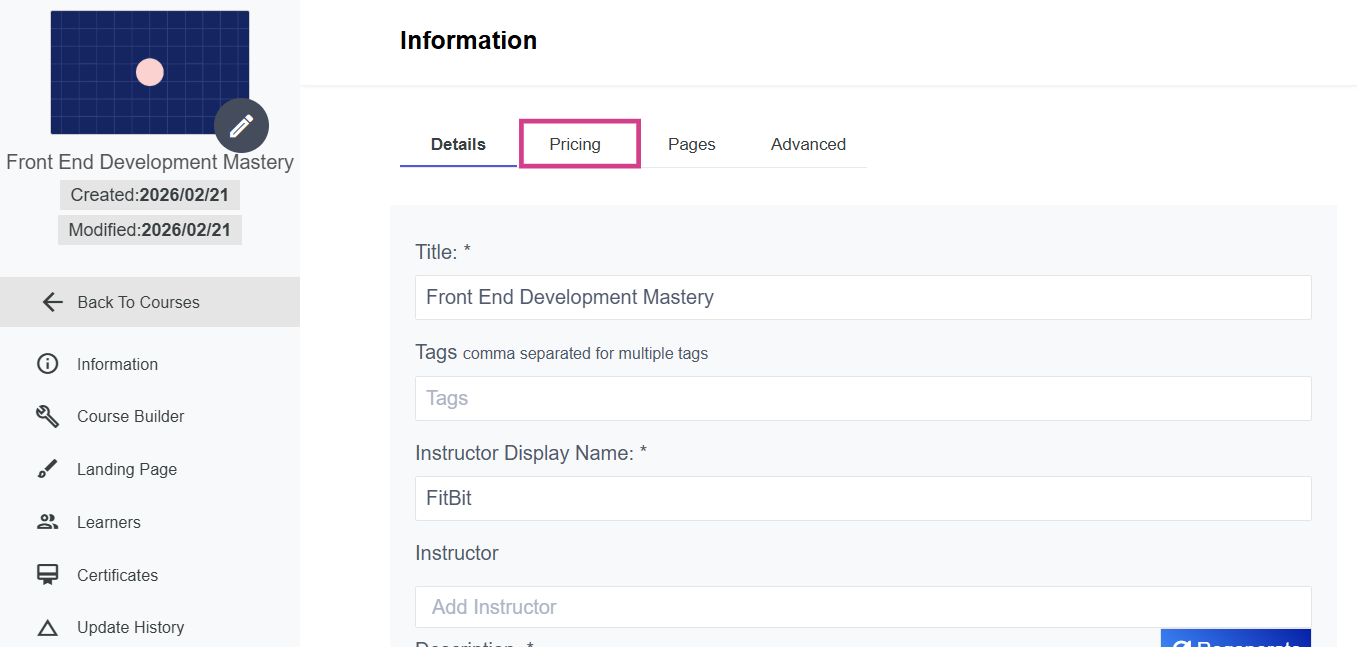
Step 2: Switch to the Pricing Tab
Once you have selected your course, locate and switch to the Pricing tab within the course details section. This is where all your pricing configurations and payment plans are managed.
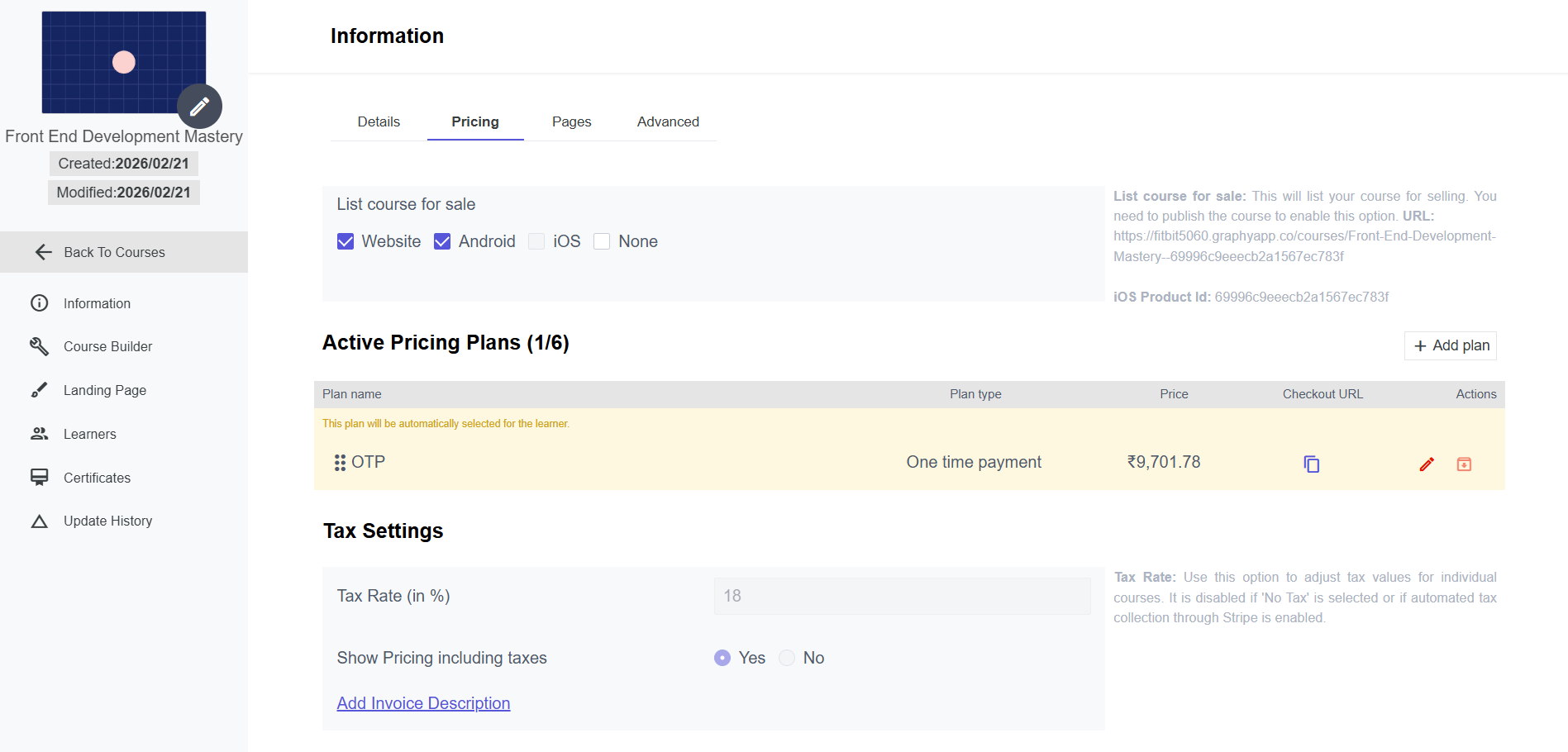
Step 3: Review Current Pricing Settings
In the Pricing tab, you will see your course's pricing settings and the plan you set at the time of course creation. Review these settings to understand your current configuration before adding the new split payment plan.
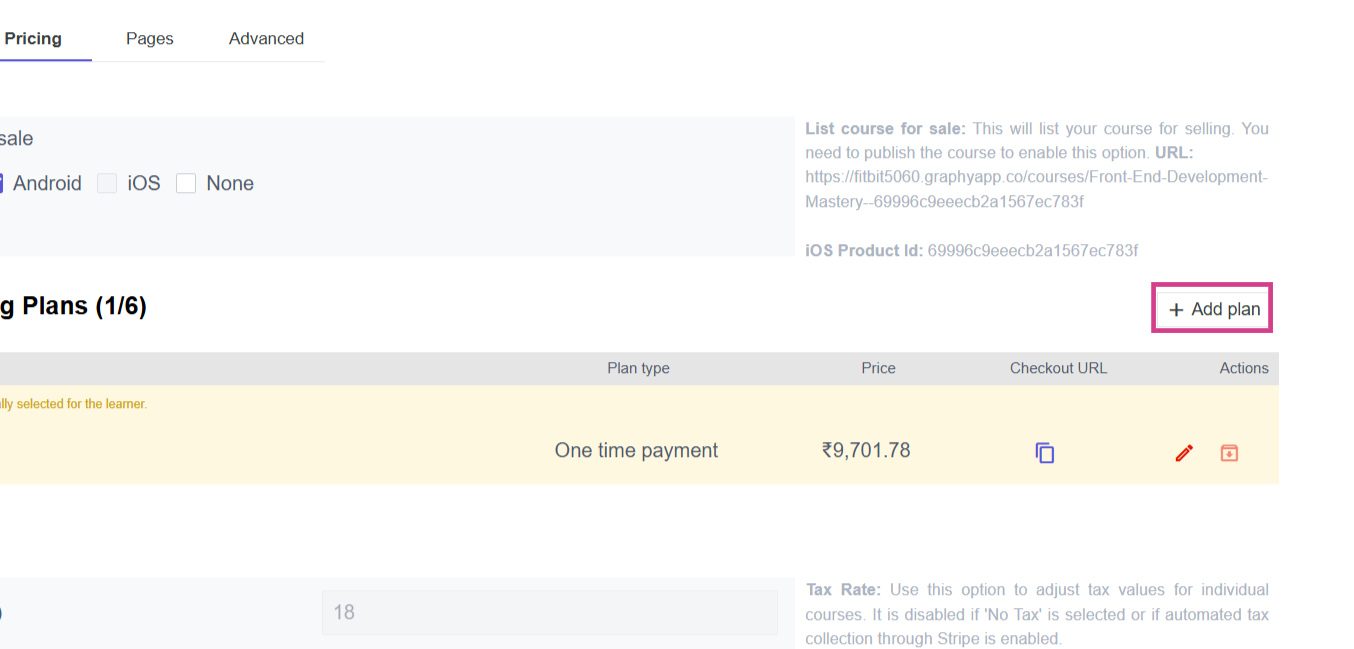
Step 4: Click on Add Plan
Look for and click the Add Plan button to start creating your customized payment plan. This will open the plan creation interface where you can define all the details of your split payment option.
Step 5: Select Split Payment Option
You will now see three payment plan options: split custom payment, free, and one-time payment. Select the split custom payment option to create an installment-based payment plan for your course.
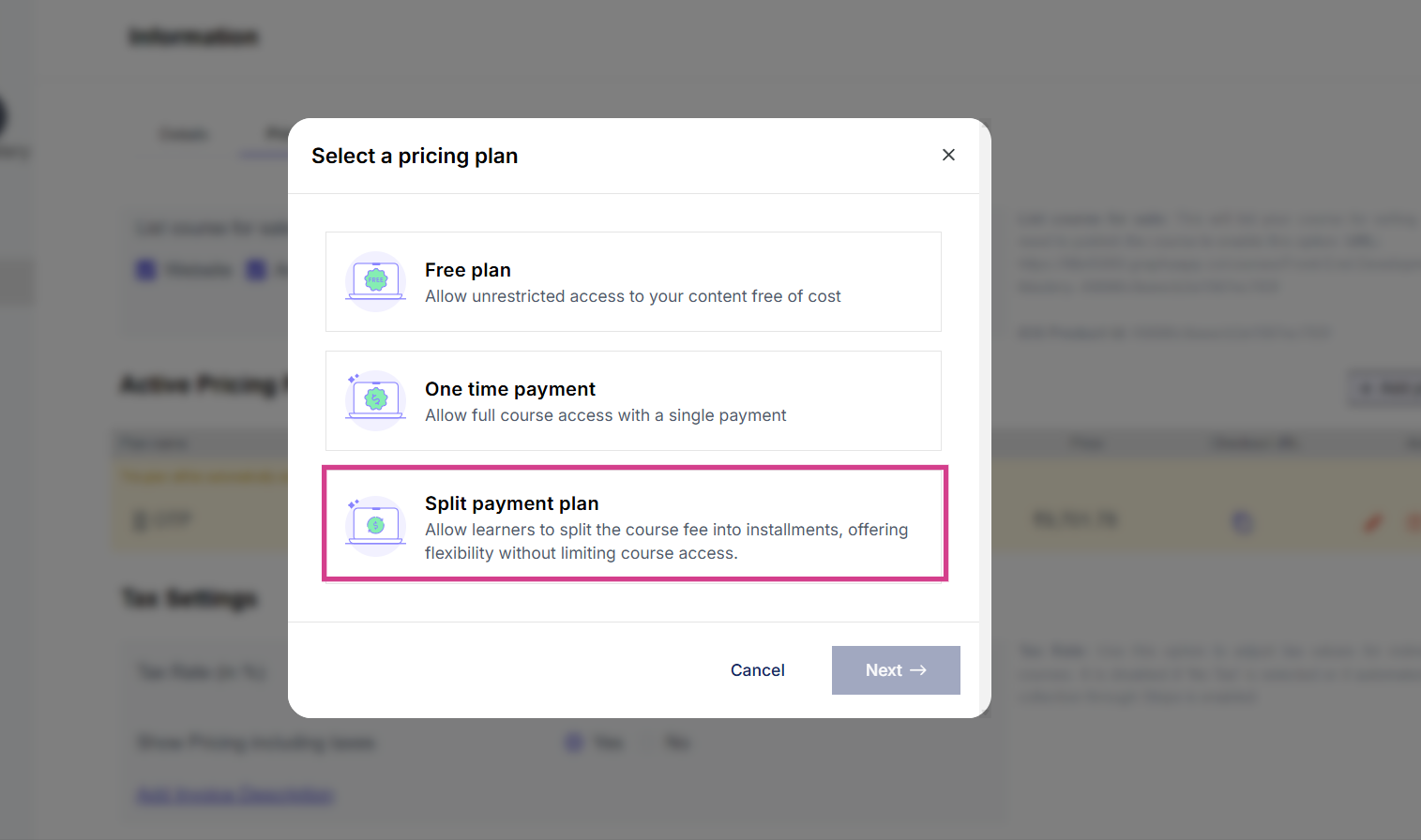
Step 6: Select the Split Payment Option and Click on Next
After selecting the split payment option, click Next to confirm your choice and proceed to the detailed configuration screen where you will set up the specific installment details.
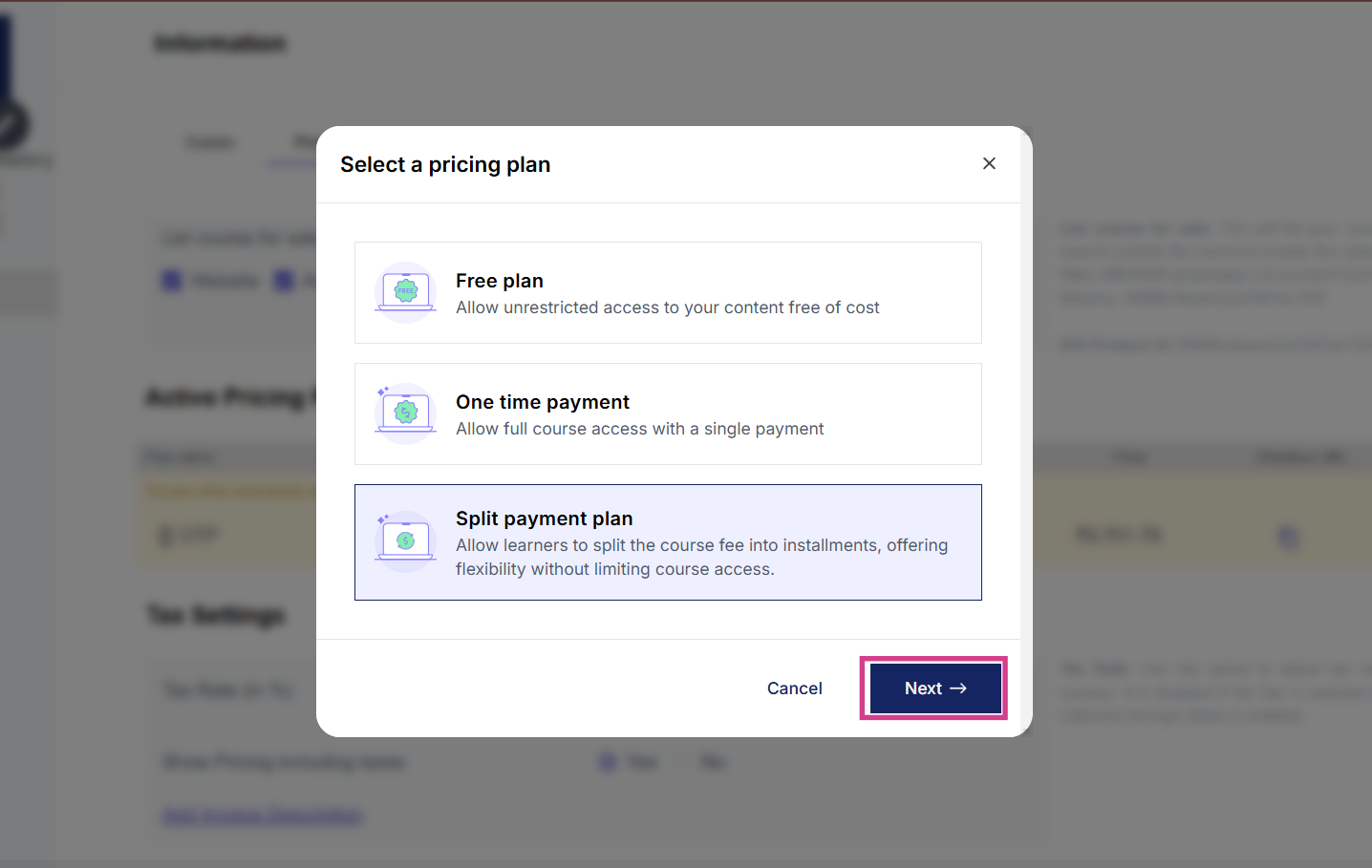
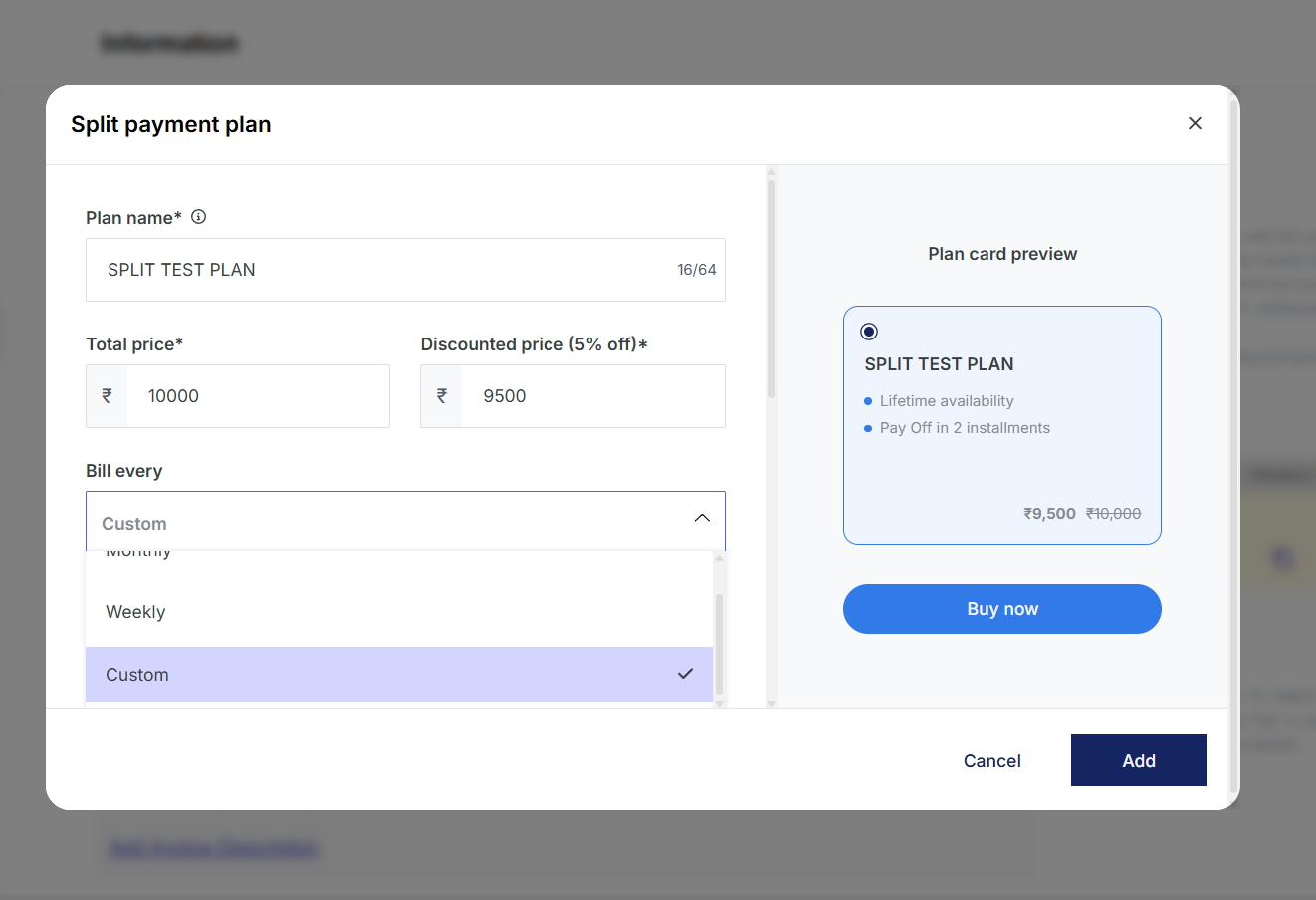
Step 7: Enter Plan Details and Select Custom Billing
Now it's time to configure the core details of your split payment plan. Enter the following information:
• Plan Name: Give your plan a clear, descriptive name
• Total Price: Enter the total cost of your course
• Discounted Price: Optional. Enter a discounted price if you want to offer a special rate for this particular payment plan
Under the Bill Every dropdown, you'll find a Custom option. Select it to create a fully customized payment schedule tailored to your needs.
Step 8: Enter Installment Amounts and Due Dates
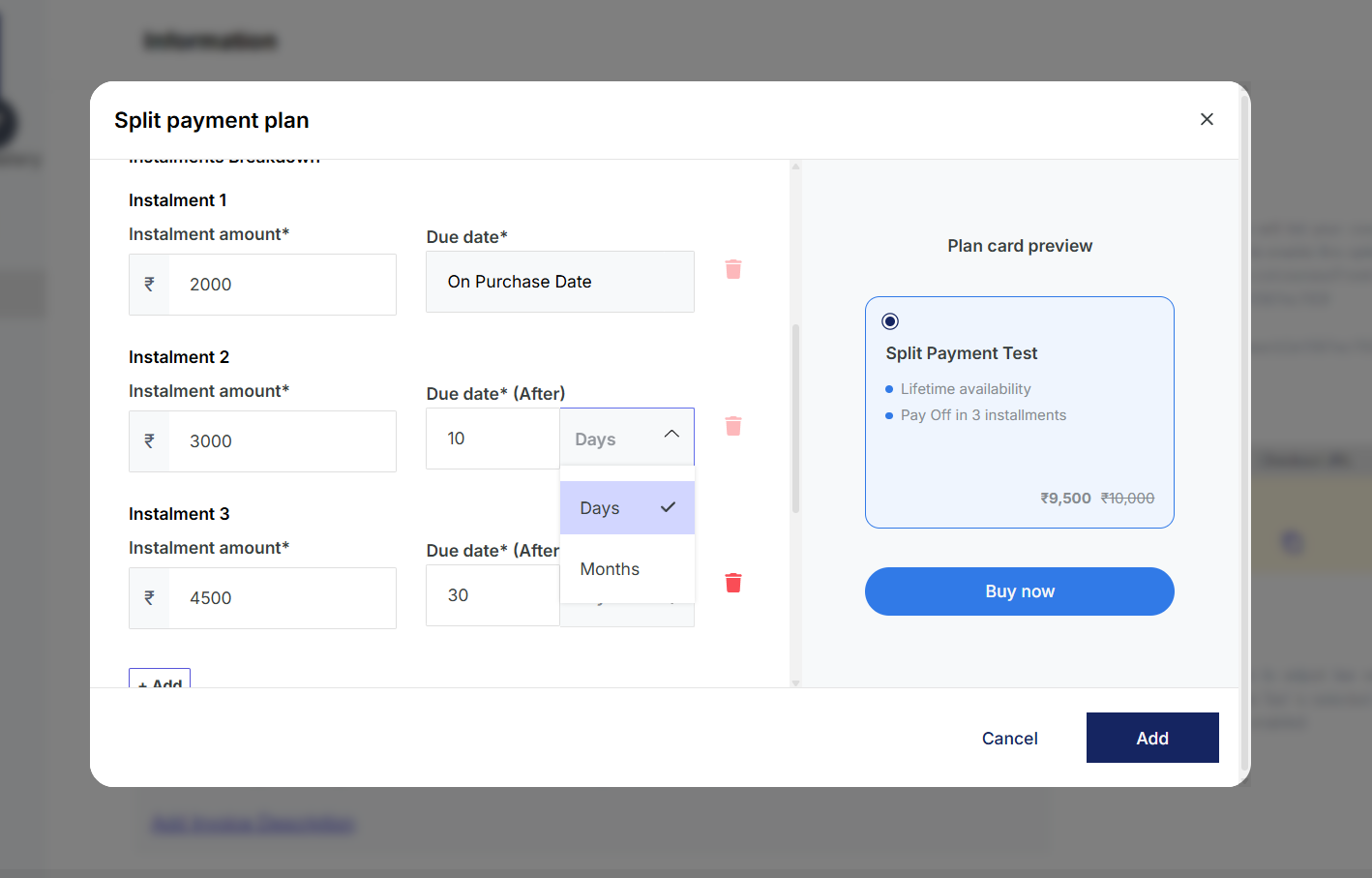
Enter the installment amounts and their corresponding due dates. The first installment will be due at the time of purchase, and you can customize the due dates for all remaining installments according to your preferences.
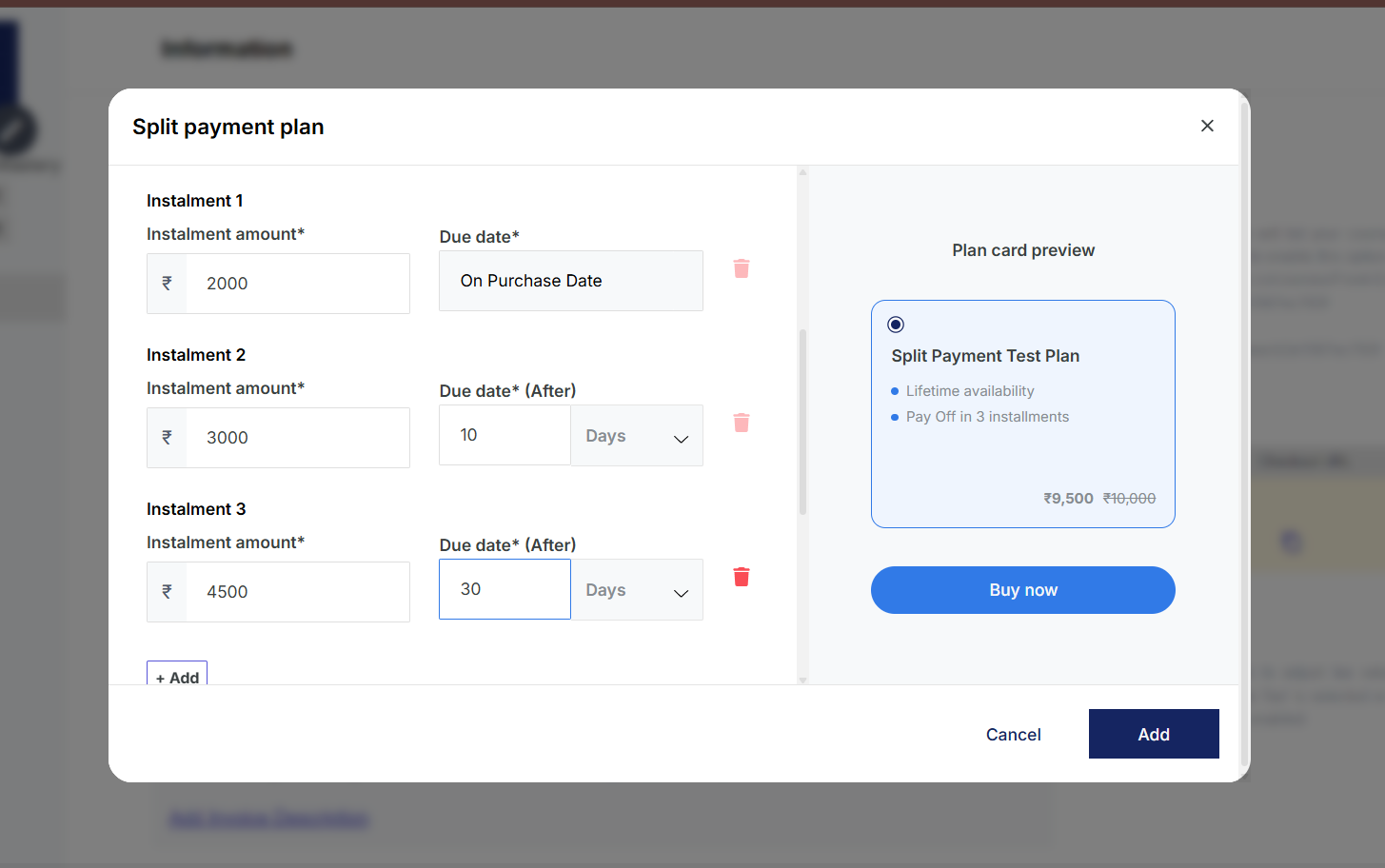
Step 9: Modify Due Dates Using Days or Months
For each installment, you have the flexibility to modify the due date either after a specified number of days or months as per your requirement. Choose whichever interval best fits your payment schedule and business needs.
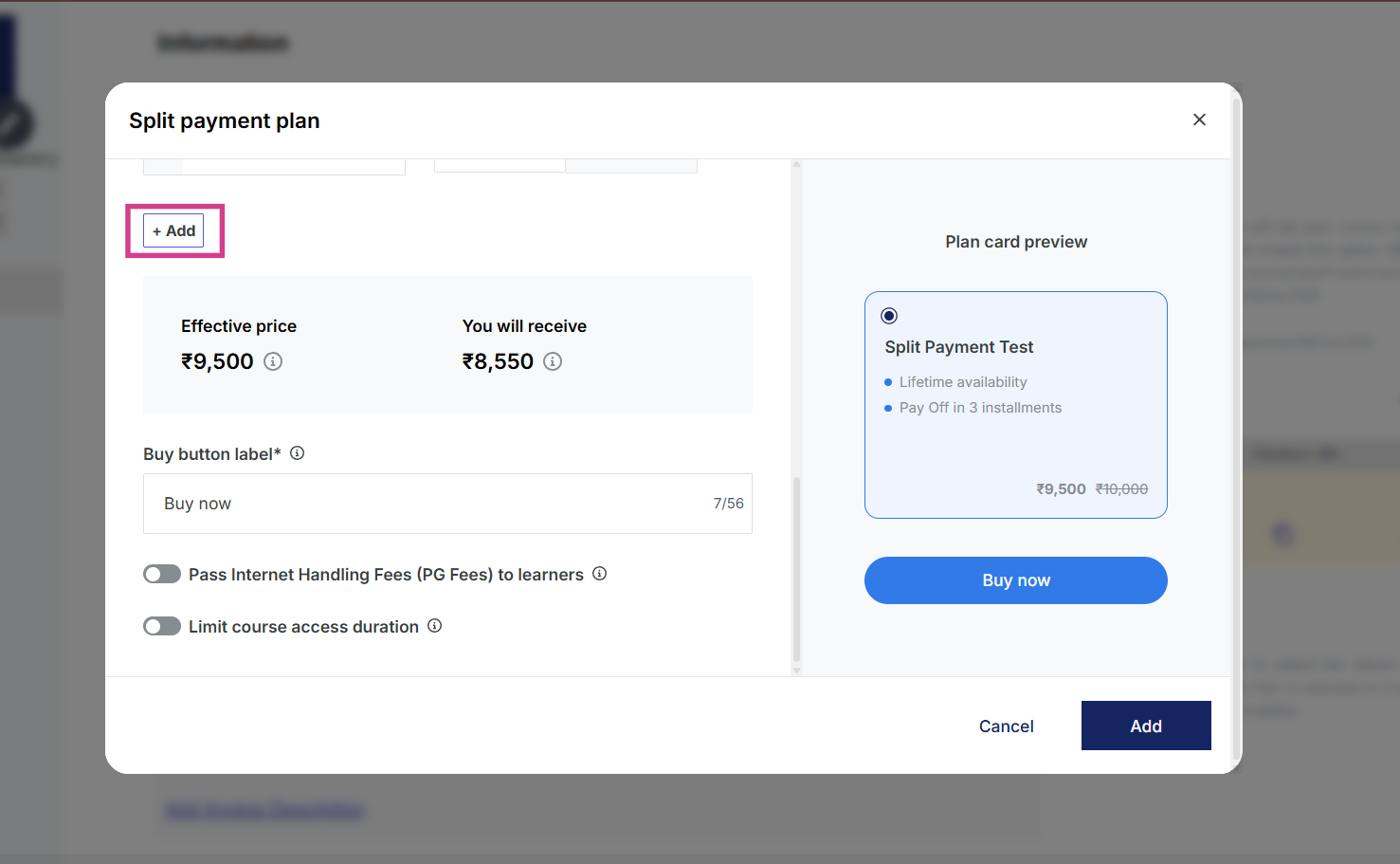
Step 10: Add More Installments if Needed
You can add more installments if you want to create a more granular payment schedule.
Important: The sum of all installments must exactly match the sale price to ensure the plan is valid and balanced.
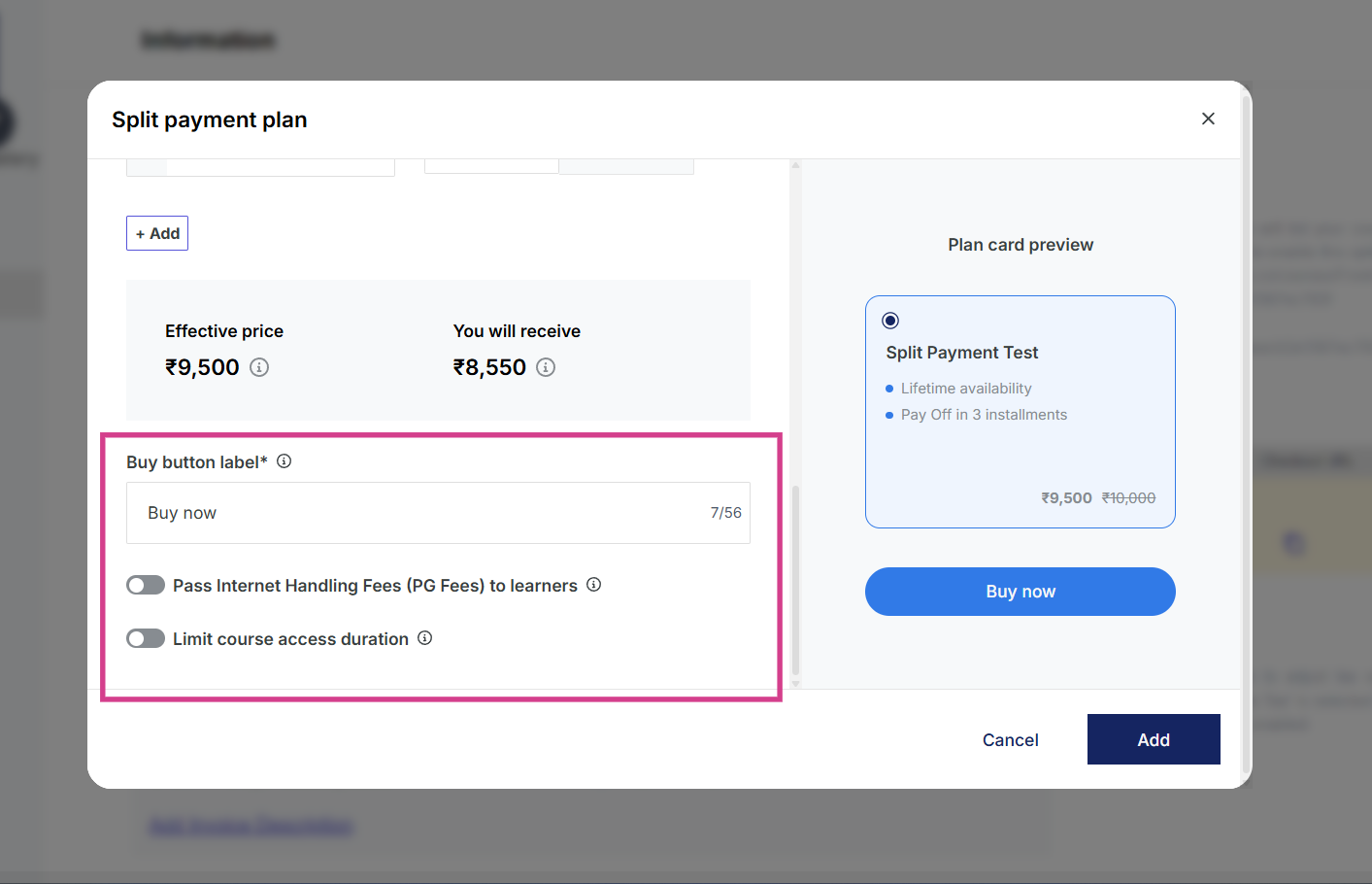
Step 11: Customize Button Label and Additional Settings
Graphy offers several advanced customization options to further tailor your payment plan:
• Buy Button Label: Customize the text on the purchase button to match your branding.
• Enable Payment Gateway Fees: Enable Pass Internet Handling Fees (PG Fees) to learners or absorb these costs yourself.
• Limit Course Access Duration: Set a limit on how long learners can access the course content.
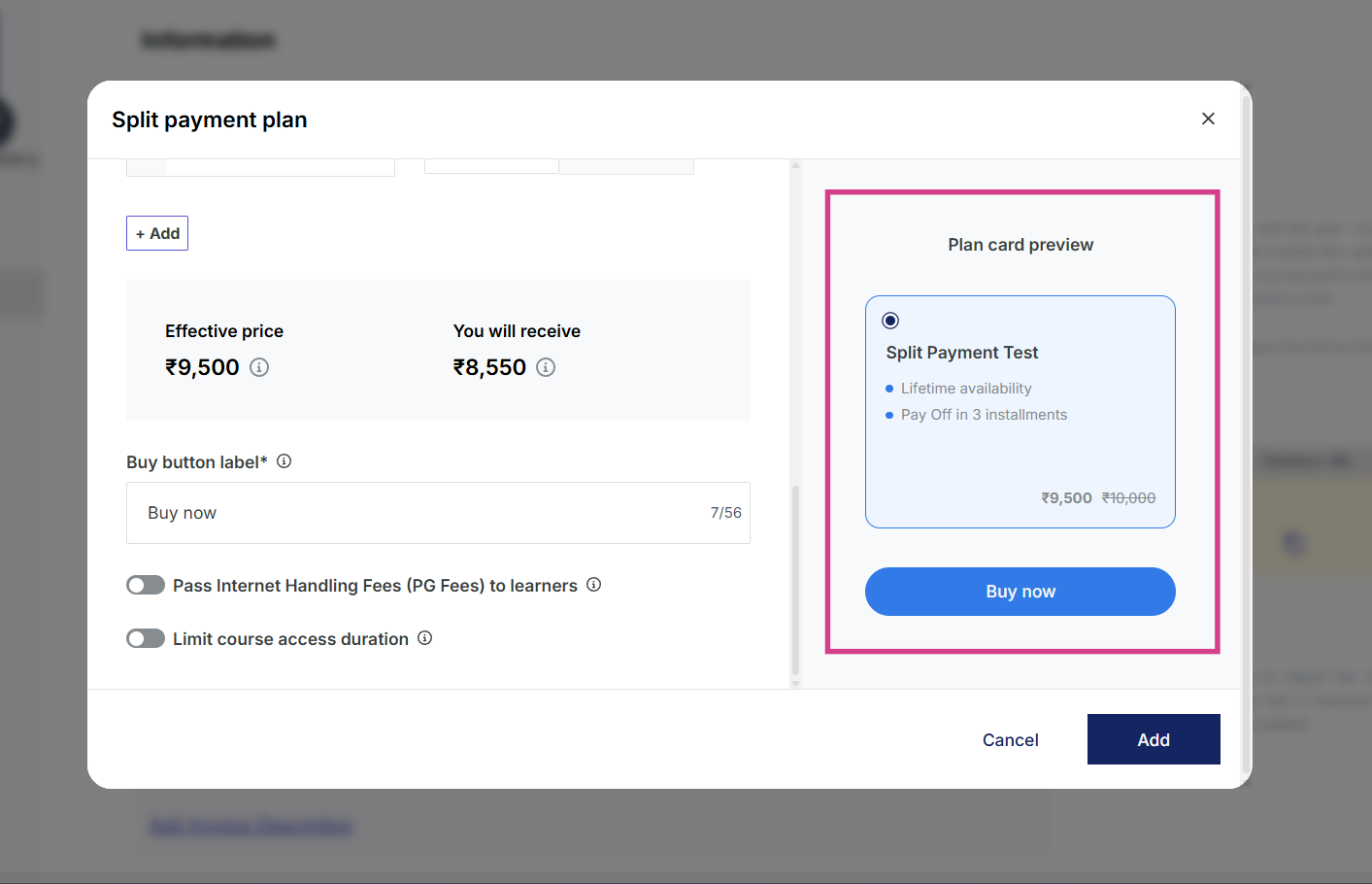
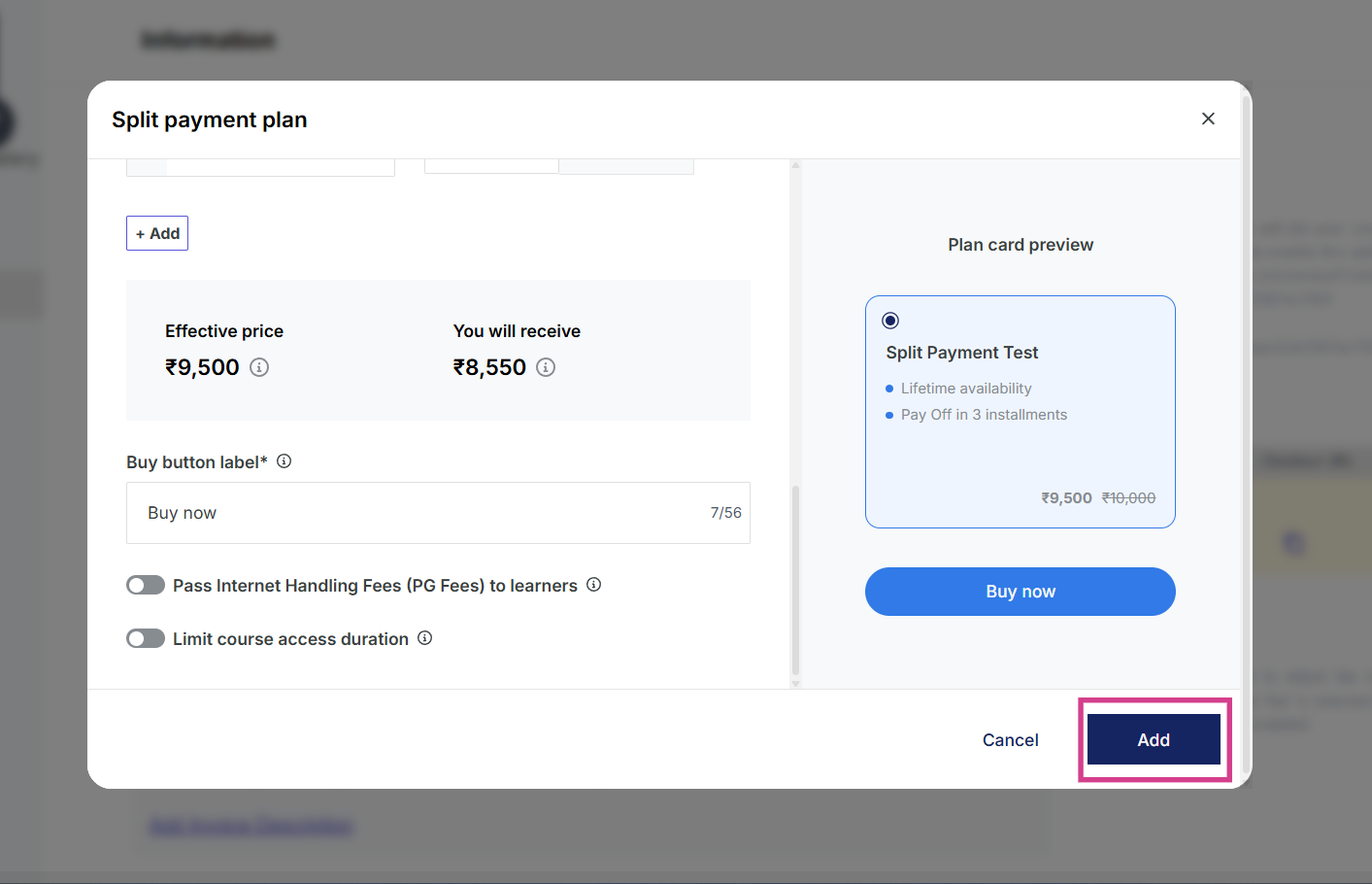
Step 12: Preview the Plan Card
You can see how the card will preview to the learners before finalizing. This allows you to ensure that all information is clear, accurate, and presented in the way you intend. Review the layout, pricing, and messaging to make sure it matches your expectations.
Step 13: Click on Add to Finalize Your Plan
Once you are satisfied with all your configurations and the preview looks correct, click the Add button to finalize your split payment plan. Your plan will now be created and ready to use.
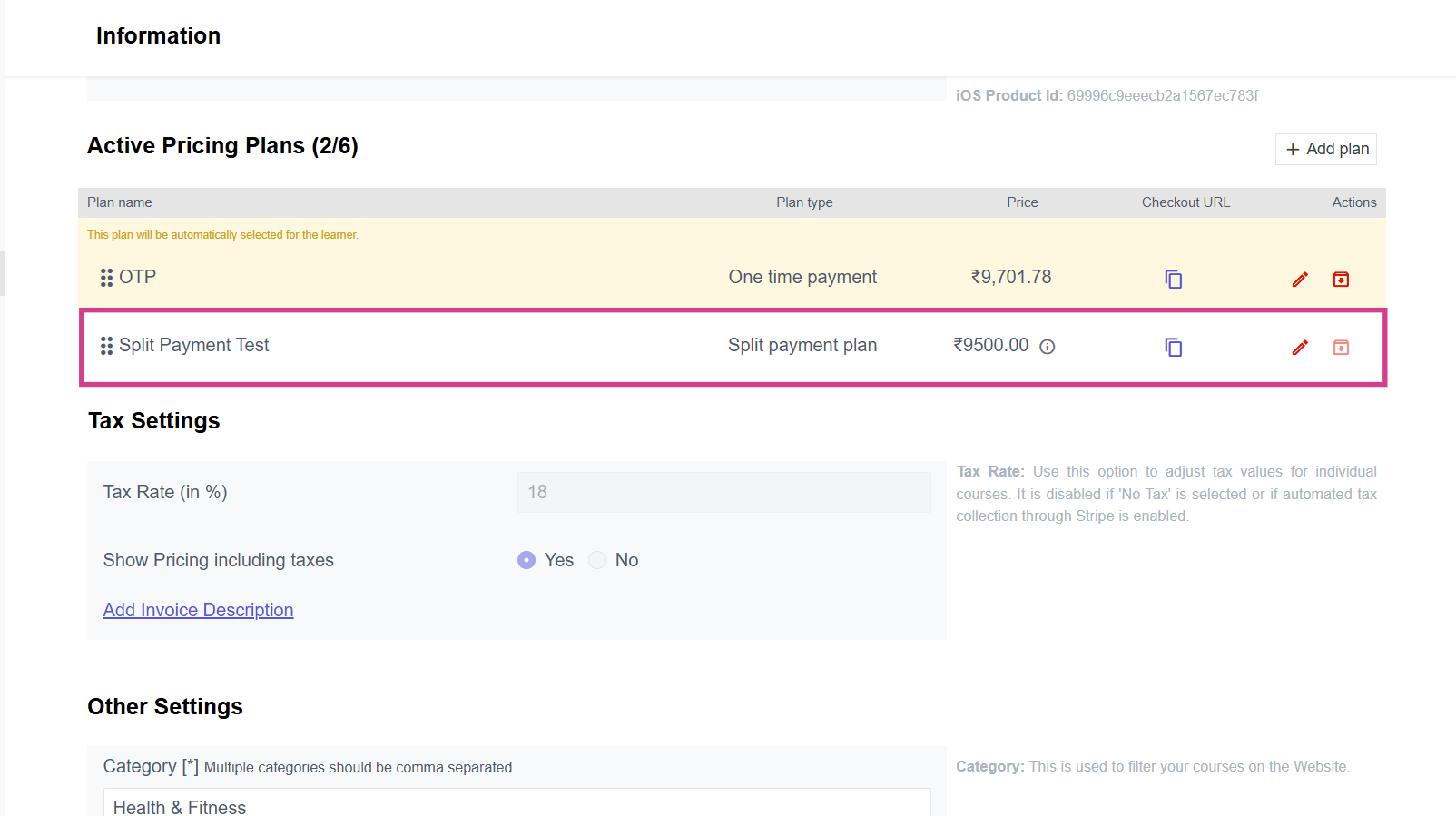
Step 14: View Your Plan in Active Pricing Plans Tab
You can see your split payment plan in the Active Pricing Plans tab. Your plan is now live and will be displayed to learners when they browse your course. You can view, edit, or manage this plan at any time from this section.
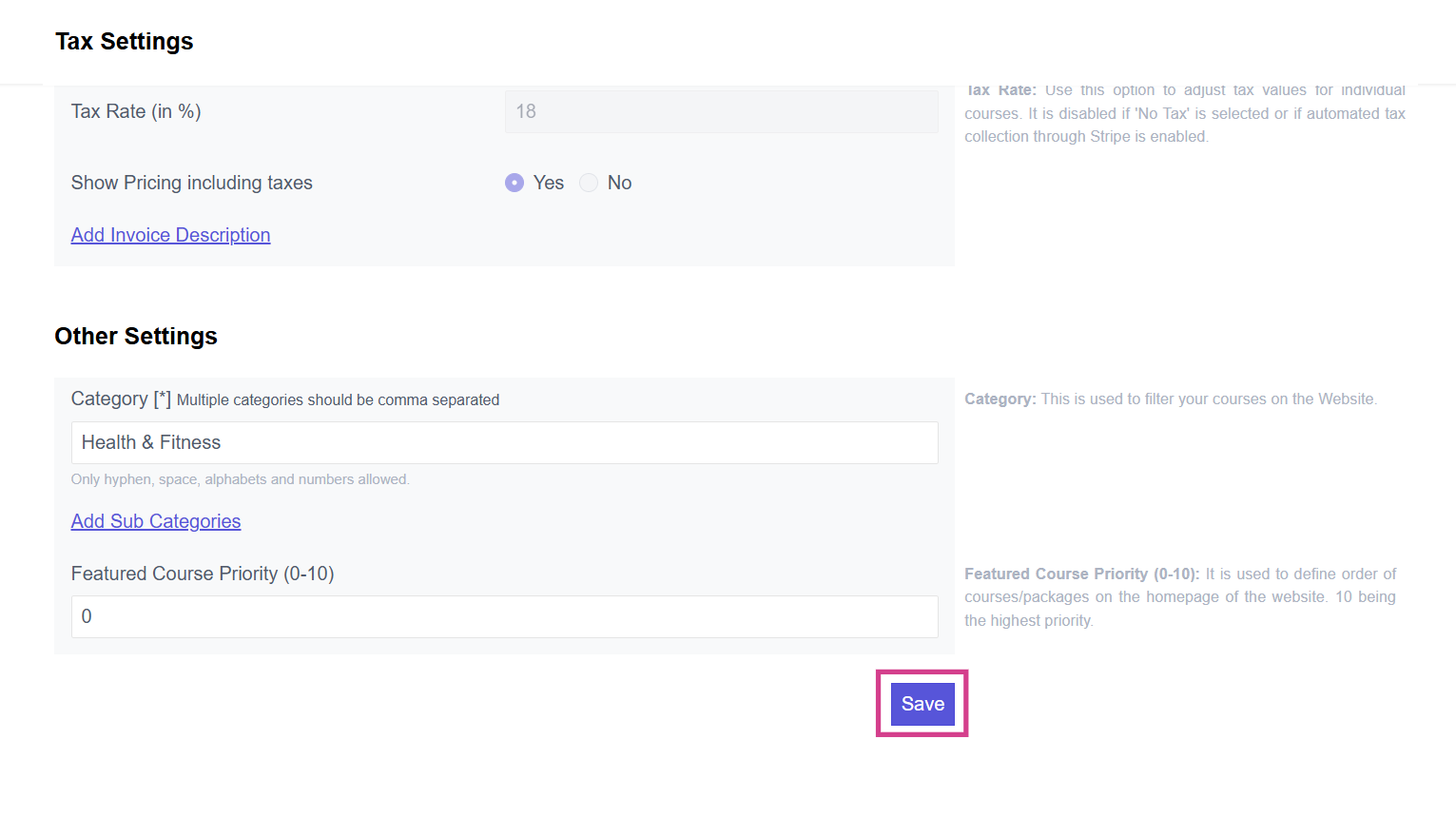
Step 15: Click on Save to Make Your Payment Plan Active and Visible for Learners
After your split payment plan appears in the Active Pricing Plans tab, click the Save button to finalize and activate your payment plan.
Once saved, your custom installment payment plan will become active and visible to all learners when they view your course. They will now see this flexible payment option available for purchase.
Was this article helpful?
That’s Great!
Thank you for your feedback
Sorry! We couldn't be helpful
Thank you for your feedback
Feedback sent
We appreciate your effort and will try to fix the article